
How to Use the MostMate App Center: Team App Categories and Environment Assignment Guide
Core takeaway: apps are added and enabled once in the App Center, categories handle the grouping, and environments draw from categories. Once those three steps are done, which extensions each environment carries is decided by configuration, not by every member installing things by hand. Below we cover where the section lives, the five-step workflow, how to design categories, and the details that trip teams up.
A team running social media and e-commerce side by side rarely needs the same browser extensions: social media work calls for publishing and analytics tools, e-commerce for price comparison and listing helpers. Which extensions sit on whose machine is the smaller problem. The real headache starts once environments multiply: nobody can say anymore which environment should have which extensions, and every new environment means another round of manual installs. MostMate is an anti-detect browser that pulls this work into an App Center: extensions get added and enabled in one place, then handed out to environments by category.
Why extension management is the first thing to fall apart when team apps pile up
The extensions themselves never get messy; what gets messy is that no single record exists of who uses what in which environment. Three situations come up again and again:
- Apps scattered everywhere. Extensions live in different members' browsers, and a change of person or machine means reinstalling. Ask which extensions the team actually uses and no one can answer.
- Environments drifting away from the business. E-commerce tools end up inside social media environments, and the more environments you run, the harder that cleanup gets.
- Work repeated by hand. Every new environment has someone installing extensions one by one, and anything missed or installed wrong has to be patched up afterwards.
All three share one root cause: apps get managed per environment.
Once environments multiply, apps are not the only thing to keep in order; groups, proxies and statuses all need attention, and the overall frame is laid out in multi-account environment management. The App Center pulls apps back up to the team layer: centralize first, then distribute.
Where the App Center lives and what it controls
The App Center (应用中心) sits in the left menu of the client, with two tabs: Team Apps (团队应用) and Recommended Apps (推荐应用). Team Apps holds the extensions already added to your team; each card carries a toggle that enables or disables the app. Recommended Apps is the optional catalog, and one click on "+ Add" moves an extension into Team Apps. There is one more entry point in the top-right corner: if the extension you want is not listed, you can go search the Chrome Web Store.
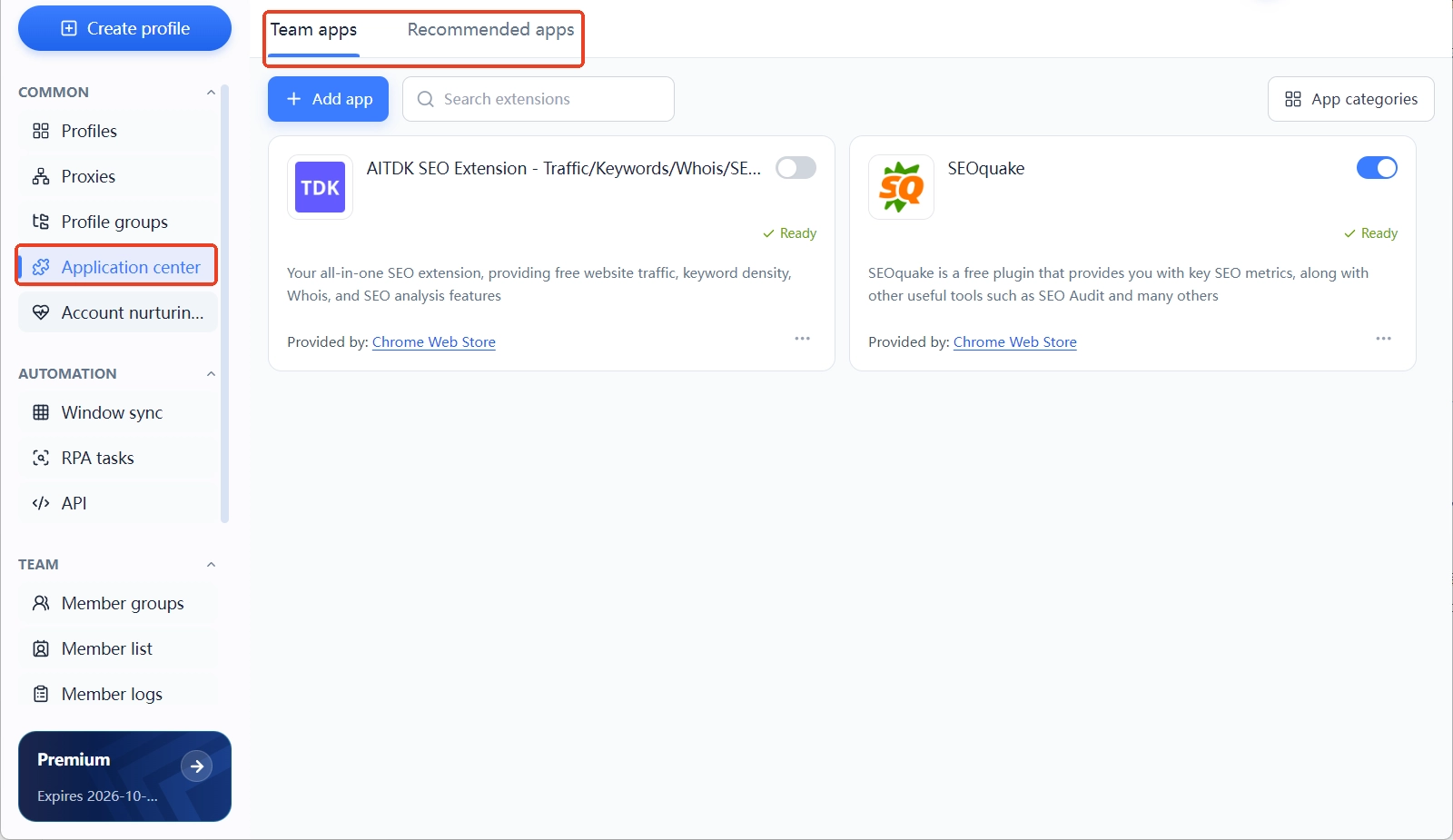
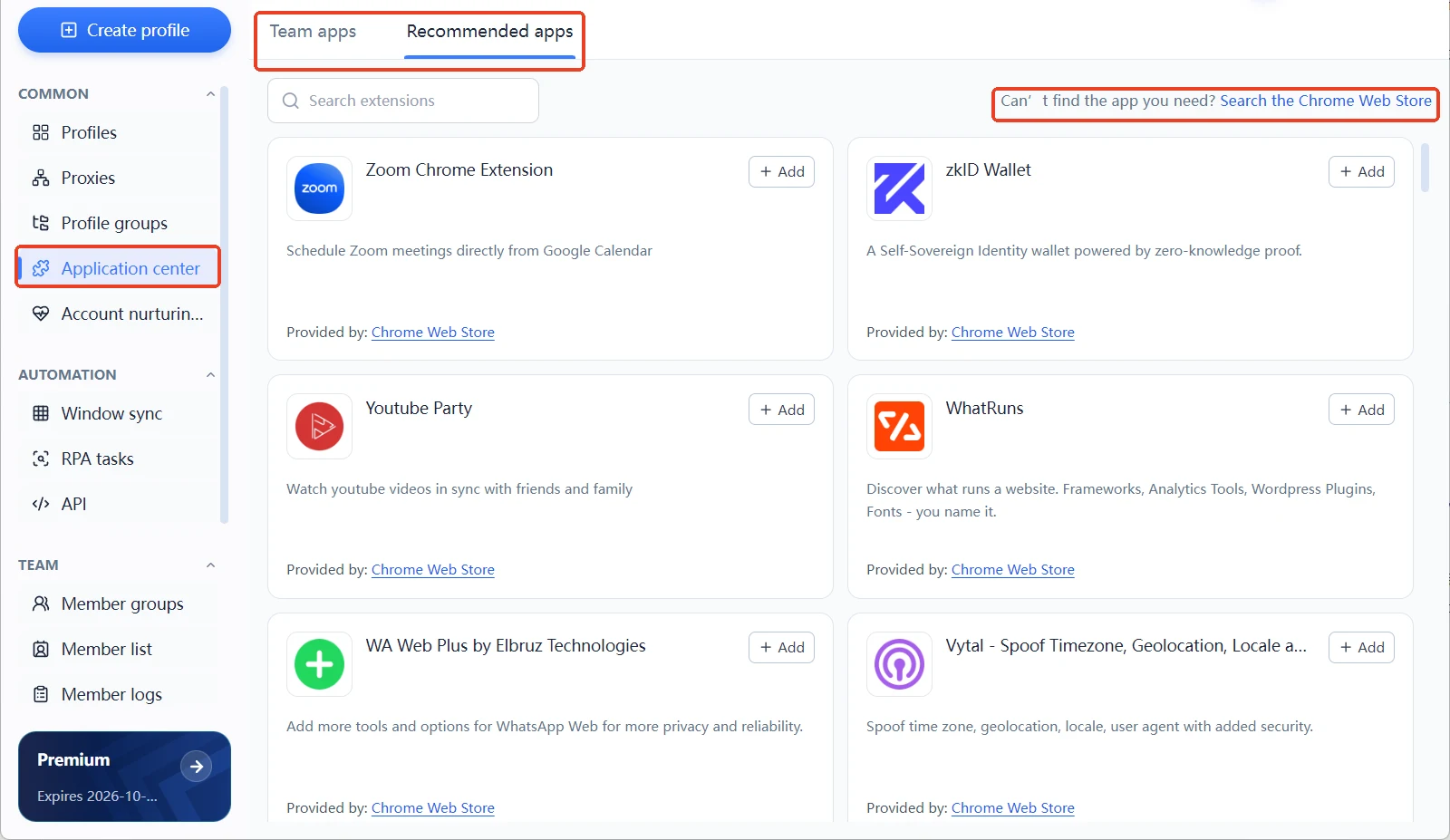
The relationship to browser environments is easy to picture: the App Center is the team's app repository, and environments are the workspaces where the actual work happens. What the repository holds and whether it is enabled is one layer; which apps a given environment installs is another. Keeping those two layers separate is what keeps large numbers of environments orderly. The product as a whole is described in what MostMate is; the isolation logic between environments was covered in what environment isolation is: assigning apps never touches the isolation boundary, it only puts tools inside an environment.
Assigning apps to environments by category: five steps
The whole flow comes down to three moves: add and enable apps, group them into categories, and let environments pick categories. In detail:
Step 1: add the extension to Team Apps and enable it. Find the extension under Recommended Apps and click "+ Add" on its card. Back in Team Apps, switch on the toggle to the right of the card. An app that is not enabled cannot be added to a category later.
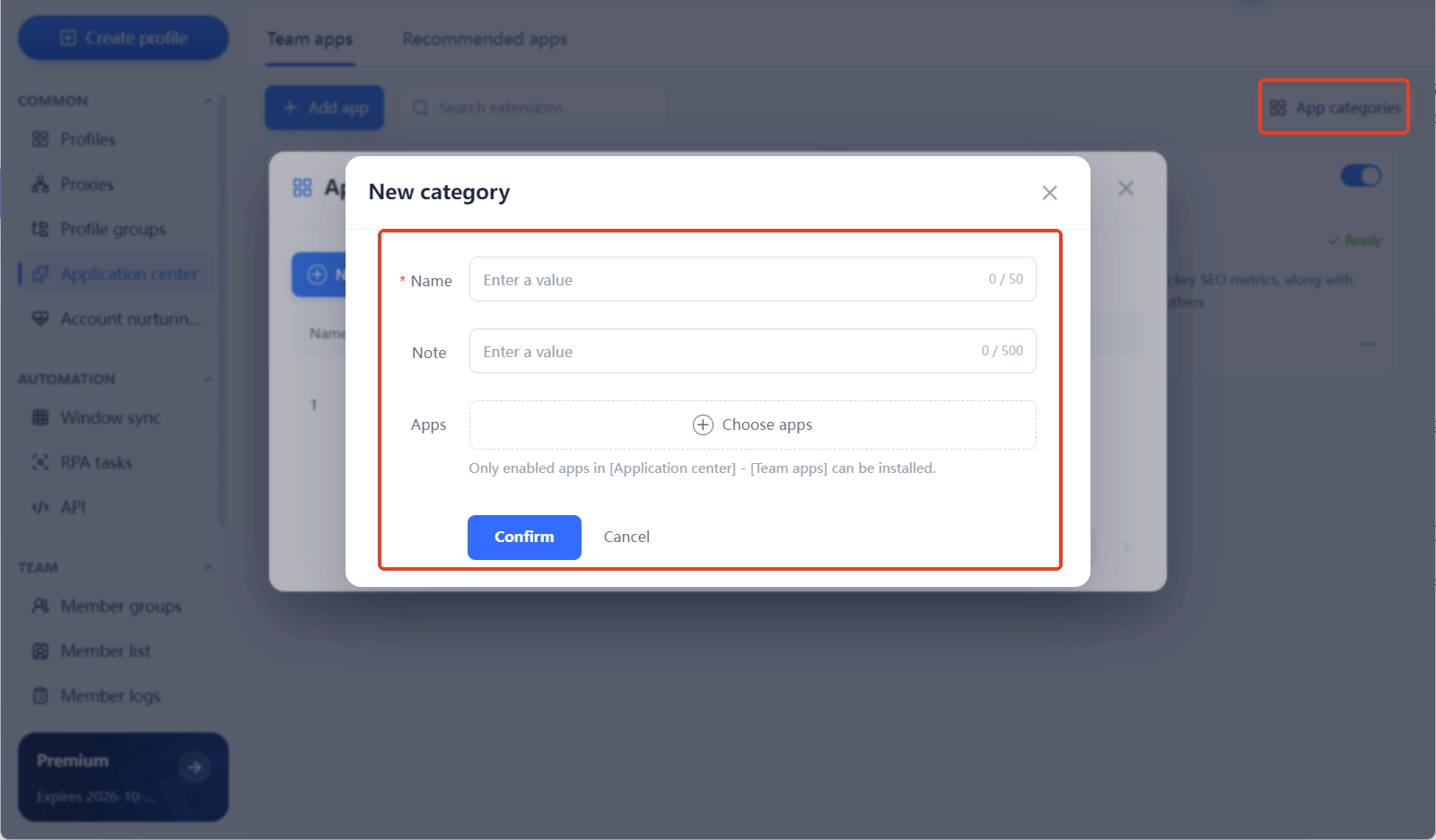
Step 2: create a category and tick the apps. Open "App Categories" (应用分类) in the top-right corner and click "New category" in the dialog. The name is required, capped at 50 characters; the note is optional, up to 500. Then tick apps in the "Apps" section: only enabled Team Apps show up there.
Step 3: open the app settings of the target environment. Create or edit an environment in Environment Management (环境管理), scroll down to Advanced Settings (高级设置), and "Apps" is the first item. If you have not built an environment yet, start with the getting started guide.
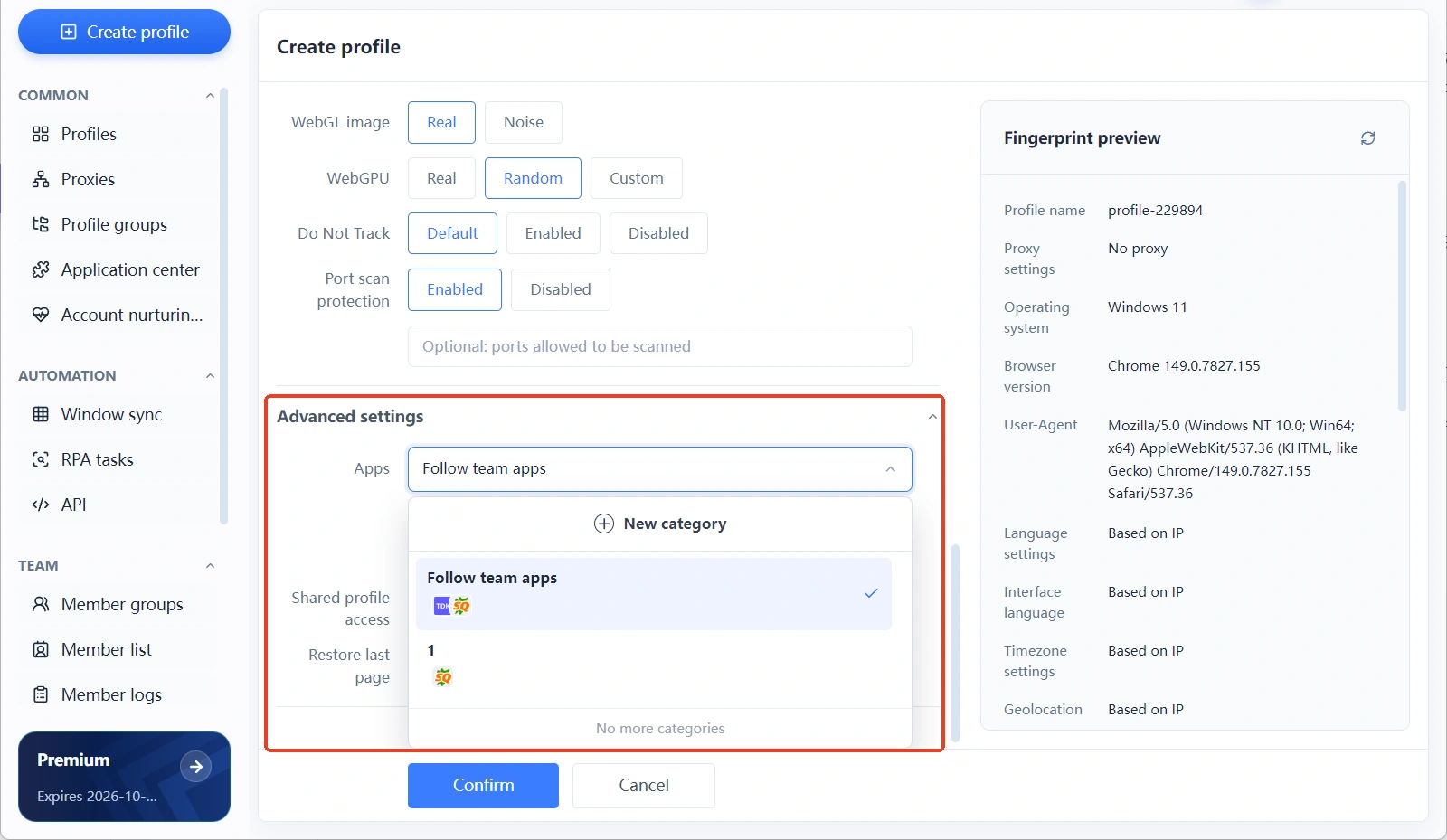
Step 4: pick a category and save. The app dropdown defaults to "Follow Team Apps". Leave the default in place and the environment installs every enabled Team App; switch it to a chosen category and the environment installs only that set. Once selected, the panel below shows "3 apps selected", along with a note that installation will follow the enabled apps in App Center > Team Apps. Double-check, then save the environment.
Step 5: launch the environment and verify. Start the environment and confirm in the browser that the extensions are actually there. Nothing showing? Go back and check two things: whether the app toggle is on, and whether the right category was picked.
How to build categories so you never have to redo them
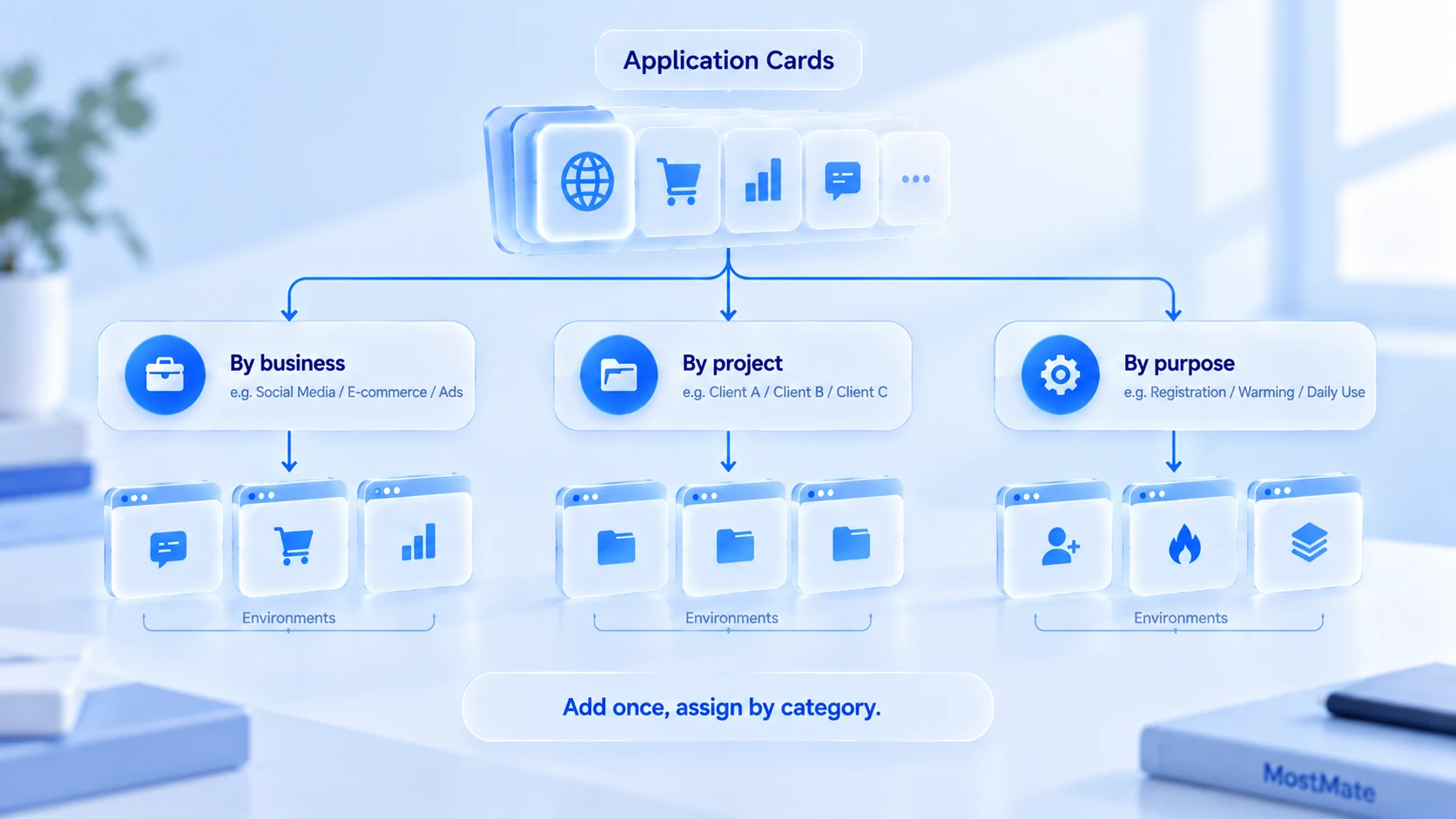
Categories should follow the business, not the tools. Three common schemes:
- By business line. One category each for social media, e-commerce and ad buying; environments pick by line of business. Fits teams with a clear division of roles.
- By project or client. One category per project, switched off wholesale on delivery or closure. Fits teams serving several clients at once.
- By environment purpose. Registration, account warming and daily operations kept apart, each with its own tools. Fits teams with finely sliced processes.
Whichever you pick, category names should map to what environments do.
Seeing the category name in the environment list tells you what that environment carries; that is what makes the assignment auditable.
The details that decide whether assignment lands correctly
- Toggle state beats category. Once a category is built, an app can still get switched off; environments, per the notice, install only "enabled apps", so a new environment will not receive it.
- "Follow Team Apps" is the take-everything mode. If only some environments should carry some of the extensions, do not stay on the default; pick a category explicitly.
- Categories can be edited and deleted. When the business shifts, adjust the members or delete a category in the "App Categories" dialog and re-select on the environment side. Deleting a category never touches the apps themselves.
- Permissions follow team settings. The App Center lives inside the team workspace, and who can change what depends on your role configuration. For dividing work across many people, multi-account management at scale walks through the 10, 50 and 100 account tiers.
FAQ
After building a category, do I still need to assign apps to environments separately?
Yes. A category only groups apps. The environment side still has to select it under Advanced Settings > Apps before anything gets installed.
Can one category be assigned to multiple environments?
Yes. Environments that select the same category install the same set of apps, which is exactly how you keep a batch of environments identical; environments that need to differ simply pick another category.
Does assignment sync login data too?
No. Assignment decides only which extensions get installed; account data stays inside each environment and is never shared between them.
What if I later want to add or remove an app for one environment?
Three ways: adjust the category and re-test the environment, switch the environment to another category, or toggle the app directly. After any change, launch the environment and confirm the extension states.
Closing
The App Center solves a maintenance problem at the team level: extensions added once, grouped by category, drawn into environments on demand, with configuration deciding what each environment carries. Teams running environments at scale should settle their category scheme first, then create environments in batches; that beats patching installs one by one afterwards. Start from downloading MostMate and walk the flow once while building your first environment.

MOSTMATE
Secure Multi-Account Management, Made Simple
Start with your first account and use MostMate to build safer, smarter, and more efficient multi-account operations.
- Independent profiles. Consistent identities.
- AI Automation · Account Health · Team Operations



