
Keep environments separate
Build workflows around distinct profiles, with browser storage and sessions managed independently.
{ }BUILT FOR YOUR WORKFLOW
Connect MostMate to your scripts, business tools and AI workflows. Manage browser profiles through a local interface, with clear boundaries between accounts.
Local access · Independent profiles · Your workflow
Your tools
 Local API
127.0.0.1On your computerBrowser profiles
Build workflows around distinct profiles, with browser storage and sessions managed independently.
Use HTTP requests from your software. Your code handles the business logic; MostMate manages the supported environment operations.
Query, create, update, start and stop profiles from your tools instead of repeating environment-management steps by hand.
Check the local service, then query the environments your account and team can access.
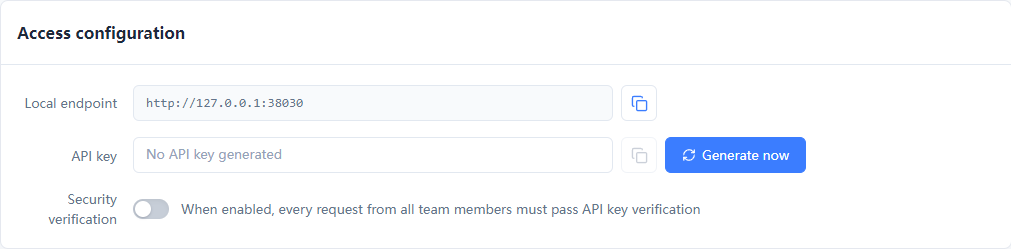
Start the desktop client and sign in to the team you want to use.
For the profile-list example, generate a key, enable Security verification, and set MOSTMATE_LOCAL_API_KEY locally. Key management requires Professional or above.
Run the example on the same computer. Check both the HTTP response and the returned code before building your workflow.
GET/healthz
import json
from urllib.request import urlopen

with urlopen("http://127.0.0.1:38030/healthz", timeout=15) as response:
    result = json.load(response)
if result["code"] != 0:
    raise RuntimeError(result["msg"])
print(json.dumps(result["data"], indent=2))
The health check does not require an API key.
POST/api/v1/profile/list
import json, os
from urllib.request import Request, urlopen

request = Request(
    "http://127.0.0.1:38030/api/v1/profile/list",
    data=json.dumps({"page": 1, "limit": 5}).encode(),
    headers={
        "Content-Type": "application/json",
        "Authorization": f"Bearer {os.environ['MOSTMATE_LOCAL_API_KEY']}",
    },
    method="POST",
)
with urlopen(request, timeout=15) as response:
    result = json.load(response)
if result["code"] != 0:
    raise RuntimeError(result["msg"])
print(json.dumps(result["data"], ensure_ascii=False, indent=2))
This example assumes Security verification is enabled and your current key is set in MOSTMATE_LOCAL_API_KEY.
Run locally with Python 3. These examples check status or query profiles; they do not start browsers or modify data.
Use direct requests, browser automation or a supported AI tool. The same profiles stay at the center.
Work with profiles, groups and proxies through documented endpoints. Start small, check responses and extend your own workflow.
Starting a profile returns a Puppeteer WebSocket address and a Selenium debugger address. Use the returned connection details for browser actions.
/api/v1/profile/list/api/v1/profile/start/api/v1/profile/stop/api/v1/group/listMOSTMATE SKILL
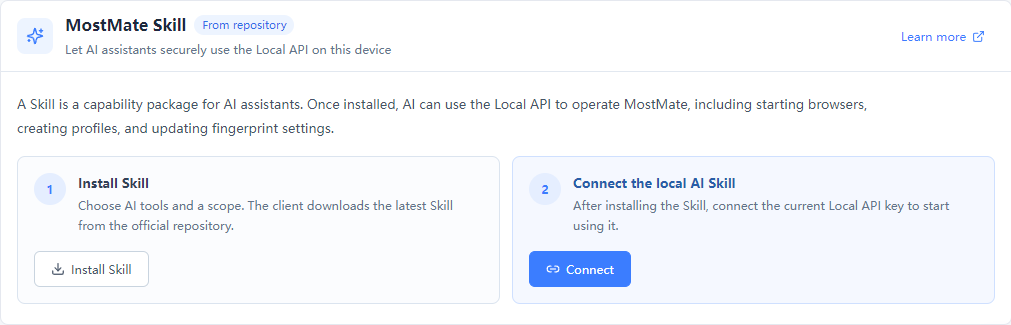
Install MostMate Skill, restart your AI tool, then connect Local API. Use supported tools such as Claude Code, Codex or Cursor to manage environments with natural-language instructions.
Skill requires Professional or above and the relevant team permissions. Installing and connecting are separate steps.
Yes. Local API runs with the desktop client and uses its signed-in account and team. It listens on 127.0.0.1:38030 and is not directly accessible from the LAN or public internet.
No. Security verification is off by default. Business requests require a valid key when a key exists and verification is enabled. GET /healthz remains public. Review this setting before connecting your tools.
Local API exposes supported operations to your programs. RPA runs configured browser workflows. Skill lets supported AI tools call Local API after installation and connection; it does not remove account or team permission requirements.
The documentation describes Puppeteer's browserWSEndpoint and Selenium's debuggerAddress. Check the returned WebDriver status and your client and framework versions. The API controls environments; your automation code performs the website actions.
MOSTMATE LOCAL API
Start with the documentation. Build the workflow that fits your team.
Loading messages…
You are viewing a previous conversation.
Enter to send · Shift + Enter for a new line