
Managing 2FA in Multi-Account Teams: Authenticators, Backup Codes and Account Handover
Studios running e-commerce or social media teams often get stuck on 2FA when staff change. An operator is leaving, and half of the dozen-plus platform accounts under his name have two-step verification enabled. The authenticator sits on his personal phone. The password can be changed on the spot, but the six-digit code at login can only wait for his phone to pop up.
The root of the problem is that 2FA, in personal use, is a set-and-forget security switch. In a multi-account team, it becomes three kinds of assets that need ongoing management: where the authenticator lives, where backup codes are stored, and how things are handed over when someone leaves. If any one of them is left unarranged, the account stalls at the verification step. In the worst cases, the team is locked out entirely.
This article covers three things in management order. First decide how authenticators are deployed, then manage backup codes as a recovery layer, and follow a fixed sequence for handover. Each part comes with a practice you can copy straight into your team playbook.
When Accounts Multiply, 2FA Turns from a Security Switch into an Operations Task
The principle of 2FA takes one sentence. At login, beyond the password, you provide a second factor that only the account owner holds. The hard part is not turning it on. Once accounts multiply, the second factor spreads from "my own phone" to a set of devices and materials across the team, and the object of management changes. The changes concentrate in three areas:
- Volume: A member whose authenticator holds a dozen-plus entries cannot tell which entry maps to which account, and has to try them one by one during rebinding.
- Environment and verification separate: A fingerprint browser locks in each account's login environment, with independent cookies, fingerprints and proxies, so accounts rarely trigger risk controls from environment drift. But two-step verification is a security setting on the platform side, happening outside the browser, and environment isolation cannot replace it.
- Staff turnover: Authenticators follow the person, so a resignation becomes a handover problem.
All three changes point to the same conclusion: 2FA needs a team process, not a reliance on each member remembering where they bound it.
Authenticators First, Decide the Deployment: Follow the Person or the Account
Mainstream authenticator apps generate one-time codes under the IETF standard RFC 6238, commonly known as TOTP. After binding, the authenticator produces codes on a timer, rotating every 30 seconds, with no network involved at any point. This mechanism is what makes the authenticator portable. Re-enter the secret on a new device and the codes keep coming.
Verification methods differ in strength. CISA, the US cybersecurity agency, states in its MFA guidance that any MFA beats none, but the methods are not equivalent. SMS codes are the weakest. Authenticator apps with number matching are more solid, and phishing-resistant verification such as FIDO/WebAuthn is the strongest option in common use today. Multi-account teams should avoid SMS at minimum. A number change or a replacement card interrupts verification, and numbers from code-receiving services add extra correlation signals.
Deployment has only two approaches:
- Follow the person: The authenticator lives on each member's personal phone. Binding is quick and daily code retrieval is convenient. The cost is that the verification factor is tied to the device; a lost or replaced phone, or a resignation, stalls verification directly.
- Follow the account: Put TOTP centrally in a team password manager or a dedicated device, so codes travel with the account as an asset, transferable and auditable. The cost is an extra retrieval step in daily logins. Neither deployment is absolutely better; the difference lies in who holds the factor.
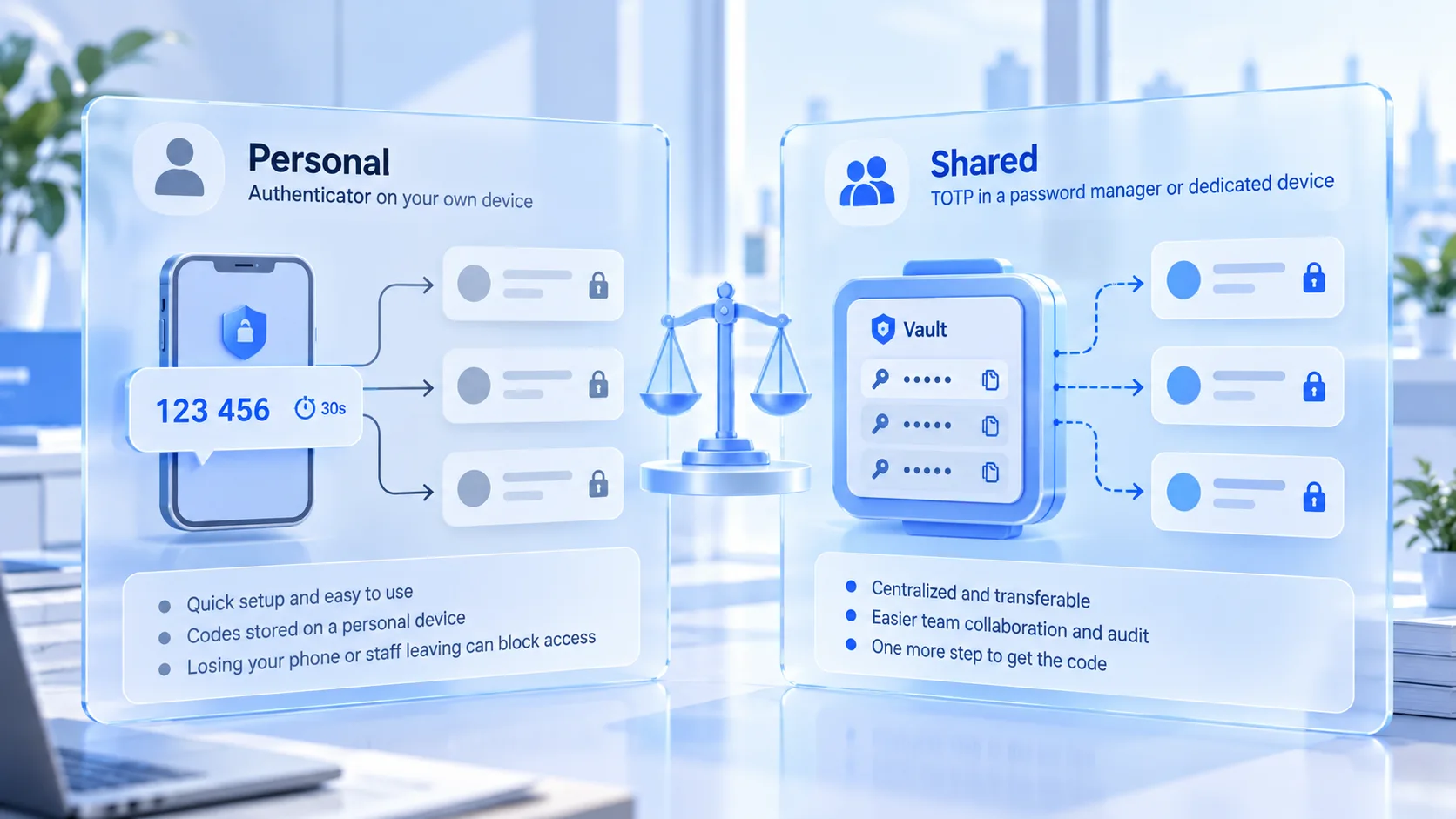
Deployment can be decided by account weight:
- Core revenue accounts: follow the account. These accounts are used across people, so the verification factor must be transferable, and backup codes need separate management.
- Mid- and long-tail accounts: following the person is acceptable; add one rebinding step at handover to keep the window short.
- Platforms supporting FIDO: prefer hardware keys or Passkey to make full use of phishing resistance, and fall back to authenticator apps when conditions are not met.
Before changing authenticators or phones, confirm the platform can release the old binding normally, then add the new one. Some platforms impose a review period on unbinding, during which neither the old nor the new authenticator works. For these platforms, schedule rebinding before the handover window, not on handover day.
Backup Codes Are the Recovery Layer: Generate Once, Manage Until Revoked
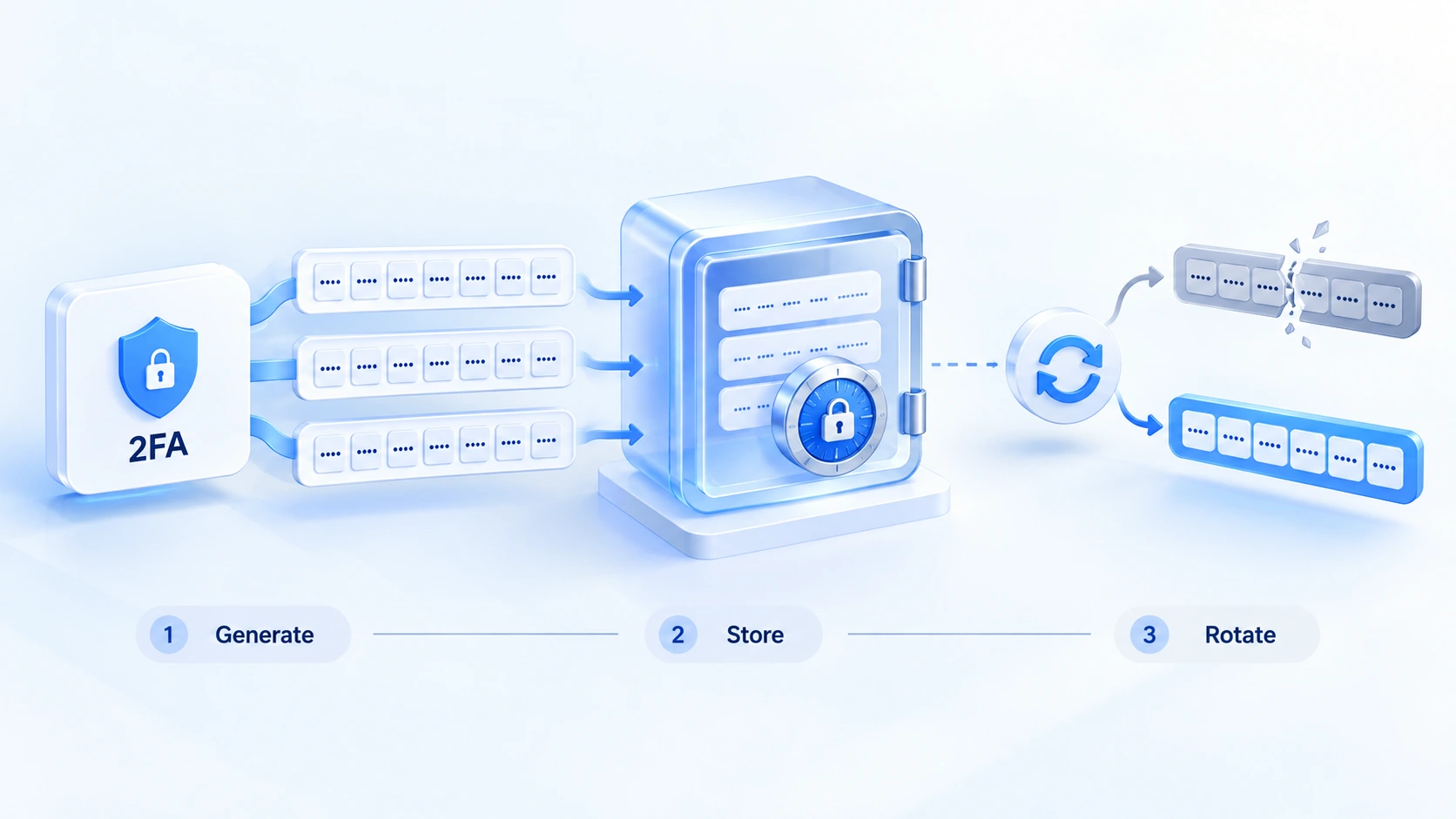
Backup codes are a set of static recovery codes issued once, when a platform enables 2FA. When the authenticator is lost or a device breaks, they are the way back in. NIST's Digital Identity Guidelines, SP 800-63B, classify these pre-issued, single-use, revoke-after-use credentials as their own category, called look-up secrets. They are not dynamic codes. Normally unused, they are the only recovery channel when something goes wrong. Management has two goals: findable when needed, worthless once leaked.
You can line up storage options against this table:
| Storage location | Main risk | Best for |
|---|---|---|
| Chat logs, personal notes | Spreads widely; hard to recall at exit | Not an official storage place |
| Team password manager | The manager itself gets breached | Main daily storage; protect it with 2FA |
| Offline printout or encrypted drive | Lost or damaged beyond recovery | Copies for core accounts, stored off-site |
The table is ordered by daily usage frequency; for core accounts, use two layers together. Discipline follows storage. Keep backup codes separate from account passwords, so one leak cannot take both layers. Each time you use a code, regenerate the whole set on the platform and let the new copy replace the old. When staff change, treat any copy held by the departing member as leaked and regenerate it, whether or not the copy comes back.
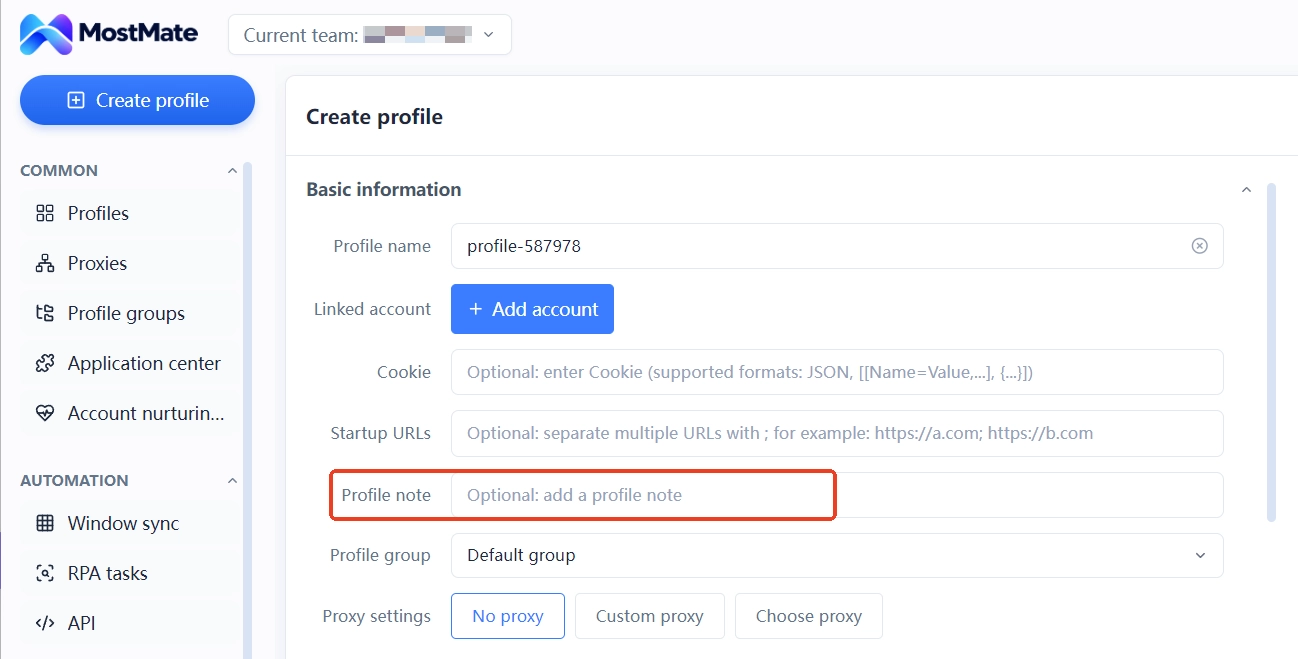
Team collaboration leaves one more question of placement: which account is bound to which verification method, and which copy holds its backup codes. MostMate's environment notes can record configuration markers like these. The account mapping, the verification method and the backup code location all sit on the environment row, so members can match them as soon as they open the environment list. The codes themselves never go into the notes. What flows through the notes is location information, not credentials.
Handover in Three Stages: Rebind First, Then Hand Over Recovery Materials, Then Move the Environment
Handovers stall mostly because the order is wrong. Login access is collected first, yet the successor cannot enter the account, because the codes are still on the old phone. Or the account sits idle for two weeks while a departed member keeps supplying codes remotely. Both cases pay the cost in sequencing. The correct order is to let the 2FA handover happen before access is revoked:
1. Platform-side rebinding: In the account's security settings, switch 2FA to the successor's authenticator. Verify once on the spot that a fresh code passes, then move to the next step.
2. Handover of recovery materials: After the backup code copy changes hands in person, regenerate a full set on the platform. The new copy goes into team storage; the old copy is revoked.
3. Environment-side handover: Once the account logs in normally, hand the environment, proxy and configuration to the new owner, avoiding a gap where the environment is ready but the account cannot be entered.
Only after these three steps is the account's verification factor truly handed over.
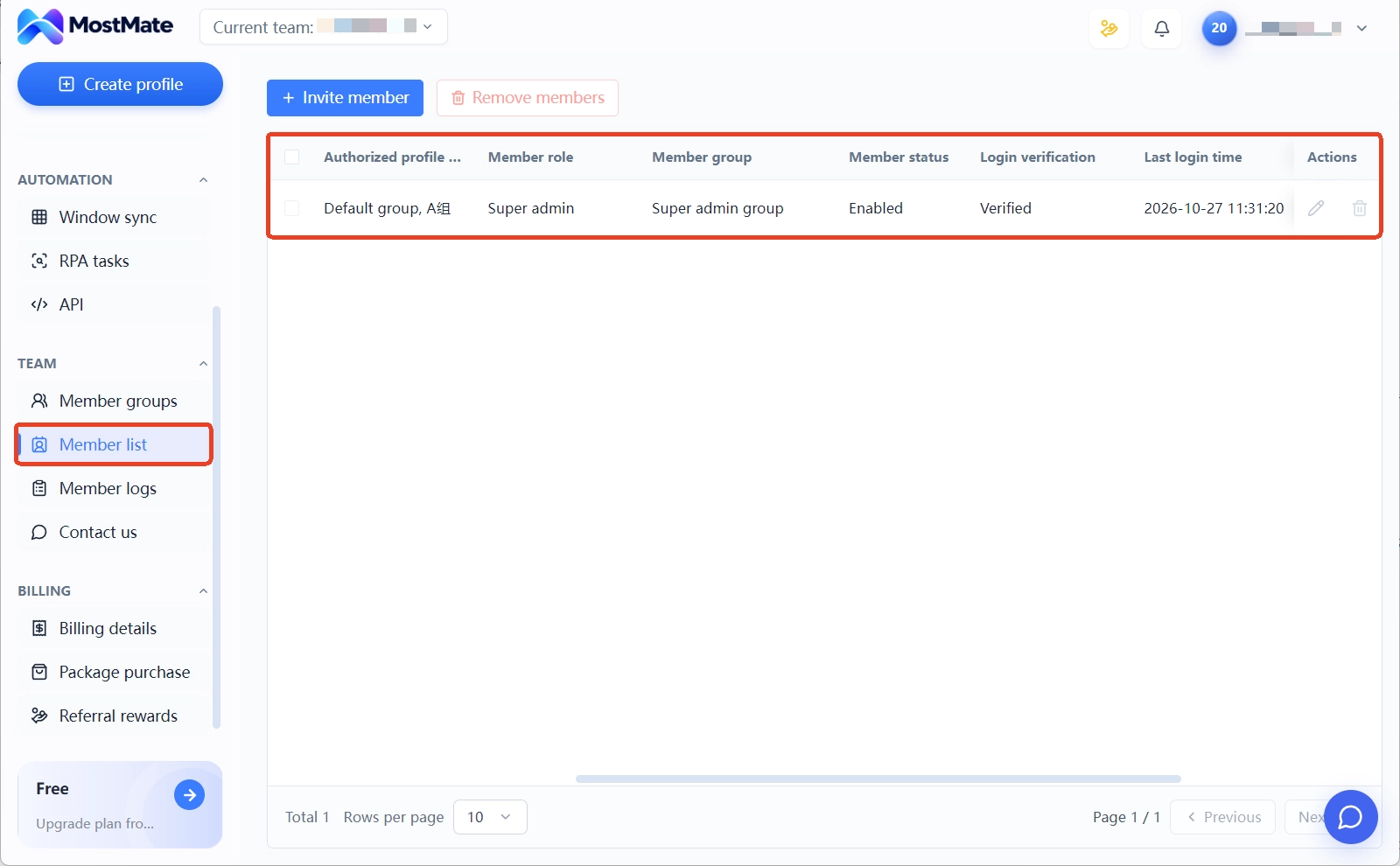
On the environment side, MostMate has ready-made entries. MostMate is a fingerprint browser built around environments, one set per account, with no data carried between environments. In team use, environments are granted to members through environment groups. The member list shows each member's authorized environment groups, member role and last login time, so missing permissions are visible at a glance. The product page explains this isolation and collaboration structure in full.
Handover records rely on member logs. Use login logs to check which devices the departing member recently signed in from. Environment sharing records and environment transfer records confirm who handled things before and after the handover. Each record carries the operation time, operation type, member and IP information, so anything wrong can be traced back.
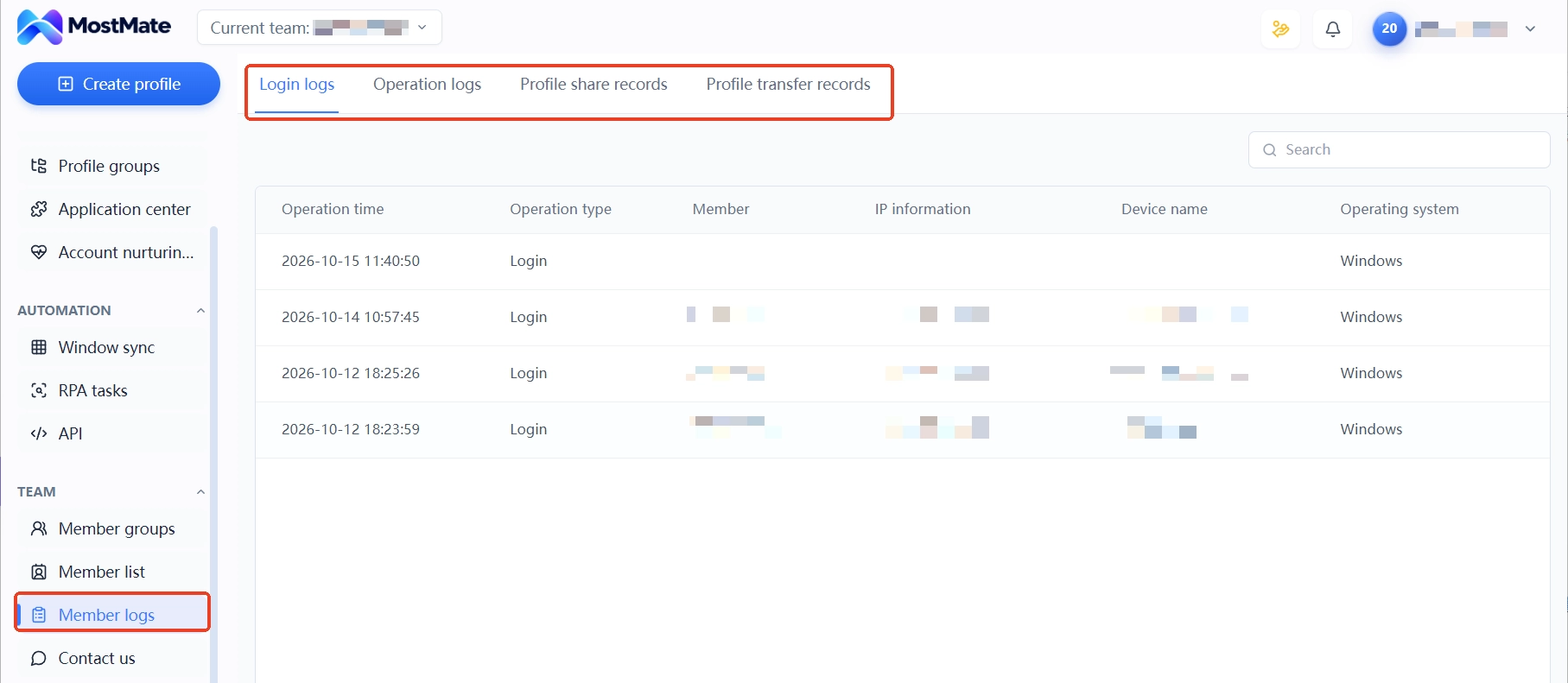
The 2FA status itself lives in each platform's security settings. MostMate manages environments and team collaboration; it does not hold platform accounts' authenticators. During offboarding, have the departing member complete the rebinding on the platform, then have the successor log in once with the new authenticator to confirm it works, and record that confirmation in the handover checklist. The per-account login checks cannot be skipped, but doing them on handover day beats investigating problems afterward.
Permission recovery on the environment side also involves groups and member status. The checklist and log usage are laid out step by step in Multi-Account Security Management: Groups, Logs and Handover Records. Following it before a handover helps avoid omissions.
Frequently Asked Questions
Lost the authenticator. Can the account still be recovered?
Yes, provided you hold the backup codes. At login, choose "cannot provide a code", enter any valid backup code, and you are in. The first thing after getting in is to regenerate the whole set and rebind to a new authenticator. If the backup codes are lost too, only the platform's identity appeal remains, and its cycle is far longer than backup code recovery. For guarding against account theft and data loss, see the arrangements in Account Asset Management.
What if backup codes are running out?
Regenerate a full set after using a single code; the generation action revokes the old codes. Sync the new copy into team storage and destroy old printouts and screenshots together. Wait until the last two codes and the recovery window shrinks to two codes.
When a member leaves: rebind 2FA first or revoke access first?
Rebind first, then revoke. If you only revoke environment and login access, the account stalls at two-step verification, and the departing member ends up supplying codes anyway. Complete the platform-side rebinding first, and the later recovery steps no longer need them.
How do fingerprint browsers relate to 2FA?
The two layers cover different stretches. 2FA verifies "whether the person logging in is the account owner"; a fingerprint browser manages "what kind of environment the login happens in". Environment isolation keeps each account's cookies, fingerprint and proxy independent and stable, reducing the chance of triggering risk-control verification. Whether the account passes two-step verification still depends on platform-side security settings. Arrange both layers together.
Closing Thoughts
Break 2FA management down and it is three tasks. Decide whether authenticators follow the person or the account, manage backup codes as a recovery layer until revoked, and run handover in the fixed sequence of rebind, transfer, move environment. None of the three is heavy; the difficulty is that people keep following the checklist once accounts multiply.
Teams that have not built this process can start with two accounts. Move the verification factor of one into team storage and keep the other personally held. Compare the two handovers the next time staff change, and one trial tells you whether the process works.
On the environment side, MostMate has the isolation and team setup ready. Download MostMate, create your first environment group, and lock down account ownership and where verification factors live.

MOSTMATE
Secure Multi-Account Management, Made Simple
Start with your first account and use MostMate to build safer, smarter, and more efficient multi-account operations.
- Independent profiles. Consistent identities.
- AI Automation · Account Health · Team Operations



