
One Account Goes Down, the Whole Team Stops? Preventing Bans, Linking, Theft, and Data Loss
A team runs multiple social media accounts at once. On Monday, the account driving traffic gets restricted without warning. On Tuesday, another account receives a security verification notice. On Wednesday, a team member discovers that a saved browser environment will not open anymore; the login state and the local records are gone together. Three days, three incidents. Each one, taken alone, affects a single account. Spread the business out on the table and the picture changes. Ads and publishing stop. Customer messages go unanswered. Handovers stall. The team cannot even say which files still exist or which tasks were actually completed.
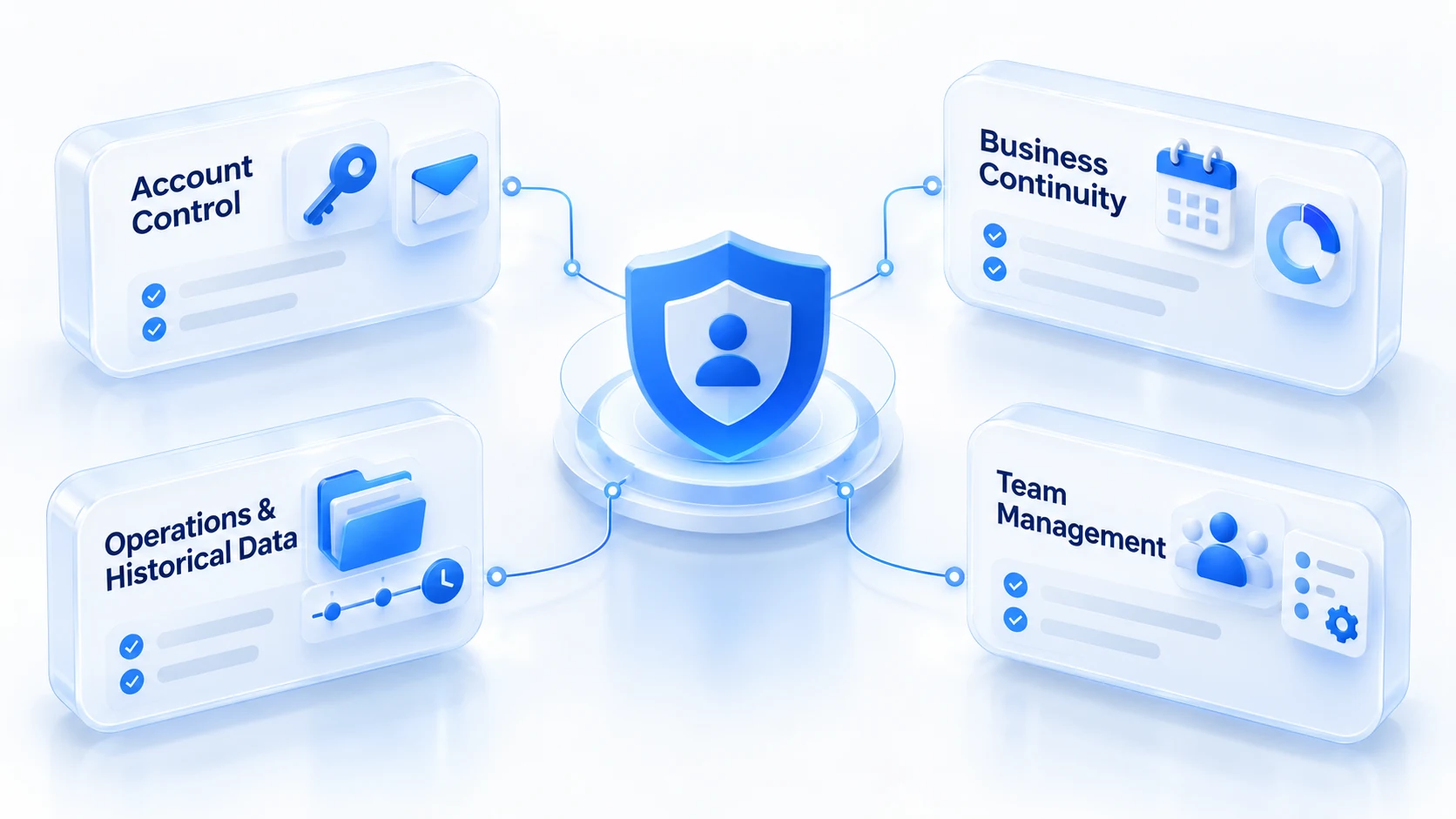
Account assets are more than an account and a password. Losing the use of an account, losing control of it, or losing the records tied to it all count as asset loss, and all of it lands on the business. Broken down, there are four parts:
- Account control: whether you can log in, and whether you control the linked email, phone number, and recovery channels.
- Business continuity: whether customer communication and publishing keep running when an account is unusable.
- Operations and records: whether environments, task logs, business files, and handover notes stay intact.
- Team management: who owns each account, who has access, and who steps in when something goes wrong.
This guide walks through the scenario, warning signs, and damage control for each of the four loss types, then pulls everything into an asset management routine a team can keep running long term.
Where Do the Four Types of Account Asset Loss Happen?
Four risks, four loss mechanisms. Defend all together, none is defended.
Bans: the account still exists, but the business is forced to stop
An account handling most customer inquiries and content publishing suddenly gets suspended. Scheduled posts, ads, and follow-up plans all grind to a halt. A ban, a temporary feature restriction, and an identity verification request are not the same situation; do not assume a permanent ban just because interaction stopped. What really magnifies the loss is something else: every task depends on this one account, and there is no fallback arrangement.
When an account is restricted, save the platform notice, note the time of the anomaly, and check official announcements before using the channel the platform provides. A ban itself may not be avoidable; what you can do in advance is limit the damage one account incident deals to the whole business. For evidence collection and appeal preparation in the first hour after an anomaly, the first hour after an account ban breaks it down on a timeline, so it will not be repeated here.
Linking: one account has a problem, and the others are left hanging
After one account shows an anomaly, the team starts to worry about the rest, yet cannot say which devices, networks, or operating histories the accounts actually share. You cannot conclude linking from a matching IP or similar behavior. Detection mechanisms differ by platform, and outsiders can hardly confirm from a single signal whether a platform has linked the accounts.
What the team can actually manage is another layer. Do the accounts share anything unnecessarily? Is ownership clear? Were there environment changes or staff handovers right before the anomaly? Changing the configuration of every account at once after an incident wipes out the very clues you would need for troubleshooting. Map the actual relationships between accounts first, then verify item by item. Building a clear mapping of accounts, owners, environments, and business purposes reduces internal mixing and mistakes, but it cannot guarantee the platform will not judge the accounts as linked.
Theft: the account still stands, but control has changed hands
A member receives what looks like an ordinary collaboration invite, logs in on a third-party page, and soon the account shows unfamiliar login alerts. The linked email or the recovery details have been changed. Account theft does not always start with a failed login. Unfamiliar login alerts, authorizations you never initiated, changed recovery details, actions you never took, all of them deserve a check. Separate browser environments keep each account's login state apart, but they are no substitute for the account's own security protection.
After spotting suspicious activity, use the platform's official security page first to review login activity and revoke authorizations you do not recognize. While you still control the account, change the password and verify the recovery channels. If control is already lost, go through the official recovery process, and check whether linked email accounts and business systems were compromised too. CISA's strong password guidance lists the basics of credential management, and NIST's Digital Identity Guidelines cover the design of recovery channels and authenticators. The key to handling theft is confirming control quickly and limiting further damage. Switching environments solves nothing.
Data loss: the account was never banned, but the files are gone
The team moves to a new computer or reinstalls the browser, and the old environments will not restore. Login states vanish, and locally stored files, task progress, and handover notes are gone with them. This loss differs from a ban: the account is perfectly fine, yet the work has stopped. Start by separating three kinds of data, because where they live and how they can be recovered are entirely different. Data inside the platform belongs to the platform. Browser environments and login states travel with the environment files. The team's own business files, assets, and account ownership sheets sit on local drives or cloud storage and depend on your own backup plan.
Do not treat saving an environment as a backup of platform data, and do not assume that logging back in restores the previous state. Once something is lost, stop cleaning old devices or overwriting files. Identify which type was lost and whether a usable backup exists, then decide whether to approach the platform or the software vendor. Whether data can be recovered depends on what was lost and whether a backup existed beforehand. Whether the account still logs in proves nothing.
Four Risks, Four Responses: Stop the Loss First, Then Recover
What to do first depends on the type of loss. Stop the loss, then recover. Use the table below to get moving:
| Problem | First thing to do | What to check next |
|---|---|---|
| Account banned or restricted | Save the notice, confirm the impact | Account status, notices, official channels |
| Linking suspected | Stop blind changes, map account ties | Shared environment, staff, networks, history |
| Account theft suspected | Protect account control first | Login activity, recovery, third-party access |
| Important data lost | Stop overwriting or deleting files | Storage location, backups, recovery paths |
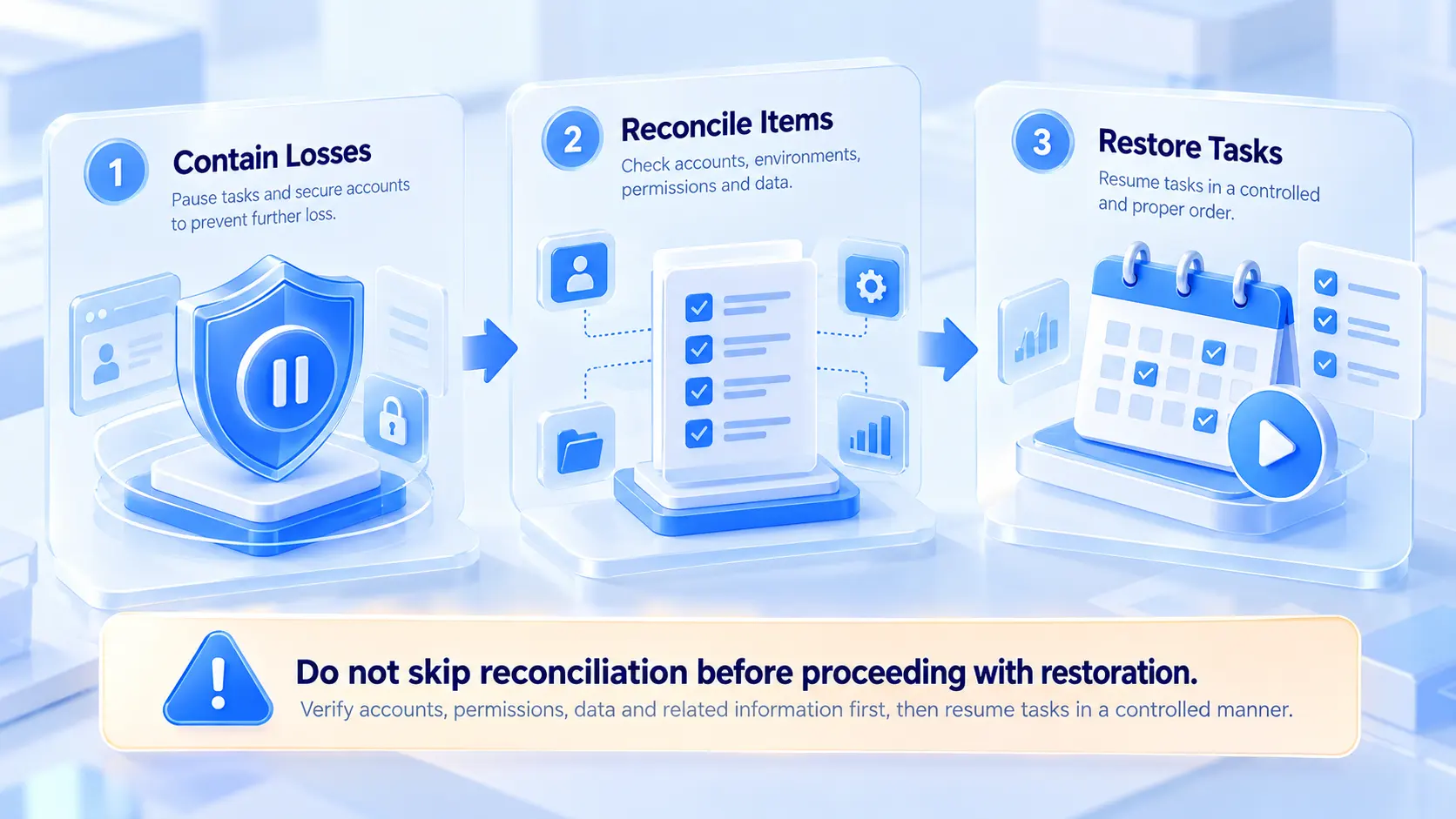
Phase 1: contain the damage; do not rush to restore everything
Pause the affected account's tasks and make clear who handles what next. Where account security is involved, protect control and recovery channels first. Where data was lost, keep the current devices, files, and records intact, and avoid wiping or overwriting anything in a panic.
Phase 2: match accounts, environments, permissions, and records one by one
Check each account's current status against the time the anomaly occurred, and confirm the owner, browser environment, and business purpose behind every account. Review the operation logs and permission changes of the members involved. List separately the data you cannot confirm and the issues that still need platform help, and do not mistake a guess for a confirmed cause.
Phase 3: before resuming, decide which tasks can continue
Only restart the corresponding tasks once the account status allows and the security issue is resolved. For accounts not yet restored, define the scope of the pause and who owns it, so other members do not assume things are back to normal. After recovery, check business files, task progress, and account ownership; restoring a login while missing the follow-up work helps no one.
The emergency process only covers this one incident. If the team has to dig up owners, login details, and historical records from scratch every time, the next anomaly will be just as chaotic.
Building an Account Asset Management System That Does Not Rely on Personal Memory
Emergencies call for response, and the long run calls for a system. Keep account records, permissions, environments, and business notes continuously usable in day-to-day work, so there is something to consult when trouble hits.
Keep an asset profile for every account
At minimum, record the following:
- Account name, platform, and business purpose.
- Current owner, backup contact, and handover date.
- Linked recovery channels and who manages them.
- The browser environment used and where related business files are stored.
- The most recent incident, its handling status, and open tasks.
Keep plaintext passwords, verification codes, and recovery keys out of shared notes. Store sensitive credentials in a dedicated, secure way, and restrict who can access them.
Handle environment management, permission management, and data backup separately
The three are connected but not interchangeable. Environment management rests on clear environment naming, account ownership, and notes, which cut down on mixing and handover mistakes. What environment isolation actually solves is covered in that article. Permission management assigns operating rights by role, with a review whenever someone leaves or changes position. Data backup means a separate storage and recovery mechanism for business files, assets, task lists, and essential records, with backups tested on a regular basis.
Use MostMate to manage multi-account environments and handovers
Spreadsheets and memory can hold these profiles together for a while, but they fall apart as soon as accounts multiply. MostMate is a fingerprint browser where environment ownership, handover records, and incident context all live in one place. Clear environment ownership: give each account its own browser environment, and mark its purpose, owner, and incident status with names and notes. Handovers on record: cross-check member permissions and operation logs, so transitions rely less on verbal handoffs buried in chat.
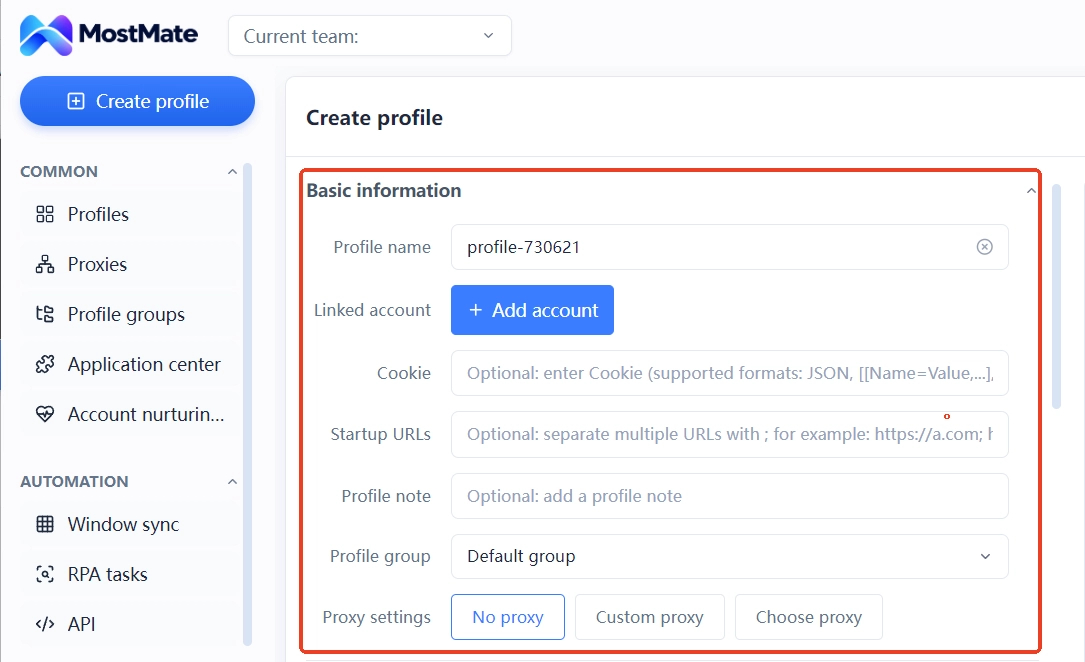
Incident handling gains context: anomaly times, progress, and to-dos are organized in the environment and its notes, so whoever takes over knows what has been verified and what is still open. The boundary deserves stating too. MostMate manages browser environments and team workflows; it cannot prevent bans or linking judgments, and it does not replace platform account recovery or independent data backups.
Frequently Asked Questions
What does an account asset actually include?
More than the account and its login credentials. It also covers account control, recovery channels, business files, operation records, owner information, and the materials daily operations depend on.
If one account is banned, will the others be affected?
Not necessarily. Whether accounts are linked and whether the impact spreads depend on the platform's rules and the actual circumstances. One ban alone is not proof that other accounts will be affected.
Does using a fingerprint browser prevent linking or theft?
No. Isolated environments help manage different accounts' browser data and login states; they cannot guarantee the platform will not judge accounts as linked, and they do not replace password protection, authorization reviews, or recovery channel management.
Can lost account data be recovered?
It depends on what was lost and whether a usable backup exists. Platform data, environment data, and local files follow different recovery paths; confirm where the data lives first, then use the matching channel.
Which management routine should a multi-account team build first?
Start with an account asset register that nails down owners, purposes, recovery channels, corresponding environments, and storage locations, then add permission, handover, and backup check routines step by step.
Which account assets can MostMate help protect?
MostMate helps teams manage browser environments, using environment notes, member permissions, and operation records to keep account ownership and handovers organized. It cannot prevent bans or theft, and it does not replace platform security mechanisms or independent backups.
Account Asset Management Does Not Start After the Incident
A ban threatens whether the business can continue, linking brings uncertainty about how far the impact reaches, theft goes after control, and data loss strips a working account of its materials. The four risks have different causes and call for different responses, yet they all point to the same question: do accounts, permissions, environments, and business records have clear owners, and can the team find what it needs the moment something happens? Build the asset profiles first, then fill in permissions, environment mappings, and backup locations, and the team will no longer start every incident from zero.
If you run a multi-account team, start with an asset register and map each account to its environment and owner; MostMate's environment list and member permissions can carry that day-to-day upkeep. When an incident does happen, follow this guide's order: stop the loss, reconcile, then recover.

MOSTMATE
Secure Multi-Account Management, Made Simple
Start with your first account and use MostMate to build safer, smarter, and more efficient multi-account operations.
- Independent profiles. Consistent identities.
- AI Automation · Account Health · Team Operations



