
How to Manage Security Across Multiple Accounts: Grouping, Logs, and Handovers
Bottom line: security for a multi-account team comes down to three things: group-based access, log trails, and a handover checklist. Groups decide who can use which environments, logs answer who changed what and when, and the handover checklist makes sure access is revoked when someone leaves. None of the three is complicated. The hard part is that nobody keeps them up once the account count grows.
"Who is running the accounts that belonged to the operator who left last month?" Anyone who runs multi-account teams has probably been stuck on that question. The accounts sit scattered across several members. Some are tracked in a spreadsheet, others exist only inside one person's browser. When something goes wrong, nobody can say who touched what or how much is left.
A multi-account team needs more than browser environments. It needs a routine that keeps running: groups to define access, logs to trace key actions, and a handover checklist to verify permissions and assets.
MostMate is a fingerprint browser whose team features cover environment grouping, member authorization, and operation logs. This article starts with risk, then walks through grouping and authorization, log checks, and staff handovers, and notes which permissions still have to be handled on the platform side, such as on Pinterest.
Where team account security usually breaks down
The hard part of multi-account management is not the growing number of environments but the way ownership, access, and responsibility blur. Ten environments are manageable when each one has a clear owner and a clear access scope, because problems then leave a trail. When environments are left to individual members over time, the team usually has to rebuild who owns what, who logged in, and what changed.
Most of these problems fall into three buckets: unclear permissions, actions with no record, and incomplete handovers.
First: unclear permissions. When everyone shares a single login, anyone can reach every environment. Day to day it is fast. A single wrong click, though, can touch the whole business, and afterwards there is no way to tell who did it.
Second: untracked actions. Environments get shared, proxies get swapped, groups get edited. Without a record, sorting out a problem comes down to memory. Multi-account work is time-sensitive, and memory is an expensive tool.
Third: broken handovers. When people move on, accounts, environments, and settings move with them. Whoever takes over has no idea which environment runs which business. Nobody checks whose device still holds the old login session or password.
These three problems map to three moves. Groups draw the boundary, logs leave a record, handovers reclaim access.
Day to day, work in this order: confirm who can reach which environments, check whether key actions are recorded, then turn access revocation into a fixed routine for staff changes.
Grouping is the first move that draws the boundary
Group first, then authorize. Only then does access hold. MostMate has two grouping objects: environment groups manage environments, member groups manage people. Set up both and the access relationship becomes clear.
The environment group list shows the group name, a note, the included environments, and the authorized members. Once a group exists, you place environments into it and authorize members onto it. The boundary is fixed. Member groups sort people instead, with a list of the group name, a note, and the included environments. The two types compare like this:
| Grouping object | What it manages | Typical use |
|---|---|---|
| Environment group | Who owns each environment and who may use it | Group by brand or project, authorize owners |
| Member group | Grouping members and their environment scope | Split operators by role; groups set scope |
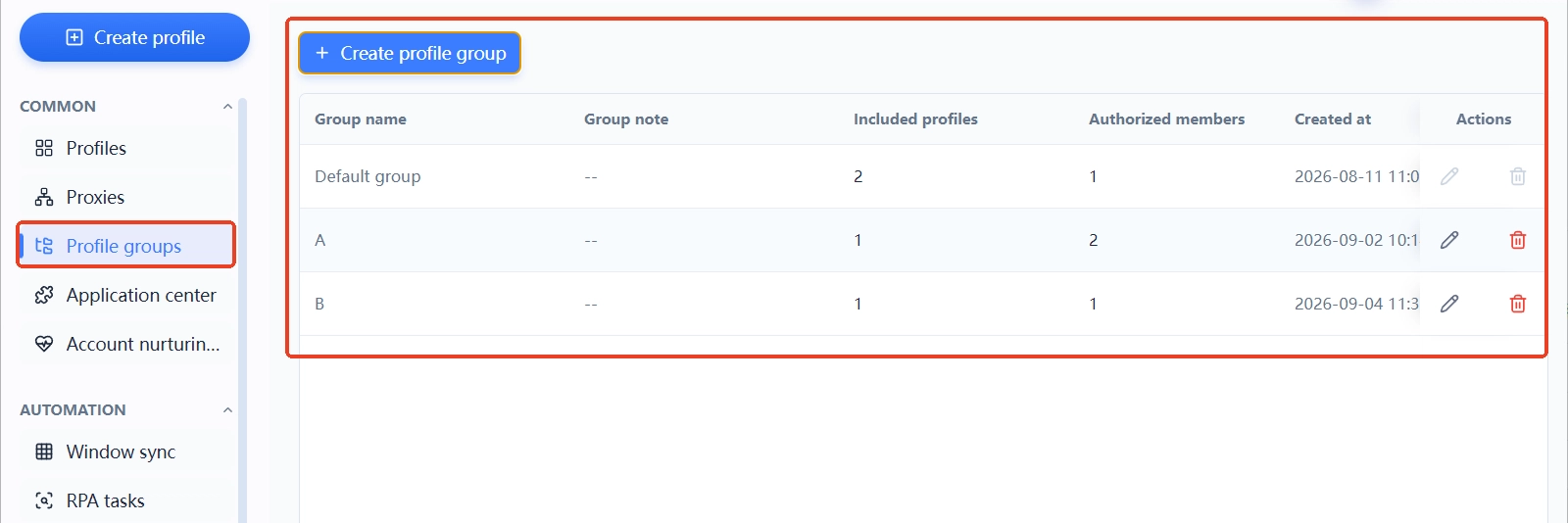
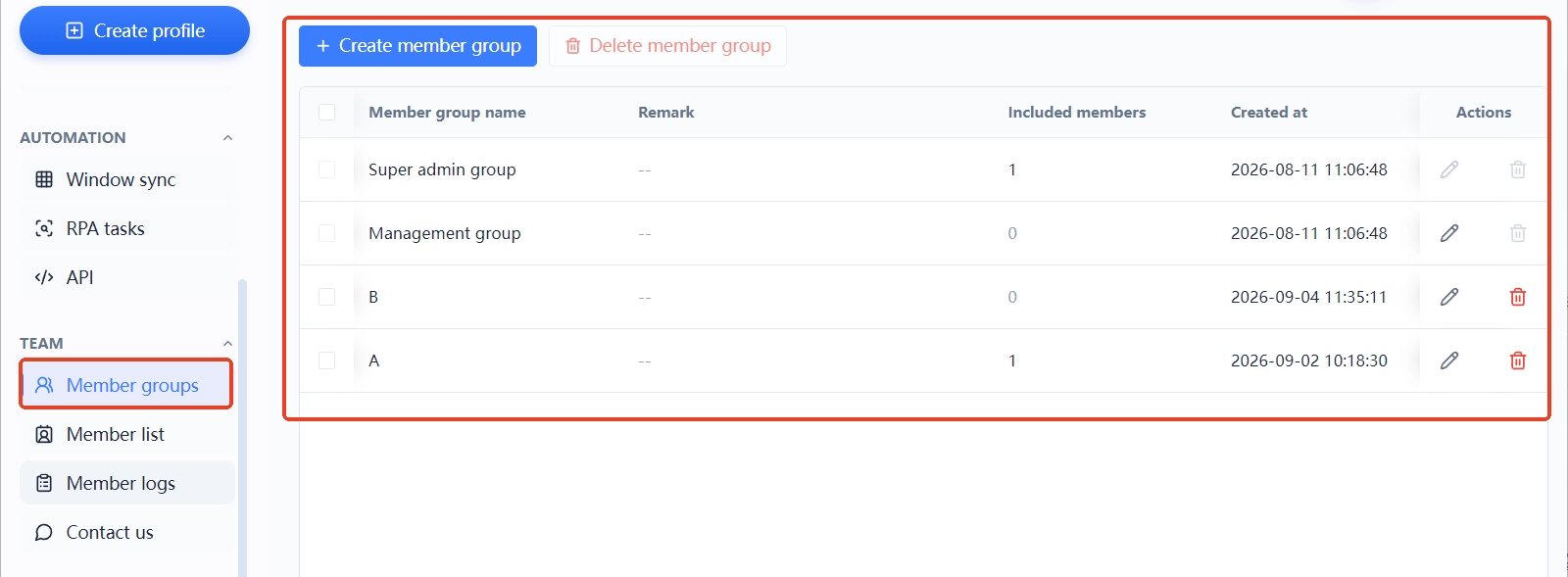
In practice, the suggested order is: create an environment group by brand or project, put environments into it, then authorize members to that group from the member list. After signing in, a member sees only the scope assigned to them. When the number of environments grows, expand groups by the same rule. How management priorities shift as account scale grows covered the staged approach.
One toggle is easy to miss: in the create and edit environment form, advanced settings include "environment shared access", which you can allow or block. Turn it off for environments that do not need sharing, and you close one more door.
Member logs answer who changed what, and when
Logs do not prevent problems, but they make them traceable. MostMate's member logs have four tabs: login logs, operation logs, environment sharing records, and environment transfer records. Each entry lists the time, the action type, the member, the IP information, the device name, and the operating system.
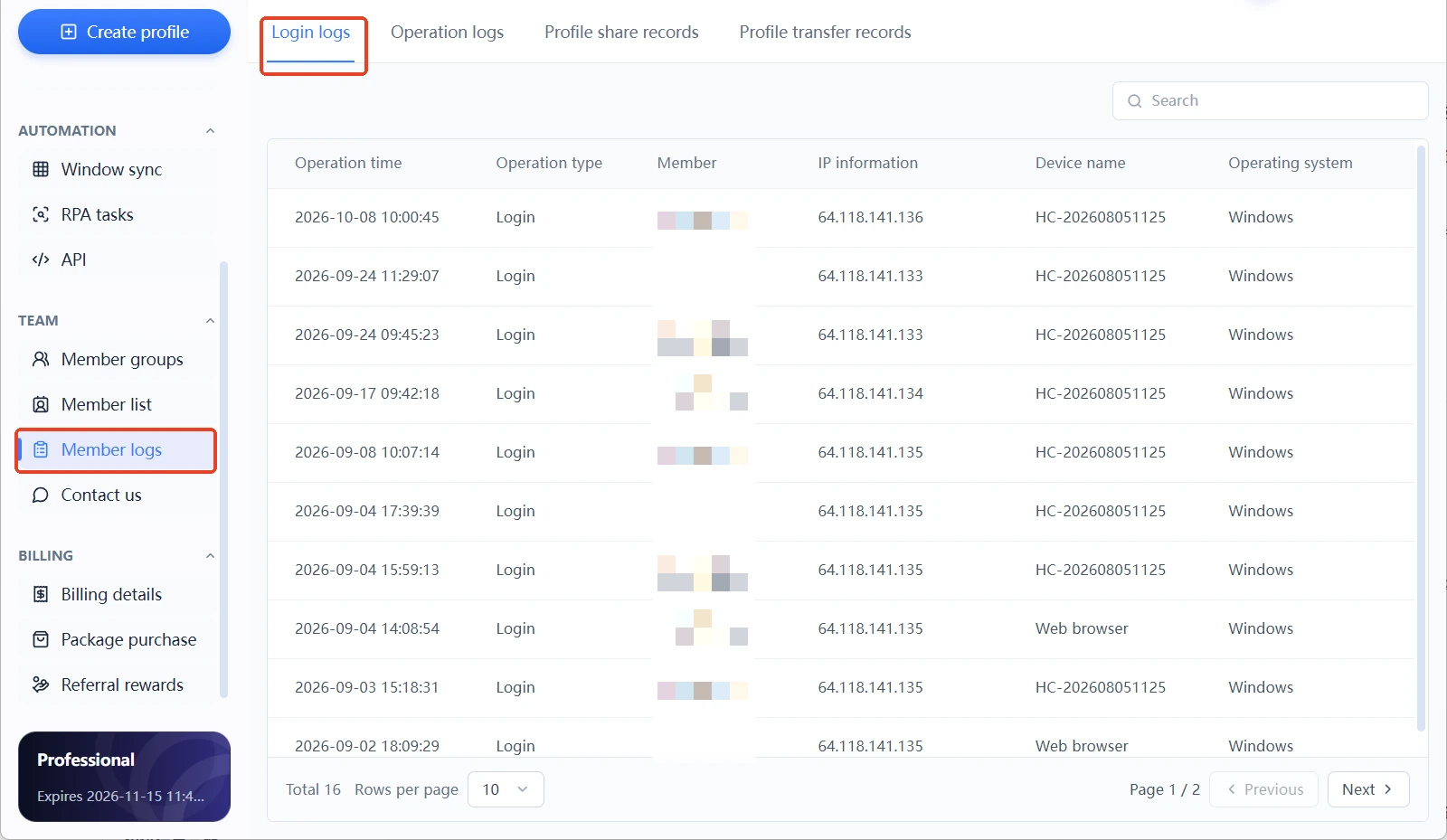
These four tabs cover exactly the three risks above. Login logs answer "who signed in", operation logs answer "who touched what", and the sharing and transfer records answer "did an environment get moved out". When something goes wrong, start with login logs, then check times and types in operation logs, and finally read transfer records to confirm where the assets went.
Day to day, do not wait for an incident to open the logs. Check the IP information and device names in the login logs once a week. If you see an unfamiliar device, verify the member first. It takes a few minutes each time, and it gives you a baseline to compare against when something looks off.
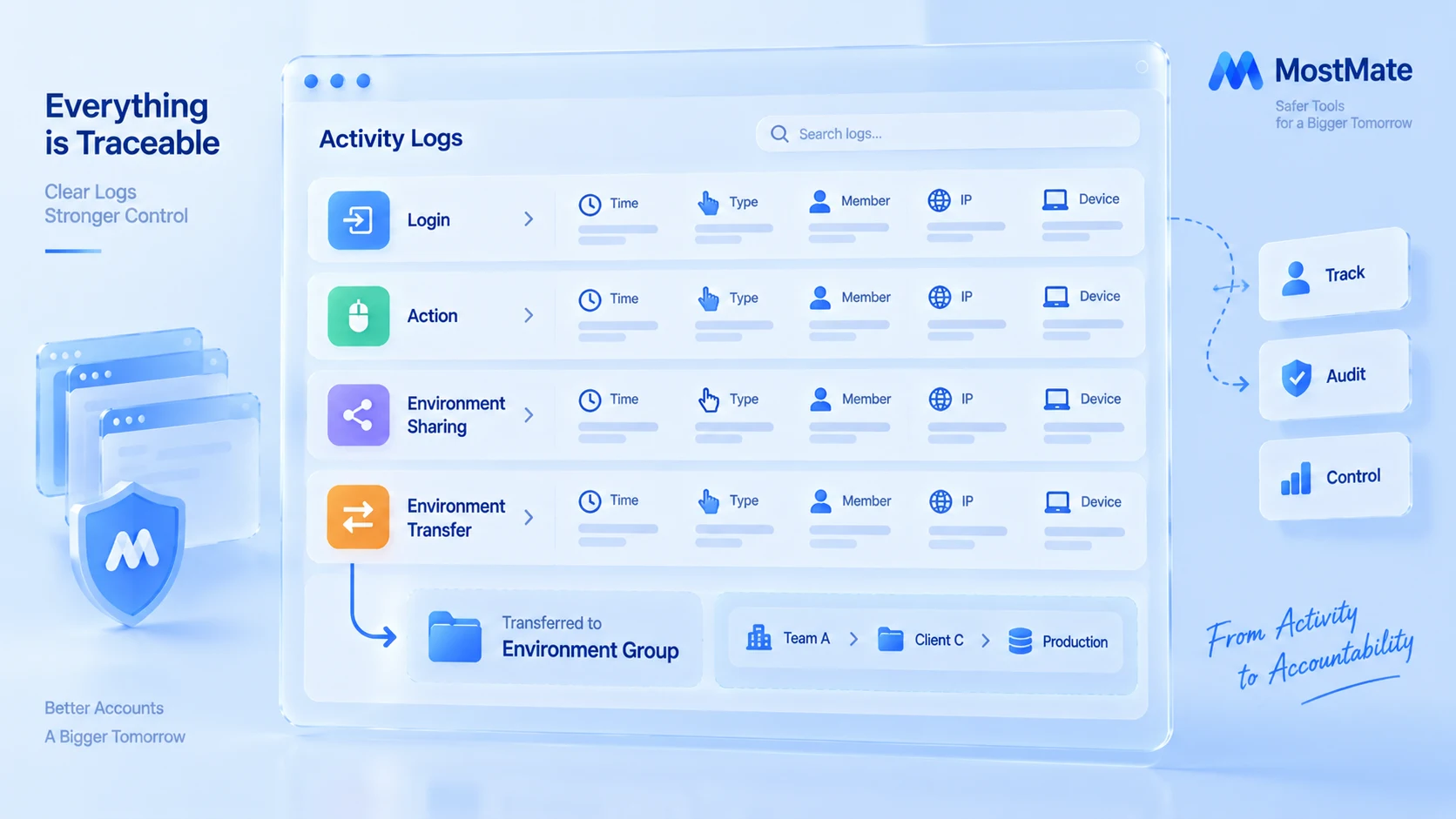
Logs and environment boundaries are two different things: logs record what people do, while environments isolate browser data. What isolation covers is explained in the scope and setup of environment isolation. Use the two together and the boundary is complete.
When people leave, revoke access in three steps
Handovers are the moment team accounts break most often. The accounts keep running on the platform side, but the person is gone. Every action during that window is worth recording. A three-step flow works well:
- In the member list, check the member's authorized environment groups, status, and last login time to confirm which environments are still under their name.
- Revoke the member's environment group authorization, or change their status directly, so they can no longer reach environments.
- Open the environment transfer and sharing records in the member logs and confirm that every environment they handled stayed inside the team.
One more thing has to be handled on the platform side, for Pinterest and other sites: the account password, the second-factor method, and the bound email and phone number. Revoking environment access in MostMate does not mean the former member has lost login access to the platform account. At handover, change the credentials the platform's security settings allow, review second-factor settings and active sessions, and make sure the former member keeps no unnecessary access.
If the team suspects an old password was exposed, you can check whether it appears in known breach data with Have I Been Pwned's password checker. Finding nothing does not guarantee a password is safe, and a lookup is no substitute for the platform-side security check.
A handover is complete when the new owner has the access they need, the former member's environment access is revoked, and the related sharing and transfer records have been checked.
Permissions watch people, isolation watches environments
Within team security, MostMate's split is clear: grouping and member authorization draw the human boundary, environment isolation draws the account-data boundary, and member logs record both sides. An environment holds its Cookie, login state, and browser settings; which environments a member can reach is decided by groups. The MostMate product overview lays out this structure more fully.
One boundary is worth repeating: grouping and logs deliver visibility and control inside the team. They do not mean an account stays clear of platform risk controls. Platform systems look at registration details, usage behaviour, and network signals, which you manage at the operations level.
If you are still deciding whether your team needs this structure, look for two signals: whether the environment count has passed what one person can keep in their head, and whether you have ever said "I am not sure who is using that account". See both and it is time to put groups and logs to work. Getting started with MostMate walks through the first setup in order.
FAQ
Can the free plan use team features?
It is enough to start. The free plan includes 2 browser environments and 2 member seats, with no time limit. At two people and two environments you can build the grouping and authorization habit, then expand groups by the same rule as the count grows. Check the product for current pricing.
Do member logs show the actual content that was changed?
Logs record that an action happened: the time, the action type, the member, the IP information, the device name, and the operating system. They answer who touched an environment and when. They do not show page-level detail.
Is revoking environment access enough at handover?
No. Passwords, 2FA and bound details must change on the platform.
What is the difference between sharing and group authorization?
Sharing controls one environment; group authorization covers a team.
Final thoughts
Multi-account team security breaks down into three moves: groups draw clean lines around who can use which environments, logs keep a record of who changed what and when, and a checklist reclaims access at handover. The moves are easy. Staying disciplined once the account count grows is the hard part.
MostMate keeps all three in one workspace: environment groups, member groups, and member logs each have their own entry point. The free plan already includes 2 environments and 2 member seats, so even the smallest team can start building the habit.
If your team works together, download MostMate, create your first environment group, and draw the boundary.

MOSTMATE
Secure Multi-Account Management, Made Simple
Start with your first account and use MostMate to build safer, smarter, and more efficient multi-account operations.
- Independent profiles. Consistent identities.
- AI Automation · Account Health · Team Operations



