
Does Your MAC Address Expose You? The Real Boundary of Hiding and Changing It
Core takeaway: a MAC address is only visible within the local network segment, and websites and platforms cannot get it. Microsoft's official documentation notes that the MAC address in Wi-Fi probe signals has been used by places like shopping malls to track people's movements, and random hardware addresses exist precisely to prevent this kind of local tracking. A platform's linking analysis never sees the MAC. What it sees are the exit IP and browser-level fingerprint signals. Changing the MAC will not fix account linking, so put the effort into managing those two layers instead; that is the move that actually fits the problem.
This misconception spreads widely. People running multiple accounts often read in tutorials that anti-linking requires changing the MAC, so they change the address on the computer and the accounts still get linked anyway. Money spent, action taken, yet the direction was wrong. The reason is not hard to understand: a MAC is an identifier at the network card level, and its reach never extends to the public internet. A platform's linking analysis happens on the other end of the public network, and the two sides never meet from start to finish.
MostMate is a fingerprint browser that manages fingerprint parameters and exit IPs per environment. This article borrows its management boundary to put MAC, IP, and fingerprints each in their own layer. First, who actually gets to see a MAC. Then, what randomization really does. Finally, a replacement plan.
Who Sees a MAC Address: Only the Local Network Segment
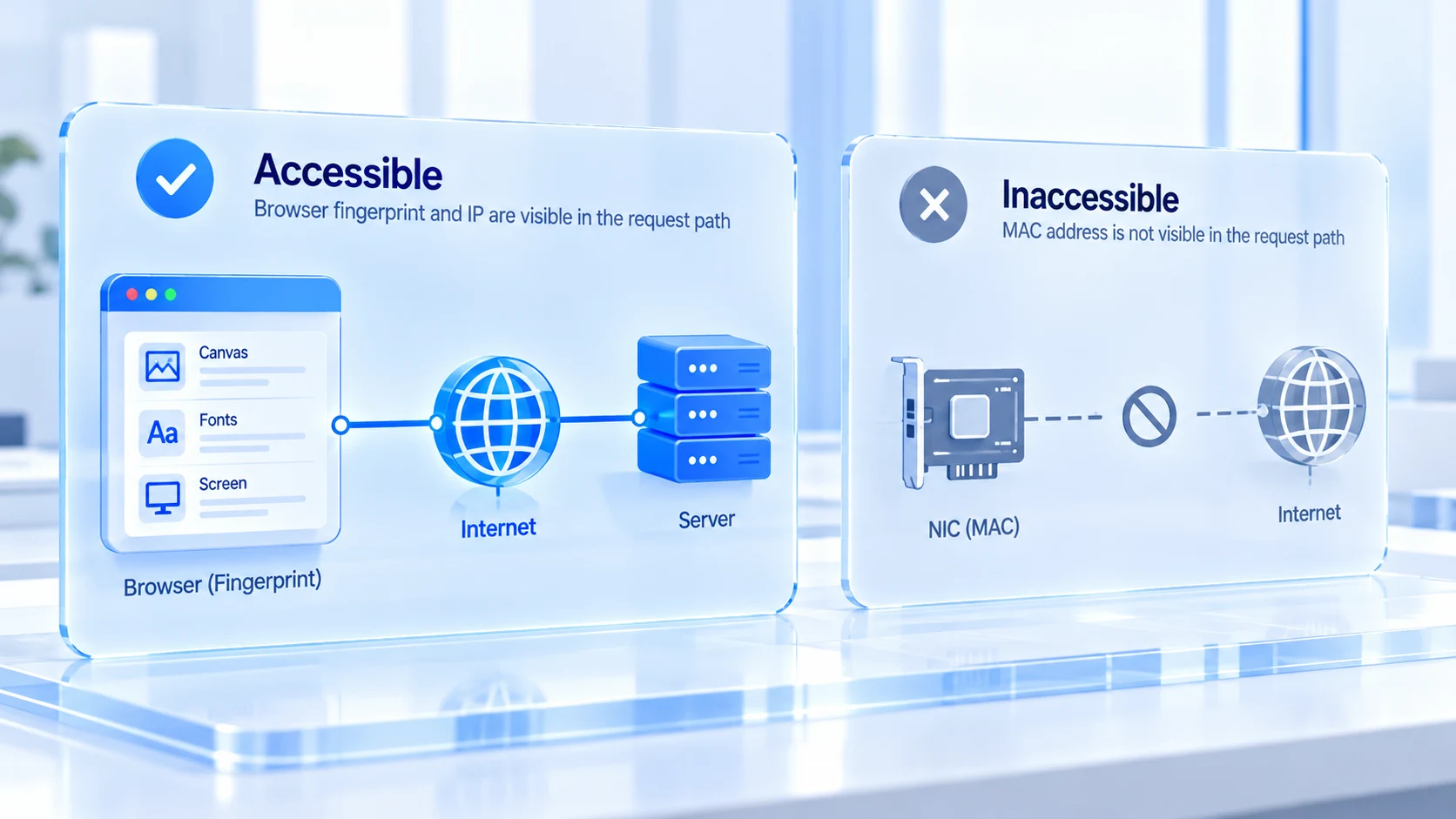
A MAC address works at the link layer and stops following the traffic once it leaves the local network. When you visit a website, the request data is re-encapsulated at every hop. What the target server receives, and what feeds into its risk decisions, are your public exit IP and HTTP-level information. A MAC address finishes its job the moment it leaves the router, and it has no place in the rest of the journey across the internet. Websites cannot see it, and a platform's risk system cannot see it either.
Inside the local network the picture is completely different. The router sees every device's MAC, and devices on the same Wi-Fi can see each other. Probes in places like shopping malls and coffee shops also work at this layer.
Microsoft explains this in its Wi-Fi connection documentation for Windows: the signal a device sends while scanning for networks contains a unique physical hardware address, and some venues use it to track movements. Random hardware addresses are a mitigation designed for exactly these scenarios. Apple describes a mechanism in the same direction in its support documentation for iPhone and Mac. Private Wi-Fi Address makes the device use a different random address for every Wi-Fi network, reducing tracking across networks.
Sort out who can see what, and the exposure question gets its answer. A MAC is exposed to the operator of the local network and to devices on the same network, not to the platform you are logging into.
| Aspect | MAC address | Platform risk signals |
|---|---|---|
| Who sees it | Local router, same-network devices, probes | Websites and platform servers |
| Reach | Local network only, stops at the gateway | Travels with every request |
| How to change | System randomization or manual rewrite | Exit IP and fingerprint, per environment |
What Randomization and Changing a MAC Can and Cannot Solve
MAC randomization is a useful feature; the problems it solves just have nothing to do with account anti-linking. Two categories fall in its scope. Movement tracking on public Wi-Fi relies on the system using a different random address for each network, so a mall's probes cannot link the same person across different venues. Device recognition on the same network: when joining an unfamiliar LAN, the real hardware identifier stays hidden, and the risk of being recorded by devices on that network drops accordingly. Both of these benefit you the moment a laptop connects to airport or hotel Wi-Fi away from home.
The part it cannot solve deserves a full explanation. The input list for a platform's linking analysis has no column for the MAC, so no matter how diligently you change it, nothing on the platform side changes by a single character. Put the other way, a device that has never changed its MAC can keep accounts stable for the long term as long as the exit IP and browser fingerprints are managed properly. The two are independent events; spending energy on the MAC means paying for a problem that does not exist.
There is also a rarely mentioned side effect. If system-level randomization is handled roughly, a device's identity within the same network may drift. Some corporate networks treat frequently changing MACs as an anomaly. For business devices on office networks, confirm the network administrator's policy before casually toggling such switches on or off.
What Platforms Actually Read: Exit IP and Browser Fingerprint
A platform's linking analysis starts the moment a request arrives, and its input signals sit in two layers.
- The first layer is the network exit: which public IP the request leaves from, whether it belongs to a datacenter or a residential range, and how many accounts share the same exit. IP-side signals are fully visible to the platform. Multiple accounts sharing one exit over the long term is the most direct evidence in a linking decision.
- The second layer is the browser fingerprint. Canvas, font lists, and screen parameters combine into a device profile that can be compared across sessions. The mechanism and boundaries of environment isolation covered which data must be separated per account, so it will not be repeated here.
What the two layers share is that both are genuinely reachable along the request path, and the platform can collect them without any extra means. The MAC has never been on that list. Confusing the relation between these two layers and the MAC is the soil in which claims like "change the MAC to stop linking" spread.
One exception deserves a separate note. WebRTC's local IP probing is the only opening in a browser that can touch internal network information. What leaks is an internal address, not the MAC, but it proves a browser can indeed carry out network-layer clues. The remedy is also clear: checking and configuring WebRTC leaks gives a full troubleshooting path, and the corresponding channel can be turned off in the environment configuration.
Fingerprint Browsers and MAC: Manage the Browser Layer, Never Touch the Network Card
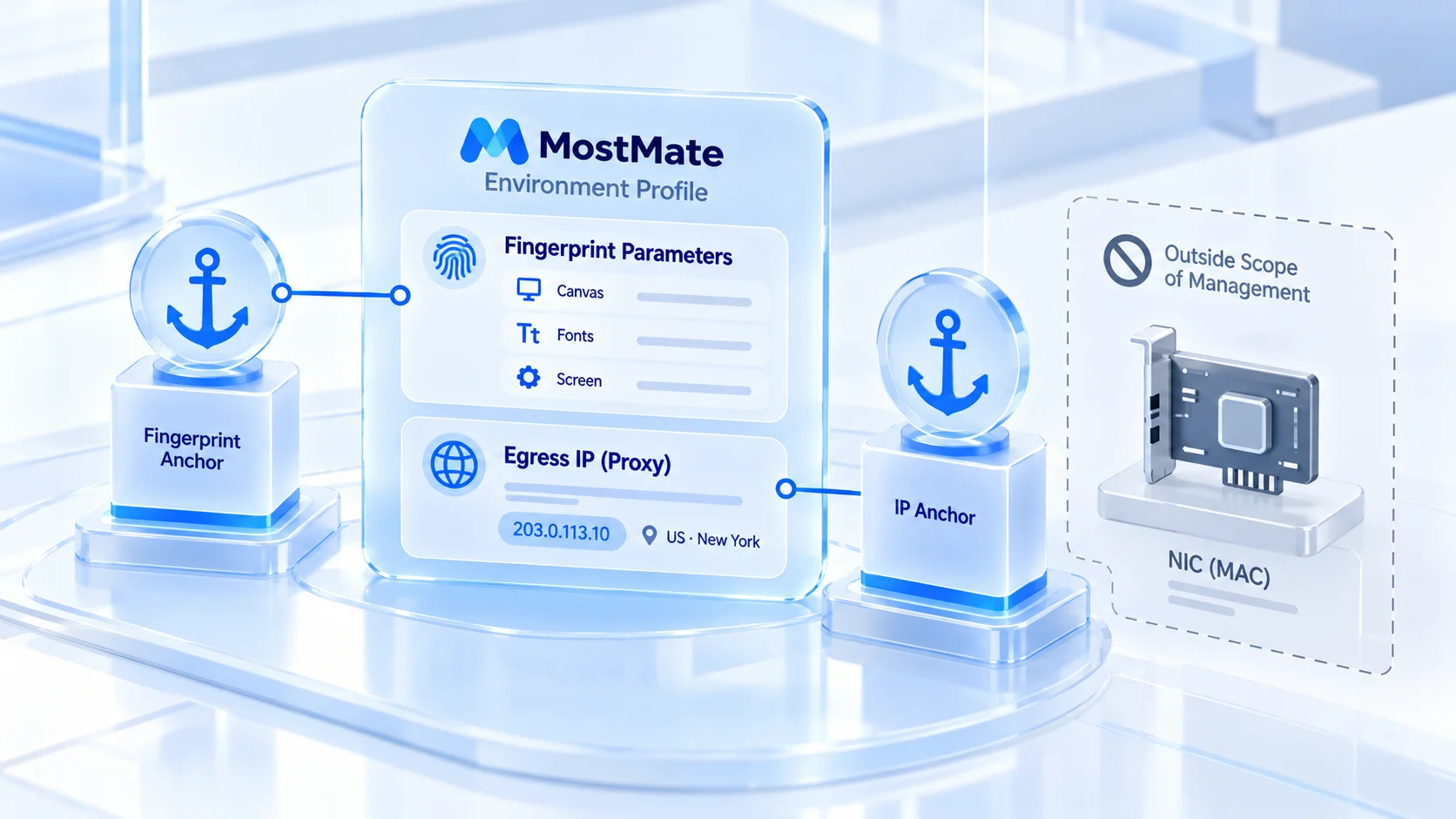
Once the boundary is clear, the tool will not be used off course. A fingerprint browser manages signals inside the browser environment; the MAC belongs to the network card layer and is outside its jurisdiction, and no mainstream fingerprint browser claims to have changed it. MostMate manages the environment layer: each environment's fingerprint parameters and exit IP are independent, the device signals fixed when the environment is created stay stable over time, and with proxy binding the mapping between exit and fingerprint is documented in the environment profile.
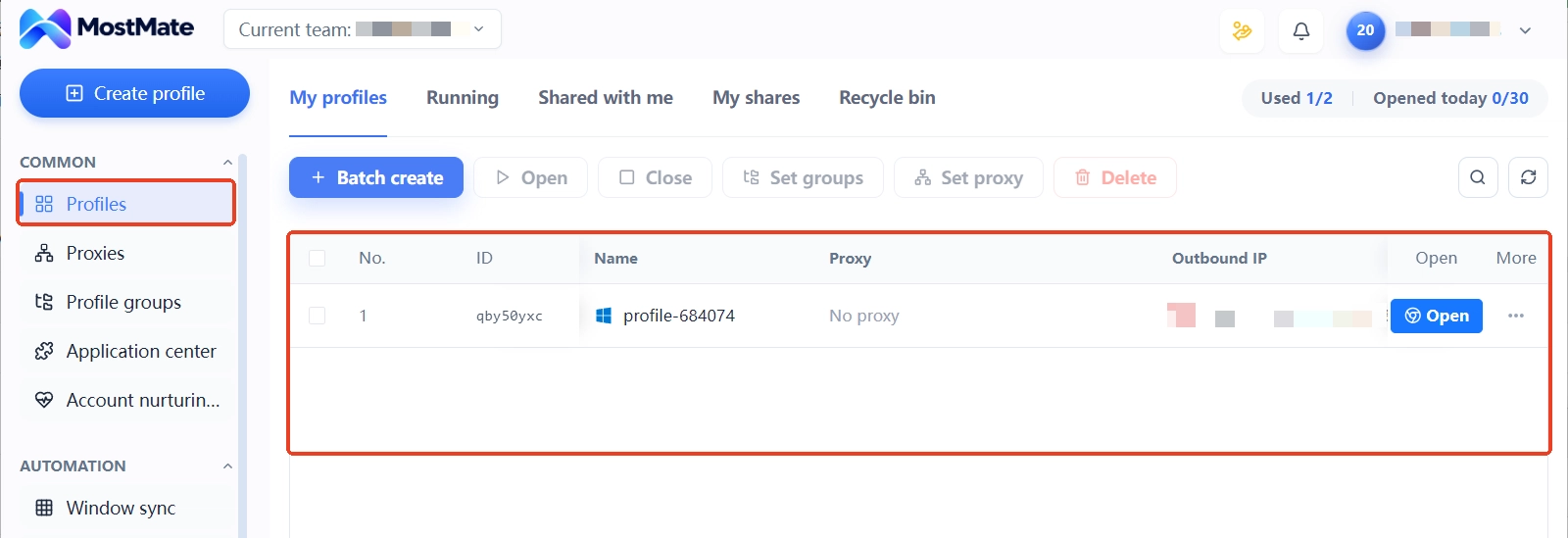
For day-to-day operations, the action sequence around the two signal layers is not complicated:
1. Choose the exit type and enter the proxy. Residential or datacenter, fixed or dynamic, decided by the business stage. After entering it, run a test to confirm the exit matches the label.
2. Assign environments and sync the parameters. Time zone, language, and geolocation are generated in sync with the exit IP, and the network profiles of different environments stay independent of one another.
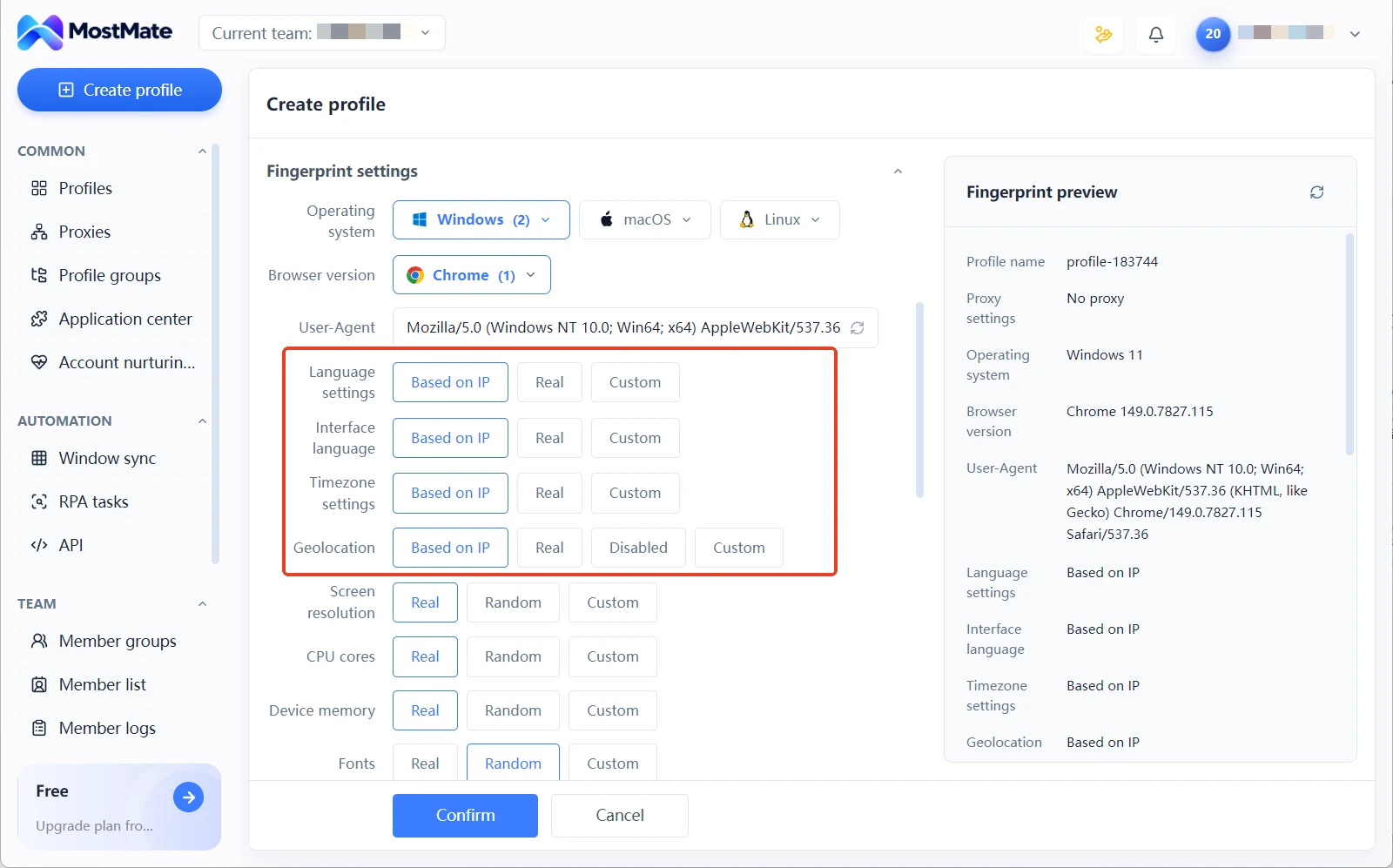
3. Verify logical consistency regularly. The exit region, environment parameters, and account registration details should line up on all three sides, with deviations caught at the configuration stage instead of when the business files a problem report.
What this sequence replaces is exactly the problem "change the MAC" was meant to solve. Accounts are told apart by the combination of environment and exit. Each combination is stable, recordable, and ready for handover, so in team collaboration, who runs which environment on which line is a matter of opening the profile. Fingerprint parameters are set once in the environment creation form and then left untouched. Frequent changes are themselves an anomaly signal.
FAQ
Can a website see my MAC address?
No. A MAC address does not leave the gateway with your requests. What website and platform servers can collect are the public exit IP and browser-level signals. The only parties that can see the MAC are local players such as the local router, devices on the same network, and venue probes.
Can changing the MAC address prevent account linking?
No. The inputs to a platform's linking analysis are the exit IP and browser fingerprints, and the MAC is not among them. Changing the MAC addresses movement tracking on public Wi-Fi, which sits on a different level from account risk control.
Should random MAC be enabled on phones and computers?
It depends on the scenario. Devices that often join public Wi-Fi should have it on: the system uses a different random address per network, lowering the risk of movements being linked. For business devices on a fixed office network, confirm the network management policy before enabling it, to avoid being treated as an anomaly.
Does a fingerprint browser modify the MAC address?
No, that is outside its scope. A fingerprint browser manages fingerprint parameters and the exit IP within each environment. Accounts are told apart by each environment's independent signal combination, not by rewriting the network card identifier.
Closing Thoughts
The exposure boundary of a MAC address is the local network; randomization and changing it address venue tracking, and a platform's linking analysis never looks at it from start to finish. The real linking risk of accounts concentrates in the two layers of exit IP and browser fingerprints, and managing those two layers per environment is more on target than any action at the network card level.
In practice, first bind each environment to an independent, verified proxy exit, then let fingerprint parameters stay in sync with the exit and remain stable over time, and finally record the mapping in the environment profile. For choosing the exit line type, see the article on fixed IP versus dynamic IP. Full descriptions of every capability are collected on the product page, What is MostMate. To build the environment, proxy, and fingerprint pipeline with your own hands, start by downloading MostMate. Moving the account that matters most into the first environment for a trial run will tell you right away.

MOSTMATE
Secure Multi-Account Management, Made Simple
Start with your first account and use MostMate to build safer, smarter, and more efficient multi-account operations.
- Independent profiles. Consistent identities.
- AI Automation · Account Health · Team Operations



