
What Is WebRTC in a Fingerprint Browser? Why Proxy Setups Need a Check
You have set a proxy on your environment and the test page shows the proxy IP correctly, yet the WebRTC field lists a different address. Or the other way around: you heard WebRTC leaks your IP, switched it off, and now wonder whether that causes problems of its own. Both questions come down to the same thing: in a fingerprint browser, WebRTC is a setting you configure per environment, and beyond an on/off switch there is also a choice of modes. This article walks through MostMate's WebRTC settings: why it leaks addresses, which of the three modes fits which situation, and how to verify the result once configured. For the product as a whole, see What is MostMate; this page focuses on WebRTC alone.
Why WebRTC Is a Configuration Parameter in a Fingerprint Browser
WebRTC is the browser's built-in audio and video calling capability, and before it sets up a connection it actively collects your machine's network addresses, a collection that never passes through the proxy. Here is what happens: once a web page calls the WebRTC interface, the browser lists the addresses available on the machine (the local network address and the public address mapped through the router) as a set of ICE candidates and tests each one for connectivity, and the page's scripts can read the whole list. No camera permission is required; simply opening the page can set it off. For the details at the interface level, see the WebRTC API documentation on MDN.
That is why WebRTC appears on a fingerprint browser's configuration list at all: the addresses it gathers and the page traffic forwarded by the proxy travel on two separate routes, and however correctly the proxy is set up, the behavior of this independent channel is decided by the environment configuration. For a fingerprint browser like MostMate, WebRTC is a baseline parameter in the fingerprint settings alongside Canvas and the font list: each environment decides on its own how this channel behaves, so that its output matches the network persona of that environment. That is also the point of configuring it: making each environment's WebRTC behavior add up. Switching it off is only one of the options.
Why You Still Need to Check WebRTC After Configuring a Proxy
A proxy changes the exit point of web requests, while WebRTC asks external servers on its own what your address is, so the two answers can disagree. To get through network address translation, the audio and video channel queries the exit address directly, and most proxy setups never handle that query. The result: the page shows the proxy IP, WebRTC shows the real IP, and both sets of data land on the same website.
A mismatch can take three forms, and each calls for a different response:
- Public address mismatch. The WebRTC field shows an ISP address or an IP different from the proxy, and the environment's regional persona is blown on the spot. This is the most direct form, and it has to be fixed at the environment configuration level.
- Identical local addresses. Several environments reporting the same internal address range amounts to declaring that they run on the same physical machine behind the same router. For multi-account operations this works as linking evidence even more often than the public IP.
- Complete silence. Kill WebRTC entirely and the candidate data comes back empty. Almost no regular user does this, so statistically this emptiness is a minority signal, and seen alongside other signals it stands out all the more.
Modern browsers already mask local addresses (a random name stands in for the real internal address), but the mask only covers local candidates while public candidates still go through. Masking is no substitute for environment configuration, so the check remains necessary.
MostMate's Three WebRTC Modes: How to Choose, Who Each Fits
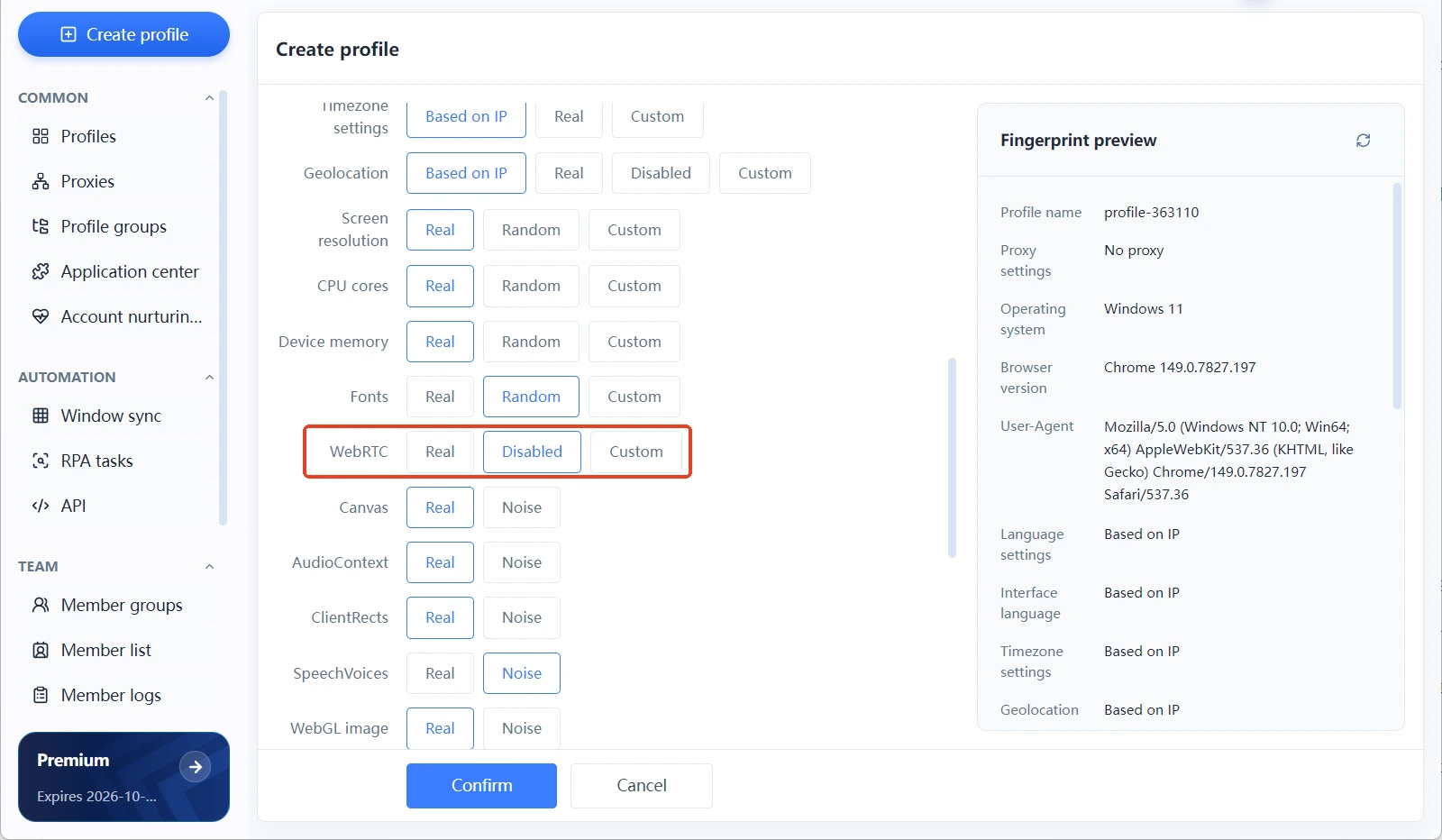
In MostMate's fingerprint settings, WebRTC comes in three modes, real, disabled and custom, and each mode changes how this channel ultimately behaves inside the environment:
- Real: the environment uses the host machine's WebRTC behavior; whatever the machine sees is what the page gets. Suited to setups where the host machine itself already sits behind the matching proxy and its network matches the persona, for example a local network with a US exit used for US environments. The limitation: it makes no adjustments at all, so it is unusable whenever the host network and the persona disagree.
- Disabled: WebRTC is switched off inside the environment and no candidate data is produced. Suited to environments whose target platforms involve no audio or video business and that put controlling address exposure first, for example pure e-commerce back-office work. Two limitations: web meetings, live chat widgets and similar features stop working; and as noted above, the silent profile is a minority signal, so with this choice the remaining fingerprint parameters need to line up even more precisely.
- Custom: the addresses WebRTC displays are adjusted to fit the environment's persona, so that the public address among the candidates matches the proxy exit. Suited to environments that want to keep WebRTC working while requiring the channel to match the network persona, for example accounts that use web chat or audio and video interaction. Configure it item by item according to how strict the platform's risk controls are.
There is no universal answer among the three. The choice comes down to two questions: does the environment have any audio or video needs, and does the host machine's network match the environment's persona? All three modes are found in the fingerprint settings section of the environment creation form, and after configuring you can confirm the current value in the WebRTC field of the fingerprint preview panel.
From Configuration to Verification: A Complete Check Routine
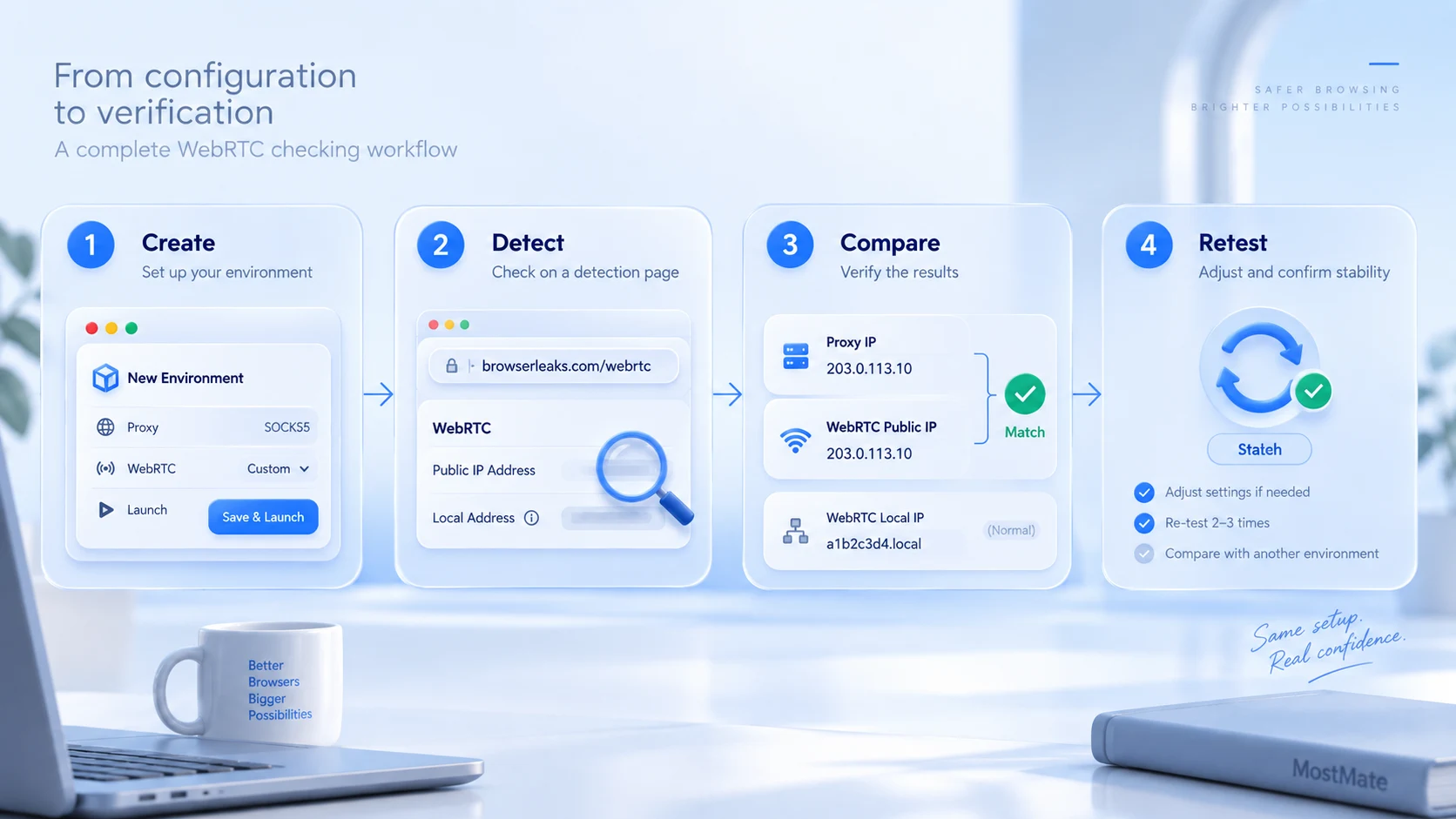
Once the setup is done, run one test to confirm the result, in four steps:
- Step 1: Create the environment in MostMate, set up the proxy, set WebRTC to the mode chosen above, save, and launch the environment.
- Step 2: Inside the environment, open a test result page on BrowserScan or Iphey and locate the WebRTC entry. The WebRTC test page on BrowserLeaks lists every address in the candidate list outright, which suits a line-by-line check. How to read third-party test pages in full is covered in the Iphey trust score guide; here we only look at the two address lines related to WebRTC.
- Step 3: Compare and check. The public address shown by WebRTC should match the proxy exit IP; a local address shown as an mDNS random name is within the normal range.
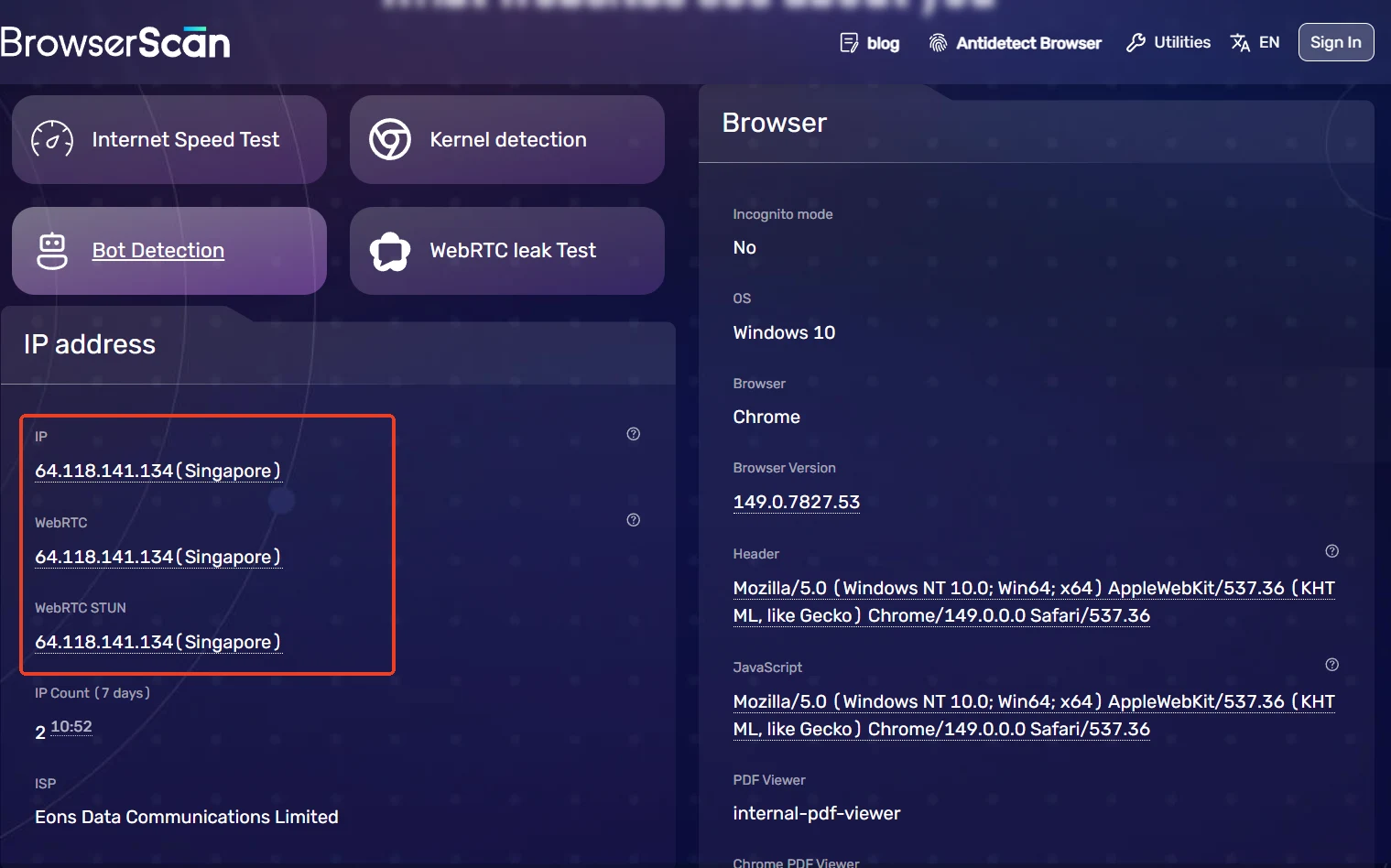
- Step 4: Adjust and retest. If the values disagree, go back to the fingerprint settings, change the mode, save, relaunch the environment and test again. Refresh the same environment two or three times to confirm the values stay stable, then compare against a second environment to confirm that each one behaves independently.
Three Things to Keep in Mind
- Do not treat Disabled as the universal fix. It blocks address exposure, but it also costs functionality and creates a statistical anomaly. Environments without audio or video needs can use it; environments with such needs should pick Real or Custom.
- WebRTC is not a check in isolation. It has to line up with the proxy exit, the operating system, the time zone and the language. WebRTC looking fine while the rest is out of place still makes the environment suspicious. How the parameters work together is explained as a whole in the article on MostMate's four design principles.
- Choose the mode by business needs instead of copying someone else's setup. An e-commerce back-office account and a livestream interaction account have completely different WebRTC needs; even within one batch of environments you can mix the three modes by purpose. No mode is inherently better than another.
Conclusion
WebRTC is an independent network parameter inside a fingerprint browser: it obtains addresses without going through the proxy, so it needs its own check after the proxy is configured, and its value lies not in switching it off but in making each environment's channel behavior match that environment's persona. Choose among MostMate's Real, Disabled and Custom modes based on what the environment is for, then run one more test to verify the result. To run this routine yourself, download MostMate and build two environments on the free plan to compare; the basic concepts behind proxies and isolation are covered in What is environment isolation.
FAQ
Does a fingerprint browser still leak the IP after WebRTC is switched off?
Once it is off, the WebRTC channel no longer produces address data, so the leak along that path disappears. The IP seen in normal browsing is decided by the proxy, though, so the two need separate checks. Also, complete silence is a minority signal, so turning WebRTC off is not a sensible choice for every environment.
After configuring a proxy, what should the WebRTC test show?
The public address should match the proxy exit IP; a local address shown as an mDNS random name is normal; the values stay stable within the same environment. An ISP address or an IP different from the proxy means the mode needs adjusting.
Do WebRTC settings affect the browser fingerprint?
Yes. WebRTC's output is itself part of the fingerprint: test pages read the candidate data, whether there is any response at all, and the shape of the addresses. What the three modes change is precisely the shape of this part of the fingerprint, and the goal of configuring it is consistency with the environment's other signals, not elimination.
For environments with no audio or video needs, which WebRTC mode should I pick?
Either Disabled or Custom works: for pure back-office work, Disabled is the simpler choice; if the target platform's risk controls are strict and the silent profile worries you, pick Custom to keep one channel that matches the persona.

MOSTMATE
Secure Multi-Account Management, Made Simple
Start with your first account and use MostMate to build safer, smarter, and more efficient multi-account operations.
- Independent profiles. Consistent identities.
- AI Automation · Account Health · Team Operations



