
Pixelscan Detection Guide: What the Risk Score and checking proxy usage Mean
Key takeaway: Pixelscan builds its risk score from four signal blocks: network, browser, leaks and consistency. If any block contradicts itself, the verdict gets harsher. checking proxy usage is a status message during the scan; the final verdict is usually that proxy traits were identified, and the main cause sits on the IP side: datacenter ranges, a worn-out reputation, or time zone and language that do not match the exit. Fix the network first, then tune the browser parameters. Typical scenario: you run a scan right after binding a proxy, the page sits on checking proxy usage, and once the red-leaning verdict lands you have no idea which side to change first.
Before you can verify an environment you need one. That job belongs to MostMate: an AI fingerprint browser where every account runs in its own browser environment. Whether a setup is configured correctly is something only a detection site can confirm, and Pixelscan is one of the harder gates to pass.
The scenario is familiar. The proxy is bound, you open Pixelscan, the progress bar sits on checking proxy usage for a few seconds, and the final verdict leans red. Many people's first reaction is to change fingerprint parameters; after a round of changes the score has not moved, because the problem lives on the network side. This article takes the report apart from top to bottom: how the risk score is composed, what this status line is checking, and which side to fix first.
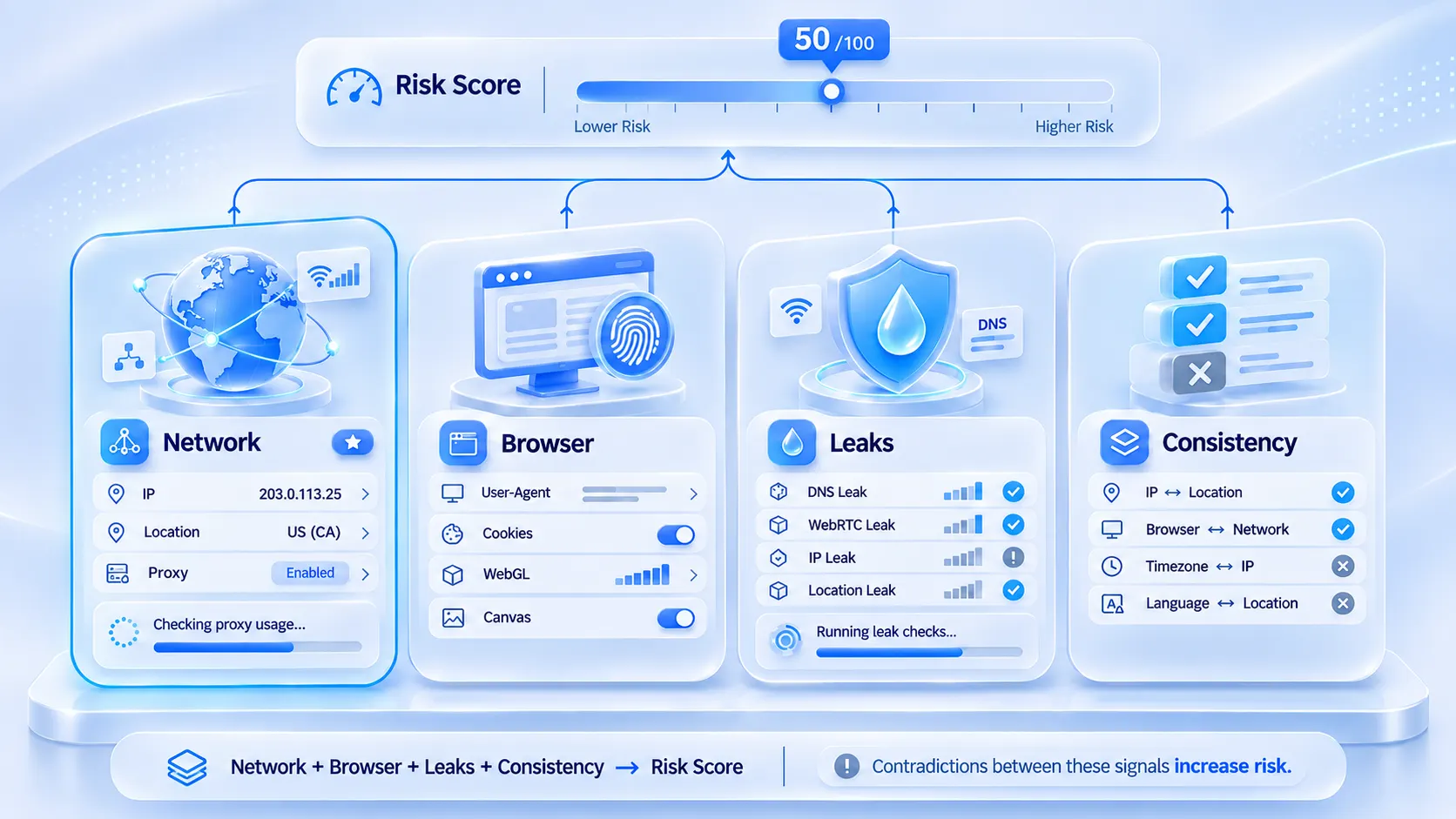
What Pixelscan tests: the four signal blocks of one scan
The official Pixelscan about page splits one scan into four blocks. The network side records connection facts such as IP, ASN and TLS version. The browser side collects fingerprint signals like Canvas, WebGL, User-Agent and Client Hints. The leak side runs two checks, WebRTC and DNS. The consistency side cross-checks what the network claims against what the browser claims and flags contradictions. The four blocks combine into a trust score plus a list of issues.
Most detection sites cover only one of these blocks; what makes Pixelscan harder is the cross-checking. A single normal signal adds nothing, and signals that undermine each other are what cost points. That is why it comes closer to how platforms do risk control than a plain IP lookup.
How to read the report: six verdicts for six problems
The report verdicts boil down to one table: find the row that matches your module.
| Report verdict | Usual meaning | What to check first |
|---|---|---|
| Consistent | All declarations match each other | Keep as is, retest regularly |
| Inconsistent | Browser and network claims conflict | Time zone, language, location |
| Proxy Detected | IP traits flagged as proxy | IP type and reputation |
| WebRTC Leak | Real address leaks via WebRTC | WebRTC settings |
| DNS Leak | Name resolution bypasses the proxy | DNS configuration |
| IP Blacklisted | Address sits on public blacklists | Change the IP |
The current interface splits detection into separate modules, so older tutorials that talk about a "fully green page" or "one red item at the end" may not match today's layout. Read the report by module name and the text beside it, and treat color as a hint only.
checking proxy usage: what this status line is checking
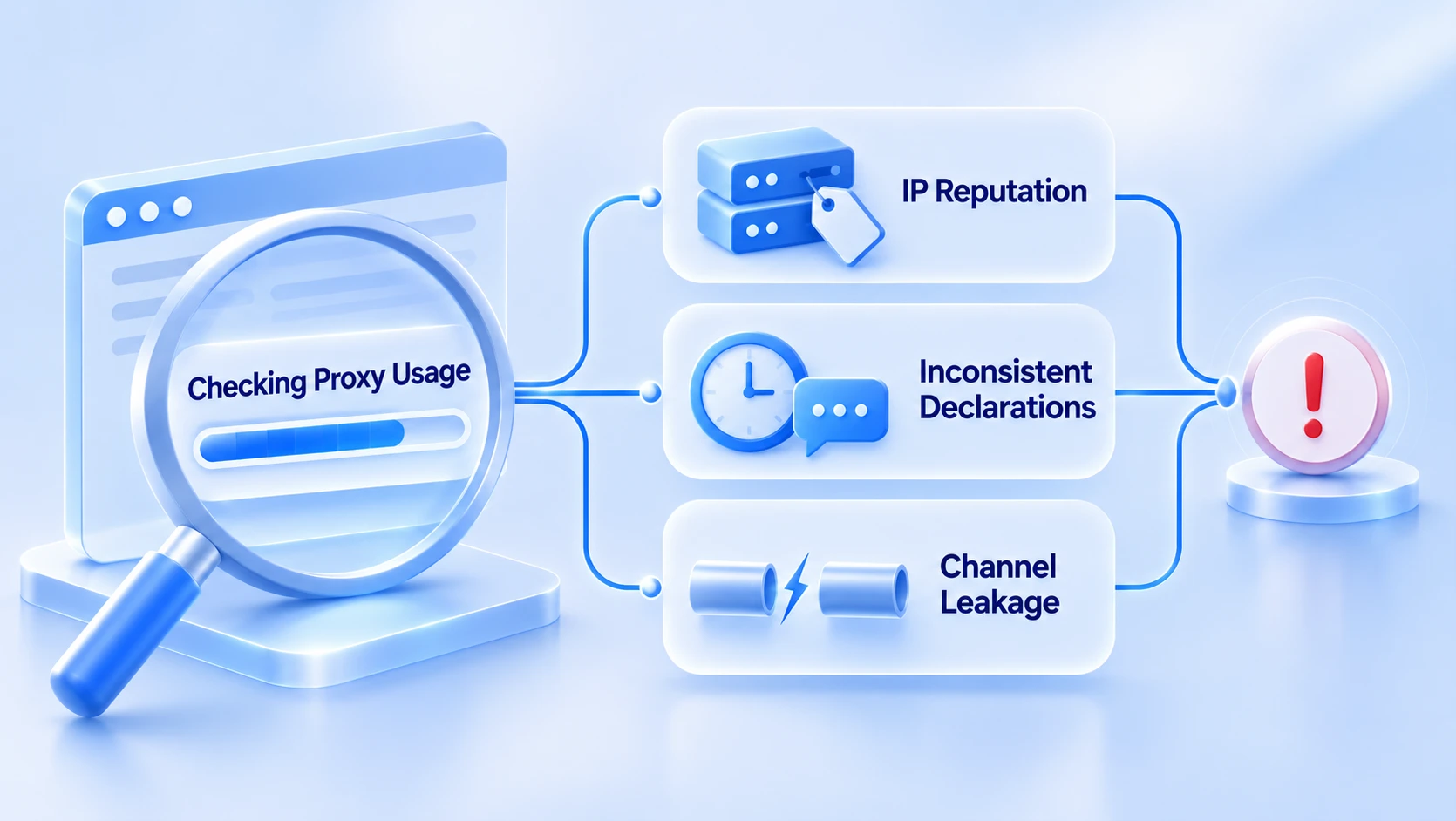
While a scan runs, several status messages appear in sequence; checking proxy usage corresponds to the proxy identification step. It is not a result by itself; the verdict that lands in the report is usually Proxy Detected. The triggers cluster in three places:
1. IP reputation problems. The exit address falls in a datacenter ASN range, or was abused before and ended up on a blacklist. Detection sites flag whole ranges directly.
2. Declarations that contradict each other. The browser's time zone, language and location do not match where the exit IP sits, like a browser on a German node still running on UTC+8 time.
3. Channel leaks. WebRTC or DNS bypasses the proxy path, so the real address and the proxy address show up at the same time and the disguise collapses on its own.
The first two are IP-side problems; changing browser parameters will not solve them. A reputation record is damaged history, and however clean the parameters, the traits of the range itself remain. For the third kind, the WebRTC settings guide walks through each item.
Fix order: get the network right first, then touch the browser
When the report leans red, the network side pays off the most, in this order:
1. Check the exit IP's type and reputation. If it is a datacenter range, move to a residential address; for how range traits drag accounts down, see the breakdown in IP bans and proxy quality.
2. Make the browser's declarations follow the IP. Align time zone, language and location with the exit city. MostMate's environment setup can recommend parameters based on proxy details; when you need finer control, open the advanced settings and adjust each item by hand.
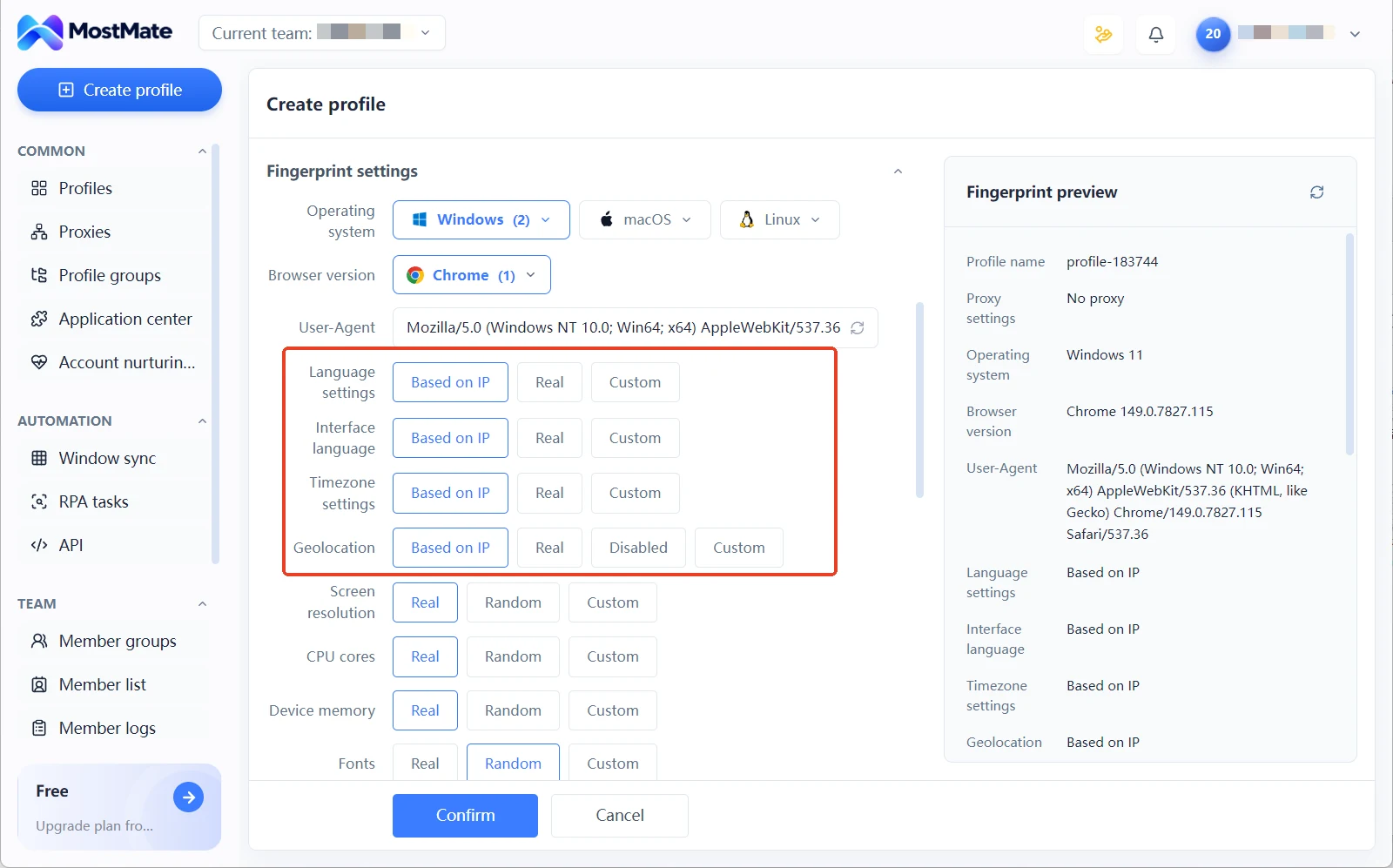
3. Plug the leak channels. Confirm that both WebRTC and DNS go through the proxy path; if both leak, the first two steps were done for nothing.
4. Retest once. Once the network side is clean, the red items left are browser parameter issues; handle them against the table in the previous section.
Retest after every round and change one thing at a time; only then can you tell which change worked.
Three mistakes that matter more than the score
- Treating one high score as a long-term pass. A score reflects that single session; swap the exit IP or change WebRTC behavior and the verdict moves. The official notes say it plainly: a clean score is not proof of who a visitor is. Make testing a fixed routine: test after creating an environment, after changing a proxy, and on a schedule; the two-layer proxy self-check workflow breaks this routine into steps.
- Over-disguising. A Masked flag in the report means parameters were modified; changing too much, too messily, actually resembles the traits of automation tools. The goal is an ordinary, self-consistent fingerprint; parameters that match each other beat a big pile of them.
- Using incognito mode to block detection. Incognito mode only manages local records; the fingerprint parameters stay fully exposed and the score does not improve because of it.
Frequently asked questions
Does checking proxy usage getting stuck mean something is broken?
Not necessarily. When this message lingers, the scan is usually waiting for IP intelligence data to come back. The official notes mention that reputation data comes from an optional third-party service. When the data source is missing, scoring degrades instead of erroring out. If no result arrives, refresh and scan again.
Why does it still flag proxy after I switched to a residential IP?
Residential ranges have history too. If the address was abused by a previous user or landed on a blacklist, the verdict will hold. The same applies when DNS requests bypass the proxy path. Work through the fix order and check DNS and reputation one at a time.
Two scans gave different results. Is that normal?
Yes. The score depends on the whole session; exit IP, WebRTC behavior, data source availability, a change in any of them moves the verdict. It is normal for the same device to score differently on two consecutive runs.
What risk score counts as passing?
Pixelscan does not publish a universal pass line; go by the verdict text. A practical reference is to keep your main business environments Consistent with no Proxy Detected. Then compare against the usual level of the same batch of environments and watch relative movement rather than absolute numbers.
Closing thoughts
Pixelscan's value is not the score but the way it marks contradictions. When the network and the browser disagree, the report points straight at where. That is exactly the signal-consistency problem a multi-account setup needs to solve. Passing a scan is only the starting point; keeping every environment's signals consistent over time comes down to environment isolation and configuration discipline. Beyond Pixelscan, the tools in the roundup of niche detection sites can cover extra checks, since each site has its own focus.
This verification needs no extra spend. Start from downloading MostMate, build the environment, bind the proxy, run one scan, and the flow works.

MOSTMATE
Secure Multi-Account Management, Made Simple
Start with your first account and use MostMate to build safer, smarter, and more efficient multi-account operations.
- Independent profiles. Consistent identities.
- AI Automation · Account Health · Team Operations



