
Anti-Detect Browser New Environment Setup Checklist: 8 Settings to Verify Before Launch
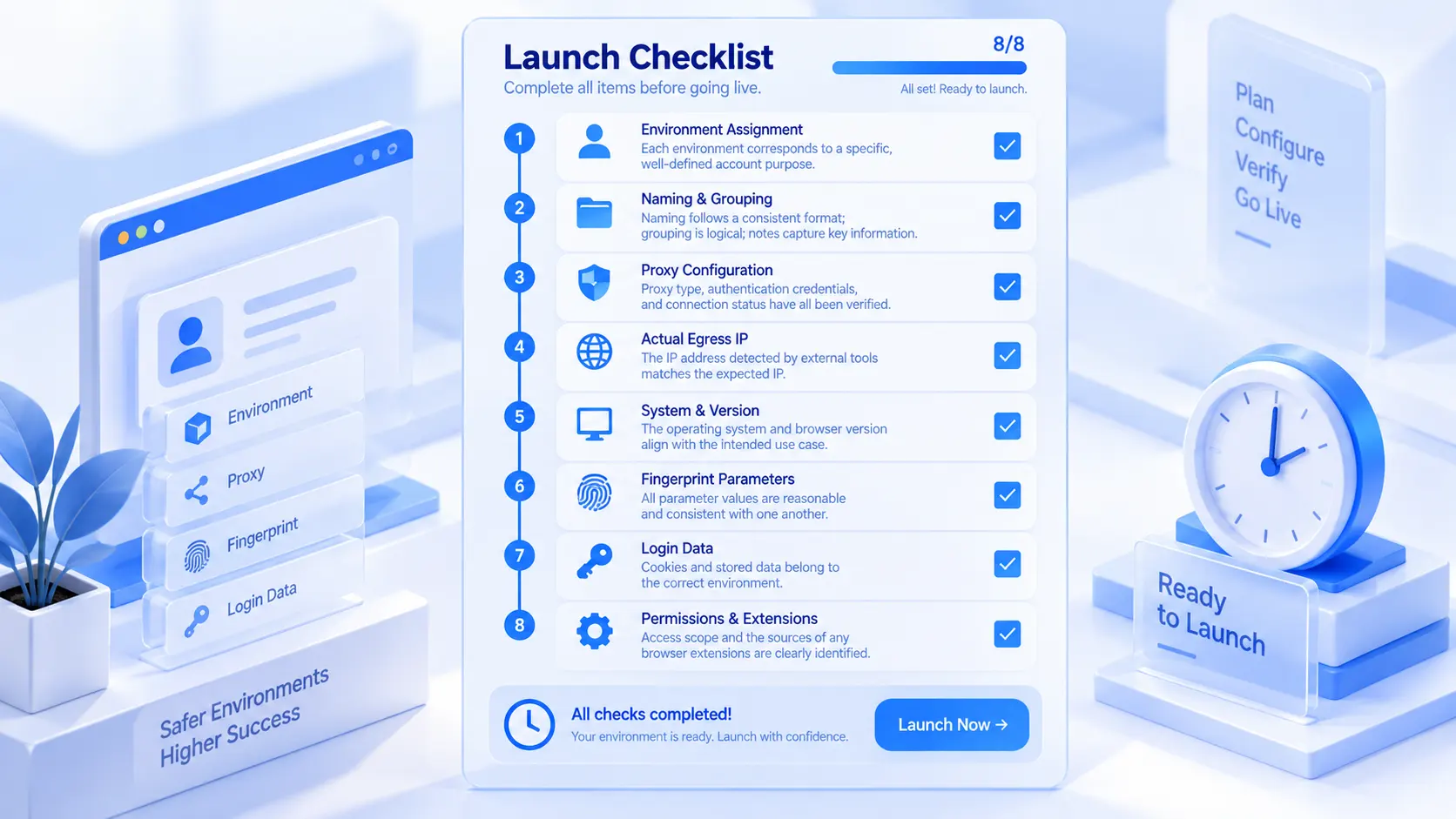
Bottom line: after a new environment is built and before the first login, it is worth verifying eight configuration items: environment ownership, name and grouping, proxy, actual exit, OS and browser versions, fingerprint parameters, login data, and permissions and extensions. Most of them can be confirmed before launch. Checking them in advance reduces human error and leaves a baseline for later troubleshooting. This guide covers acceptance before the first launch. How to create environments and how to maintain them day to day are outside its scope.
The usual scenario looks like this: creating a new environment takes seconds. Type a name. Paste in the proxy. Keep everything else at default. Hit Open. Only after the account is logged in do you notice the time zone is off, or that the same login state has ended up in two environments. What these problems share is that, by the time they surface, the environment already carries account data. Changing the configuration then means weighing one more layer of impact. Verifying the setup before launch costs only a few minutes.
As an anti-detect browser, MostMate gives each account its own environment, and the browser data of each environment is managed separately. It is positioned for beginners, with an emphasis on AI-assisted environment setup. The creation steps themselves are covered in the four-step getting-started tutorial, so this article does not repeat them. It picks up right after that step: the environment is built, and before you click Open for the first time, run the eight acceptance checks below.
The 8 Checks at a Glance
Here is the full table for quick reference as you work through the rest:
| # | Check | One-line standard |
|---|---|---|
| 1 | Ownership | One environment, one clear account purpose |
| 2 | Name & grouping | Formatted names, logical groups, key notes |
| 3 | Proxy config | Type, credentials, and connection verified |
| 4 | Actual exit | External tools see the expected IP |
| 5 | System & version | OS and browser version fit the use case |
| 6 | Fingerprint | Sensible values, consistent with each other |
| 7 | Login data | Cookies and storage are in the right place |
| 8 | Permissions & extensions | Access scope and extension sources are clear |
Checks 1 and 2: Ownership First, Then Naming
The first two checks are about management, not technical parameters.
The first check is ownership: which platform, which account, and what business this environment serves, and who is responsible for it. When a team runs several environments in parallel and ownership is not written down, the classic accident is B taking A's environment and logging into their own account. While confirming ownership, check the bound-account field as well. The mapping between environments and accounts should live in the system, not in someone's private notes.
The second check is naming and grouping: use a uniform naming format, for example "platform - business line - number", so anyone can tell the purpose from the name alone. Pick one grouping logic by client, business line, or platform, and settle it before the number of environments grows. Keep the notes field to purpose and owner, and never store credentials such as passwords or verification codes in it.
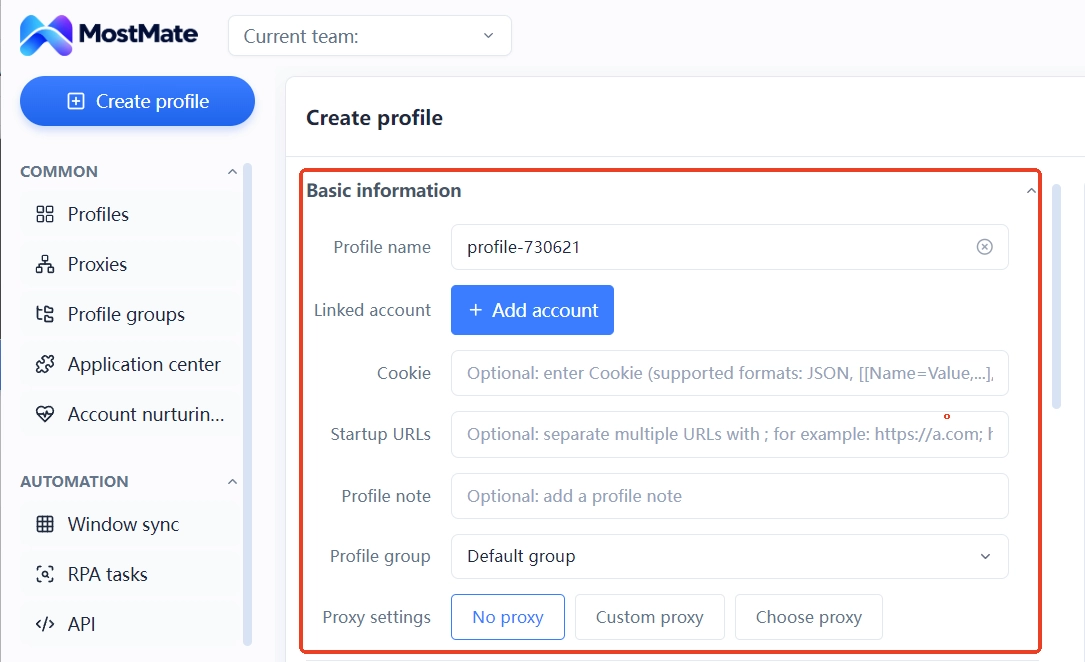
In MostMate's environment creation form, the environment name, bound account, environment group, and notes are all in the basic information section. Fill them in once, then filter the environment list by these columns to match everything up later.
Checks 3 and 4: A Filled-in Proxy Is Not Necessarily a Working Proxy
The proxy is where one extra minute before launch pays off most.
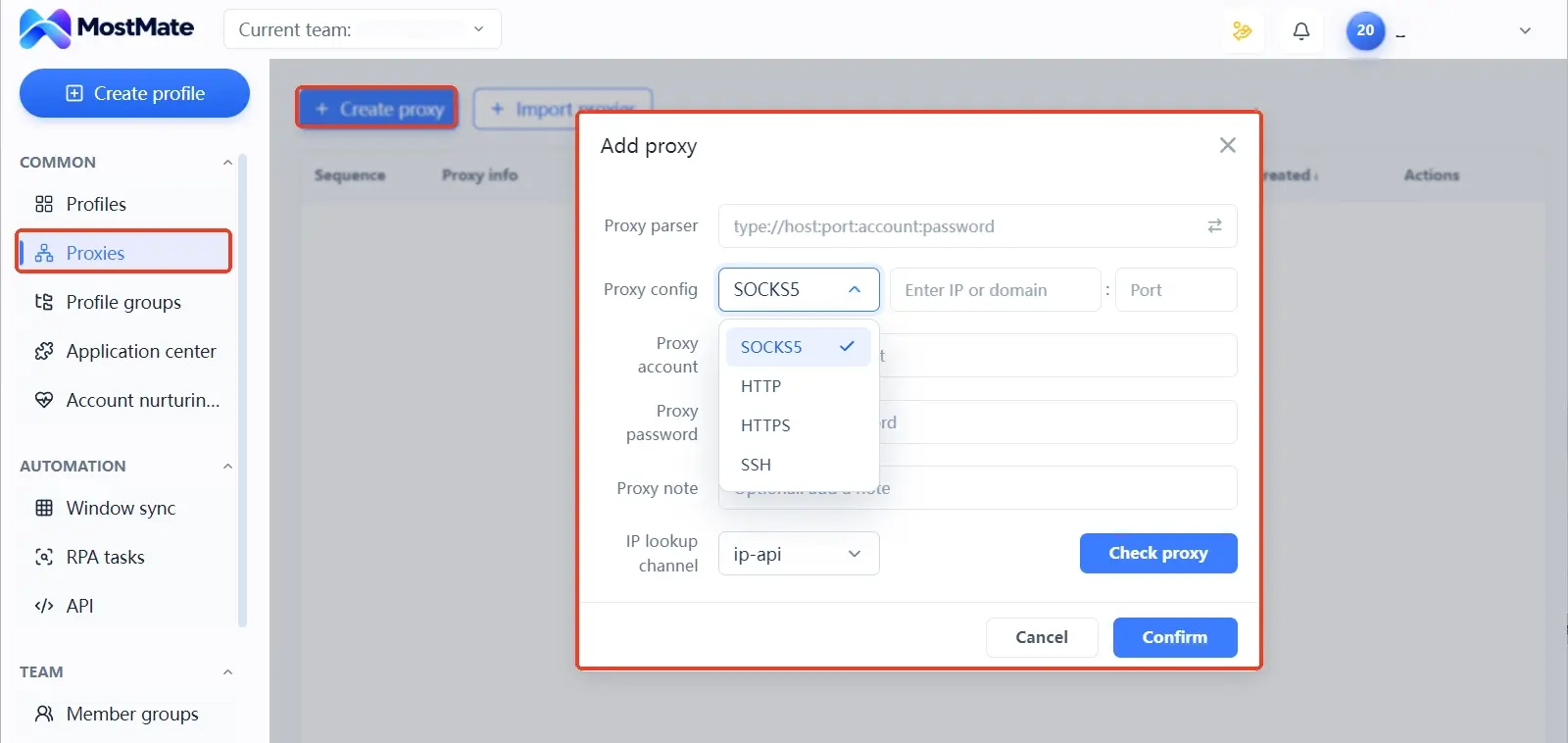
The third check is the configuration itself: whether the proxy type is HTTP, HTTPS, SOCKS5, or SSH; whether the credentials are correct; whether the proxy service is still within its validity period. If the connection fails, check the proxy address, port, credentials, and service status, then test again. In MostMate, proxies are created or imported in a dedicated proxy management list and then assigned to specific environments. The proxy column in the environment list shows which proxy each environment is currently on.
The fourth check is the result: a filled-in proxy does not mean the exit is already the one you expected. Open the environment and visit a detection service such as ipinfo.io to see the actual public exit country and region, then compare it with the details your proxy provider gave you. While you are at it, check whether the language and time zone roughly match the exit region, and note any obvious mismatches as leads.
A common misreading here: an exit region that occasionally differs from expectations may just be a geolocation error in the IP database. Language and time zone are supporting clues only. You should not conclude that the proxy or browser configuration is wrong merely because they do not line up with the exit location. When you find a discrepancy, re-check the current environment settings and the actual test result before drawing a conclusion. The day-to-day checking rhythm after launch is covered in proxy maintenance and exit checks; this article only covers acceptance before the first launch.
Checks 5 and 6: System Versions as the Base, Fingerprint Parameters for Consistency
The fifth check sets the base device information: which of Windows, macOS, or Linux to pick, and which browser version, should be decided by the business scenario and the account's existing usage habits, not by "newer is better". Once the two are settled, the User-Agent is generated accordingly. Just verify that it is consistent with the selected combination.
The sixth check is the fingerprint parameters, and the focus is "sensible and coherent", not "the more changes the better". For language, time zone, and geolocation, MostMate provides reference values based on the proxy IP by default. The defaults are not a full validation: check them against your expectations before deciding whether to adjust. For screen resolution, CPU core count, and similar parameters, cross-check against the selected OS, the device profile, and the options the interface offers, and do not change a value just because it looks common.
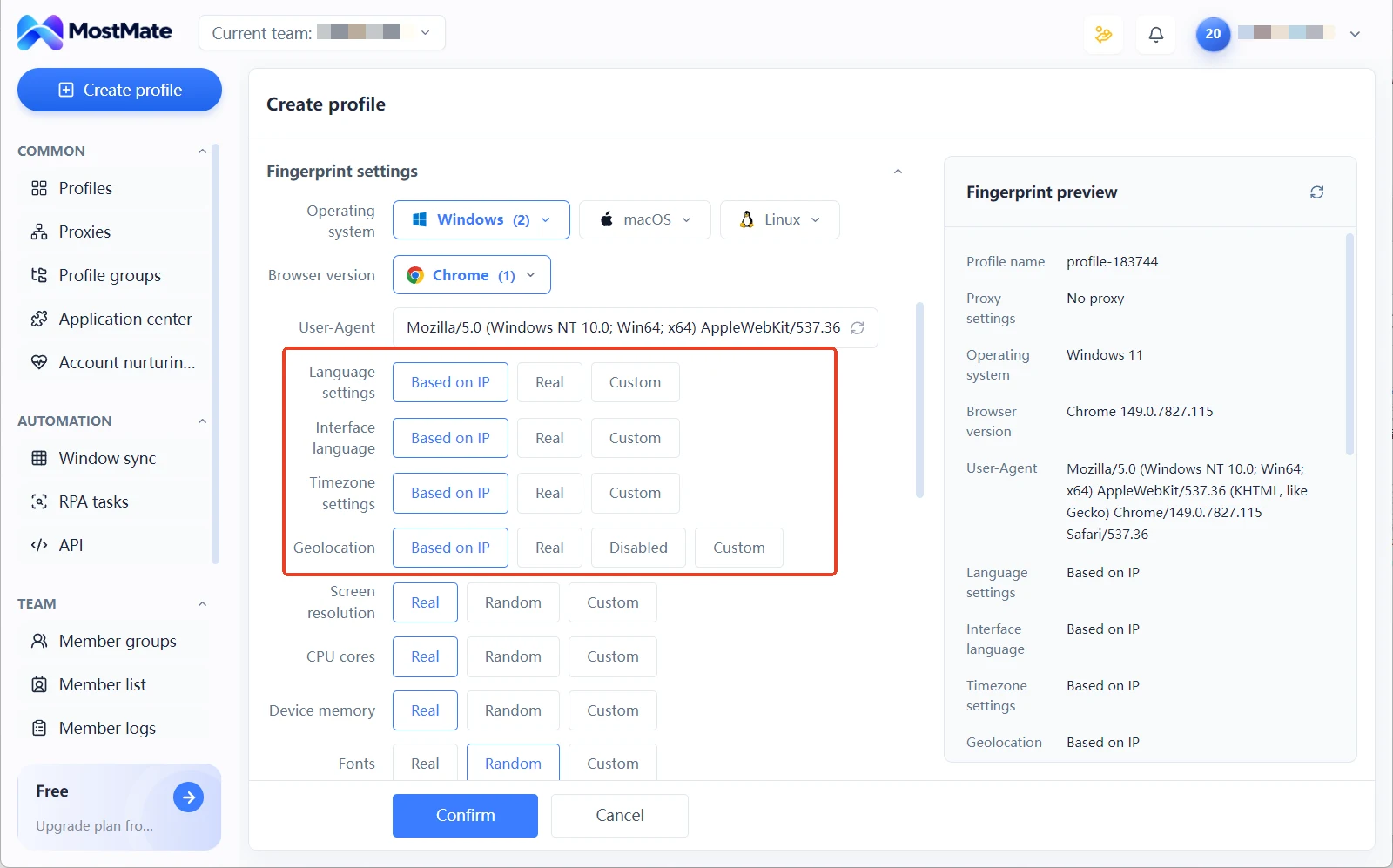
For rendering parameters such as Canvas and AudioContext, MostMate offers two modes, Real and Noise. With Noise selected, each parameter gets its own independent code. The fingerprint preview panel shows all current values at a glance.
Two directions are worth avoiding. The first is randomizing a pile of parameters to "look unique". Parameters that contradict one another actually stand out; why fingerprint randomization is unsafe analyzes the reason.
The second is treating a single passing test as proof that the whole profile is fine. Whether one parameter is common does not prove the entire environment is reasonable; overall consistency is judged by the combination. The checking approach in the AudioContext fingerprint guide applies to most parameters.
Checks 7 and 8: Data and Permissions Last
The seventh check is login data. Whether to import cookies depends on whether the account has an existing session or is freshly registered. If not needed, there is no reason to import just to make the configuration look "complete". When importing is genuinely required, take data from trusted sources only, because cookies carry session credentials.
Before logging in, also confirm that no other account's login state is left in the environment. Environment isolation keeps the browser data of different environments managed separately, which protects against cookies, caches, and login states being mixed up by accident. It does not mean accounts can never become linked under any circumstances, and it does not replace the platform's own login verification and security settings. The full workings and limits of isolation are laid out in the environment isolation guide.
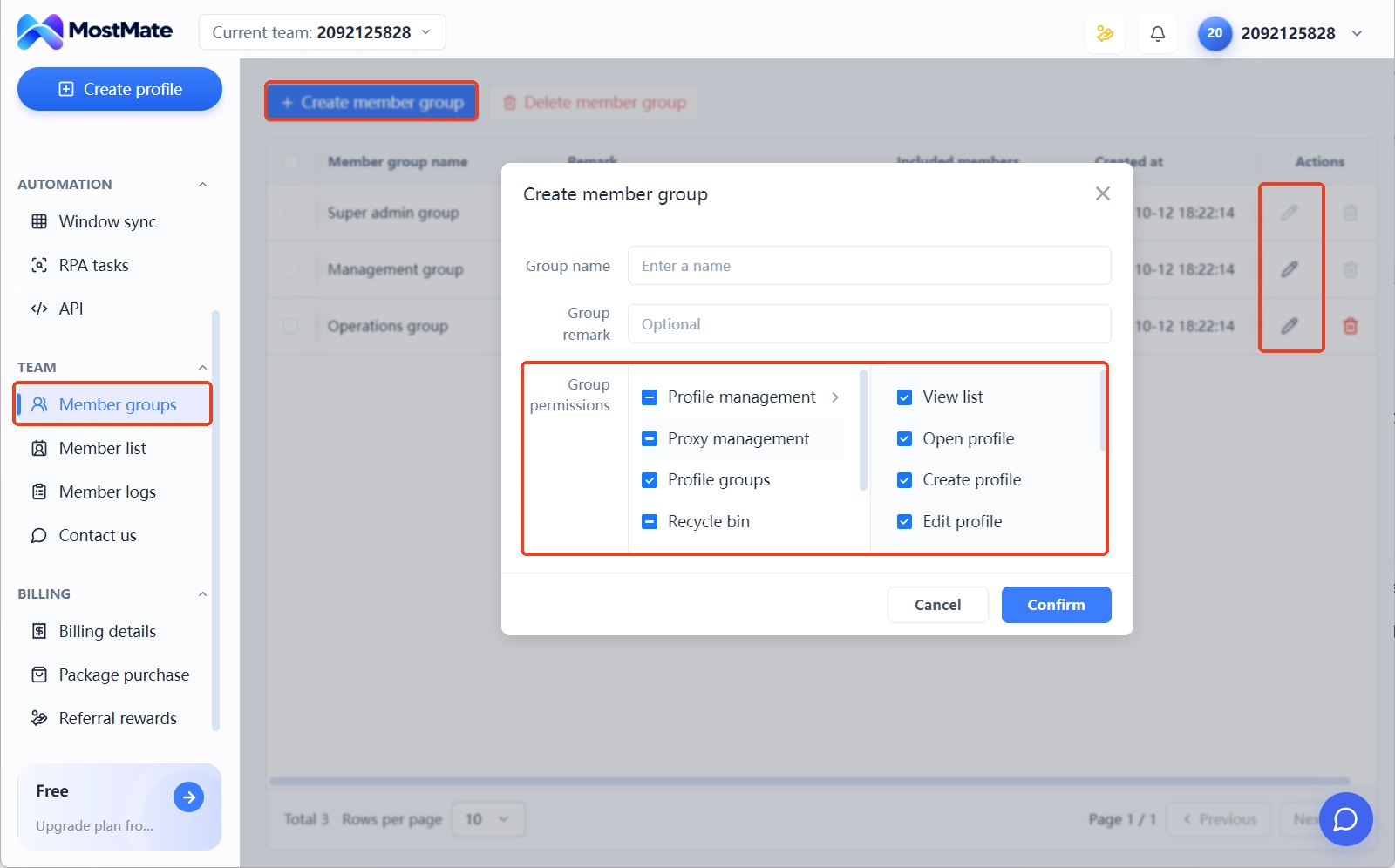
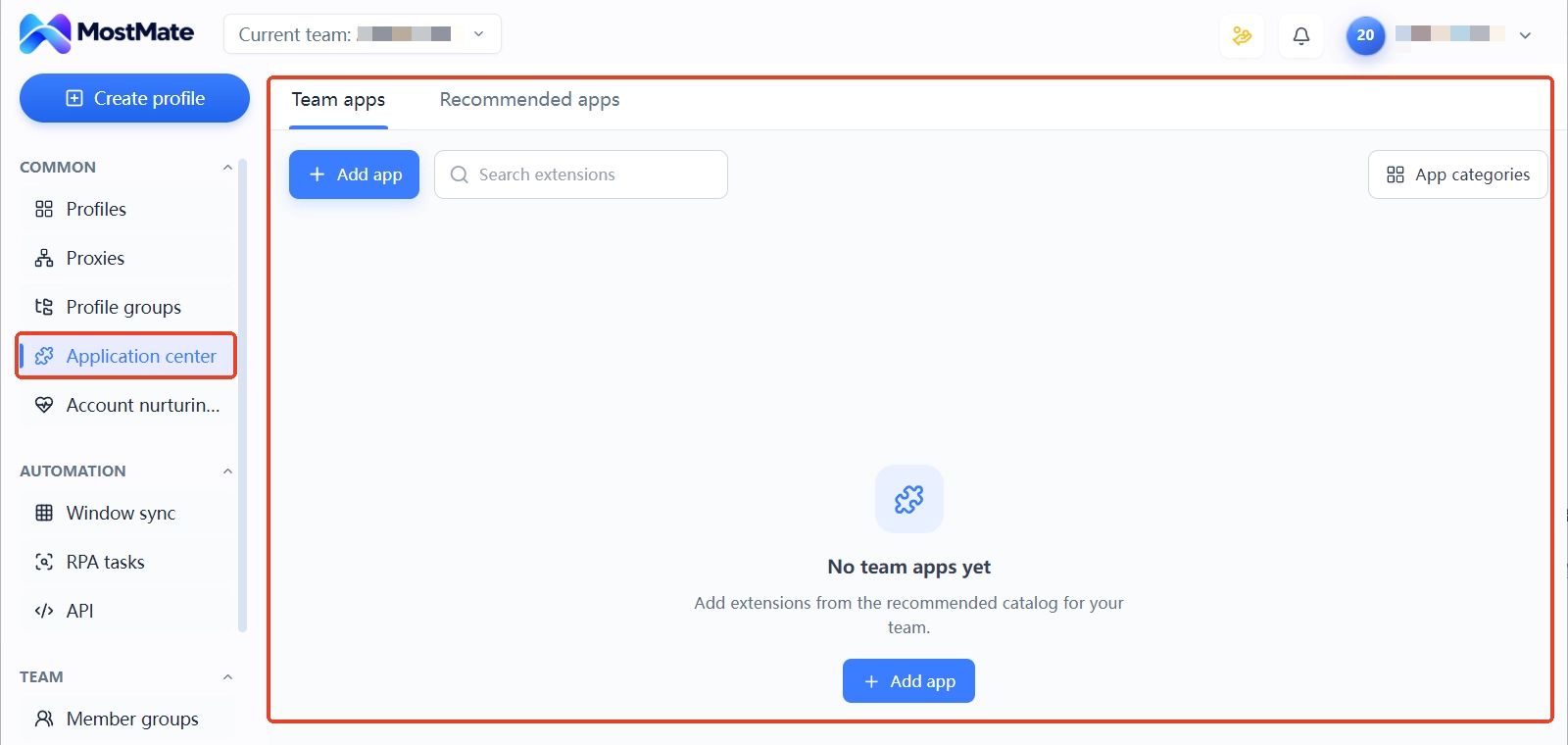
The eighth check is permissions and extensions. In team use, confirm who can access and edit this environment. The advanced settings of the MostMate environment form include an environment sharing access toggle; choose allow or deny as needed. Keep only the extensions the business actually needs: add and enable team apps in the App Center, group them by app category, and then select the category in the environment's advanced settings. What gets installed follows the category.
Once all checks are done, record the configuration as a baseline, so that every later change has something to compare against. Whether an old environment can be wiped for a new account is a different kind of question; the environment lifecycle article deals with reuse.
What If a Misconfiguration Turns Up After Launch
First pin down exactly which item is wrong; do not reset everything at once. A full reset makes it impossible to tell which change actually solved the problem, and accounts that are already logged in may be caught up in it as well.
- Locate the problem item: is the proxy exit wrong, or does one parameter deviate from expectations? Write it down clearly first.
- Change only that item, then re-check the configuration related to it; if you changed the exit, review the language and time zone again.
- Record what was changed and why, for comparison during the next round of troubleshooting.
- For accounts already logged in, first assess whether the change affects login state and normal operations before touching anything; for the preconditions and checks of environment reuse, see the lifecycle article mentioned above.
Turn These Checks into a Fixed Routine
After two or three rounds of these eight checks, it is worth making them a fixed team routine instead of relying on one person's memory.
MostMate cuts repetitive work at several points. Proxies are maintained centrally in proxy management, and once assigned to environments, the exit IP shows directly in the list. The fingerprint preview panel removes the need to open parameters one by one. The environment group and bound-account columns keep ownership checkable at all times.
The product page on the website explains the four design principles in full: isolation, consistency, authenticity, and stability. The eight checks are essentially a pre-launch confirmation of these principles, one by one. If you want to create an environment and run through them right now, visit the MostMate website for the overall features, or download MostMate directly and follow the order of this article.
FAQ
Do I have to configure a proxy right after creating a new environment?
It depends on the business. If the account needs a fixed network environment, the proxy should be configured and its exit verified before the first login; if you are only testing features locally, you can put it off. The key is not to switch the network configuration after the account has already logged in and produced data.
Are more fingerprint changes always better?
No. The value of the parameters lies in being sensible and coherent: each parameter matches the others and fits the environment's scenario. Heavy random editing tends to create self-contradictory combinations and makes later troubleshooting harder.
Can settings still be changed after the environment is created?
Yes. Creation and editing share the same form, so parameters can be adjusted at any time. For environments with logged-in accounts, though, assess the impact on login state before making changes, and record what you changed afterwards.
Can one environment hold multiple accounts?
From a management and troubleshooting point of view, one environment should map to one clear account purpose. When several accounts share one environment, cookies, caches, and login states can interfere with one another, and it becomes harder to tell which account or which operation caused an anomaly. Whether multiple accounts are even possible depends on the rules of the platform in question and your business scenario.
Closing Thoughts
Before launching a new environment, rather than touching every parameter, confirm that the key configuration matches expectations and keep a record you can compare against later.
Next time you create an environment, go through the summary table item by item. When something looks wrong, locate the specific configuration first, then re-check it in a targeted way. Do not reset all settings in one go. As the number of environments grows, this routine helps the team reduce configuration gaps and gives day-to-day management and troubleshooting a solid footing. If you want to build one now, visit the MostMate website for the full picture, or download MostMate and run the checks in this order.

MOSTMATE
Secure Multi-Account Management, Made Simple
Start with your first account and use MostMate to build safer, smarter, and more efficient multi-account operations.
- Independent profiles. Consistent identities.
- AI Automation · Account Health · Team Operations



