
What Is an AudioContext Fingerprint and How Does It Identify Your Browser?
Core takeaway: Audio fingerprinting never touches your microphone and never plays a sound. Instead, the browser silently renders a fixed audio clip in memory, and the tiny floating-point quirks in the result become a device signature. It belongs to the same family as Canvas and WebGL — render-result fingerprints: swapping your IP won't change it, clearing your cache won't remove it, and the value is decided by your hardware and browser engine. For multi-account operations, only two rules matter: the value must stay stable over time within one profile, and profiles must not share the same value. MostMate's AudioContext setting offers Realistic and Random modes — pick between them using exactly these two rules.
"Turn off the speakers and deny microphone access, and a site's audio checks are powerless" — that's one of the most common misconceptions about audio fingerprinting. The reality is the opposite: not a single sound enters or leaves at any point. In 2016, a Princeton research team formally documented the technique in a measurement across a million sites, and it has been a standard fixture in mainstream detection scripts ever since: zero permissions, millisecond execution, runs fine in private mode. MostMate is a fingerprint browser that gives every account its own isolated browser environment, and the audio fingerprint is one of the parameters such a product has to handle. This article covers four questions: what the website actually sees, why the number is so stable, how it lines up with other parameters, and how to configure it inside a fingerprint browser.
What the Website Sees: An Audio Clip That Never Plays, Returning a Number
What the detection script ends up with is a single float: no sound, no device model. Mainstream scripts (led by FingerprintJS, whose approach many open-source libraries reuse) follow the same five steps:
- Create an offline audio context (OfflineAudioContext, see the MDN docs): one channel, a 44100 Hz sample rate, about 5000 samples — roughly 113 milliseconds of audio — never routed to the speakers.
- Use an oscillator to generate a fixed 10000 Hz triangle wave as the identical input signal.
- Feed the signal into a DynamicsCompressorNode with deliberately aggressive settings (threshold -50 dB, knee 40, ratio 12), pushing the computation into its nonlinear range to amplify the small differences between devices.
- Call startRendering to render the buffer silently in memory; this step produces no audible sound.
- Take roughly the last 500 samples of the output buffer, sum their absolute values, and you get a number like 124.0434.
That number is the audio fingerprint. The computation happens before playback, so a muted system or missing speakers change nothing; the process never touches recording devices, so microphone permission doesn't even come up. Browser fingerprint overviews usually mention this parameter in a single line — it deserves its own article because of where its value comes from: the value comes from rounding error, and the error happens to be stable. That's the next section.
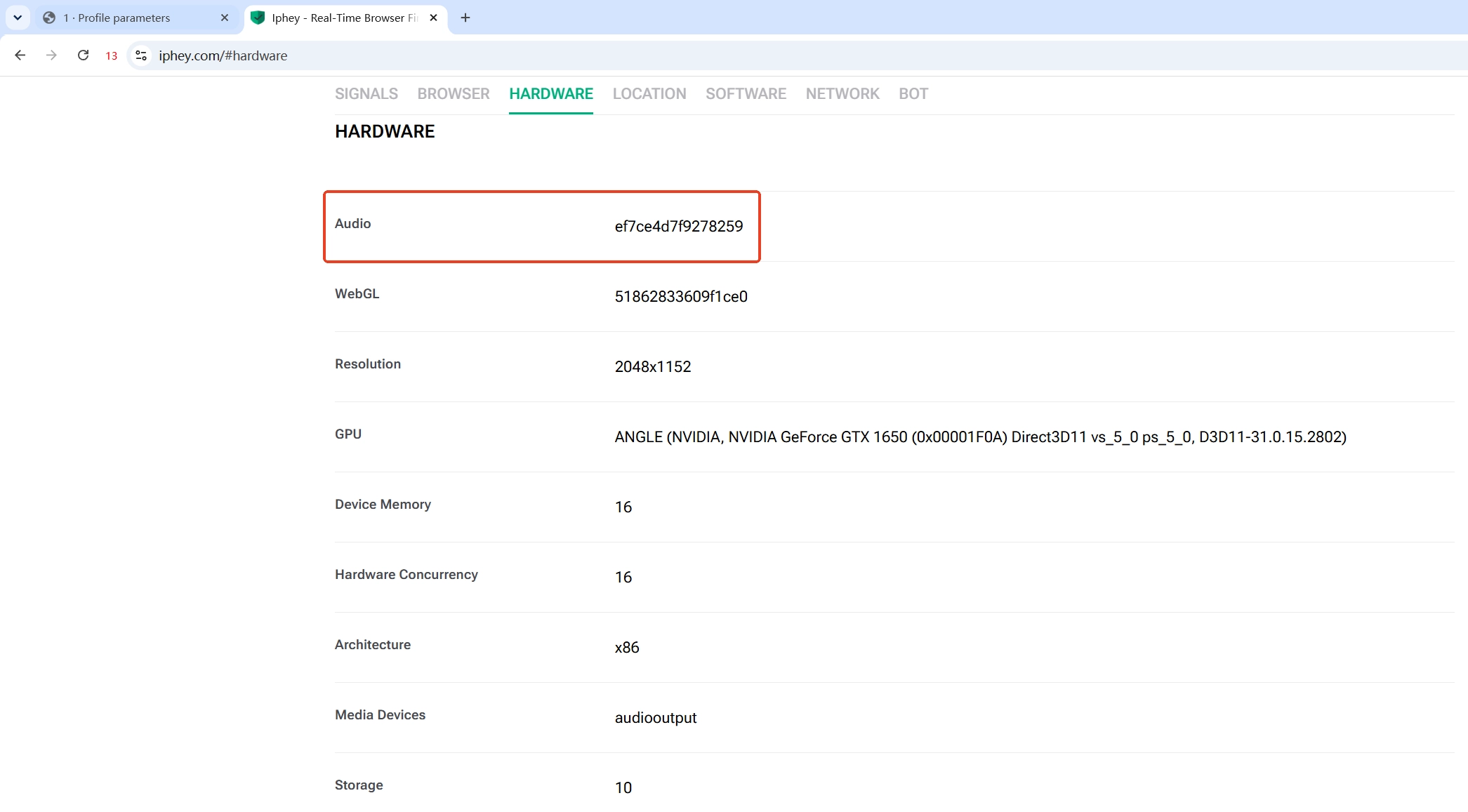
What testing sites display is usually a hex string hashed from this raw value, and its length varies from site to site; when comparing, just check whether it stays stable within one environment and differs across environments — no need to obsess over the string's format.
Why One Number Works as a Fingerprint: the Error Happens to Be Stable
The key mechanism: audio math is not bit-identical across devices, and the divergence is reproducible. The Web Audio spec defines the processing pipeline but doesn't require every implementation to produce bit-identical results; floating-point precision varies between CPUs, and different browser engines implement the audio stack with slightly different rounding and operation order. Each individual difference is negligible, but the signal passes through the compressor's nonlinear stage repeatedly and is then summed over hundreds of samples, so tiny deviations compound into a distinguishable number.
Princeton's study put real numbers on the scale: across more than 18,000 devices, audio fingerprinting converged on just over 700 distinct values, roughly 5.4 bits of entropy — a floor, not a ceiling, given the sample size. For linkage detection that magnitude is already enough, because the real value lies not in "how unique the value is" but in "how stable it is": refresh the same device a hundred times and the result doesn't budge; switch machines or browser engines and it changes immediately. A signal that needs no permission, can't be cleared, and survives refreshes is exactly the raw material platforms love for building device profiles.
How It Lines Up with Other Parameters: Three Consistency Rules
The audio fingerprint has nothing to do with your IP; it's a purely device-side signal. Like Canvas and WebGL, it's a render-result parameter — the site hands the browser a fixed computation and waits for real hardware to produce a result on the spot. To judge whether a profile is configured sensibly, run three checks:
- Stable within a profile: the same profile must render the same result every time; that's the baseline for "this is a normal device." A value that suddenly shifts only reveals that someone tampered with the parameters — which is itself suspicious.
- Different across profiles: ten profiles reporting the same audio value draw a circle around themselves on the linkage graph. The reverse is also true: "maxing out every parameter" is the wrong goal — the risks of randomization are covered in why fingerprint randomization is unsafe.
- Matched to the browser engine: the audio stack is implemented by the browser engine, so values follow the engine and its version. The UA and OS a profile claims must agree with the engine actually running; after a major browser update the value updates on its own — no manual intervention needed.
Put together, the three rules say one thing: an audio fingerprint should look like what a real device would produce, not like the "best" value. MostMate has baked this logic into four design principles; the four design principles article covers the whole picture — this one stays on audio.
How to Check Your Own Audio Fingerprint: Two Comparisons Reveal the Problem
No plugins needed for the detection stage — one testing site and a couple of refreshes will do.
Step 1: pick any testing site and find the audio fingerprint entry. BrowserScan and Iphey both list it separately; for how to read Iphey's trust score, the practical walkthrough covers the full flow — use it alongside the Iphey detection guide.
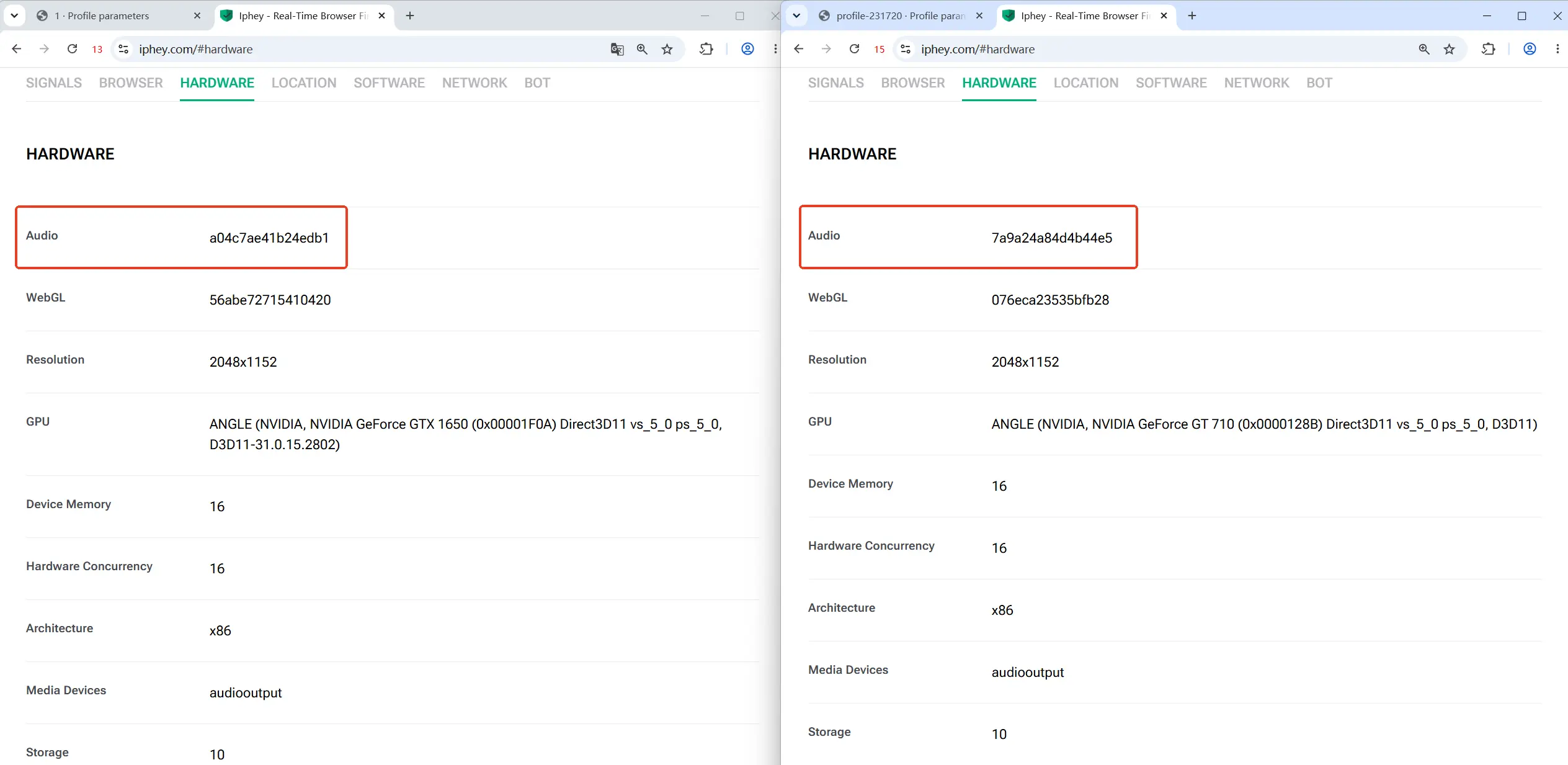
Step 2: refresh the same profile two or three times and watch the number. A stable value is the passing grade. If it changes on every refresh, the profile's audio parameter is set to recompute each time — effectively broadcasting "this device is being manipulated" to the platform.
Step 3: test a different profile and compare the two values. The audio values of two profiles should differ; if they're identical, go back and check whether the same fingerprint template was reused — template reuse is the stealthiest source of multi-account linkage.
How to Configure It in MostMate: Realistic vs. Random
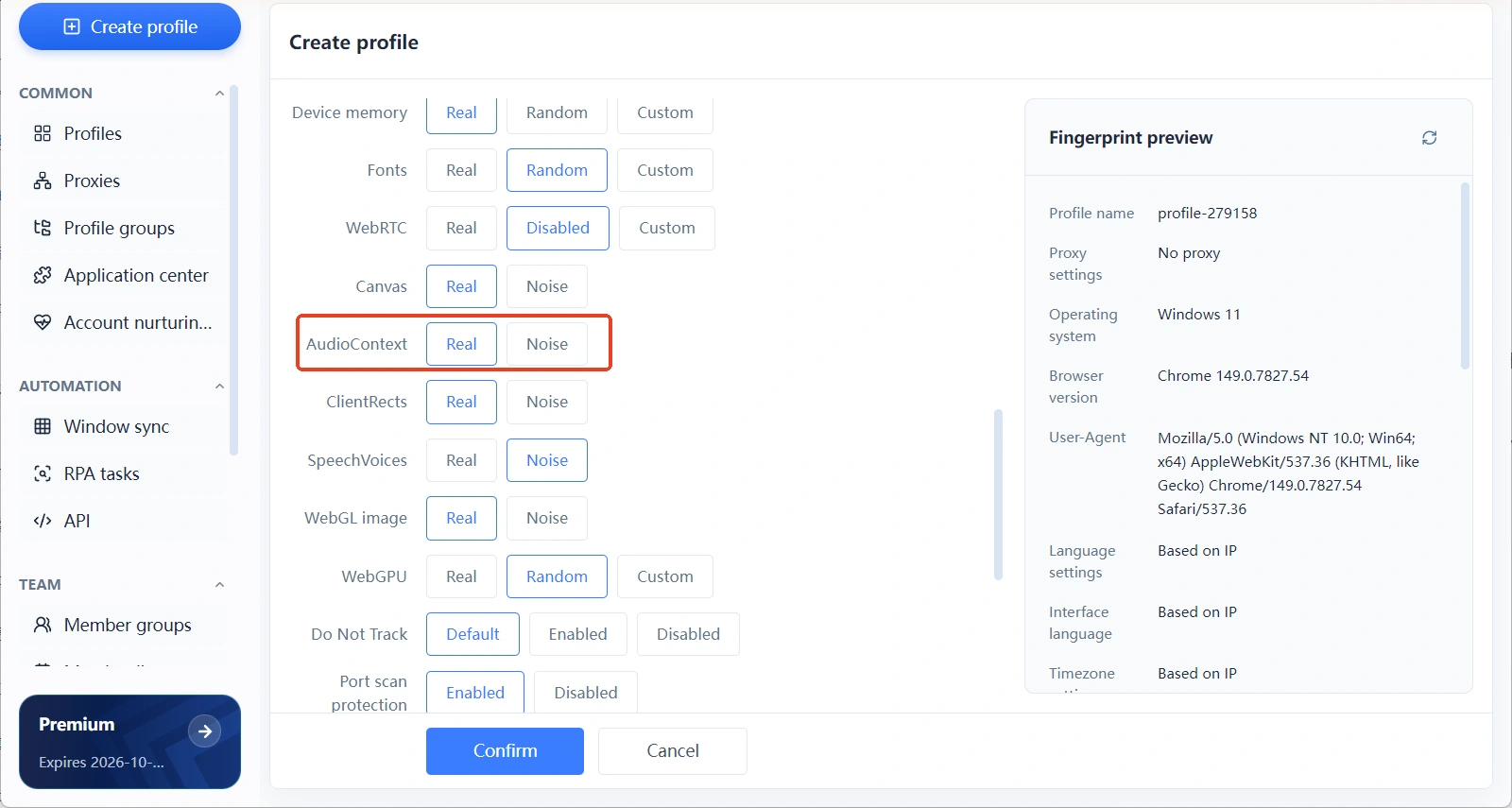
MostMate's profile creation form lists AudioContext separately in the fingerprint settings area, with two modes: Realistic and Random; the fingerprint preview panel on the right shows the current value in real time, so you can confirm before saving. Choosing between them is straightforward: use Realistic for everyday primary profiles — the value comes from your actual machine's computation, naturally stable, a perfect fit for the "stable within a profile" rule; use Random when creating a batch of profiles — each one gets a different yet internally stable value, satisfying "different across profiles."
There's no custom mode for audio, and that design is worth noting: the value of an audio fingerprint lies in its stability — hand-crafting a fixed value defeats the purpose. When choosing between Realistic and Random, what really matters is how the batch of profiles was created, not tweaking each parameter; judge Canvas, WebGL image, and ClientRects the same way — the full division of labor is explained on the What is MostMate page.
Frequently Asked Questions
Does the audio fingerprint need microphone or speaker permission?
No. The entire audio clip is rendered offline in memory — it never reaches the speakers and never touches recording devices, so it gets collected just the same on muted machines and machines with no audio hardware.
Can clearing cookies or going incognito evade the audio fingerprint?
No. Cookies are stored locally and can be wiped; the audio fingerprint is computed in real time by the device. These are two entirely different mechanisms, and clearing your cache has zero effect on it.
Wouldn't disabling AudioContext or pinning it to one value be safer?
That's backwards. Virtually every normal browser can run audio math, so "disabled" and "identical for everyone" become standout traits in themselves — easier to single out than an ordinary value.
When does the audio fingerprint change?
It changes when you switch devices or browser engines, or after a major browser update — the kind of evolution real devices go through naturally. Within the same profile under everyday use it should stay stable long-term; frequent changes are the abnormal signal.
Wrapping Up
The logic of audio fingerprinting fits in one sentence: a site can profile your device without playing a sound, because every machine computes with its own small, stable quirks. Once that clicks, a lot of common advice starts making sense — why muting doesn't stop it, why "perfect" parameters are the dangerous ones, why batch-created profiles must not share values. MostMate condenses parameters like this into Realistic and Random modes, with the fingerprint preview panel showing the result the moment you finish configuring. If you'd like to test the audio fingerprint of your own profiles hands-on, download MostMate and create two profiles on the free version to compare their values — most blind spots clear up in a single pass.

MOSTMATE
Secure Multi-Account Management, Made Simple
Start with your first account and use MostMate to build safer, smarter, and more efficient multi-account operations.
- Independent profiles. Consistent identities.
- AI Automation · Account Health · Team Operations



