
How to Set Up a Telegram Proxy: Environment Proxy vs. In-App Proxy
The core point: which exit an account actually uses is decided by its login entry, not by how many proxies are configured. Telegram Web has no proxy settings page of its own. Its exit follows the network layer where the browser sits, which in a fingerprint browser is the environment proxy. Only the desktop and mobile clients offer the in-app proxy, and Telegram honors exactly the one entry in its own settings. Each layer controls its own share of traffic. First tell which entry the account enters through, then decide which layer to configure.
This judgment comes from a very common confusion. People who run community operations usually hold several Telegram accounts. They set a residential proxy in the browser environment, then follow a tutorial and add an MTProto proxy in the client, and the active sessions page suddenly shows the same account logged in from two places. Which one is real becomes impossible to say. The root of the problem: the jurisdictions of the two proxy layers have never been explained separately.
MostMate is a fingerprint browser that binds a dedicated proxy and fingerprint parameters to every environment, and Telegram Web accounts are managed inside those environments. This article covers four things in order: what each proxy layer controls, why the web version has only one exit layer, which signals the client's proxy adds for multi-account operations, and a setup order that settles the environment layer first and the app layer second.
Two exits to tell apart: the environment proxy covers the browser, the in-app proxy covers the client
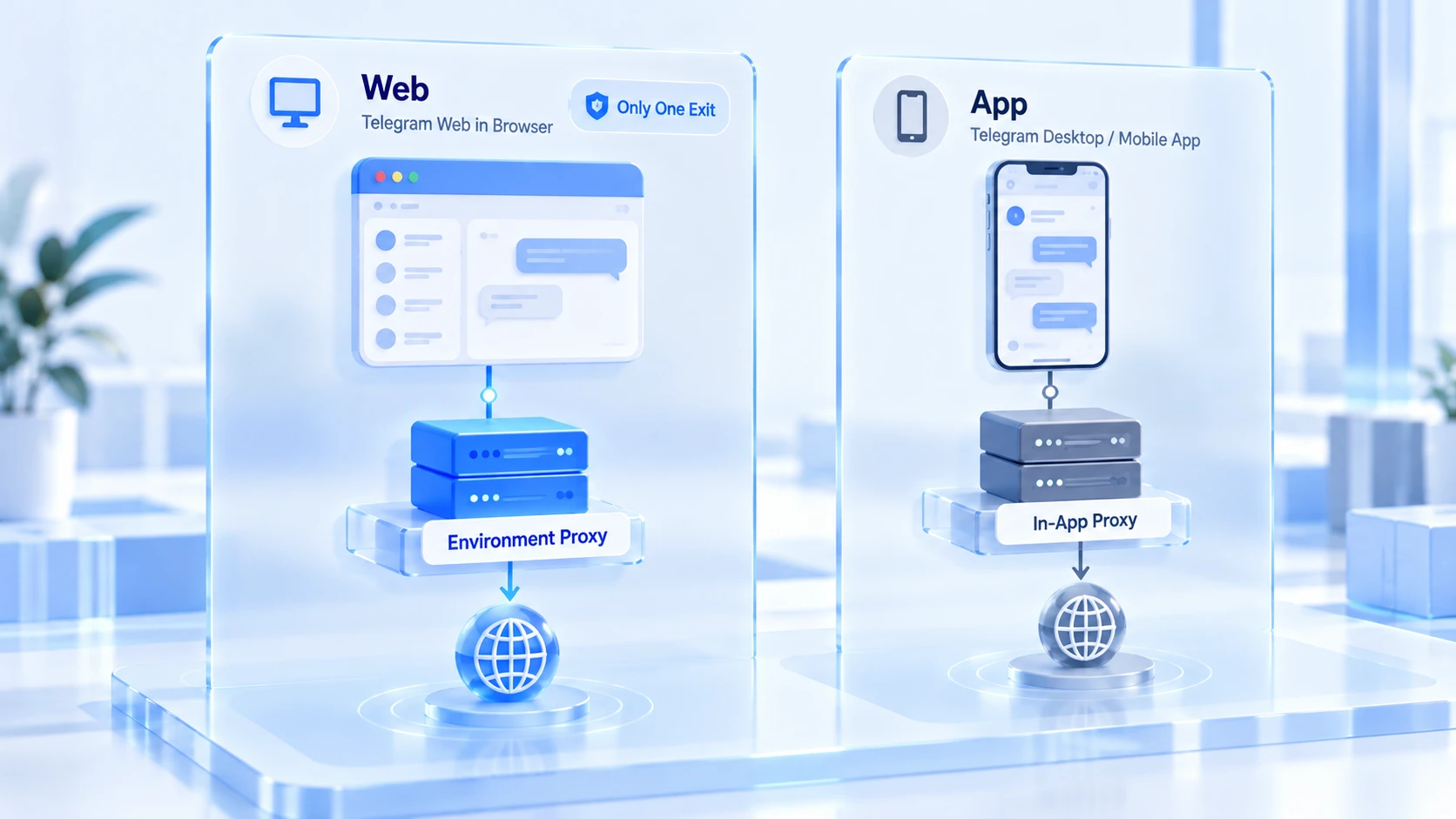
The jurisdictions of the two proxy layers run in parallel and do not stack. The environment proxy is configured inside the environment and controls all traffic that environment sends out. Web pages, check pages, and Telegram Web running in the environment all go through it.
The in-app proxy is configured in the Telegram client's settings and controls only Telegram's own message and media traffic. Setup paths and protocol differences per platform are covered in this hands-on Telegram proxy guide. The browser and other apps on the system keep using their normal network. Neither source takes over the other. Many people configure both layers yet cannot tell which exit is real, and the root cause is exactly this failure to separate them.
The table below lists the key differences so you can check them side by side:
| Comparison | Environment proxy | In-app proxy |
|---|---|---|
| Scope | All environment traffic, incl. Telegram Web | Only the client's own connections |
| Protocols | Four general-purpose types | SOCKS5 and MTProto; desktop adds HTTP |
| Where to set it | MostMate environment and proxy management | Proxy page inside client settings |
| Client priority | Cannot reach the client | Telegram prefers it over system settings |
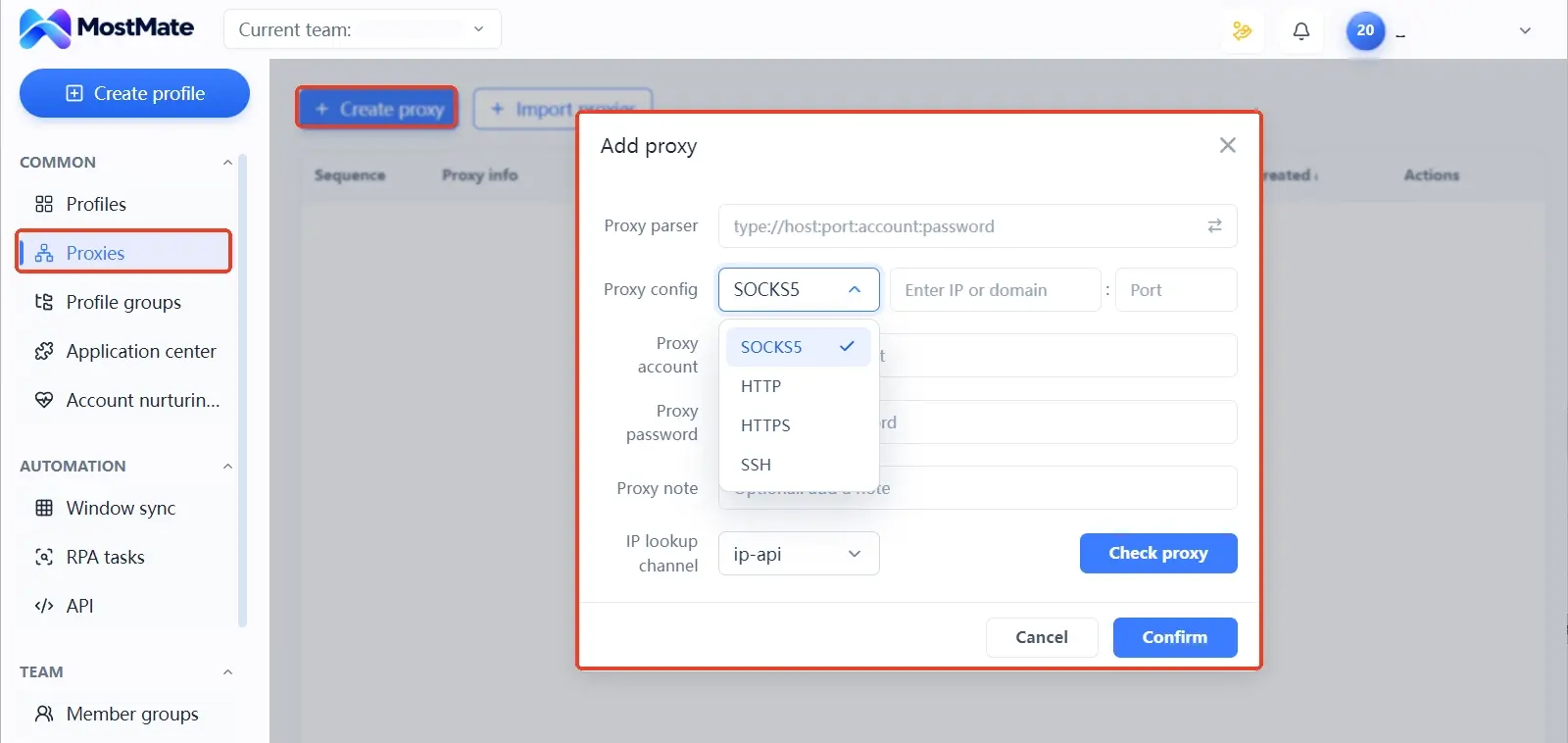
On the environment proxy side, the MostMate anti detect browser lets you add and test proxies in one management list and then assign them to specific environments. Fill in one of the four general-purpose protocols the environment proxy supports, and pick the exact type your provider gives you. Once a test passes, the exit IP, timezone, and language can be generated from the exit automatically. No manual copying.
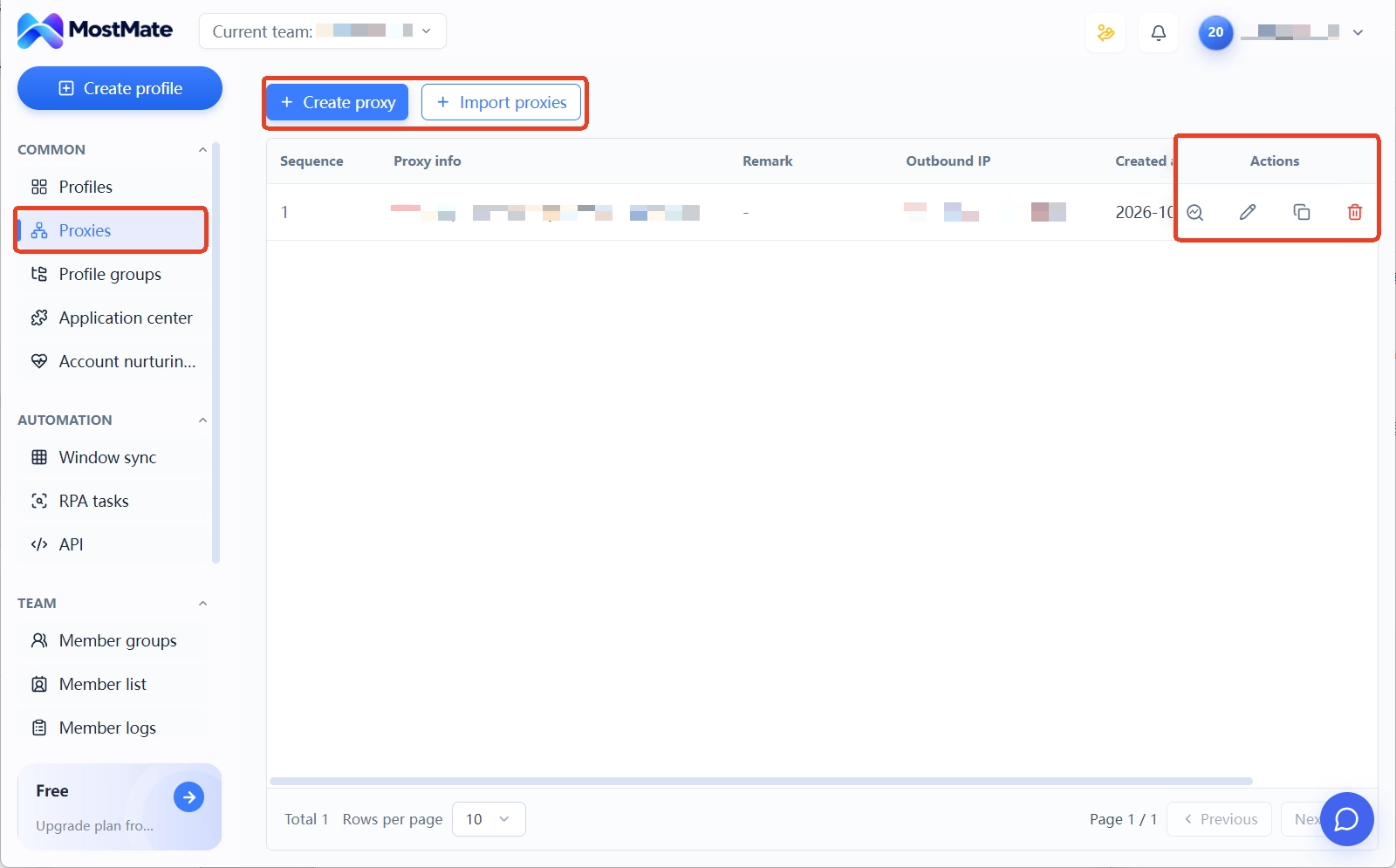
On the in-app proxy side, the entry point differs slightly by platform. On mobile, look for Proxy at the bottom of the Data and Storage page in Settings. On desktop, it hides under Connection Type in Advanced Settings.
The type menu shows SOCKS5 and MTProto side by side. The former is a general-purpose proxy protocol that almost every paid provider sells. The latter is Telegram's proprietary protocol, connected with a string of secrets and usually run by community or channel operators. For a third-party overview of how the two differ, see this Telegram proxy type roundup. The difference is not about performance. It is about the boundary of use, covered separately below.
Telegram Web has no proxy settings page; the environment proxy is its only exit layer
For Telegram Web running in a browser, the proxy field simply does not exist. The official proxy settings exist only in the desktop and mobile clients. Web traffic follows the browser's network layer, and routing is decided by the browser environment. In multi-account work the most common pattern is one browser environment per account, logging in through the web version. In that pattern, the environment proxy is the only exit. Configure it, and the job is done.
For multi-account operators, this is actually the least demanding pattern. Each environment binds its own proxy, so exits are naturally separated. The account's session IP and its environment fingerprint live in the same profile, which is logically consistent.
The check is direct too: after login, open the account's active sessions page (some clients call it the device list), confirm that the current session shows the environment proxy's exit IP, then compare it with the region registered when the environment was created. If you have not settled on the tool yet, the best anti-detect browser 2026 comparison walks through what to check before you standardize on one.
If the checked IP turns out to be your local address rather than the proxy exit, go back and inspect the environment proxy's binding and test status first. Do not touch any Telegram settings. The web version has no proxy switch and no option to bypass the environment proxy. There is only this one exit, and only the environment configuration can change it.
Adding the in-app proxy for clients: what extra signals multi-account setups pick up
The client can use the in-app proxy; the prerequisite is understanding what it additionally introduces for multi-account operations. Three types of risk, ordered by how often they appear:
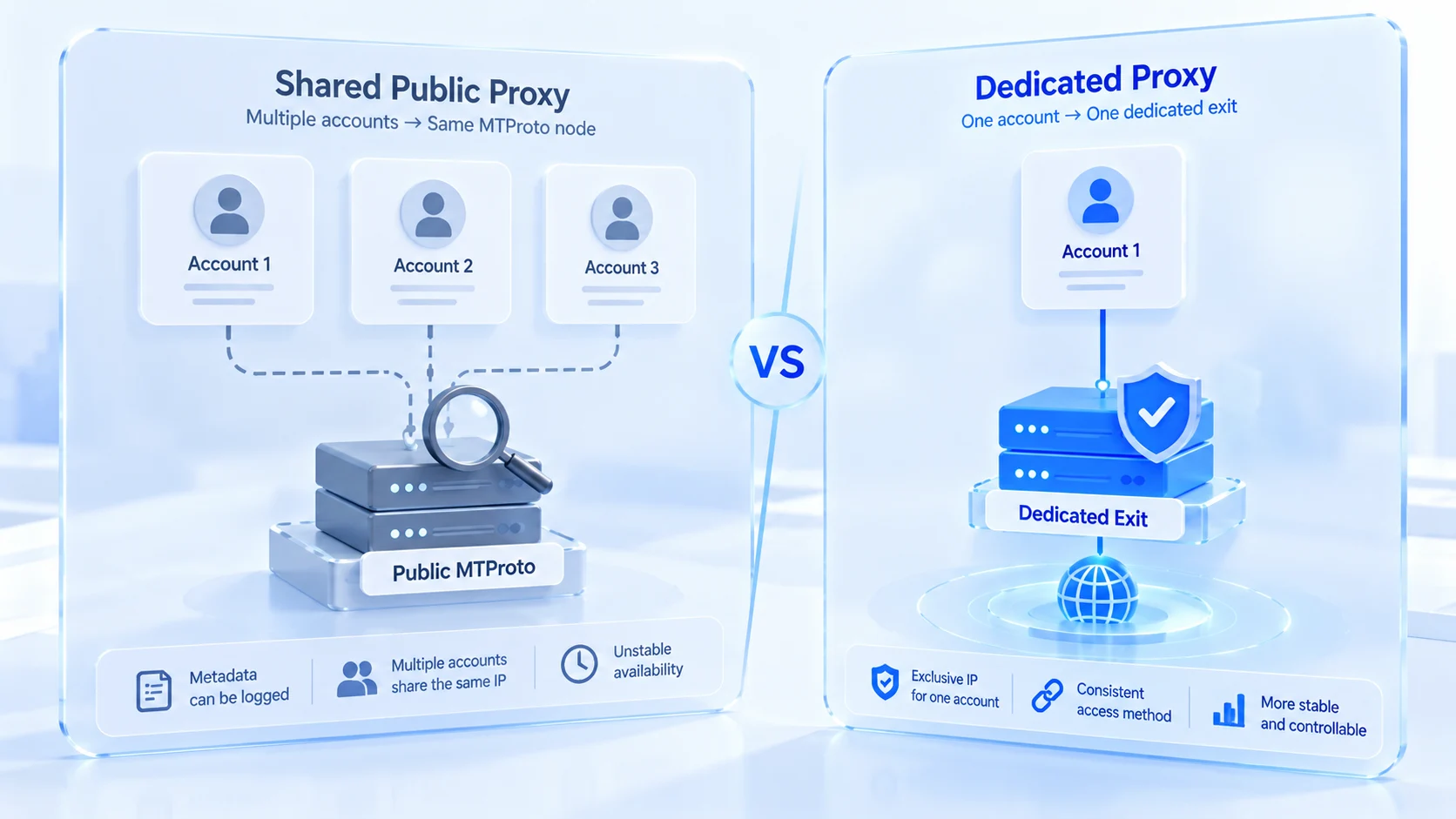
1. One account, two entries, two IPs. The account exits through MTProto in the client and through the residential proxy in the browser environment. From session records, the platform sees one person moving back and forth between two regions. Each entry looks fine on its own; together they read as a movement signal in any review. Pin one entry type per account and this signal never appears.
2. Several accounts sharing one MTProto. Public MTProto secrets circulate in channels; whoever gets one can connect. Several accounts on the same public proxy are, from Telegram's side, multiple sessions on one source IP, the most obvious kind of linkage signal. Public node operators cannot read message content, but metadata such as the connecting IP and connection times stays in their hands, a point Telegram's official FAQ states plainly.
3. Availability outside your control. A public MTProto that works today may be gone tomorrow. Nobody notifies you when a node disappears or gets taken over. Business accounts resting on that dependency cost far more to troubleshoot than the proxy ever cost.
All three signals share one root: the mapping between exits and accounts has broken down.
One more layer is easy to miss: an MTProto secret cannot be entered into a browser environment. It is a Telegram proprietary protocol, not a general-purpose one, and the environment proxy's protocol list has no slot for it. To give the environment and the client the same provider's exit, SOCKS5 is the only protocol that works on both ends. Providers generally offer it for exactly this reason.
Setup order: stabilize the environment layer first, then decide about the in-app layer
Reversing the order causes most of the confusion. Add a proxy in the client first, fix the environment later, and the exit records will no longer match the first login. Follow the order below; each step has a clear completion marker:
1. Add the proxy. Enter the provider's details in MostMate's proxy management, choose the right protocol, fill in authentication, and run a test. A passing test means connectivity, authentication, and exit region all match the plan page you bought from. If the exit type is not decided yet, residential IP vs. datacenter IP compares them by trust and cost. Choose first, then add.
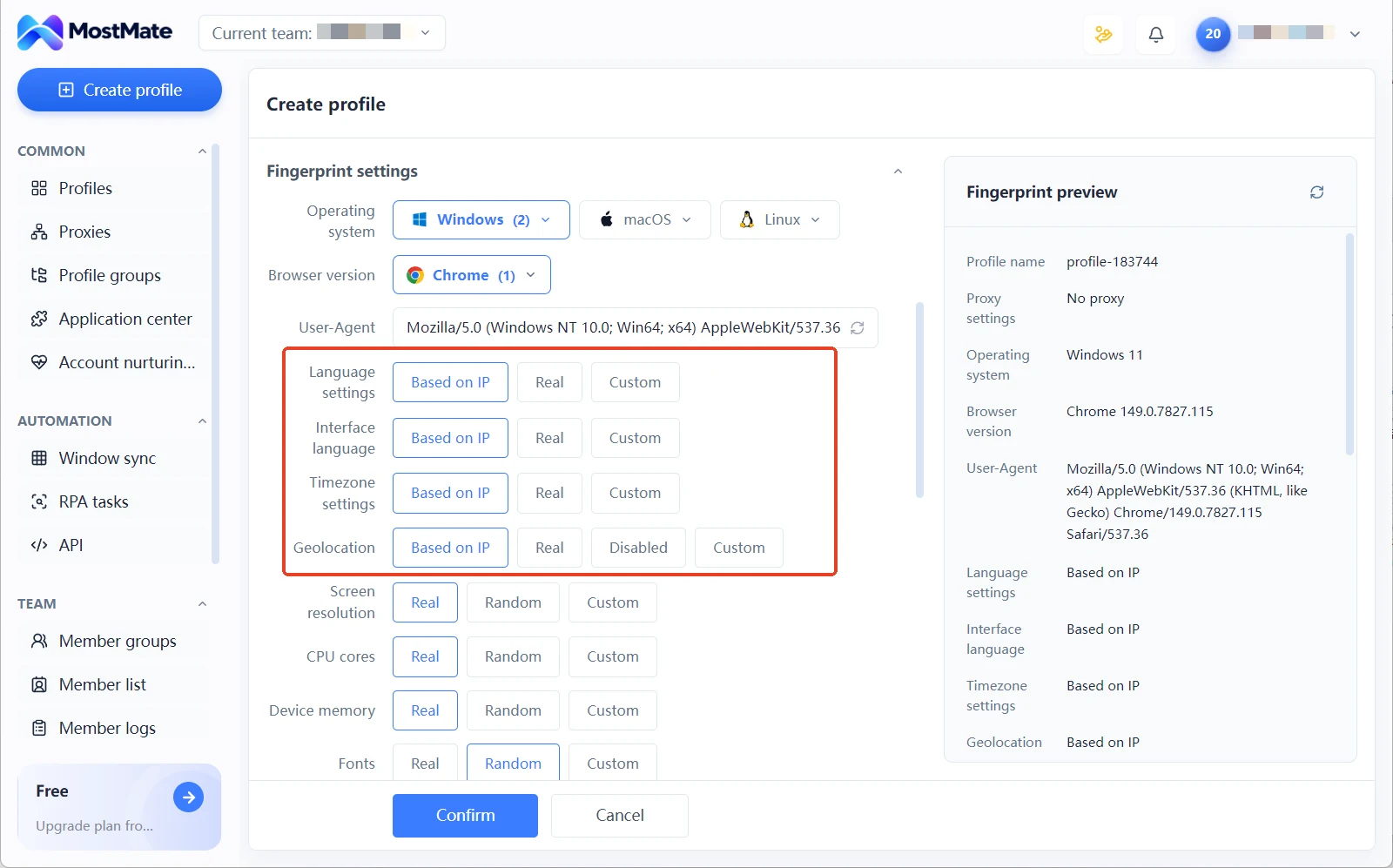
2. Assign the environment and sync parameters. Assign the proxy to the target environment; timezone, language, and geolocation are generated from the exit IP. Only after this step is the environment's network profile closed-loop.
3. Log in on the web and verify the session. Open Telegram Web inside the environment and log in, then check the active sessions page to confirm the displayed IP and region match the environment proxy. This is the final confirmation of exit ownership.
4. Decide separately for client-based accounts. For accounts that genuinely need the client, set the same provider's SOCKS5 exit in the in-app proxy, and stop logging that account in through the web. Keep the two entry types apart and session records stay single-sourced.
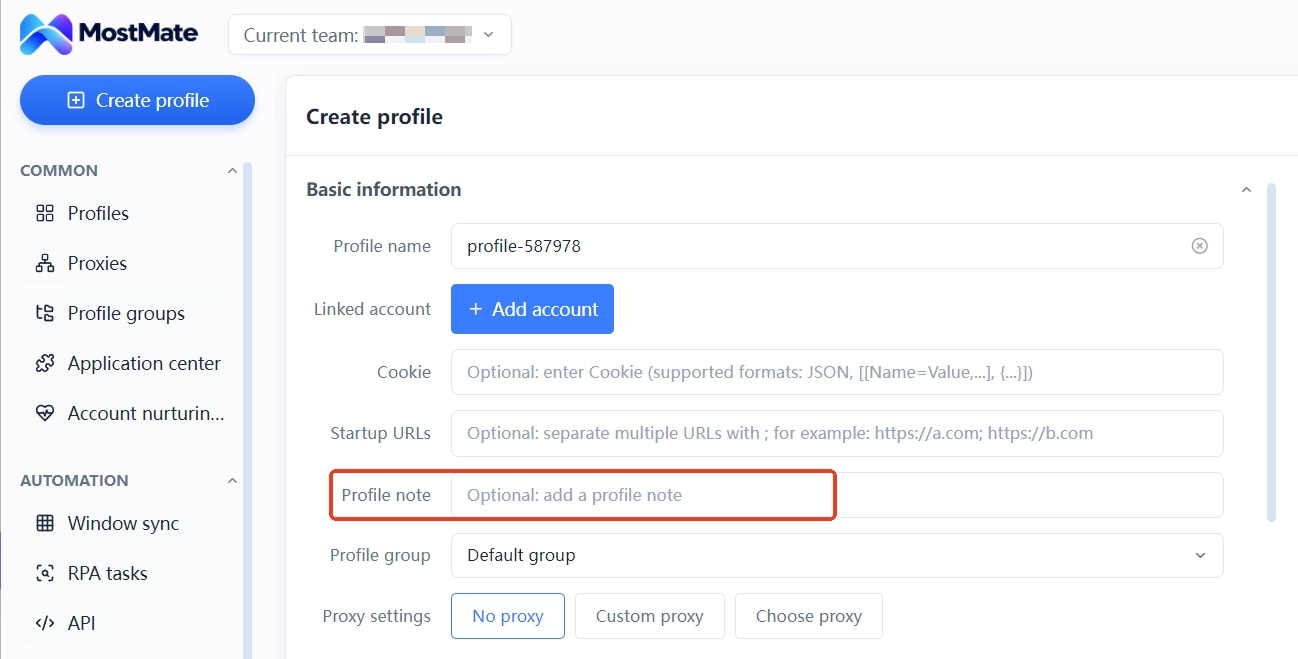
5. Archive the records. Which entry each account uses, which proxy, and what the exit region is: write it into the environment notes or your team's registry. Handovers and troubleshooting both start from this record.
With the whole chain configured, accounts, environments, and proxies map one to one, and the sessions page shows a single, explainable login location. For overall network planning across accounts, repeat these actions in every environment. For a full description of the product, see What is MostMate. If the proxy test passes but you want to verify configuration quality one layer further, the two-layer proxy check article offers an acceptance checklist split by availability and logical consistency, ready to use.
FAQ
Can Telegram Web set a proxy on its own?
No. Proxy settings exist only in the desktop and mobile clients. The web version's exit follows the browser's network layer. Configure the proxy for the environment in MostMate, and the web exit is settled.
If both the environment proxy and the in-app proxy are set, which one does the account use?
It depends on the entry. Telegram Web only recognizes the environment proxy. The client's Telegram prefers the in-app proxy, and system-level proxy settings have no effect on it. Setting both does not make things safer; it more easily produces sessions whose IP no longer matches the environment profile.
Can an MTProto proxy be configured into a fingerprint browser environment?
No. MTProto is a Telegram proprietary protocol and is not among the four general-purpose protocols the environment proxy supports. When the environment and the client need to share an exit, use the provider's SOCKS5 line; both ends accept it.
What are the risks of several accounts sharing one public MTProto?
Three risks stack up. A shared source IP lets the platform link multiple sessions directly. Node operators cannot record message content, but they can log the connecting IP, times, and similar metadata. Node availability is out of your control and can stop at any moment. For business accounts, use an exclusive exit under your own name or from a paid provider.
Closing thoughts
Telegram proxy configuration comes down to a single judgment: whichever entry the account enters through, that layer owns the exit. Telegram Web listens to the environment proxy, the client listens to the in-app proxy, and keeping the two apart is what keeps session records single-sourced. Thinking through the account's entry type first cuts later troubleshooting costs more than buying another proxy.
In practice, use proxy management and exit-based parameter sync to stabilize the environment layer first; for Telegram Web accounts, that completes the setup. Only for accounts that truly need the client, add the in-app layer following the order in this article. For the full planning framework across many accounts, see environment isolation and session boundaries for multiple Telegram accounts. For social media matrix scenarios, the MostMate social media marketing solution page is a useful reference. To build the environment-proxy-account chain yourself, download MostMate and start by creating the first environment for your most critical account.

MOSTMATE
Secure Multi-Account Management, Made Simple
Start with your first account and use MostMate to build safer, smarter, and more efficient multi-account operations.
- Independent profiles. Consistent identities.
- AI Automation · Account Health · Team Operations



