
What Is a WebGL Fingerprint? How GPU Information Becomes Part of Your Browser Fingerprint
Websites read your graphics data through two channels: one asks for parameters, the other looks at images. The first time people open a fingerprint detection page and see their own graphics card model listed under WebGL Renderer, the usual reaction is: how does a webpage know what card I have? What it reads is not a hardware serial number, but the graphics environment characteristics your browser exposes. Half of these come from parameters the interface reports directly, and half from results captured after the GPU renders an image. Any single item is not enough to identify you, yet together they form a distinctive piece of the puzzle.
WebGL is the graphics interface that browsers provide. The 3D models, maps, and charts on web pages all rely on it to call the GPU for rendering. The same interface also hands over part of the graphics environment. MostMate is an anti-detect browser that prepares an isolated browser environment for every account. Graphics card and graphics parameters belong to one class of environment signals it manages.
Two Types of Information: Reported Parameters and Rendered Images
The information behind a WebGL fingerprint comes from two sources, and the collection methods are completely different. The first type is obtained by asking. A page calls the interface to query the graphics environment and receives answers such as the GPU vendor, the renderer model, and the supported version. The second type is obtained by drawing. The page asks the GPU to render a fixed image, then reads the result. Outputs differ subtly across devices. Combined, the two types form the graphics profile a website sees.
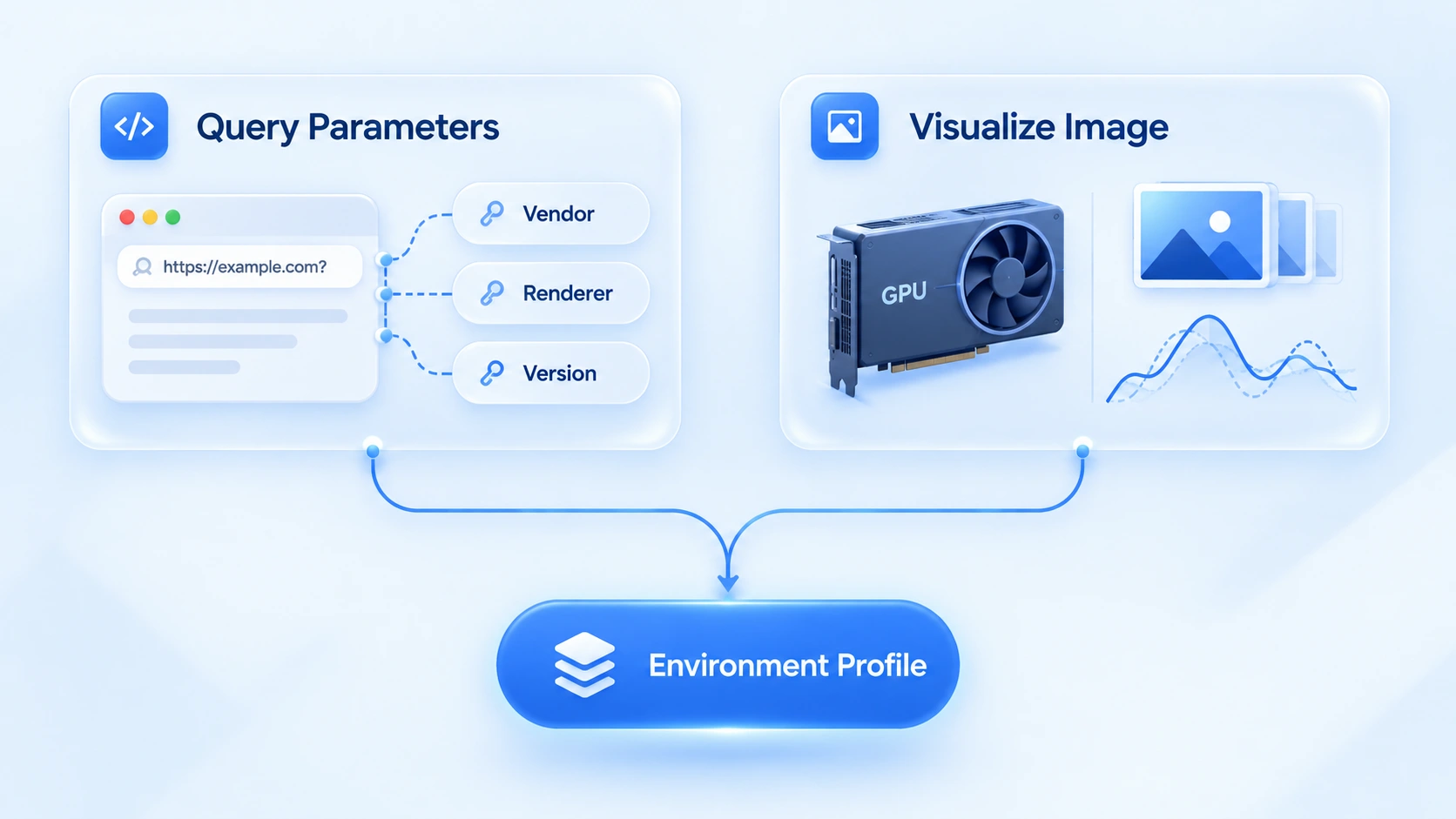
Start with the parameters. The common fields map as follows:
| Field | Content | Common example |
|---|---|---|
| Vendor | GPU vendor | Google Inc. (NVIDIA) |
| Renderer | Renderer model | ANGLE (NVIDIA, GeForce RTX 3060) |
| WebGL Version | Interface version | WebGL 2.0 |
| Extensions | Supported extension list | A set of extension names |
A few details in this list deserve attention. Many browsers show Google Inc. across the board under Vendor, with the real vendor tucked inside the parentheses. Renderer values vary by browser implementation: two machines with the same NVIDIA card may report strings in different formats depending on the browser. Differences in the extension list are even more visible. Which extensions are supported, and in what order, both provide extra information.
These parameters are read through an extension called WEBGL_debug_renderer_info. It exposes two constants: the unmasked vendor string and the renderer string. The MDN documentation states that this extension was designed for debugging and varies with browser privacy settings. Firefox disables it outright when the resistFingerprinting privacy switch is on. In other words, the same graphics card may report different content depending on the browser and privacy configuration. Keep this variable in mind when testing.
Why the Graphics Card Becomes an Environment Signal
The distinguishing power comes from combinations of parameters, not from any single field. The graphics card market is highly concentrated. NVIDIA, AMD, Apple, and Intel together cover the vast majority of devices, so a lone Renderer field cannot single anyone out. But when it is pieced together with other signals, the distinguishing power can rise. For example, on a Windows device running Chrome, the graphics environment exposed by WebGL usually matches the corresponding system and browser configuration; if the browser information says Windows while the graphics environment shows traits typical of a macOS device, that is worth a closer look. When other parameters such as the time zone also fail to match the expected environment, the overall configuration may be sending contradictory signals.
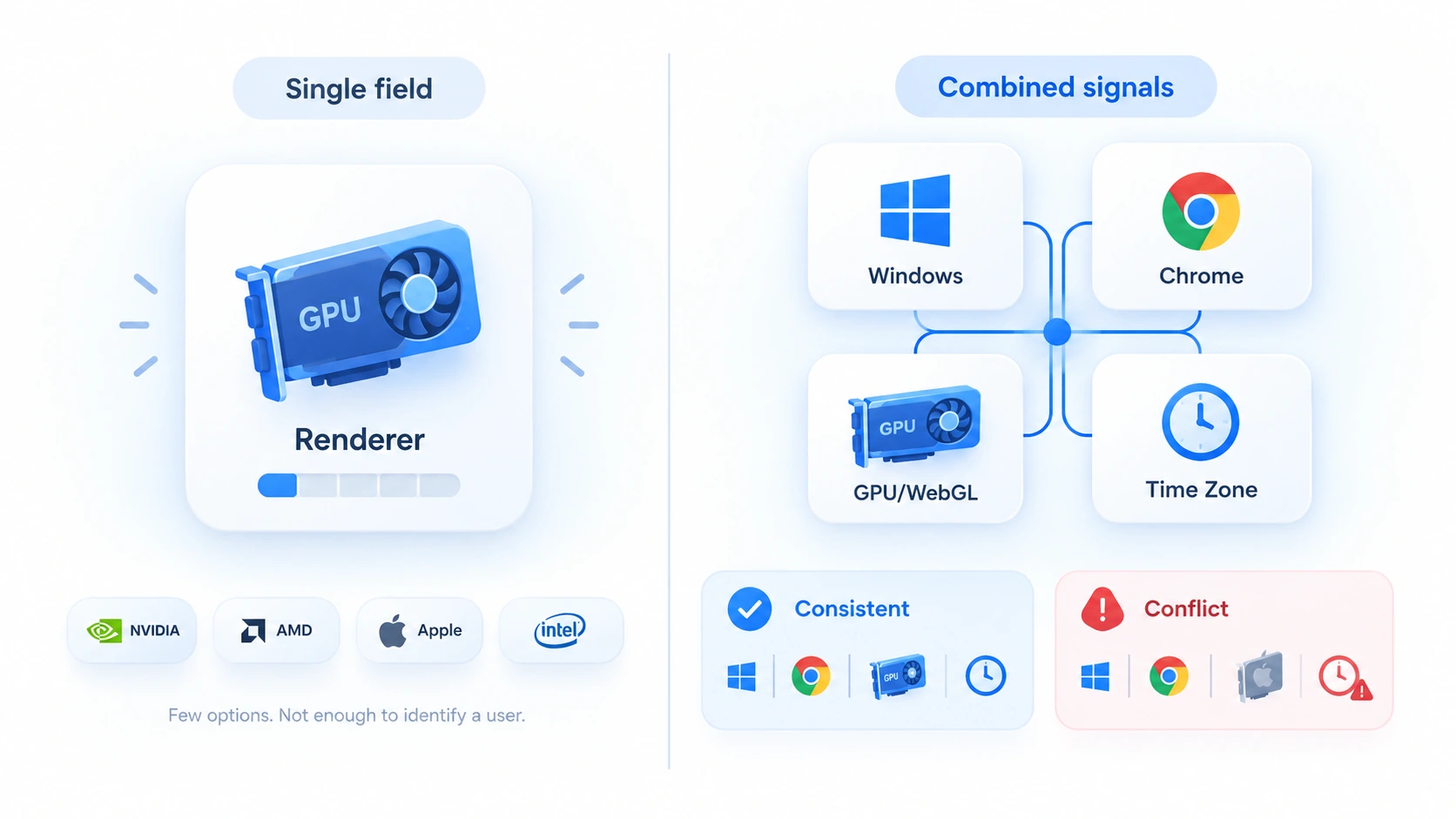
The point is not to randomize each parameter, but to check whether different environment signals coordinate with one another. Changing a single parameter at random does not necessarily make the overall environment more plausible, and randomly modifying fingerprints can introduce problems of its own, as why fingerprint randomization is unsafe explains.
Now the drawn part. Asking the GPU to render a fixed image and reading the output follows the same logic as the Canvas fingerprint; our Canvas fingerprint guide explains how 2D rendering differences arise. WebGL runs through the 3D pipeline, where rendering passes through the graphics driver and the underlying graphics libraries. Different GPUs, different driver versions, and different browser implementations can each shift the output by a few pixels. These differences are invisible to the naked eye. Scripts, however, can read them precisely.
Two clarifications. First, the distinguishing power of image differences is not as dramatic as the legends suggest. Devices with the same card model and the same driver version may show no measurable difference at all. Second, it is a different collection method from parameter-based information, and the two kinds of results should be interpreted separately.
How Do WebGL, Canvas, and WebGPU Differ
Three names, three different observation targets. In table form:
| Parameter | What it observes | Collection method |
|---|---|---|
| Canvas | 2D rendering output | Draw and read differences |
| WebGL | Capability parameters and 3D renders | Ask parameters + draw |
| WebGPU | Next-gen graphics interface signals | Ask parameters + probe compute |
| AudioContext | Audio processing output | Algorithmic processing of results |
The relationship between WebGPU and WebGL can be stated in one sentence. WebGPU is the next-generation graphics interface that browsers are rolling out, with more capability and a wider parameter surface; our WebGPU fingerprint guide covers which device traits it exposes. WebGL remains the incumbent interface with the broadest coverage, supported by virtually every browser. The two will coexist for a long time, they often appear side by side on detection pages, and both deserve a look when you investigate.
How to Check Your Own WebGL Fingerprint
The key moves in testing are recording and comparing, not glancing and closing the tab. Work through three steps:
- Open an IP check page or a tool like BrowserLeaks in your environment and locate the WebGL section. Note four items: Vendor, Renderer, WebGL Version, and the number of extensions.
- Re-test the same environment after a while and compare the two results. If parameters change from your real GPU to software rendering such as SwiftShader, or the number of extensions shifts noticeably, the environment has changed.
- Read the WebGL result as part of the whole environment configuration. If WebGL reports Windows plus NVIDIA, the UA and operating system should also be Windows, with the time zone, language, and exit region all matching one another. An environment that is fine item by item but contradictory in combination still stands out.
One type of hint deserves its own note. When a detection page shows software rendering labels such as SwiftShader or ANGLE (Google), the environment may simply have no graphics card. It is also possible that the browser fell back to software rendering. Real devices rarely report such values; in a long-running environment, this is a signal that needs attention.
How to Use MostMate's WebGL Image Parameter
In MostMate's fingerprint settings, WebGL image is a parameter you can adjust on its own. On the settings page it sits alongside graphic parameters such as Canvas. When you create or edit an environment, the WebGL image field offers two modes: Real and Noise. Real keeps the genuine values; switch to Noise, and the output runs in noise mode.
Switch over to the fingerprint preview panel on the right and check the matching row: the value turns into a format carrying a six-character code. These codes are not shared with other parameters. They identify the noise configuration, and the hash actually exposed should be checked on a detection page opened from within the environment.
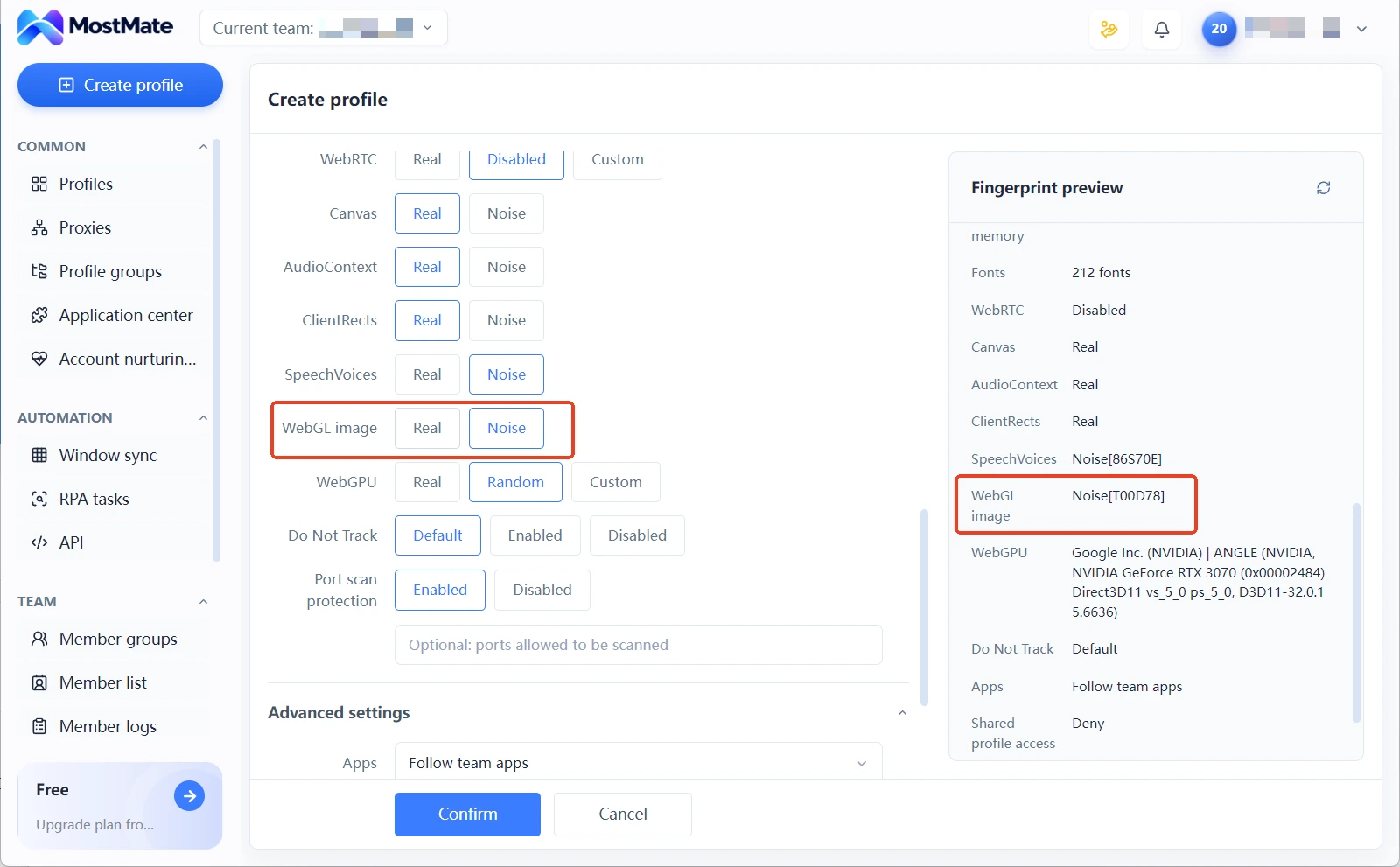
Which mode to choose depends on who the environment needs to be. For environments that run long term, Real is the sensible pick. The parameters and driver behavior of a real GPU are the hardest to fake, and a stable environment has no reason to touch them. When you need several environments for the same kind of work, Noise provides differentiated image output, so a set of environments will not report the same face in the graphics dimension. Choosing Noise does not mean rebuilding parameters from scratch: every value in the fingerprint preview panel stays visible, so the configuration can be checked at a glance.
The boundary deserves equal clarity. Parameter management reduces the risk of mixing environments up and of contradictions between them. Beyond WebGL, signals such as screen resolution and fonts are independent; the alignment method comes with a checklist in our anti-association consistency guide. However neatly an environment is configured, the platform decides how it judges, and this article makes no promise that a configured environment cannot be detected.
Frequently Asked Questions About WebGL Fingerprints
Can websites see my real graphics card model?
They can see the model string in the Renderer field, provided the browser has not restricted the WEBGL_debug_renderer_info extension. This is graphics description information exposed by the browser, not a readout of hardware identity. When browsers such as Firefox turn on privacy protection, this kind of information is hidden or generalized.
Does disabling WebGL prevent fingerprint identification?
Not recommended. Modern pages rely heavily on WebGL for rendering, and disabling it breaks functionality. Since every mainstream browser supports WebGL, a browser without support is itself an anomaly, which makes it easier to be singled out.
Are WebGL fingerprints and Canvas fingerprints the same thing?
No. Both exploit rendering differences, but Canvas works through 2D drawing while WebGL runs a 3D pipeline and adds a layer of capability parameters. On detection pages they appear as two separate sections, and neither value stands in for the other.
Can an anti-detect browser set WebGL to any graphics card?
It depends on the product's implementation. MostMate offers two modes, real and noise, with noise mode producing differentiated image output. The focus is always on keeping the parameters of the whole environment consistent with one another, rather than forcing a single field to a particular value.
Final Thoughts
The essence of a WebGL fingerprint is that the browser hands a website both the parameters of the graphics environment and its rendering behavior: parameters answer what card you have, and images answer what your drawing looks like. Running multiple accounts has never been about hiding the graphics card. The point is to make the graphics parameters of every environment tell the same story as the UA, the time zone, and the exit region.
MostMate brings parameters like WebGL image into unified environment management, which makes checking and alignment easier. Building an environment is only the beginning; daily verification habits are the long-term variable. For more ways to handle graphics parameters, the official homepage is the complete entry point; to set up a clearly bounded environment for multiple accounts, download MostMate and start with the first environment.

MOSTMATE
Secure Multi-Account Management, Made Simple
Start with your first account and use MostMate to build safer, smarter, and more efficient multi-account operations.
- Independent profiles. Consistent identities.
- AI Automation · Account Health · Team Operations



