
What Is a WebGPU Fingerprint? Reading the Device Traits Exposed by Graphics APIs with MostMate
Key takeaway: WebGPU is the browser's next-generation graphics API, and the adapter descriptions, capability parameters and rendering results it exposes can become part of a browser fingerprint; it is not a unique device identifier, and switching it off is no permanent fix. In MostMate, configure it alongside WebGL, Canvas and screen parameters under the logic of one device, then open the environment and run a live test. Only then is verification complete.
Graphics APIs are becoming the newest observation point in browser fingerprinting. Canvas and WebGL, the two older channels, have been discussed at length. WebGPU, as the successor interface, is entering the default capability lists of mainstream browsers. Websites now have one more window into your graphics environment.
MostMate is an anti-detect browser whose official site describes it as "a beginner-friendly AI anti-detect browser". What it does is concrete: it prepares a separate browser environment for each account. This article covers four things in order: what WebGPU exposes, how the fingerprint forms, where it differs from WebGL, and how to set it up and verify it in MostMate.
What Is WebGPU? Why Graphics APIs End Up in a Fingerprint
WebGPU is the browser's new-generation interface for graphics and GPU computing, built to carry more complex 3D rendering and general-purpose compute tasks. The MDN documentation for the WebGPU API sums up its uses as graphics rendering and GPU computation. Chrome has shipped it in the default capability set since 2023. Support in the other mainstream desktop browsers keeps expanding; for the exact state of play, go by each browser's official notes.
For everyday users, it is the technical foundation that graphics applications run on. For websites, it is a fresh window into the graphics environment. Why would a graphics API end up in a fingerprint? Because what a site cares about has never been just what you say; it also wants to know what your device can actually do. The graphics interface happens to put part of that in front of page scripts.
The "view environment signals" panel on the official site lists GPU and WebGPU side by side as environment signals. The product works the same way: these are parameters that need managing. Below, we break down what it can actually expose.
What Device and Graphics Traits Can WebGPU Expose
What it exposes depends on the browser implementation, the version and the privacy policy. It falls into three broad categories, and how complete each one is varies by environment.
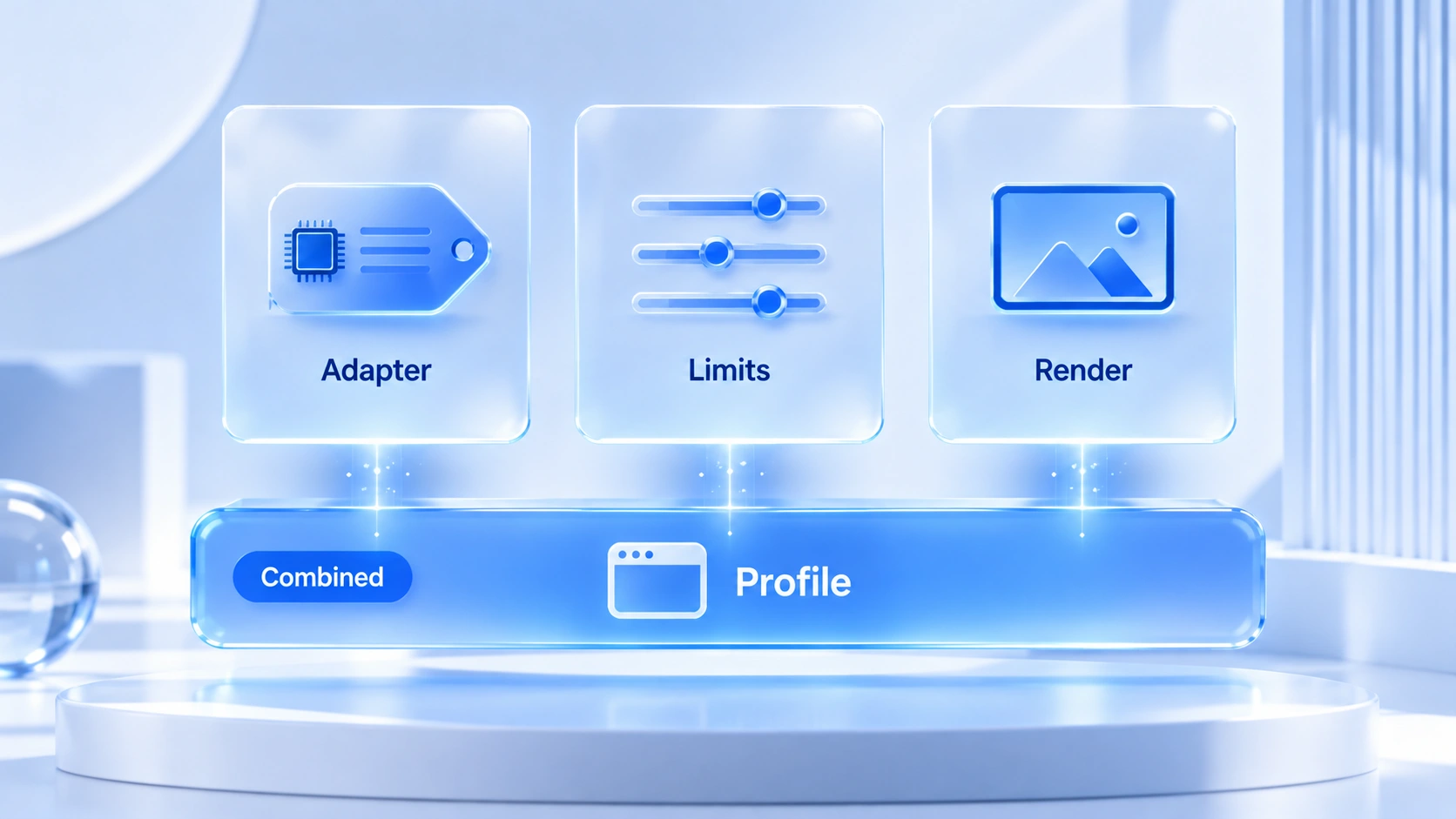
First: adapter description info. Once a site requests the graphics adapter, some browsers allow reading description fields such as vendor and architecture. These fields tell you roughly where the graphics environment comes from. They do not amount to a full model name, let alone an identity lookup; the exact fields depend on the browser's policy at the time.
Second: capability and limit parameters. The interface carries a set of Limits and Features that describe hardware boundaries, such as the maximum texture size and the feature switches available. A single parameter has limited distinguishing power. Combined, a set of parameters sketches the outline of the graphics environment.
Third: rendering results. The same draw commands produce subtle differences across GPUs and drivers, continuing the logic of Canvas and WebGL. Sites rarely fixate on a single field. What really carries weight is the signature that appears once these results are combined.
None of the three categories is fatal on its own; the combination is what counts. That judgment runs through this article, and it is the starting point for the setup and verification steps below.
How a WebGPU Fingerprint Forms
It is closer to a profile that takes shape as a set of traits is collected and combined over time; there is no fixed ID called "the WebGPU fingerprint". The process can be read in four steps:
- A page script requests the graphics adapter. The browser decides, under its own policy, how much information to hand over.
- The interface returns adapter descriptions and capability parameters. The script reads whichever fields are currently available.
- The page runs a small number of drawing or compute tasks. The rendering results enter the observable range.
- These traits are placed alongside User-Agent, screen parameters, fonts and more, becoming one block of the environment profile.
Every step involves repeated negotiation between browser and website, so different browsers and versions do not read out identical content. That is also why any hard-coded list of "fields WebGPU is bound to return" is unreliable.
How a WebGPU Fingerprint Differs from a WebGL Fingerprint
WebGPU does not rebuild WebGL fingerprinting; it opens one more observable interface onto the graphics environment. The two differ along four dimensions:
| Item | WebGL | WebGPU |
|---|---|---|
| Positioning | The more mature web graphics API | New-generation graphics and compute API |
| Information channels | Renderer info and rendering results | Adapter info, limits and render results |
| Browser support | Broad coverage | Expanding across browsers and systems |
| Relation to older signals | Already collected by many sites | An extra channel; the two coexist |
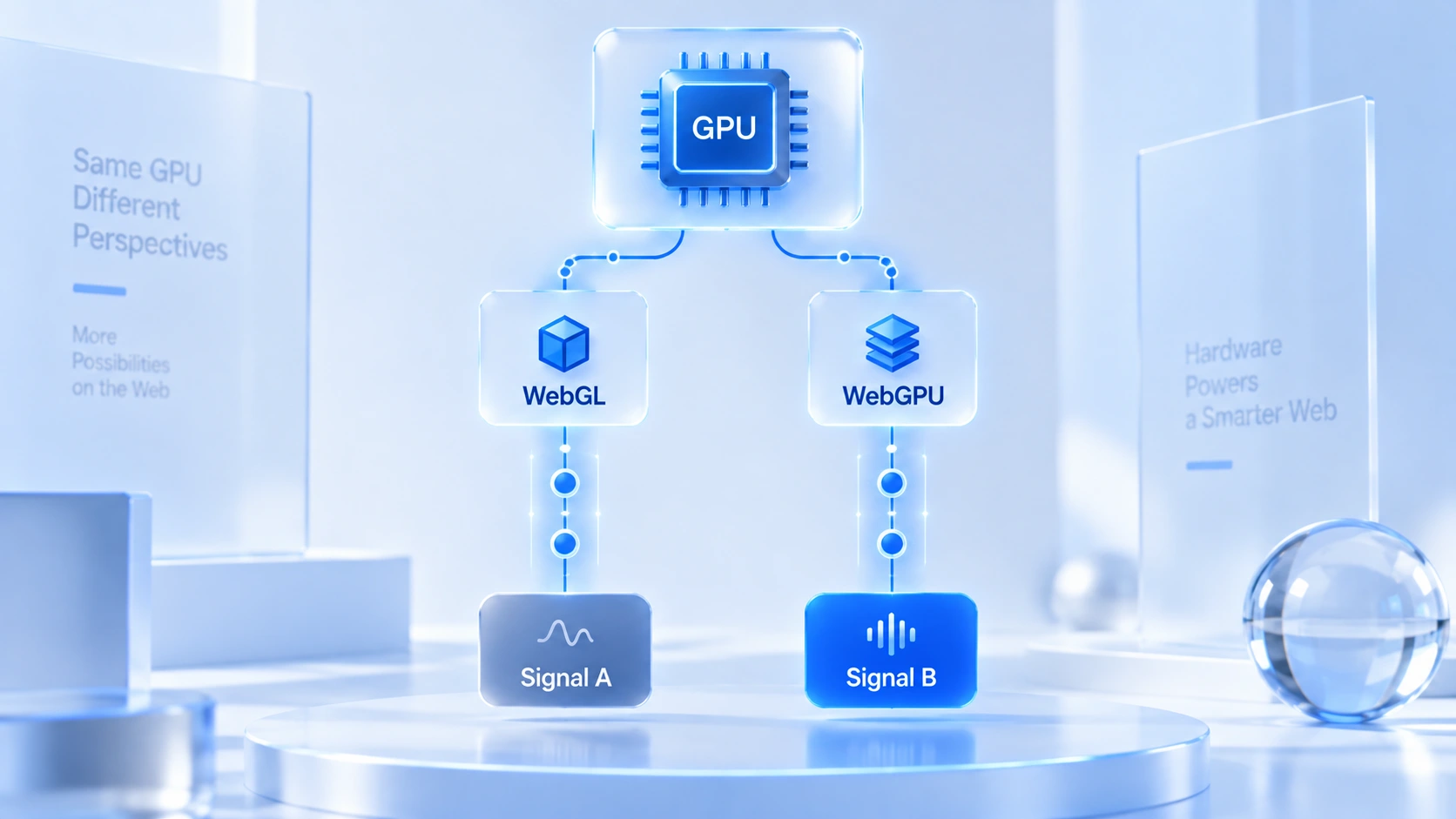
The key point: WebGPU and WebGL coexist, and the same GPU feeds both interfaces at once. Which channel a site reads from depends on which API it chooses. This connects to the WebGL image-noise mechanism covered in the Canvas fingerprint guide: same origin, dual channels, so manage them together.
Can WebGPU Uniquely Identify a Device
No. WebGPU provides traits of the graphics environment. Fine for checking that an environment is consistent, not good enough to stand in for identity.
Two users can report identical adapter descriptions, since GPUs of the same model are extremely widespread. The other way round, when the browser on the same device updates, the readable fields can change. The traits themselves promise no long-term stability.
Its real use lies in the combination: cross-checked against operating system, browser version, screen parameters, Canvas, WebGL and fonts. Among the contradictory-combination examples on the official site, graphics information is a major dimension. A Windows environment carrying GPU traits from a different system is instantly recognizable as an assembled environment. Why such contradictory combinations are dangerous is covered in why fingerprint randomization is unsafe, so we will not repeat it here.
How to Set and Verify WebGPU in MostMate
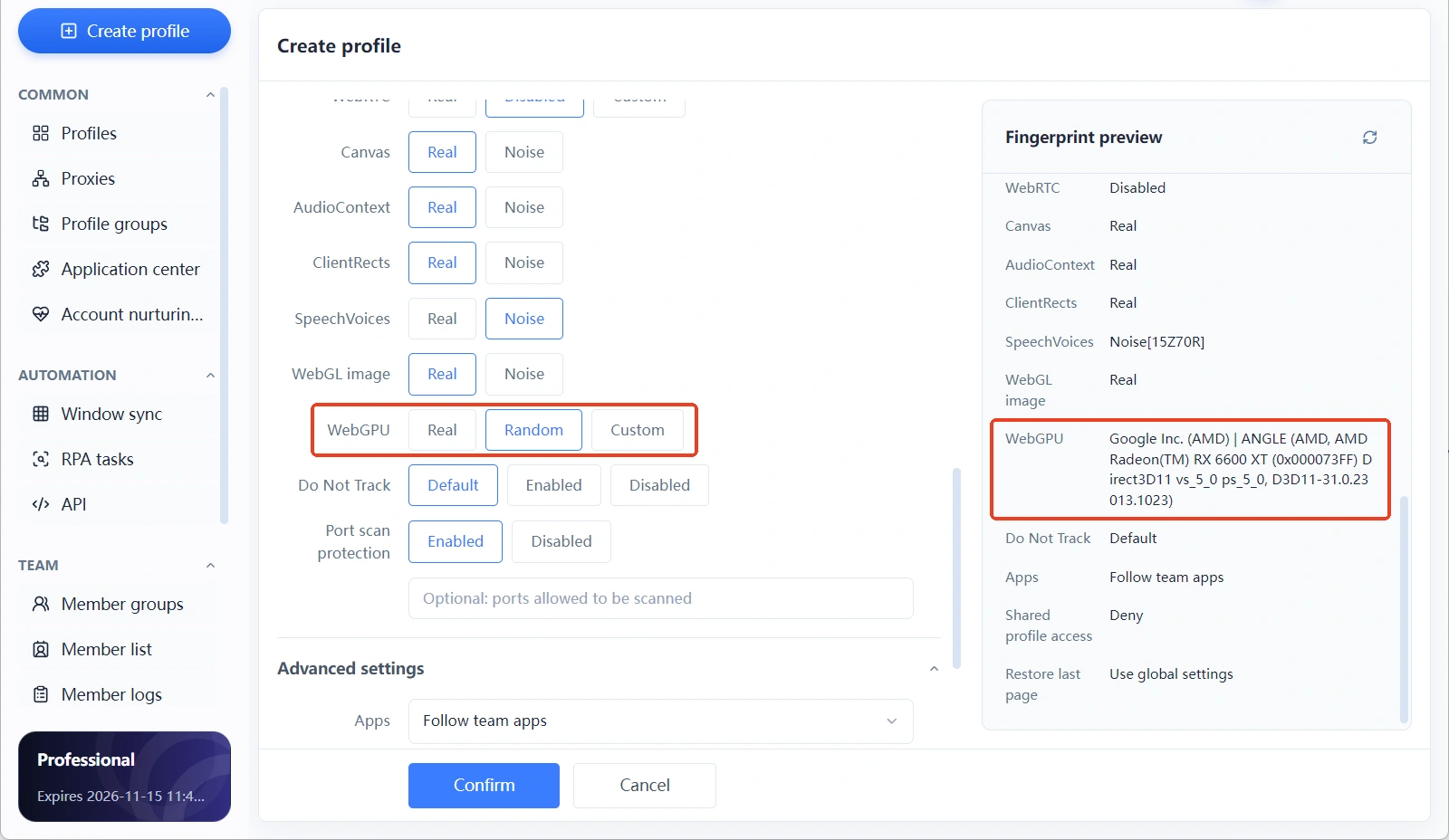
The environment creation form has a WebGPU option with three tiers: Real, Random and Custom. Verification has to rely on opening the environment and testing, because the fingerprint preview panel does not currently show this item.
MostMate keeps graphics parameters inside the environment form. WebGPU is configured item by item in the same fingerprint settings area as Canvas, WebGL and screen resolution. What does manual configuration include? The setup preview on the official site carries a manual fingerprint settings list of eleven items, Canvas, WebGPU, timezone and language among them, so you can check which ones you have not yet formed a picture of. The product as a whole is described on the What Is MostMate page; here we only cover the WebGPU parts.
Each tier suits a different scenario:
- Real: uses the local machine's graphics parameters directly, with values identical to the physical device. Suits single-environment operation or users configuring against a real-device profile.
- Random: the environment generates a set of values. Suits batch creation where you also want to avoid every environment sharing the same graphics parameters.
- Custom: you set the values by hand. Suits advanced users who configure item by item against a target device profile.
Verification comes in two steps:
- While configuring, confirm the tier matches the operating system and the browser version. For the Random tier especially, run the generated values through a logic check so you do not assemble contradictory combinations.
- After saving, open the environment and visit a detection site once to test the adapter info and capability parameters as actually read. The fingerprint preview panel currently lists User-Agent, screen, Canvas and other items. WebGPU is not among them yet, so the live test cannot be skipped.
After a browser version upgrade, a device change or adjustments to the fingerprint parameters, it is worth walking through the verification above again. When the graphics environment changes, the GPU-related traits in the fingerprint change with it. Testing once more beats guessing afterwards. Most detection sites list WebGPU support status and adapter info, such as BrowserLeaks' WebGPU test page, which pairs with a live environment test to close the loop.
Frequently Asked Questions
What is a WebGPU fingerprint?
It refers to the graphics environment traits a site reads through the WebGPU interface, including adapter descriptions, capability parameters and rendering results. Individually these traits do not constitute identity; combined, they can be used to check environment consistency and tell different environments apart.
Will WebGPU expose my graphics card model?
Not necessarily the full model. Some browsers allow reading description fields such as vendor and architecture, and how much is exposed varies with browser version and privacy policy. Reading it as "a set of observable traits of the graphics environment" is more accurate than "a direct identity lookup".
How does a WebGPU fingerprint differ from a WebGL fingerprint?
WebGL is the more mature graphics API and WebGPU is the new-generation one; the two coexist. WebGPU adds entries such as adapter descriptions and capability parameters, giving sites one more observation signal, while the existing WebGL channel keeps working as before.
Does disabling WebGPU prevent browser fingerprinting?
Not once and for all. Most mainstream desktop browsers already support WebGPU by default, and an environment that claims to be the latest Chrome yet returns nothing from it reads as odd once placed next to its User-Agent. Switch off one channel and the other graphics and device channels keep working.
Why should anti-detect browser users care about WebGPU?
Because it is a new graphics observation entry point, and as browser support widens it will be brought into more sites' collection. Adding it to the environment self-check list and verifying it alongside the other graphics parameters is a low-cost step.
Closing Thoughts
At its core, the WebGPU fingerprint is one more set of observable traits from the graphics environment. It does not change how browser fingerprints are put together; it only adds one more set of consistency checks for "whether the parameters line up", and half of the worry about "being recognized outright" can be set down here. Align the device profile during configuration, run one live test after going live, and this set of parameters will serve environment consistency over the long run.
For multi-account operators, the suggestion is to write it into the environment self-check list: pick a tier at creation, test once after saving, and re-check after browser or driver changes. All of these actions can be completed between MostMate's form and a detection site. To walk the full flow yourself, download MostMate and experience it once, from creating an environment to viewing a detection report.

MOSTMATE
Secure Multi-Account Management, Made Simple
Start with your first account and use MostMate to build safer, smarter, and more efficient multi-account operations.
- Independent profiles. Consistent identities.
- AI Automation · Account Health · Team Operations



