
The Complete Guide to Whoer Check: How to Read the Anonymity Score, and What Separates 100% from 90%
Your proxy is set up, you open the Whoer check page, and the score at the top reads 90%. The exit IP is already in the region you expect, and pages load normally. The result leaves you hesitating: should you switch proxies? Should you go through language, time zone, and everything else one by one?
Some people go through the whole ritual, watch the score climb, and still cannot say what they fixed. A score of 90% does not mean your proxy has failed, and 100% does not mean complete anonymity. The percentage is an assessment Whoer produces under its own checking rules, covering only the items it tests. Read the details first; judge later.
Whoer's official notes on how the anonymity rating is calculated describe the methodology behind the score, and the specific items and weights may change from version to version. Before you read the number, keep three things in mind:
- What the percentage actually measures, and which checks it covers.
- Where the real difference between 90% and 100% lies.
- How to decide whether to adjust your setup once points have been deducted.
How to Read the Whoer Anonymity Score: Start with the Checks Behind the Percentage
To understand the score, start from the individual checks. The results page has two layers, with the total score on top and item-by-item details below, and the two should be read separately.
One: The Percentage Is a Composite Assessment, Not an Account Safety Score
Whoer's anonymity score measures how many anonymity-related issues it finds within the scope of its checks. A high or low score says nothing about how much a platform trusts your account, and it cannot predict whether some platform will trigger verification. Two checks that both show 90% can lose points for completely different reasons, one because of network information, the other perhaps only a time zone or language mismatch. The big number at the top alone cannot tell you which of the two matters more.
Two: Look at the Deducted Items First, Then Place the Problem
Open the detailed results under the score and go through each category of information, using the table below to build a first-pass judgment:
| Check | What to look at | What it does not prove |
|---|---|---|
| IP address and region | Whether the exit IP matches expectations | Correct region does not mean a clean network |
| DNS information | Whether resolution paths match expectations | A different DNS region is not always a leak |
| System time and time zone | Whether it matches the expected settings | Time zone match is not a fingerprint match |
| Browser and system details | Whether detected values match the real setup | Normal info can still be detected other ways |
| Proxy identification | Whether the exit network is flagged as proxy | A proxy flag does not mean the proxy failed |
Once the DNS check finishes, the key is whether queries travel the expected network path and whether the results expose any local network information. For the detailed process and sample results, read the DNS leak detection guide alongside this page. If the results show WebRTC exposing an address that differs from the proxy IP, take a closer look at the browser's WebRTC settings. For the available configurations and their effects, see the WebRTC settings guide.
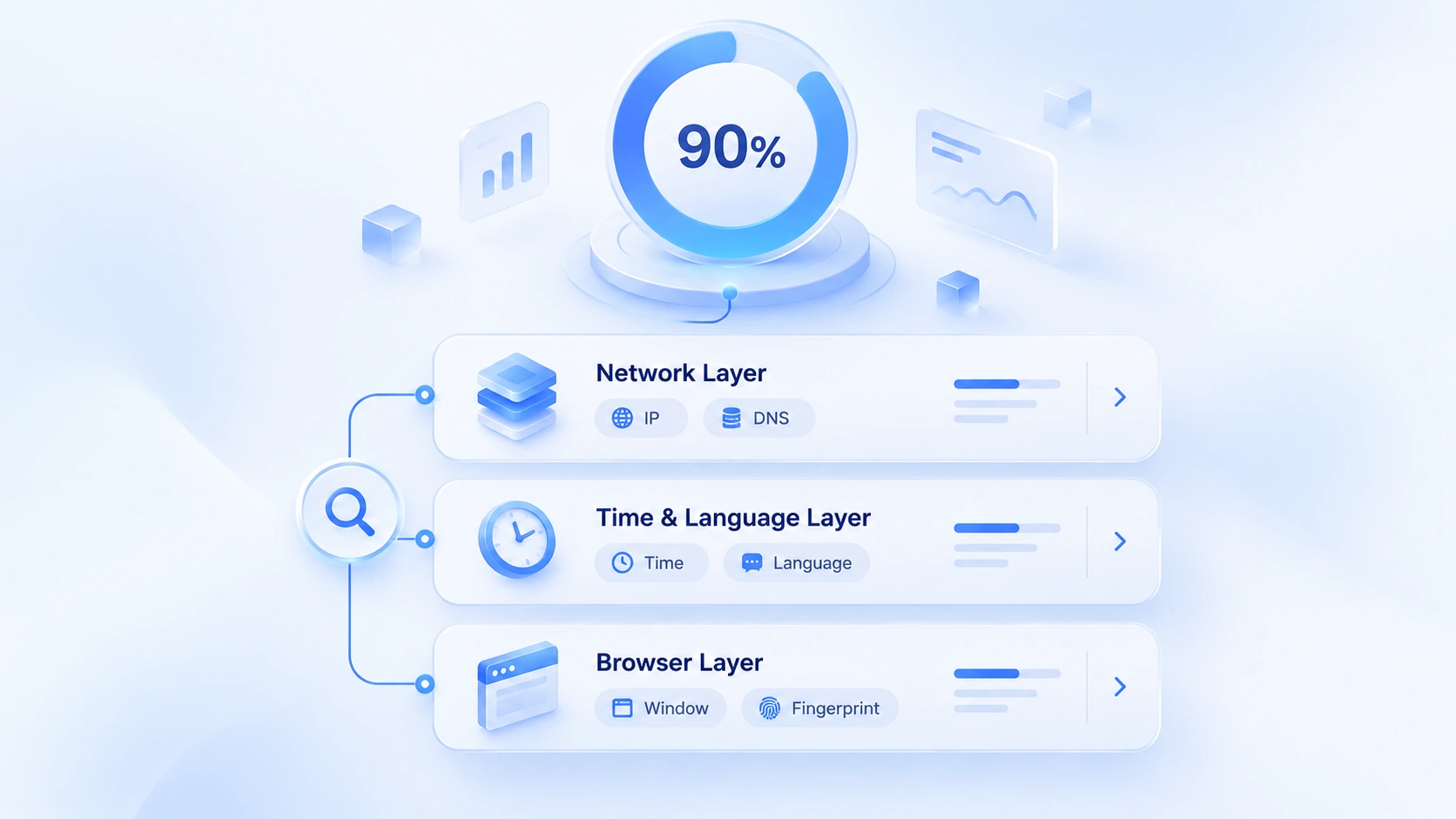
Whoer: What Separates 100% from 90%? Don't Fixate on the Last 10%
The short version: the gap shows in the deduction details, and a perfect score is not worth chasing blindly. Three layers below.
100% Means No Deductions Under the Current Rules, Not Absolute Anonymity
A result of 100% means this run triggered none of Whoer's deduction items. It cannot prove that every website is unable to identify your environment, since other platforms run different detection mechanisms and may reach different conclusions. Reading 100% as absolute safety is the most common misreading.
Whether to Deal with 90% Depends on Why Points Were Lost
Compare two scenarios:
Scenario one: the score is 90%, and the key details all check out. The exit IP matches expectations and the network path is normal; only one system value disagrees with the IP's region. Confirm where the difference comes from before deciding whether to change anything. In most cases there is no need to swap proxies. Moving several parameters at once just to squeeze out a perfect score is more likely to wreck a setup that was fine.
Scenario two: the score is 90%, and the flagged anomaly deserves a look. Say you expect all traffic to go through the proxy, yet the IP or DNS in the results does not match. Check the proxy first, everything else later. Here the priority is confirming that the proxy is actually in effect and that requests follow the expected path; refreshing over and over while staring at that 10% gap gets you nowhere.
How you handle the gap between 90% and 100% is decided by the deducted items, not by the number itself. You cannot reverse-engineer specific problems from the score; read the expanded details.
When There Is No Need to Keep Tweaking for 100%
When the results show no anomalies directly relevant to what you use the environment for, keep the current result and write the configuration down. Score swings bought with endless tweaking prove nothing about real problems being solved. Conversely, even at 100%, if the exit IP or key network information does not match expectations, you still need to investigate.
Whoer Score Below 100%? The Order to Troubleshoot In
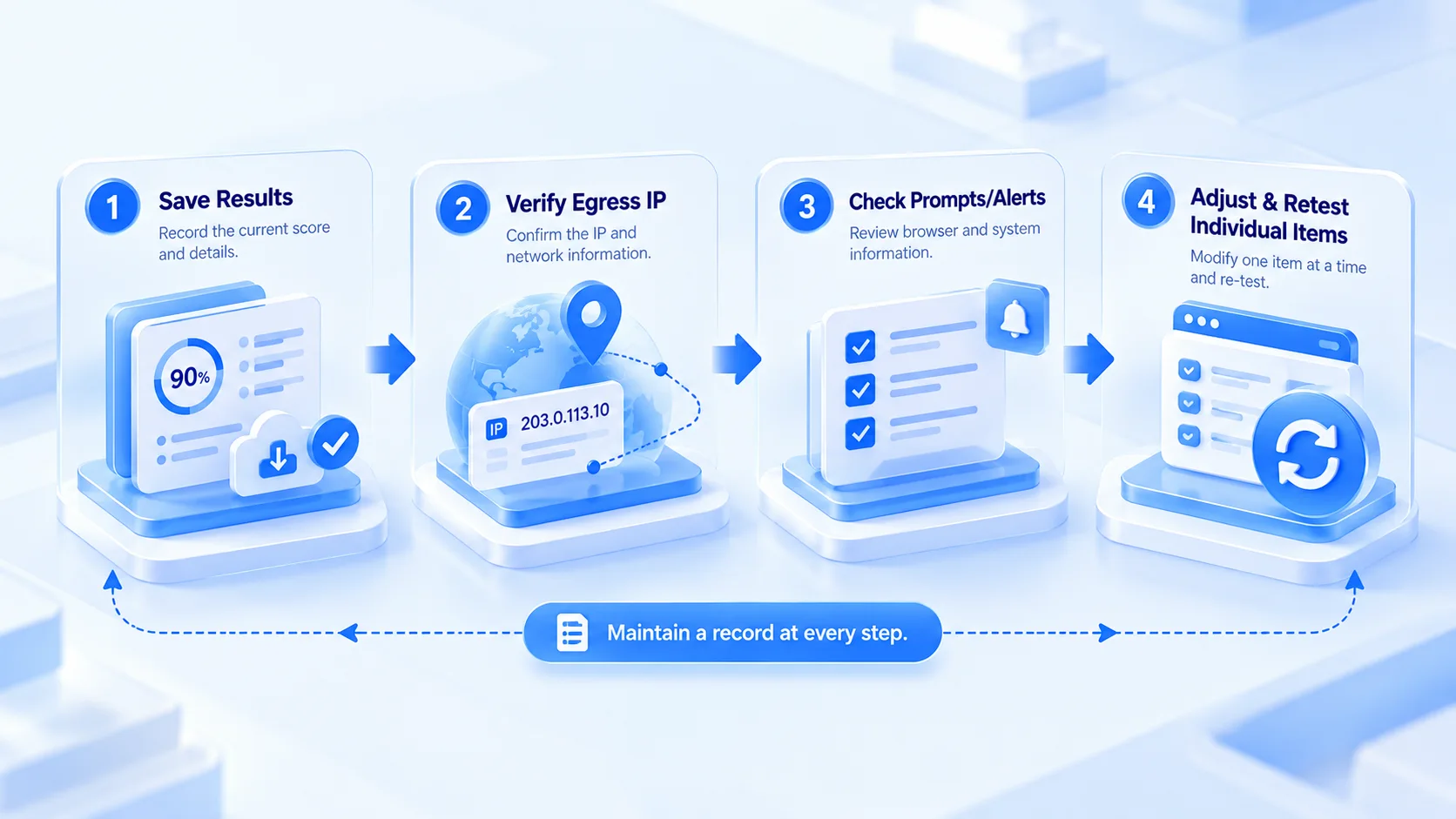
When the score disappoints, order matters more than action. Keep a record at every step: follow the rhythm below and each step leaves you something comparable to look back on.
Step 1: Save the Current Results, and Don't Change Several Settings at Once
Note the current score, the specific flags, the proxy configuration in use, and the environment you were in. Only then do you have a before-and-after baseline; remembering that "the score changed" is not enough.
Step 2: Verify the Exit IP Before Looking at Other Network Information
Confirm that the detected exit IP matches expectations. If the IP itself is wrong, check the proxy connection and the environment configuration first and leave everything else alone for now. If the IP is fine, follow the page's prompts to the DNS and related network information. Change the time zone and language together before the exit is even confirmed, and when something breaks you will have no idea which step caused it.
Step 3: Check Browser and System Details Against the Flags
When the issues cluster around time, language, or browser information, read the exact fields the tool reports first, then compare them with the actual settings of your environment. Look before you change. Avoid mechanically editing items one by one just to erase every difference; each adjustment needs a clear reason.
Step 4: Re-Check After a Single Change to Confirm What Moved
Change one related item at a time, then run the check again, once before and once after. Compare the results to confirm whether the original issue has disappeared and whether anything new has appeared. An unchanged score does not mean the adjustment failed; some settings simply never affect this tool's scoring items, so trust the actual fields.
Using MostMate: What to Do with the Whoer Results
Keep two things apart: what gets checked, and where results live.
You Are Checking the Environment You Have Open, Not All Environments at Once
Multi-account users need one premise clear. Every environment has its own proxy configuration, browser settings, and running state; a result obtained in one environment cannot be carried over to the others. What you are verifying is the environment actually open right now, its proxy configuration, and the details Whoer returns; only when all three line up does the result mean anything.
Turn Results into Environment Records to Cut Repeat Troubleshooting
For daily management, keep a record for each environment you check:
- Environment name and the business it serves.
- The identifier of the proxy configuration currently in use.
- Check date and the key results Whoer returned.
- Anomalies found, adjustments made, and re-check conclusions.
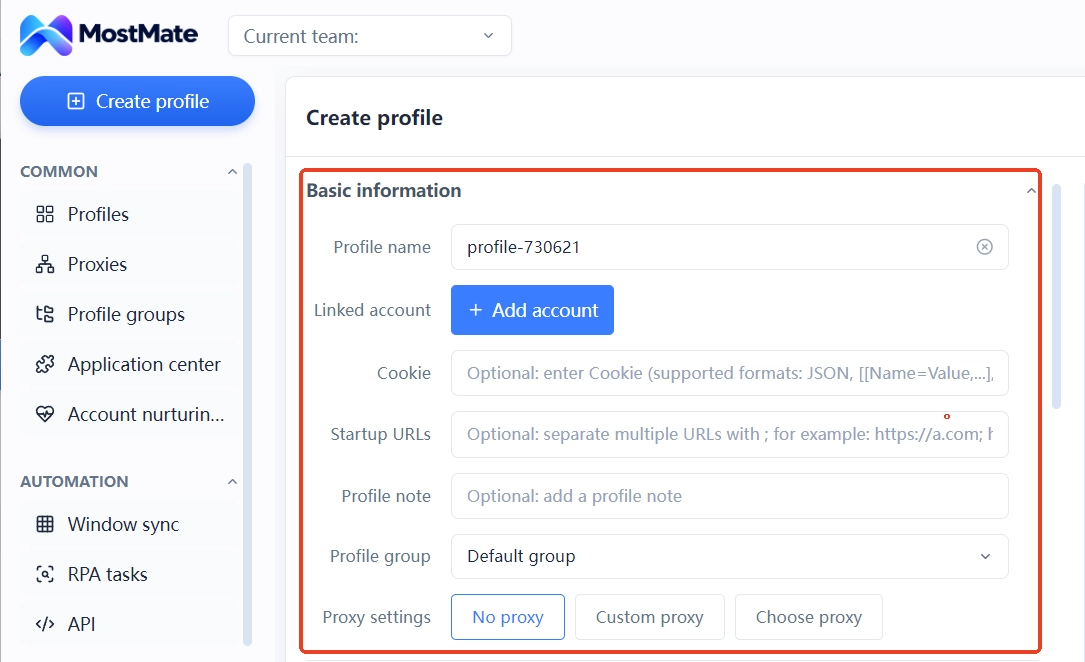
MostMate is a fingerprint browser built for multi-account teams. It keeps environments and their configurations in one place: environment notes hold the check time, the proxy identifier, and the progress of each case; member permissions make it clear who follows up; and when someone new takes over, the whole trail is there to read. Keep sensitive data such as IP addresses and passwords out of shared notes; a configuration identifier is all a note needs, so records can circulate safely within the team.
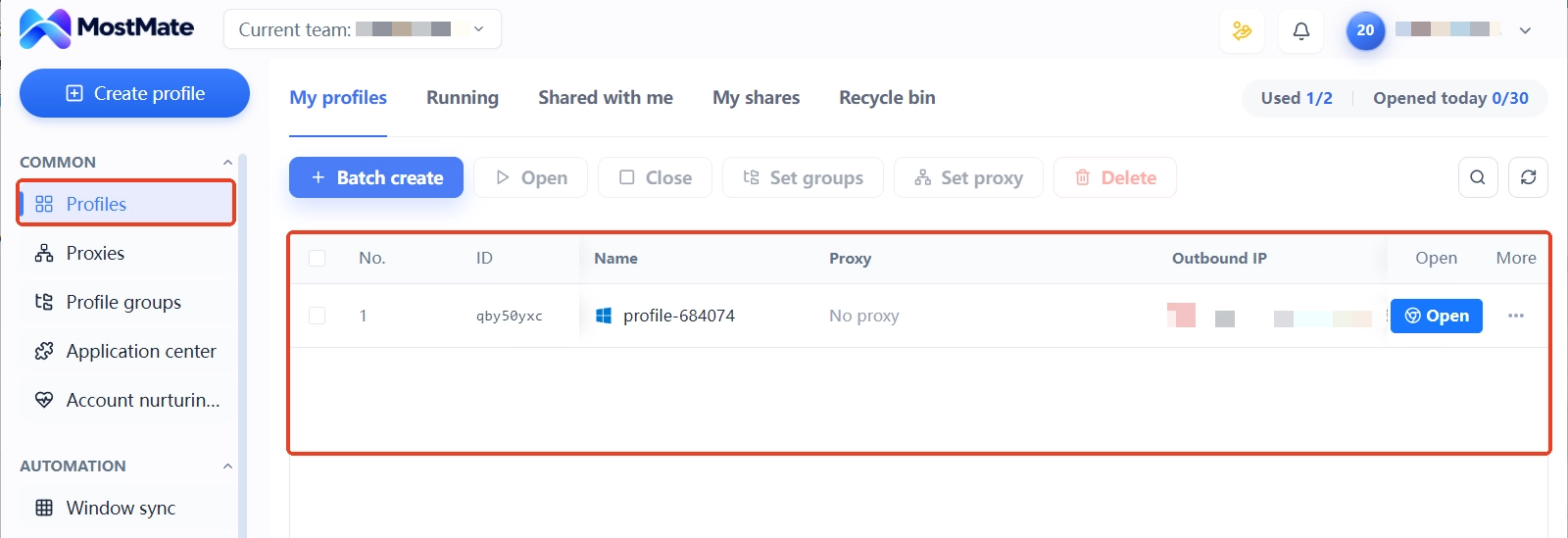
The boundaries deserve spelling out too: it manages environments and configurations; it cannot read Whoer's score, nor will it fix check issues automatically. To see how to get started with environment management, read the MostMate product page.
Frequently Asked Questions
Does 100% on Whoer Mean Complete Anonymity?
No. 100% only means no deduction items were triggered under the current rules. It cannot prove that every website is unable to identify your environment, and it says nothing about account safety.
How Do You Fix a Whoer Score of 90%?
Expand the details first to find the deducted items, then check the corresponding configuration. Do not diagnose from the number 90% alone, and do not change several parameters at once.
Does a Whoer Score of 90% Affect Your Accounts?
You cannot judge from the score alone. Whether accounts are affected depends on the actual check results and each platform's own rules; Whoer's score is not a platform account risk score.
Proxy Connected but No 100% on Whoer: Is That Normal?
It is normal. A successful proxy connection only means the link is up; it does not mean every piece of network and browser information matches expectations. Go through the items as the page prompts.
Whoer Results Change Every Time: Is That a Problem?
Differences are possible. The exit IP, the network configuration, and the browser state all affect the results. Record the key fields in the same environment and compare those; comparing total scores alone means nothing.
Can MostMate Raise the Whoer Score to 100%?
It cannot. MostMate handles the management of browser environments and related configurations, while Whoer returns results under its own rules; the two should not be conflated.
Conclusion
The value of a Whoer check lies in surfacing information that does not match expectations, not in chasing a score of 100% for its own sake. Each time you troubleshoot, noting the specific anomaly, the proxy configuration involved, and the re-check result will locate problems faster than endless parameter tweaking.
If you need to manage multiple browser environments, MostMate lets you maintain each environment and its configuration separately, with environment notes recording troubleshooting progress for later review and team handover. Start at the MostMate website to see whether the product fits your use case, then decide whether to download it based on your actual needs.

MOSTMATE
Secure Multi-Account Management, Made Simple
Start with your first account and use MostMate to build safer, smarter, and more efficient multi-account operations.
- Independent profiles. Consistent identities.
- AI Automation · Account Health · Team Operations



