
How to Detect a DNS Leak? 4 Steps to Troubleshoot Proxy DNS
Core takeaway: passing an IP check only proves your exit point has changed, not that DNS queries take the same route. A proxy and DNS handle two different stages of the process. The proxy decides which network exit a connection leaves from, while DNS turns domain names into IPs. When resolution queries travel an unexpected path, that is a DNS leak. Detecting it takes four steps, and reading the results correctly matters more than running the test.
You set up a proxy, open an IP checker, and the page shows the proxy IP, so you conclude the network setup is fine. A few days later, while investigating account issues, you discover that DNS queries have been going through the local network all along.
The proxy may be fine. The DNS queries may never have gone through it.
Why You Still Need to Check DNS When a Proxy Is On
A proxy and DNS are two separate processes; turning on a proxy does not mean DNS is taken over too. The proxy decides which network exit a connection is sent through, while DNS handles resolving domain names. They involve different parts of the network, so a proxy that works normally does not guarantee that DNS queries behave as expected.
To be concrete about network requests: when you visit a website, the client either resolves the target domain's IP through a DNS query first, or hands the domain over to the proxy side for processing. Which one applies depends on the proxy protocol, the client implementation, and the browser's DNS settings. Turning on a proxy does not automatically mean every resolution query follows the intended path. Only an actual test can settle it, and a proxy showing as connected is no reason to relax.
One more boundary worth separating: a DNS leak is not the same as exposing your real public IP. What leaks is the path of domain queries, which may let the resolution provider or the local network see which domains you looked up. Whether your real IP is exposed is a question for an independent IP check. In its VPN security advice, the Cyber Security Agency of Singapore lists DNS leak tests and IP address leak tests as two separate checks, precisely because they verify different things (see the CSA's VPN security guidelines).
How DNS Leaks Usually Happen
The three most common sources are all configuration issues, and none of them means the proxy is broken. Let's go through them one by one.
The Proxy Only Handles Part of the Traffic
Some proxy setups take over only the browser's web requests, while resolution is still done by the local system; whether this happens depends on the proxy protocol and how the client processes it. When web requests go through the proxy but resolution queries go local, the test results will show the local network's resolver.
The Browser Uses Its Own Secure DNS
Both Chrome and Firefox support DNS over HTTPS (DoH). When it is enabled, resolution queries are sent over an encrypted HTTPS connection to a designated resolution service, which reduces the chances of the local network observing queries directly. But encryption does not mean the queries pass through the proxy, nor that the chosen resolution service fits the current environment. Firefox lets you toggle this feature on its own, as described in Mozilla's official documentation.
System, Browser, and Proxy Client Each Use Their Own
The stealthiest case. The system uses one resolver, the browser switches to another with DoH, and the proxy client configures yet another. Stacked together, the resolution path becomes a black box. Judging by the proxy app showing connected gets you nowhere; you need to see which path the actually running browser takes.
When the resolution path lands on the local ISP, queries pass through the ISP's resolution service. For background, see how ISP proxies work and where they fit.
How to Detect a DNS Leak: Four Steps
The test itself is not complicated; what matters is having expectations before you test and a baseline for comparison afterwards. Only when all four steps are done does the conclusion hold up.
Step 1: Write down the expected results first. Before testing, note three things: which region the current proxy's exit is in, who should be handling domain resolution, and whether the browser has DoH turned on. Without expectations, the results give you nothing to judge them against.
Step 2: Run the test with the proxy on. Use a site that supports DNS leak detection, such as dnsleaktest.com, and click the Extended test so the page shows more resolvers; you can also use BrowserLeaks' DNS test page to see which organizations the resolvers belong to. Note down the resolver names, their organizations, and their regions.
Step 3: Compare the results against your expectations. Check whether the resolvers in the results match the current system, browser, and proxy configuration. If the resolvers belong to the DNS service you expected to use and no unexpected local resolution path appears, you can initially consider the test consistent with expectations. If a local ISP or an unfamiliar resolution service shows up, first confirm whether it really is unexpected, then check the proxy client's DNS handling, the browser's secure DNS, and the system's network settings one by one. Do not immediately conclude that the proxy has failed. A single test only reflects the conditions at that moment and cannot guarantee that every request is problem-free.
Step 4: Change one setting, then retest once. When adjusting, change only one thing at a time: the proxy client's DNS handling, the browser's DoH toggle, or the system's network settings. Retest and compare after each change. If you change several at once, the results cannot tell you which change did what.
How to Read the Results
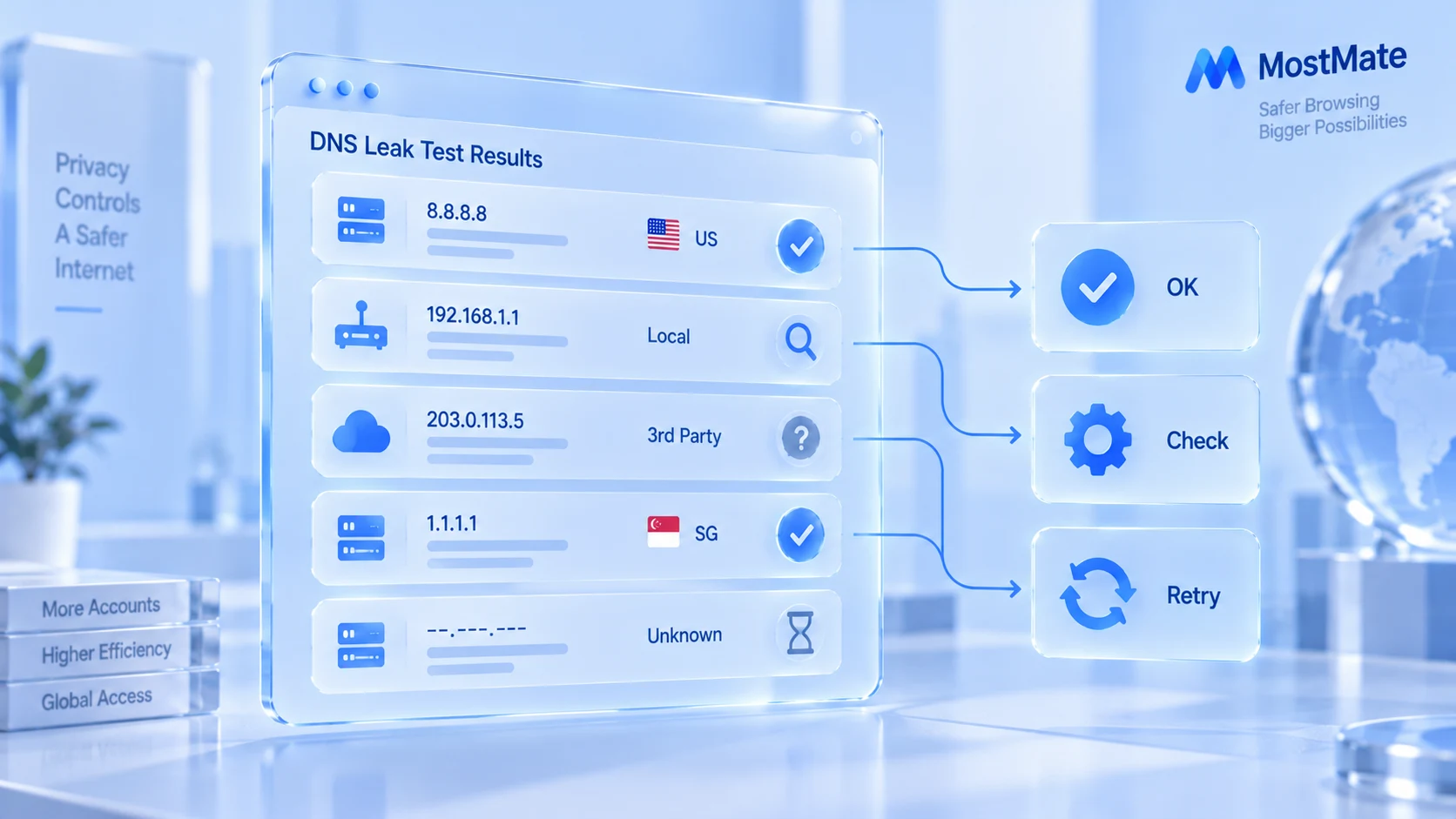
The same result is a clue when read correctly and a misjudgment when read wrong. Five common results and how to handle them:
| Test result | How to read it | Next step |
|---|---|---|
| Local ISP resolver appears | May not match the intended path | Check system DNS, proxy, resolver owner |
| Third-party public resolver appears | Could be intended, could be not | Check browser secure DNS and system DNS |
| Multiple resolvers appear | Several services, paths, or test artifacts | Verify name, organization, config source |
| Same result with proxy on and off | Identical results alone prove nothing | Retest with another tool, review DNS config |
| No resolver returned | Timeout, blocked queries, or tool limits | Confirm network, retest, or switch tools |
One more catch: Anycast and distributed nodes obscure the real exit.
How DNS Leaks, WebRTC Leaks, and Browser Fingerprinting Differ
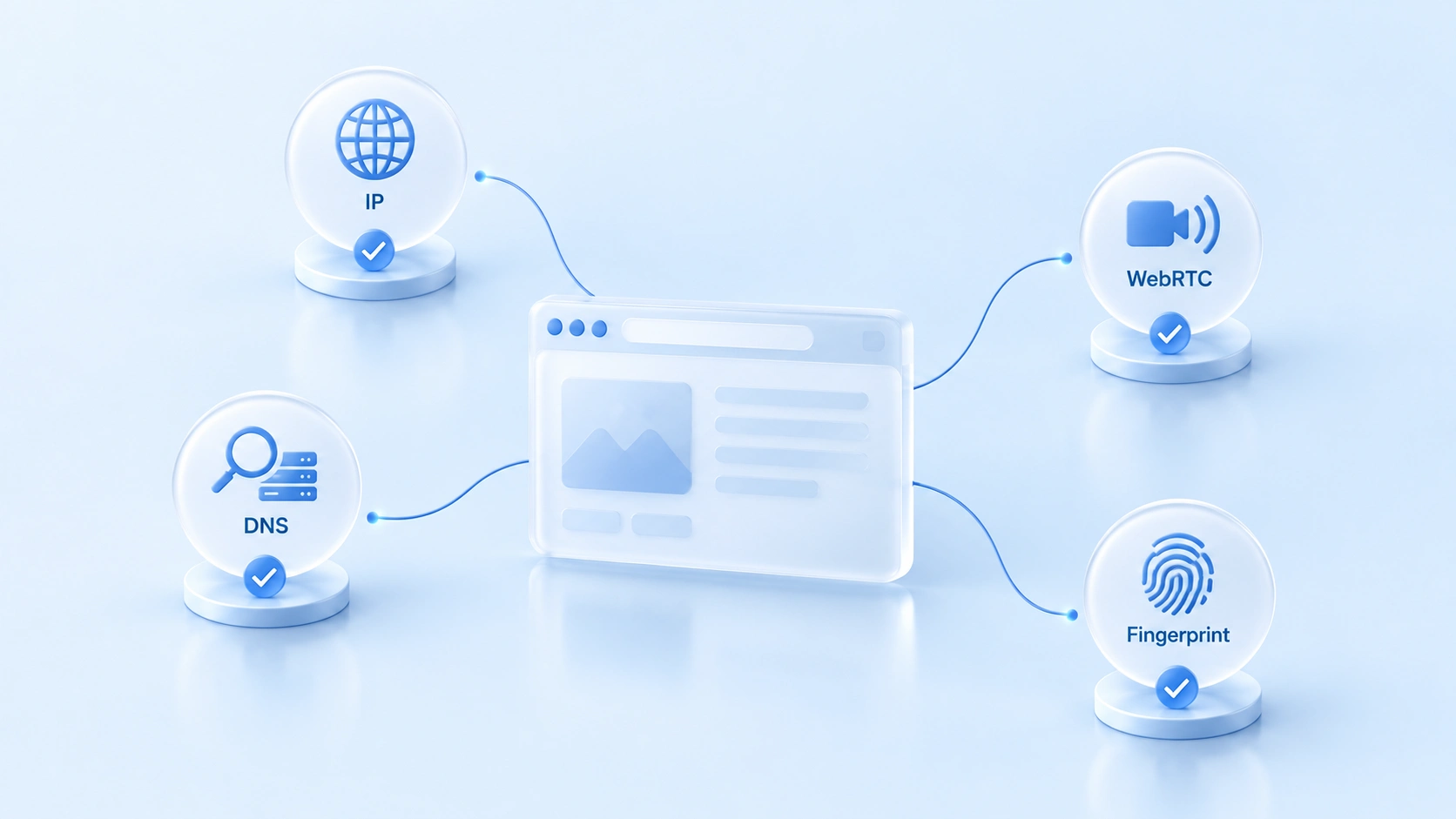
The four checks target four different kinds of information, and passing one does not mean the others pass. Seen side by side, the boundaries are clearest:
| Check | What it examines | Relation to the proxy |
|---|---|---|
| DNS leak | Which resolvers domain queries go through | The proxy may not take over every query |
| WebRTC leak | Addresses WebRTC may expose | Depends on browser and routing |
| Browser fingerprint | Canvas, fonts, time zone, and similar traits | Changing proxy IP won't change them |
| Public IP check | The exit IP the website sees | Reflects only this one request's exit |
DNS and WebRTC are the two most easily confused, because both carry the word leak. Their detection principles and remedies are completely different. How to detect WebRTC leaks and adjust the settings was covered separately and will not be repeated here. IPv6 leaks are another member of the same family, checking whether IPv6 addresses bypass the proxy; the method is described in how to detect IPv6 leaks.
These four checks each reflect different information and cannot substitute for one another. When troubleshooting a proxy environment, confirm the public IP first, then DNS and WebRTC, and finally the fingerprint and environment configuration. The exact items depend on your actual scenario.
How to Fit These Checks into Your Workflow with MostMate
The suggested order is: exit first, then resolution, then WebRTC, and finally environment configuration. When you use MostMate to manage multiple browser environments, you can keep proxy connectivity checks and DNS leak tests separate.
The proxy configuration comes first. After binding a proxy to an environment, use the in-product proxy test to confirm the connection status, and check the protocol type (HTTP, HTTPS, SOCKS5, SSH) and the authentication details at the same time. Keep in mind that a passed proxy test is no substitute for a DNS leak test; the actual path of DNS queries still depends on the proxy client, the browser, and the system configuration.
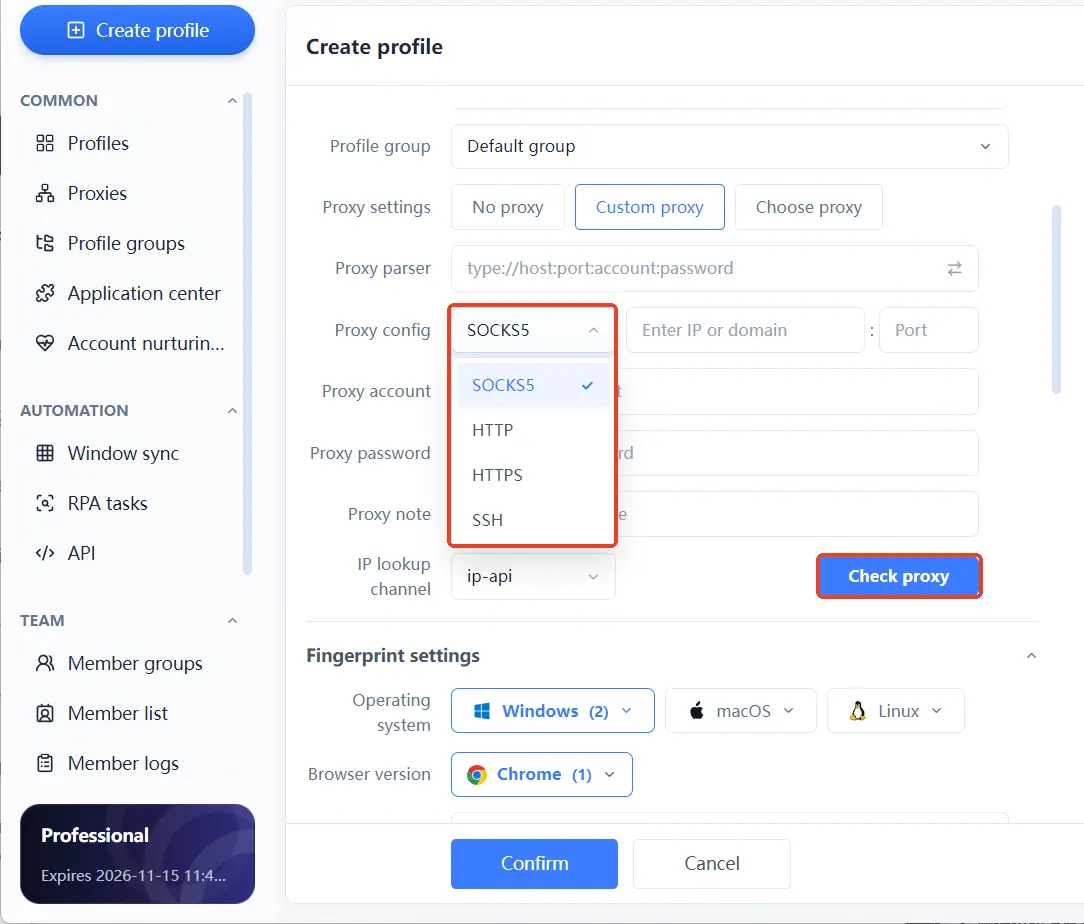
Then open a DNS test page in an environment bound to that proxy, follow the same four steps as above, and see whether the resolver ownership matches expectations.
The second item is the isolation of the environment itself. In multi-account scenarios, each environment's proxy, cookies, and fingerprint parameters should stay independent and never be borrowed from one another; the exact scope of isolation is covered in the scope and configuration of browser environment isolation. If an environment gets the wrong proxy or shares configurations, the test results lose their value as a baseline. Isolation helps manage different sessions and configurations, but it does not mean the DNS path is automatically correct, and it cannot replace external testing.
For the third item, remember the boundary: the fingerprint browser's job is to organize the environment, while whether the proxy actually works and whether DNS follows the expected path still depend on external verification. Passing a test is not a once-and-for-all guarantee; retest after configuration changes or system updates.
Frequently Asked Questions
The DNS test shows a local resolver while the proxy is on. Does that mean the proxy failed?
Not necessarily. The proxy may only handle web requests, while resolution queries are processed separately by the system or the browser. Check the proxy client's DNS handling and the browser's DoH settings item by item, changing one thing per test.
Can a DNS leak expose my real IP?
Not directly equivalent. A DNS leak reveals the path of domain resolution requests; what is actually exposed depends on the network configuration and the scenario. Whether your real public IP is hidden needs to be confirmed with an independent IP check, and the DNS resolution path should be checked on its own.
Can DNS leaks still happen with a fingerprint browser?
Yes, they can. A fingerprint browser manages environment isolation and fingerprint parameters, while DNS behavior depends on the proxy protocol and the system and browser configuration, so testing cannot be skipped.
After the DNS test passes, what else should I check?
Two more items: WebRTC leaks and browser fingerprinting, each verified with its own tool. Only when all of them pass is the network-layer check of this environment complete.
Closing Thoughts
The value of DNS leak testing is not getting a pass or fail mark; it is confirming that the current environment's network requests match expectations. Public IP, DNS, WebRTC, and browser fingerprinting each have their own check, and none of them can stand in for the others. Whichever fingerprint browser you use, retest after any proxy or network configuration change.
If you need to manage multiple browser environments, start by looking at how MostMate handles environment configuration and proxy management, then verify item by item following the steps in this article. To set up the proxy layer on firmer ground, you can download MostMate. The free version includes two environments, so get the testing workflow running on your first one.

MOSTMATE
Secure Multi-Account Management, Made Simple
Start with your first account and use MostMate to build safer, smarter, and more efficient multi-account operations.
- Independent profiles. Consistent identities.
- AI Automation · Account Health · Team Operations



