
Account Warming Plan Issues? How to Handle Verification, Login Errors, and Network Changes
It is day five of the account warming plan. You open the environment in the morning, and instead of the account, a CAPTCHA appears first. At noon you try again and find a verification email in the inbox. In the evening the proxy client reports a successful connection, yet the page will not load. Three different issues show up in one day, and none of the four tasks on today's plan gets done. Most people's first reaction is to make up the missed volume or switch to another proxy and log in again. Hold that thought for a moment. What you should do first is work out which layer the issue sits in: is the platform verifying you, has the login state broken, or is the network itself down?
When an account warming plan hits an issue, the order is to assess first, pause next, and resume last. For verification and login errors, follow the platform's prompts; for network changes, first tell a connection problem from an account problem. Put the day's tasks aside. Do not make them up before the account status is confirmed. This article gives an assessment method and an order of action for three scenarios, and explains what to record when something goes wrong.
MostMate is a fingerprint browser whose account warming management lays out "what to do today" day by day. The 30-day calendar, the day's plan, completion progress, and a "not today" column sit on one page. When an issue occurs, start from this page to check which tasks were scheduled and how far you got.
When the Account Warming Plan Hits an Issue, First Locate It
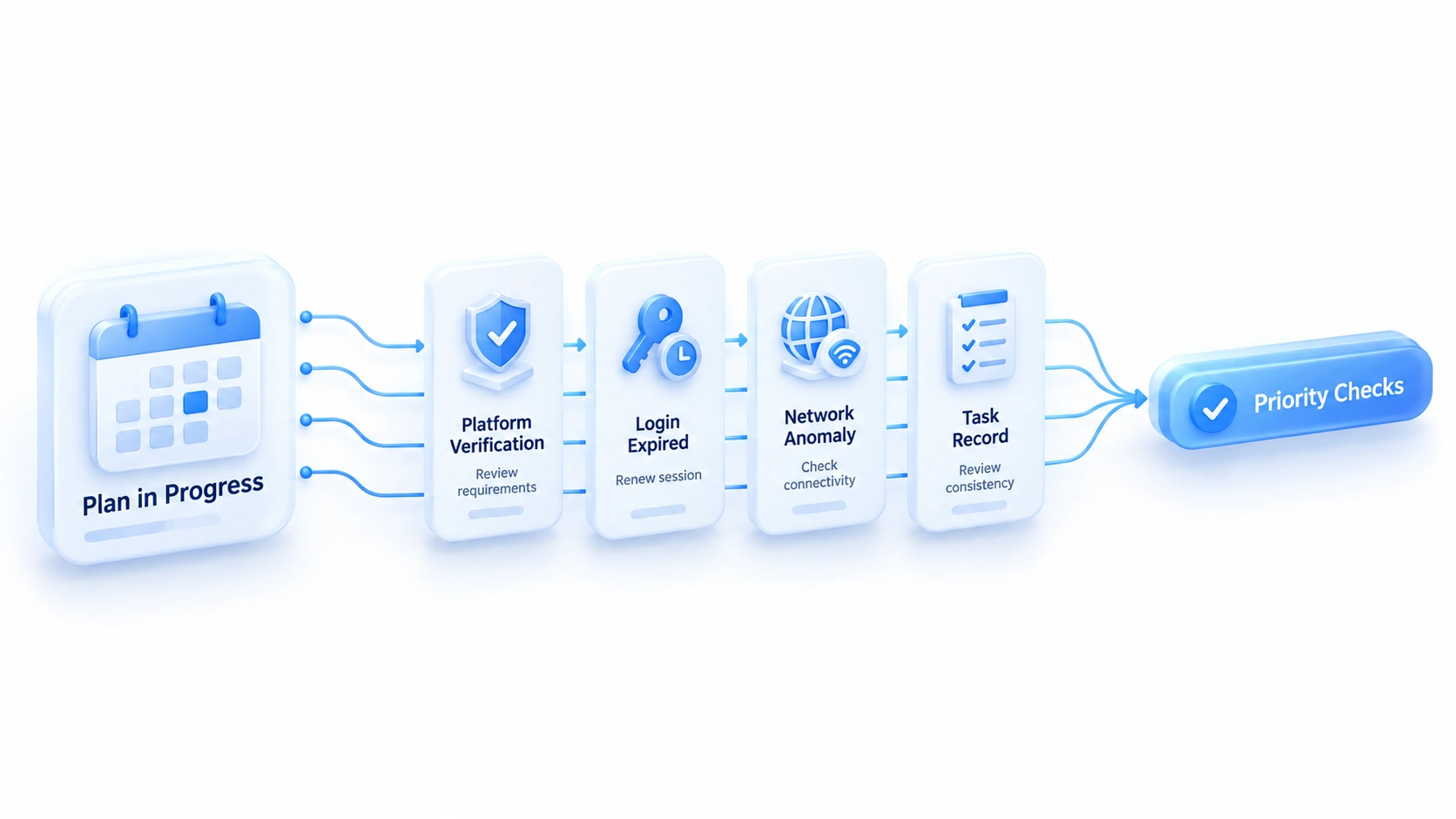
After an interruption, you can use what the page shows to judge which layer is most likely at fault. A platform verification request, a lost login state, a network that will not connect, and task records that never update all call for different responses.
A platform verification request means a CAPTCHA, an email check, a phone check, or a security prompt during login. The fix sits with the platform, and following the prompts settles it. A lost login state means the usual environment asks you to sign in again, the session has expired, or the account is unreachable. Check whether the environment or its data was touched. A network problem shows up as pages that will not load while the proxy claims to be connected. Look at the local network and the proxy configuration first. A record mismatch is the fourth case: the task was done, but the calendar or progress did not update. It does not necessarily mean the account is in trouble. Check the actions against the records first.
The rough troubleshooting direction differs by symptom, so compare each case against the table below:
| What you see | Likely category | Check first |
|---|---|---|
| CAPTCHA or email/phone check at login | Platform verification | Complete it as prompted; note type and time |
| The environment asks you to sign in again | Lost login state | Check the environment and any data cleanup |
| Pages won't load, other sites too | Network problem | Check local network, then proxy status |
| Task done but calendar or progress stale | Record mismatch | Compare actions with records; avoid repeats |
Different symptoms point to different checks, so do not attribute every issue to the fingerprint or the IP. Fingerprints and IPs are only one class of variable, and the platform's prompts usually tell you what to do next.
Facing Verification or Login Errors, Stop Retrying
A verification request is not a ban notice. When a CAPTCHA, an email check, or a phone check appears during warming, complete the platform's flow first, then watch whether the account recovers. If the platform explicitly asks you to wait, appeal, or submit materials, follow it exactly and do not add your own twists.
When the login state is lost, check three things in order. Is this the original environment, and has its Cookie or browser data been cleared recently? Did the platform end the session itself, for example by signing other devices out after a password change? Once all three are ruled out, turn back to the platform side and see whether it wants you to wait, appeal, or submit materials. Why is it asking for verification more and more often? The NIST digital identity guidelines explain verifiers and session management in detail and work well as an in-house reference.
Until the cause is clear, four actions are not advisable:
- Resubmitting wrong verification details or logging in repeatedly, burning attempts on guesswork.
- Deleting the original environment or wiping browser data before the cause is known, destroying your baseline.
- Skipping the platform's verification step and logging in again through another network path.
- Handing account credentials or codes to a third-party "unban" service, a route platforms never endorse.
The real problem with these actions is that they destroy the scene you would otherwise compare against. When a verification page appears, save the prompt text and the time it occurred. If you later need to appeal or contact support, these records help you describe what happened. That step is cheap now and hard to replace later. Without a screenshot, you may not even recall what the platform asked for.
After a Network Change, How to Check the Proxy and the Connection
The order for checking a network change runs from the local network to the proxy to the platform, and the sequence matters because skipping steps invites wrong conclusions.
- Check the local network first: can other sites open? This tells an overall outage from a single-platform problem.
- Check the proxy next: does the client show connected, and has the configuration changed recently?
- Check the actual exit IP when needed: does it match expectations, and when did it change?
- Return to the platform prompts last: if only one platform asks for verification, look at the account status and notices rather than keep tweaking the network.
If several sites will not open, treat it as a connection problem; if only one platform asks for verification, focus on its prompts and the account status. When a network issue and a verification request appear together, confirm the network is back first, then check the platform separately. Do not assume the account restriction lifted itself just because the network recovered. Daily proxy upkeep and exit checks are listed step by step in the proxy maintenance and exit check guide. This article does not repeat static versus dynamic IP basics; the order of checks matters more than the concepts.
A proxy that connects is not an account that works. An exit IP change does not lift account restrictions by itself, and switching IPs guarantees no result; it is one variable in the check.
After the Issue, Should the Day's Warming Tasks Continue
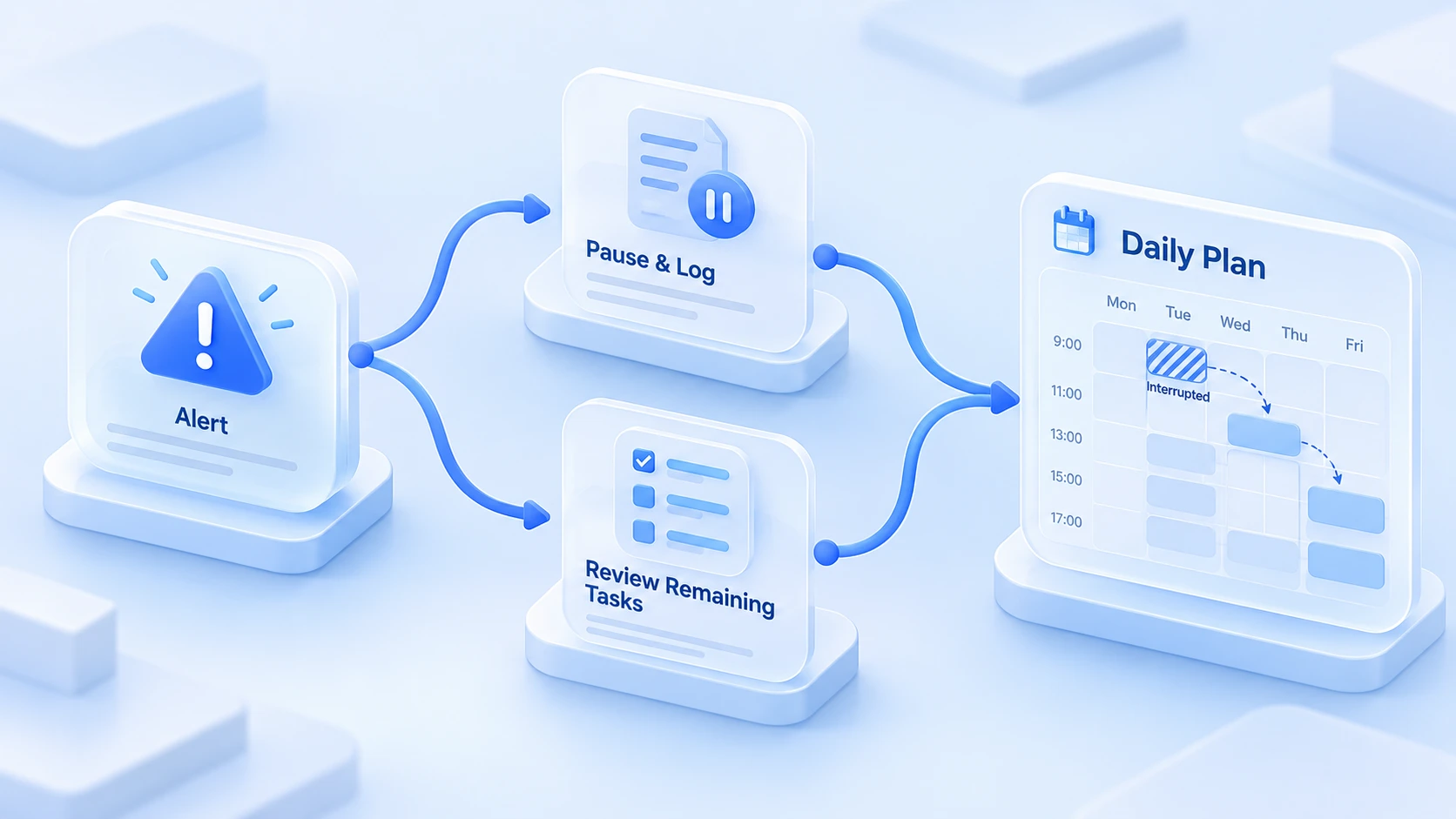
Until the account status is confirmed, pause the affected tasks. Once the cause is clear, decide how much to do. Do not batch catch-up work just to protect the completion rate.
This is the hardest stretch of a warming plan. Today's tasks sit neatly on the schedule, the account will not log in, and the instinct is to make up the volume. Yet while the cause is still unknown, rushing tasks only makes the check more complicated. If the login, the network, and the browser data all change at once, even a problem that later disappears cannot be traced to a single step.
Once the account is back to normal, check whether the remaining tasks still apply before deciding how much to do. Some tasks build day by day; after a missed day, the next day's plan may fit better, with no need to squeeze two days into one. Tasks done but not marked on the calendar are also common. Compare the actions with the records first. Fill in the record; do not repeat the task.
| Account status | What to do with today's tasks |
|---|---|
| Cause not yet confirmed | Pause affected tasks; record, don't catch up |
| Verified, account recovered | Check remaining tasks apply, then decide |
| Task done, calendar not updated | Fill in the record; don't repeat the task |
| Platform asks to wait | Wait as prompted; shift the plan |
A checked task is a local record. It does not mean the platform approves the account, nor that the account has no limits. Completion progress answers "what did you do"; account status is read from the platform's prompts.
The MostMate warming page arranges information around this idea. The 30-day calendar shows the month's rhythm one cell per day. A missed day stands out at a glance. The day's plan lists tasks as a checklist with progress on top. The "not today" column lists actions to avoid that day, such as changing the password at once, sending friend requests in bulk, adding a payment method the same day, or filling in profiles heavily. Stacking these on an issue day adds one more layer of noise to the check.
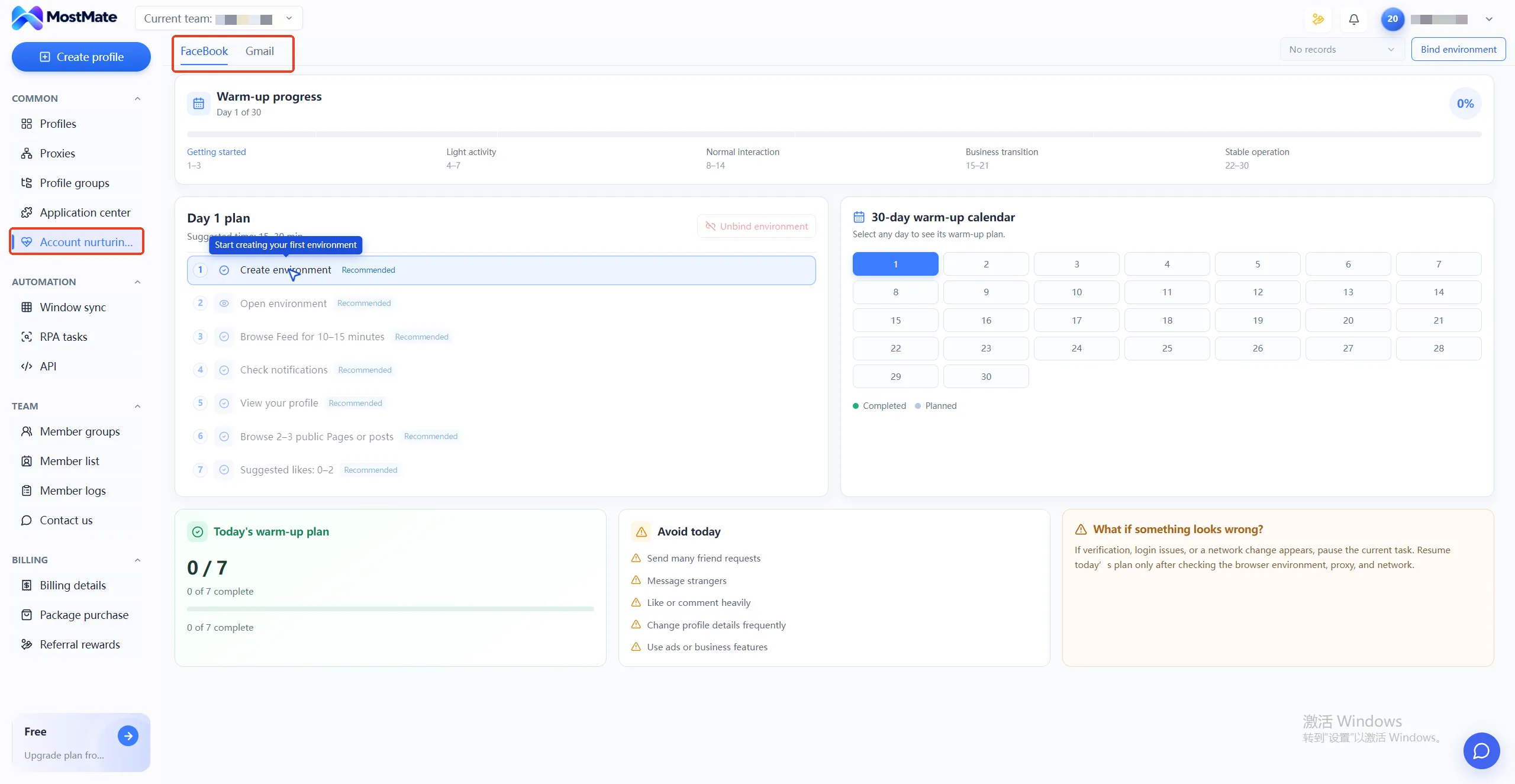
The in-page "what to do when something goes wrong" gives the same line: adjust the day's tasks first and continue today's plan once the login state is confirmed and the cause is found. For a product preview, see the account growth plan section on the homepage; for how to read the panel, see the account health and warming management article. These areas exist to check tasks, record interruptions, and adjust pacing. They do not provide automatic risk detection and do not replace the platform's own instructions. What each capability covers, and where the boundaries lie, is listed item by item on the MostMate product page under environment management, proxy setup, and team collaboration.
How to Record Issues So the Next Check Goes Faster
The core of issue records is keeping facts and guesses apart.
Facts support review; guesses only mislead the next judgment.
Six details per issue save half the time on the next check:
- When the issue occurred, and which task was running at the time.
- The original prompt text or a screenshot, with account and personal details masked.
- The network state: any switch of network, any proxy change, any exit IP shift.
- What measures were taken, and what changed after each one.
- The final result: verification passed, a request to wait, or tasks deferred.
- The environment name or number, so you can revisit that specific environment.
"A verification appeared after the network switch" is an observation. "The verification must have been caused by the IP change" is an unproven judgment. Write the two apart in your records. The first leaves a clue; the second, written as a guess, will pull the next check off course. The more urgent the issue, the more this discipline matters.
When contacting platform support or MostMate's own team, include the error message, the steps to reproduce, and the time it happened; that gets you far more specific guidance than "my account has a problem". It is also a good moment to review the account's security settings, and CISA's strong password advice lists the basics.
FAQ
If the warming plan is interrupted for a day, do I start over from day one?
Not necessarily. Confirm the account status first, then check which of that day's tasks were completed and which still apply. For tasks with clear prerequisites, adjust what follows to the actual situation instead of mechanically catching up.
After a proxy IP change, can the day's tasks continue?
First confirm that pages open and the account signs in normally, then decide how much to do. An exit IP change does not by itself decide the account status, but on an issue day less is more; avoid intensive activity right after switching networks.
When the platform asks for verification, can I log in from a different environment?
Not recommended. Verification is the platform confirming identity, and its prompts lead to a result. Logging in from a new environment scrambles the environment and its history and adds variables to the check. Keep the original environment and the original network untouched. Complete the verification flow there first.
How detailed should issue records be, and how long kept?
Detailed enough that a colleague could reconstruct the case from them. Time, prompt, task, network, measures, and result: those six items are enough. Keep the records until this account's warming cycle ends. When comparing across accounts, history is the only reference.
Closing Thoughts
The goal of issue handling is not to make the day look good. It is to make the account status and the task records agree. Keep the records first. Once the account status is confirmed, decide whether to resume. With the order right, a warming plan survives a missed day. To run the full flow, download MostMate and create a warming plan; the free plan's two environments are enough to lay down the plan and its issue records.

MOSTMATE
Secure Multi-Account Management, Made Simple
Start with your first account and use MostMate to build safer, smarter, and more efficient multi-account operations.
- Independent profiles. Consistent identities.
- AI Automation · Account Health · Team Operations



