
Lag-Free Multi-Open: Where Client Stability and Speed Come From
Core takeaway: Whether multi-opening lags depends first on whether there are enough resources to go around. Each environment is a full browser instance, and memory, CPU, disk, and network all scale with the number of environments. Lag has four sources, and self-checking beats replacing the computer. Three habits keep runs stable: open in batches by group, use bulk actions for unified open and close, and leave window arrangement to window sync. This article covers the resource model, bottleneck self-checks, stability risks, and working habits, in that order.
Twenty environments running at once, every window switch stutters, pages spin for ages. Almost every multi-account team has been there. The first reaction is often to buy a new machine; the money is spent, and two weeks later the lag is back. The cause is that the problem was never located. Which layer is consuming the resources: too little memory, a slow disk, or a slow connection itself? Understand the consumption model first, then talk configuration and habits. That is how multi-opening stays stable over time.
First, the tool: MostMate is a fingerprint browser. It keeps each account's browser data, proxy, and fingerprint parameters inside its own environment. Opening an environment means launching an independent browser instance. The resource question of multi-opening is really about how these instances consume local hardware.
The first source of lag: every environment is a full browser
Each environment is a complete browser, so consumption stacks up several times over; this is not as simple as opening one more window. Mainstream browsers are built on a multi-process architecture, with tabs, extensions, and rendering running independently; see Chromium's multi-process architecture documentation. A fingerprint browser adds another layer on top of that: separate Cookie storage, separate proxy connections, plus a complete set of fingerprint parameters. Opening one environment therefore makes your machine run nearly as much as installing a browser on its own would. Memory usage usually starts at several hundred MB, and the heavier the pages, the faster it climbs.
Estimated with this model, a 16GB machine, after leaving room for the system and other software, can smoothly run somewhere between a handful and about a dozen environments; a 32GB machine has far more headroom. The figure is only an order-of-magnitude reference, because it depends on how heavy the pages in each environment are, but the direction is clear. When the number of environments grows, do the memory math before anything else.
A self-check across four types of bottleneck
When lag shows up, first work out which of the four resource types it belongs to. Checking against this list beats vaguely blaming the computer:
- Memory: check usage in Task Manager; sitting above 90% for long stretches is dangerous. The system starts using the disk to cover for memory, and lag arrives in waves. If closing a few environments brings instant relief, this is the category.
- CPU: spikes when opening environments or running heavy pages are normal. Consistently high usage even when idle usually means some environment is holding a resource-hungry page or script.
- Disk: mechanical hard drives are the natural enemy of multi-opening. Environment data is read and written constantly, and moving to an SSD usually brings a bigger improvement than adding memory.
- Network: pages spin and time out while the environment itself stays smooth. That is a slow connection, not a slow machine.
Telling a slow connection apart from a slow machine comes first, because the fixes are completely different. For a slow machine, cut the environment count or add hardware. For a slow connection, change the exit. Page loading is affected by every hop along the route, and MDN's performance documentation explains the loading pipeline in detail.
The test is simple. Switch the same environment to a different proxy exit and try again; if speed recovers immediately, it is the connection. For a maintenance checklist, see the proxy exit maintenance guide.

Stability risks: batch opening and long running sessions
Worse than lag is interruption. Two scenarios cause most of it:
1. Batch-opening storms. Launching a dozen environments in one click maxes out memory and disk reads in an instant. Machine freezes and failed startups both happen within those seconds. Opening in batches is the steadier way: leave tens of seconds between batches, and let one batch finish loading before the next starts.
2. Cumulative consumption over long runs. Run continuously for a whole day and memory in some pages is not reclaimed in time, so usage creeps up. Closing inactive environments and reopening them on a schedule is more stable than leaving everything hanging.
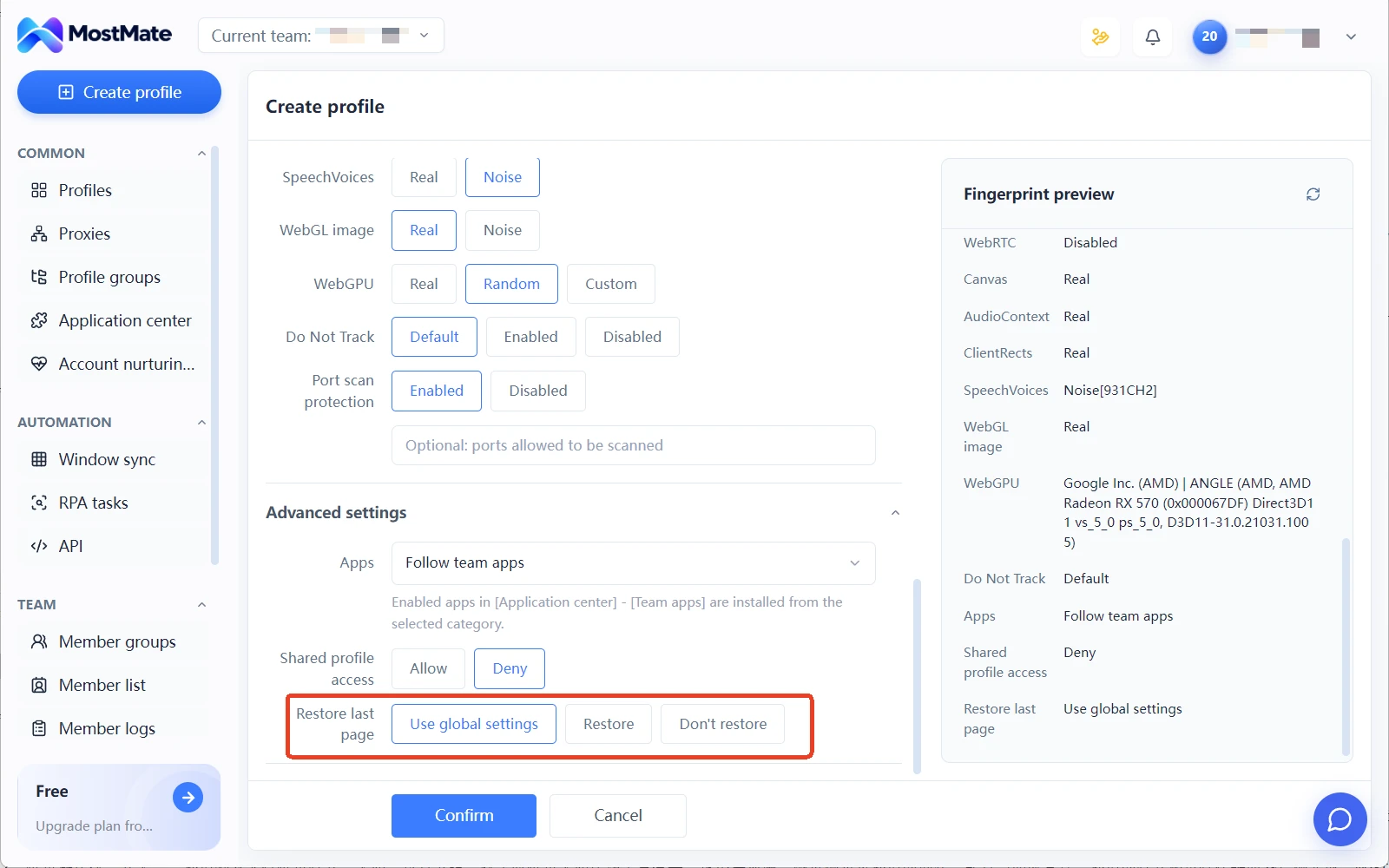
Environment data also needs protection from accidents. After an abnormal power cut or forced shutdown, session data in individual environments may be corrupted and login states lost. MostMate's advanced environment settings include a “Restore last pages” option, with choices to keep all settings, restore, or skip restoring. Combined with regular backups of important environments, more data survives when something goes wrong.
Three working habits that make multi-opening smooth
Three tool-level operations, all inside MostMate:
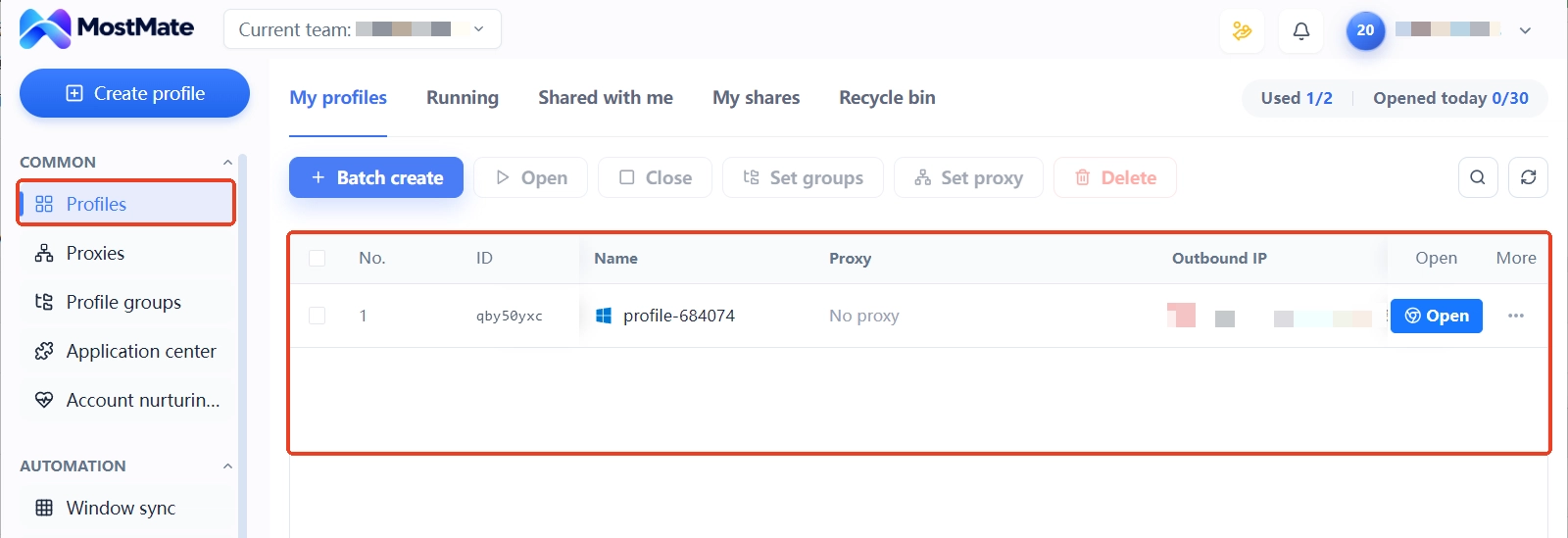
1. Open in batches by group. Group environments by business or time slot in environment groups, for example by site or by operator, and each day open only the groups you need. In the environment list, the proxy, exit IP, and bound account are visible on one row. A glance before opening shows how many exits this batch will use.
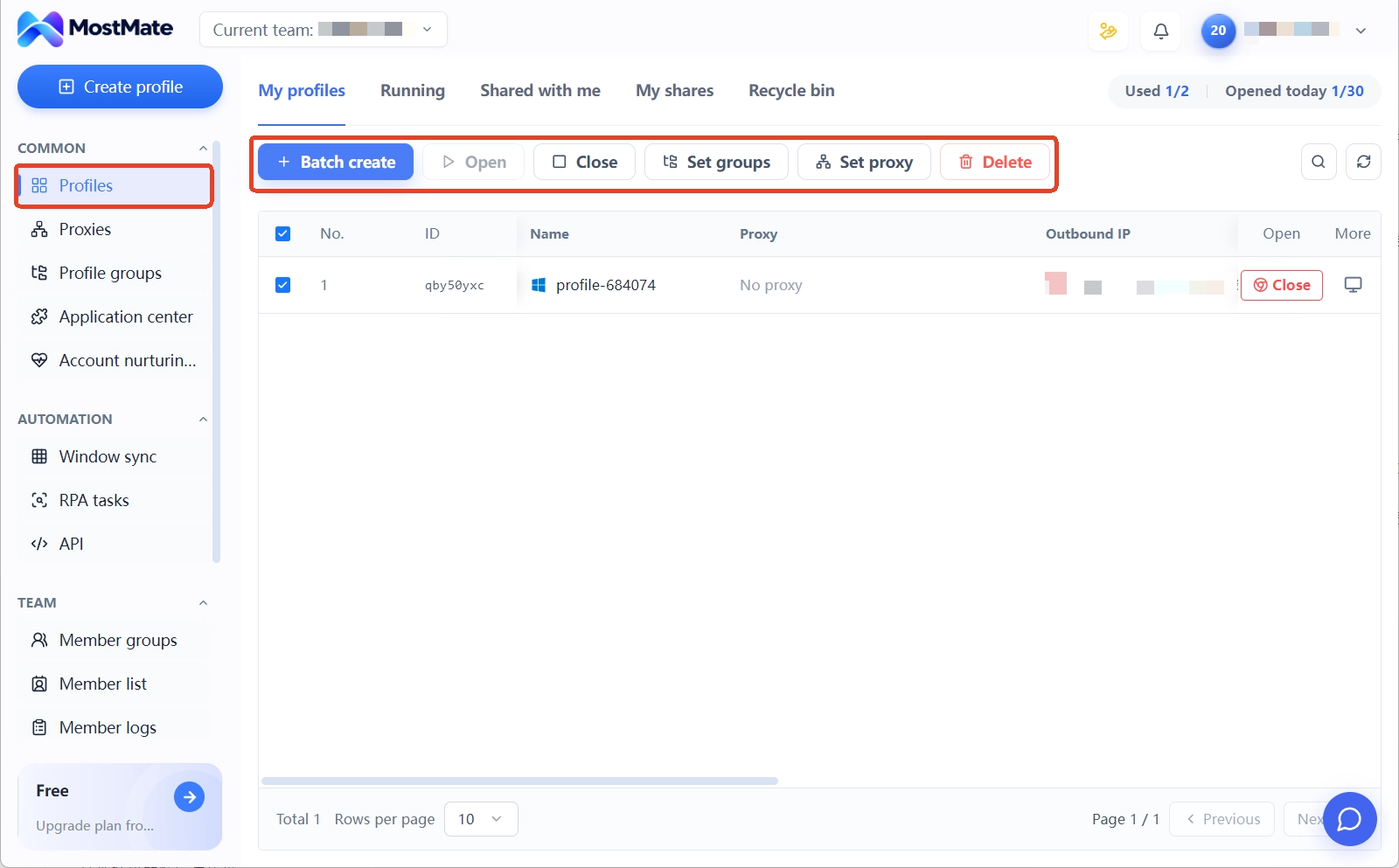
2. Unified open and close with bulk actions. The environment list supports bulk open, bulk close, and bulk group assignment. Closing in bulk at the end of the day beats clicking one by one, and nothing gets missed. The web app handles environment creation, configuration, and team management, while opening and running environments happens in the desktop client; MostMate's product overview page explains this division of work. Tidy things up on the web during the day, bulk-close in the client before heading home: a smooth loop.
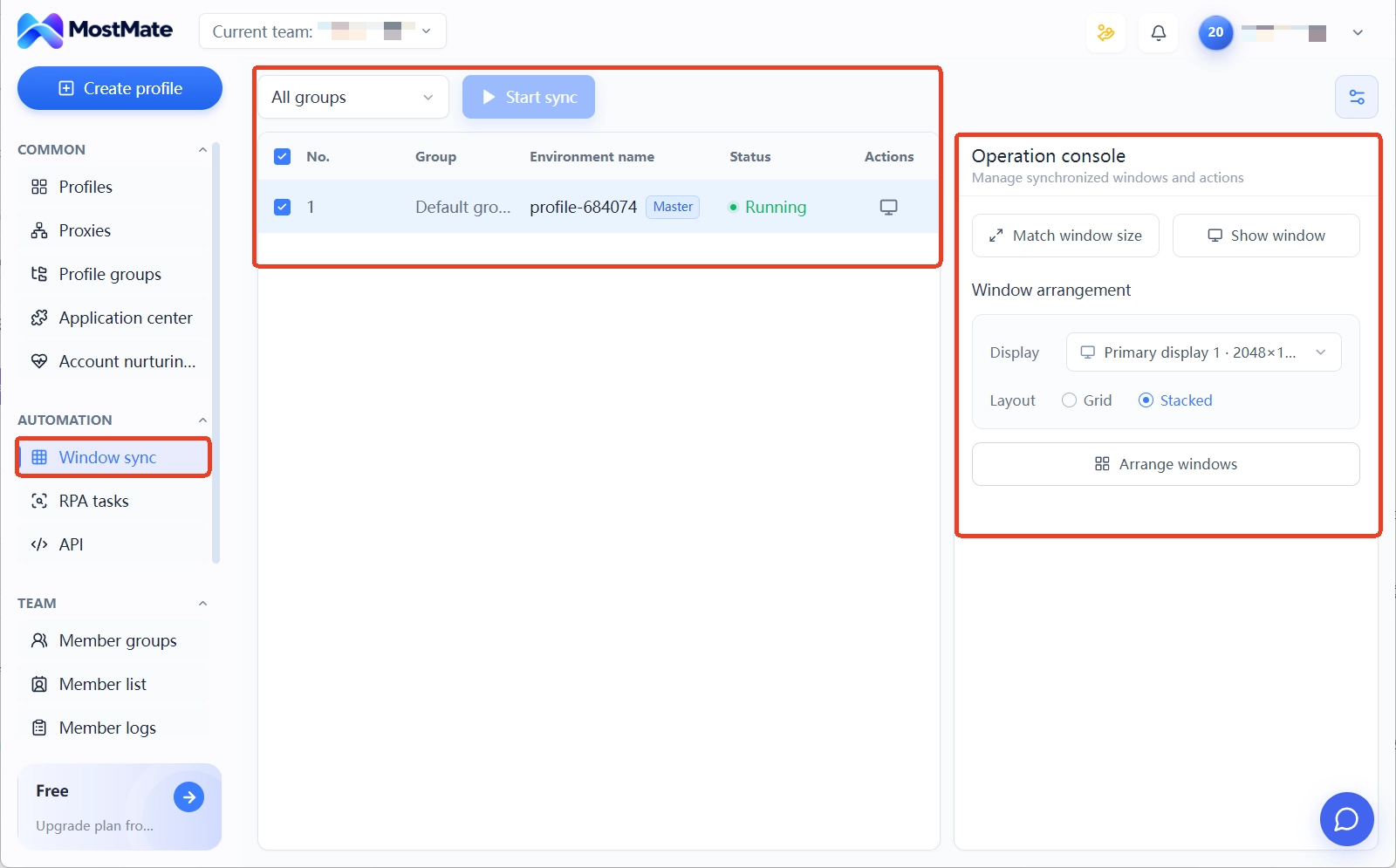
3. Leave window arrangement to window sync. When working across several windows side by side, window sync unifies sizes and arranges them in one click, far faster than dragging windows around. Clicks and typing can also sync to multiple windows. The window sync vs. RPA comparison article maps out the boundaries of multi-account automation choices.
The isolation baseline stays untouched. Each environment has its own Cookie storage and data, as covered in the article on environment isolation. No matter how tight multi-opening performance gets, do not save resources by sharing environments.
The order and limits of hardware upgrades
With a limited budget, the suggested upgrade order is memory first, SSD second, CPU third. Memory decides how many environments can run at once. An SSD decides how fast startup and switching feel. CPU is rarely the bottleneck until the environment count rises. The graphics card only strains when pages carry heavy animation and video. Multi-opening limits also depend on the browser type; the article on Chrome profile isolation limits looks closely at single-machine ceilings.
One more direction deserves its limits spelled out. Running the client on a cloud server is essentially moving to a bigger remote machine, and suits teams with operations capability. Configuration ideas and cost structure are a topic of their own; this article only points out that the path exists. The tool itself does not change the resource model. Every environment is a full browser, and whether it runs locally or remotely, the resource math still has to be done.
Frequently asked questions
Will opening several environments cause lag?
It depends on memory and page weight. On a 16GB machine, about ten lightweight environments at once is a common level. Environments with heavy pages can strain at five or six. Watch memory usage in Task Manager; once it hugs 90%, cut the count or add memory.
Is slow page loading a computer problem?
Not necessarily. If operations inside the environment are smooth and only pages spin, the connection is probably slow, and switching to another proxy exit will settle it. If clicks and switching inside the environment itself lag, then local resources are the issue.
Is opening dozens of environments in one go acceptable?
Not recommended. Launching everything at once maxes out memory and disk reads instantly, inviting freezes and failed startups. Open in batches by group with tens of seconds between batches, and the success rate is much higher.
What if environments grow laggy after running for a long time?
That is cumulative consumption from long runs. Close inactive environments and reopen them, and usage falls back. Back up important environments regularly, so an individual failure costs less data.
Closing thoughts
Lag-free multi-opening takes three things lined up: the consumption model, bottleneck location, and working habits. Environments are full browsers one by one, so the memory math comes first. When lag appears, tell machine trouble from connection trouble. Batch opening, bulk switching, and window arrangement left to the tool. With these three layers steady, daily multi-account work stops wrestling lag every day.
Teams building multi-account workflows can download MostMate, start with creating groups and setting a batch rhythm, and lay a solid foundation for multi-opening.

MOSTMATE
Secure Multi-Account Management, Made Simple
Start with your first account and use MostMate to build safer, smarter, and more efficient multi-account operations.
- Independent profiles. Consistent identities.
- AI Automation · Account Health · Team Operations



