
AI Tool Multi-Account Management Guide: Browser Environments and Account Safety for ChatGPT and Claude
Core takeaway: when you manage multiple ChatGPT and Claude accounts, the first step is to identify your usage scenario. Personal multi-account use, team-assigned accounts and one shared account each call for different management practices and different compliance boundaries. When an account acts up, check account status and policies first, then your browser environment and network configuration; reversing the order wastes effort. This guide provides scenario mapping, a three-item checklist and a step-by-step troubleshooting process. Nothing here involves circumventing platform restrictions.
Questions like these have become noticeably more common lately. One person runs several AI services side by side, drafting proposals, writing code and translating; in small studios, each person manages a business line under a separate login; others split one paid account among several people. When something breaks (a login verification prompt, throttled conversations, a locked account), the first reaction is often to blame the browser fingerprint. The reality is that account restrictions on AI tools come from many sources, and the browser environment is only one small, possibly relevant part.
Tools like MostMate belong to the anti-detect browser category and handle the environment layer: isolation, grouping and proxy assignment. They can reduce the trouble caused by mixed-up environments, but they do not extend to account plans, platform policies or service regions. Settle this boundary first, and the checks that follow become much more orderly.
Three Scenarios to Separate Before Managing Multiple AI Tool Accounts
First, one person using multiple AI services or accounts. You use ChatGPT and Claude at the same time, or separate work and personal use within the same service. The management focus is keeping login states and browser data distinct per account, so that mixed-up cookies and session data cause fewer switching problems.
Second, team members each using their own accounts. Every member works under their own account. The focus is clarifying account ownership, subscription costs, access permissions and the handover process when people change. Browser environments help organize each member's working data, but they cannot replace the team's own account management policies.
Third, several people sharing one personal account. Start by confirming the provider's account usage rules. Take ChatGPT as an example: OpenAI states that personal accounts are for the creator's own use, and the fact that an account can stay logged in on multiple devices does not mean its credentials can be shared with others. When a team needs shared access to AI services, look into the official Team or Enterprise offerings; for Claude and other services, check their current policies separately.
Each scenario calls for a different management focus. The rest of this article mainly covers the first two: how to organize browser environments, network configuration and account information to cut down everyday confusion and management overhead.
ChatGPT or Claude Account Acting Up? Check These Four Directions First
Account trouble comes down to four checkable items. All are user-side.
Login verification and security notices. Check your inbox for unusual login alerts, verification code emails or security notices, and screenshot their content and timestamps first. These records are the primary evidence for tracing where the problem came from.
Account plan and usage limits. Free and paid tiers differ in models, quotas and rate limits, and hitting a usage cap looks different from a suspension. Confirm the account's current status and plan before anything else.
Service regions. Claude's official supported-regions page lists the countries and regions where the service is available; policies change over time, so treat the official page as authoritative. If your region is not covered, switching environments or proxies will not solve the problem; that is a hard boundary of account eligibility.
Credential sharing and automated use. Check whether the account has been used by others without authorization, and whether any automated operations violate the terms of service. Different services set different rules for APIs, official integrations and automation tools; defer to each service's current policy. If the account is restricted as a result, save the notice first, then follow the official appeal or support process.
A Three-Item Checklist for AI Tool Multi-Account Management
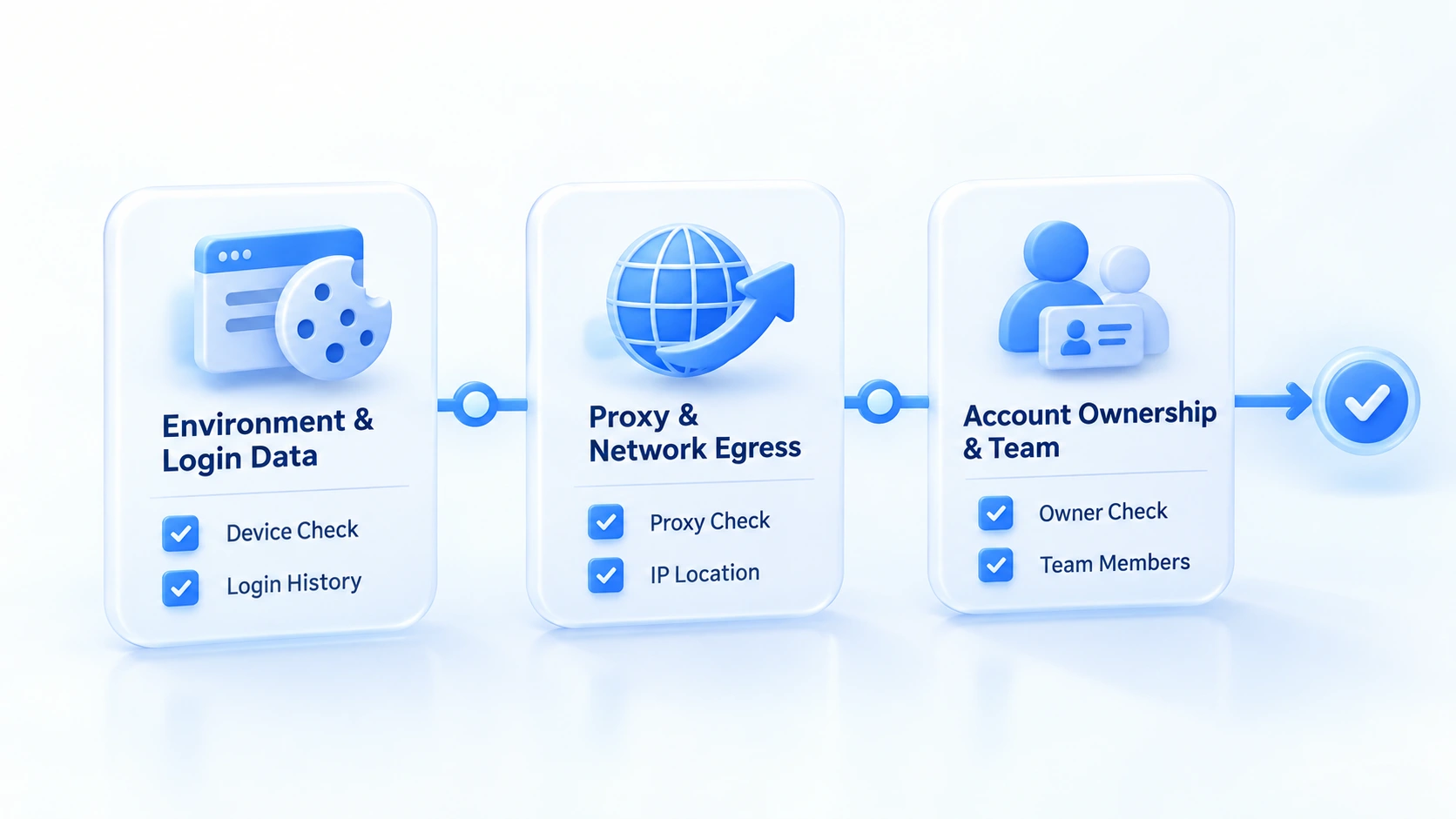
Once the scenarios are clear, daily management comes down to three checks. The three are independent; when something goes wrong, go through them one by one.
| Check | What to verify | Common issues |
|---|---|---|
| Environments & login data | One environment per account; no cookie mix | Accounts share an environment; sessions mix |
| Proxies & network exits | Proxy ok; exit as expected; changes logged | Exit mismatch; login prompts after changes |
| Account ownership & team | Owner and handover logged; credentials kept | Member leaves; no one takes over the account |
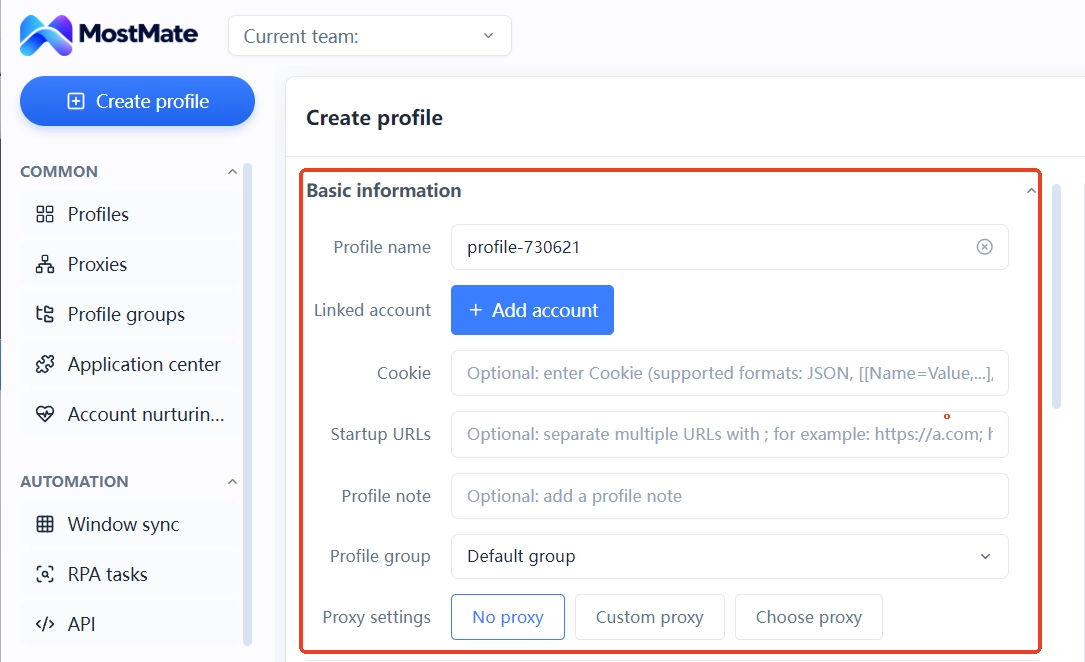
Environments and login data are MostMate's home ground. Create a dedicated environment for each AI tool account, with cookies, local storage and sessions kept separately; switching accounts then means switching environments, with no repeated logins. The principles and boundaries are laid out in the environment isolation guide.
For proxies and network exits, the point is "as expected", not "all different". Whether the proxy connects and where traffic actually exits can be confirmed with a single check against a detection service. The routine verification cadence is covered in proxy maintenance and exit checks. Without a clear business or troubleshooting need, avoid frequent network changes and record the necessary change times. That way, when a login verification or access issue appears, there is something to compare against; but a network change alone does not make it the direct cause of the problem.
How to Troubleshoot Login Restrictions and Account Issues Step by Step
Tell platform-side from environment-side issues, then work in order.
- Save the full error messages, security emails and timestamps; they are the basis for judging where the problem came from.
- Open the account status page and confirm whether the account is in good standing and whether plan usage has maxed out.
- Review official policies: terms of use, regional availability and sharing rules, confirming your usage stays within them.
- Inspect the browser environment: whether the login state belongs to the right environment, and whether the proxy connection and actual exit are normal.
- Handle account security issues per official guidance: change the password, review login activity, complete verification; if the issue persists, contact official support instead of repeatedly creating new accounts or blindly resetting environment parameters.
The last item deserves separate emphasis. Re-registering new accounts, reinstalling environments and switching proxies will not resolve platform-side restrictions. They only make it impossible to tell which action produced which result, and may leave behind more anomalous records.
Organizing AI Tool Browser Environments with MostMate
Putting the checklist above into MostMate, daily management looks roughly like this. When creating an environment, decide its purpose and owner first; organize environment names and groups by business line, such as "AI-Copy-Owner"; use the bound-account column and notes to record account ownership; maintain proxies one by one in proxy management and assign them per environment. For team collaboration, use environment groups to authorize each member's access scope, and cross-check operation records through member logs during handovers.
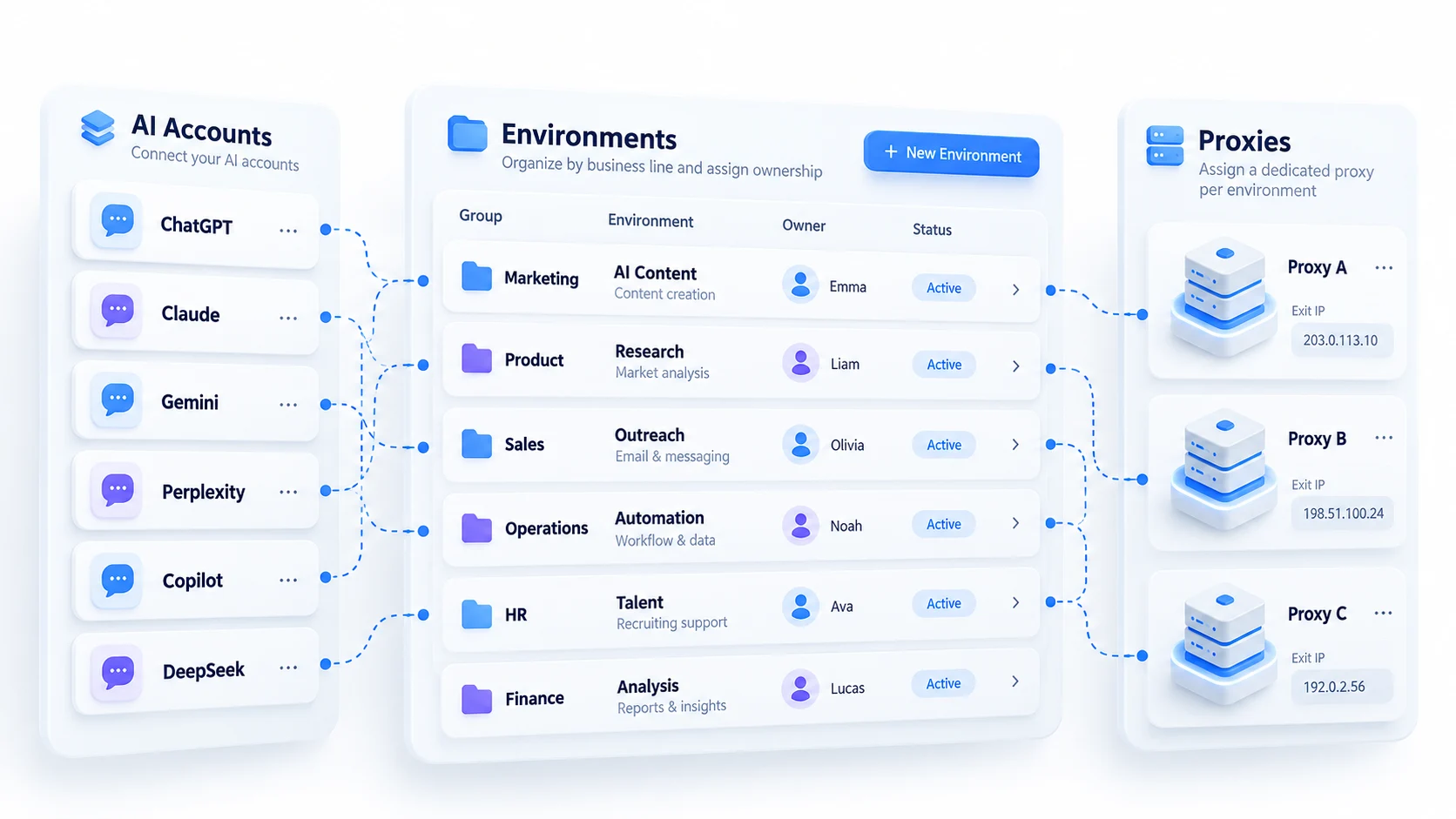
What it covers: isolated management of environments and login data, centralized maintenance of proxy configurations, and permissions and records for team collaboration. What it does not cover: account-level matters such as account plans, platform policies and service regions, which remain governed by ChatGPT's and Claude's own official systems; account passwords and two-factor authentication should also be managed in the provider's own security settings.
If you are unsure whether this kind of tool is worth adopting for AI accounts, Who is MostMate for offers a decision checklist to match against your situation. The full approach to grouping and handovers is covered in multi-account security management. AI tool accounts can follow the same pattern; it is not repeated here.
Frequently Asked Questions
Can ChatGPT be logged in on multiple devices?
Yes. The official account-sharing policy states that personal accounts are for the creator's own use; logging into your own account on multiple devices is allowed, as long as the credentials are not shared with anyone else. For multiple users, use the Team or Enterprise offerings.
Can ChatGPT and Claude use separate browser environments?
Yes. For scenarios that call for separately managed login states, work purposes or browser data, consider configuring an independent browser environment per account. But this is not a must for every user: for example, ChatGPT already offers switching between two accounts within the same browser. Which approach to choose should depend on the platform's available features, actual usage needs and account rules. Independent environments mainly help manage browser data; they do not mean the platform will necessarily treat the accounts as unrelated.
Does using an anti-detect browser prevent account restrictions?
No such cause-and-effect holds. Account restrictions stem from plan usage, service regions, sharing behavior and automated use, among other sources; the browser environment is just one layer. An anti-detect browser manages environment data and does not change platform policies or decisions.
When an AI tool account has login issues, should you check IP or browser settings first?
Neither. Check account status, usage and official policies first; those are the clearest signals. Once the platform side is cleared, verify the proxy connection, actual exit and the environment's login state. Reversing the order wastes effort on the environment.
Closing Thoughts
When an AI tool account runs into trouble, verify account status, usage and official policies first, then examine the browser environment and network configuration. The goal is not to guess the platform's internal decision-making, but to rule out, one by one, everything you can verify yourself.
For users who need to manage multiple browser environments independently, MostMate helps organize environments, proxies and related configurations; account permissions, subscriptions, verification and appeals should still go through each provider's official channels. Start with What is MostMate to decide whether your current workflow genuinely needs this kind of environment management tool.

MOSTMATE
Secure Multi-Account Management, Made Simple
Start with your first account and use MostMate to build safer, smarter, and more efficient multi-account operations.
- Independent profiles. Consistent identities.
- AI Automation · Account Health · Team Operations



