
How to Check UserAgent Consistency? Four Gaps a UA Mismatch Exposes
The UA row looks fine on a test site, yet accounts still hit captcha within days of login. The first instinct is often to grab another UA, or to install another UA-switching extension. The anomalies then show up more often.
Most of these cases come down to consistency. UA is a single field, but platforms read it from more than one place. Change one spot and leave the rest at their original values, and a cross-check immediately turns up a contradiction.
The first step of a UA check is making sure the field tells the same story on every exposed surface; only then does it make sense to compare it against device and region parameters. This article breaks down the three channels platforms use to read UA, lists the four signals a mismatch exposes, and closes with a five-point checklist plus the configuration steps inside a fingerprint browser.
The Three Channels Platforms Use to Read UA
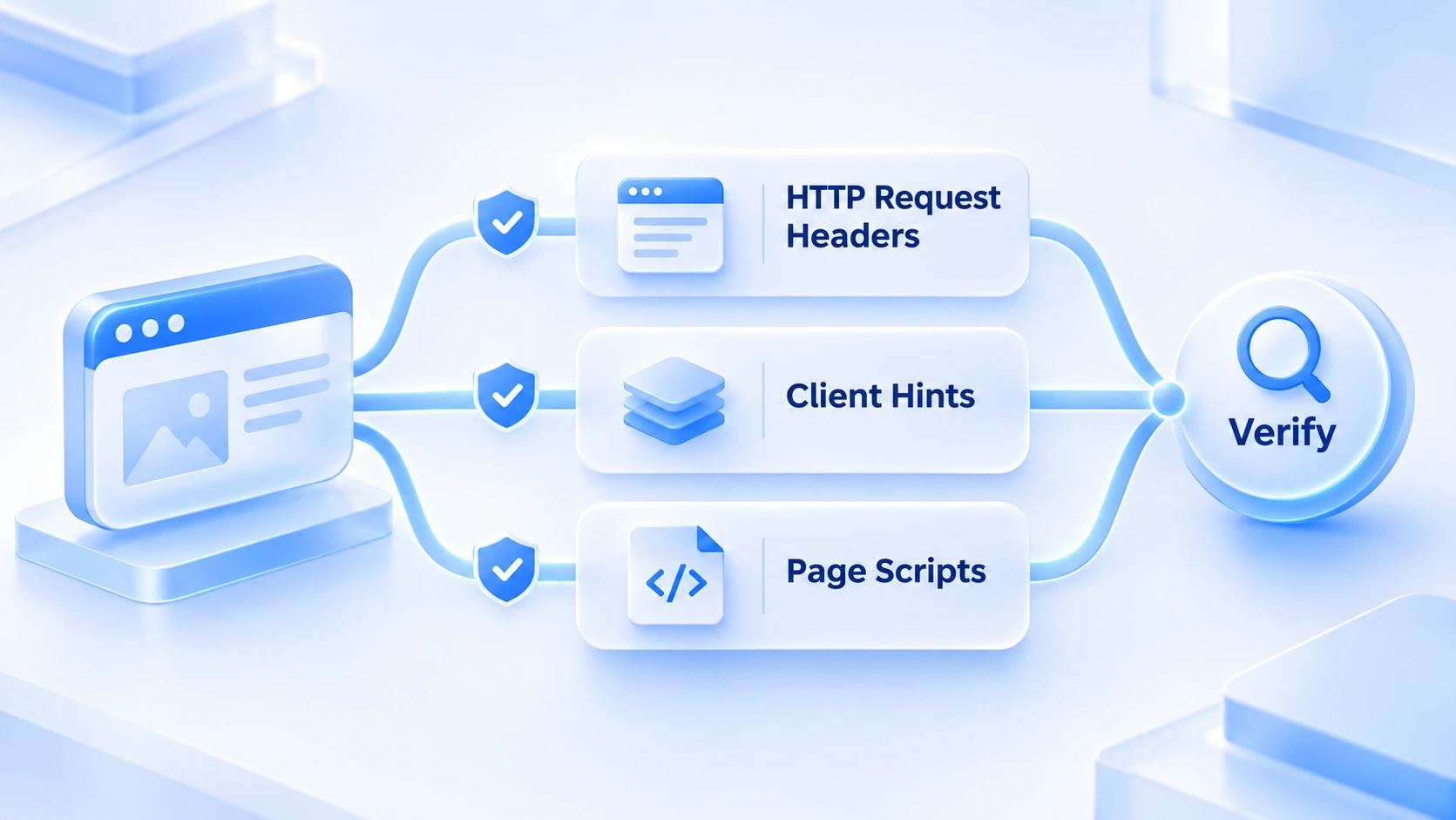
The same UA value is actually read from three places: the HTTP request headers, the Client Hints headers, and page scripts. The three channels are independent, and each can be verified on its own.
At request time, the UA string in the headers is the earliest channel; a site reads it before the page ever arrives. Since Chrome 89, device details have been split into the Sec-CH-UA family of headers and reported separately, with one header each for browser brand, platform, and platform version, supplied on demand. MDN's Client Hints documentation lays out the structure of these headers clearly.
The third channel lives in page scripts. navigator.userAgent and navigator.userAgentData report browser and platform info again from inside the page. In theory all three readings match character for character. Change any one of them in isolation, and the other two stay exactly where they were.
UA-switching extensions fail exactly here. Most only replace the UA string in the request headers, so page scripts still read the original value, and the two channels clash on the spot. Surfacing that contradiction takes no deep technical skill; a risk-control script just compares the two readings.
One more piece of background. Chrome has been freezing the information in older UA strings: the tail of the version number is now fixed, and more detail has moved into Client Hints. The room to tinker with the UA string alone keeps shrinking, which makes alignment across channels more important than ever.
What a UA Mismatch Exposes: Four Signals
A UA is neither true nor false on its own; it only gives away its gaps once it sits back inside the signal combination. Most mismatches caused by environment problems fall into the four categories below.
Category one: channels contradict each other. The request headers report Chrome 126 while page scripts still read Chrome 118, or the brand declared in Sec-CH-UA disagrees with what navigator.userAgentData returns. Such readings have almost one explanation: the UA was changed in isolation, and the change never covered every channel.
Category two: declarations contradict hardware. The UA says iPhone, but the screen is a 1920×1080 desktop resolution with zero touch points; the UA declares Windows, yet the GPU renderer reports Apple silicon. Hardware parameters are measurements read from a real environment, while a UA is a declaration anyone can fill in. Set the two side by side and the gap is far more visible than the UA itself. Why fingerprint randomization is unsafe breaks this type of contradiction down parameter by parameter.
Category three: contradictions with the environment mix. The exit IP sits in the United States, but the UA is a Chinese-language browser and the language list and time zone lean toward another region. UA, OS, language, time zone, and IP are supposed to assemble into one regional profile; once one item drifts, the whole profile looks suspicious. Changing the UA cannot fix this category; what needs to move is the environment configuration.
Category four: mismatch with transport-layer traits. The TLS handshake leaves fingerprints that look like a scripted tool or a very old browser, while the request headers claim the latest Chrome. Transport-layer traits are harder to disguise than a UA, and cross-checking the two sides costs a platform very little.
Of the four signals, the first three can be avoided during environment configuration; the fourth depends on the access method itself. Watch the first three in daily self-checks, and whenever readings contradict each other, go back and review the configuration.
How to Run a Consistency Check: Five Comparison Points
No single test site settles it. Run five comparison points in order.
1. Channel comparison: Open the environment and visit a test page. Use the Network panel in developer tools to read the UA and Sec-CH-UA in the request headers, then compare them against navigator.userAgent in the console. All three must match.
2. Hardware comparison: Check the device type declared by the UA item by item against screen resolution, touch capability, GPU renderer, core count, and memory. Whatever device is declared, the measurements must look like that device.
3. Region comparison: Confirm that the UA language, the browser language list, the time zone, and the exit IP all belong to the same regional profile, and that mobile declarations match mobile network traits.
4. Version comparison: Keep the browser version in the UA within the mainstream range of your target market. A version newer than the latest release, or one frozen years ago, is an anomaly signal either way, and it must also match the behavior of the underlying engine.
5. Recheck records: After adjusting the configuration, run the test page again and keep a record of every reading. When the environment misbehaves later, those records are where the troubleshooting starts.
On the tool side, CreepJS specializes in collecting contradictions between page-script readings and what the browser claims. Run it on an environment with a modified UA and channel clashes get flagged directly. Aggregate test sites such as Browserscan suit an overall read of the five parameter groups. Use the two together. A UA is only one signal in environment consistency; the companion article on anti-association consistency checks has a six-item checklist that pairs well with these five points.
Pairing the UA Inside a Fingerprint Browser
When working through the five points, the most efficient approach is to generate the UA together with its companion parameters instead of filling each in by hand. MostMate is an AI fingerprint browser built to be beginner-friendly, preparing an independent browser environment for every account, and UA consistency falls right inside its configuration flow. Before you start, you can walk through the whole creation process on the MostMate product page.
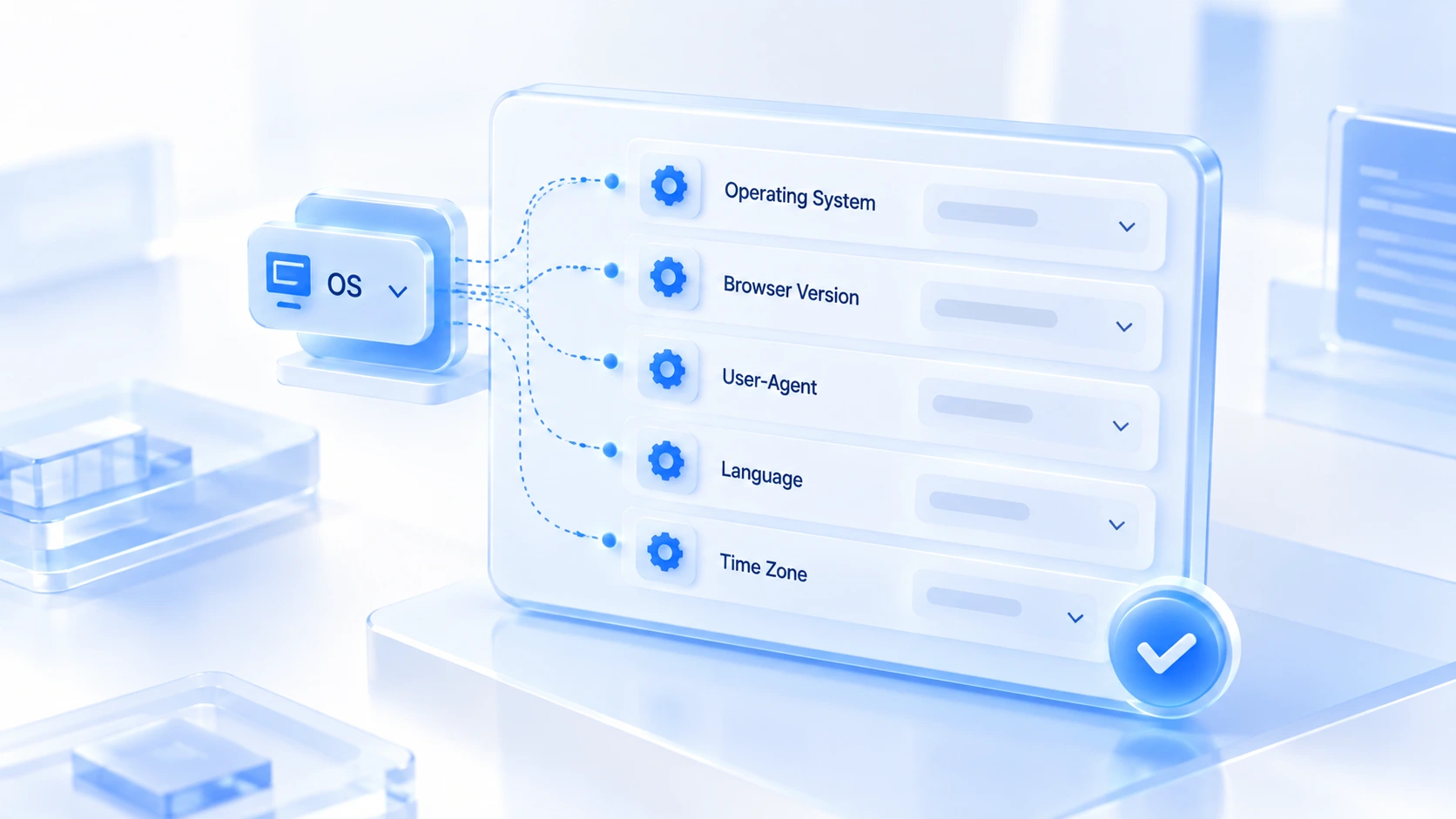
When you create an environment, you first pick the operating system and browser version, and the User-Agent is generated along with them, editable when needed. Language, time zone, and geolocation default to "Based on IP". Once you choose an exit proxy, the regional combination of these items and the UA lines up automatically. The fingerprint preview panel lists the current User-Agent and every other parameter in real time, so you can tell whether the whole configuration holds together at creation time instead of fixing it after the environment is running.
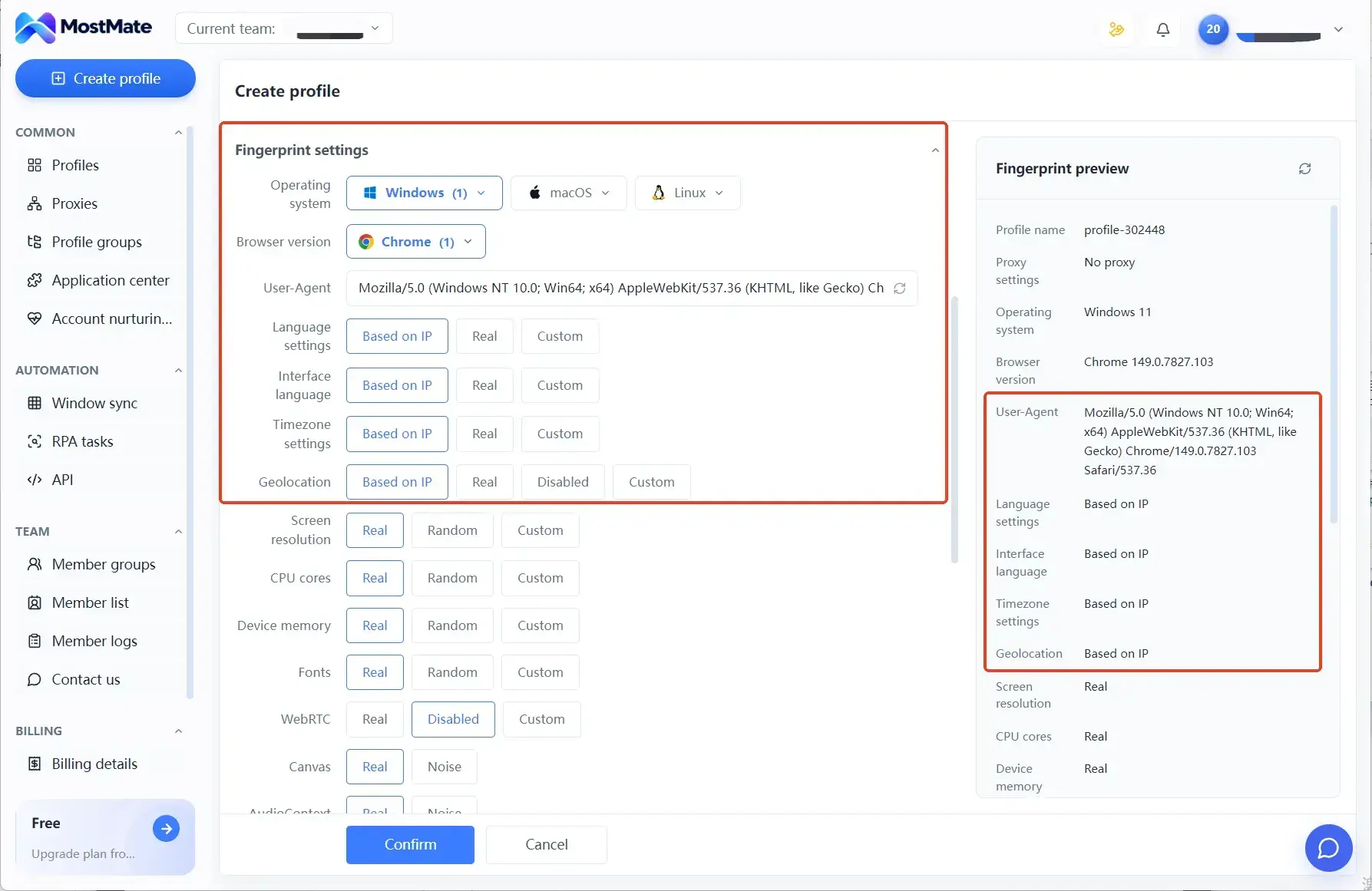
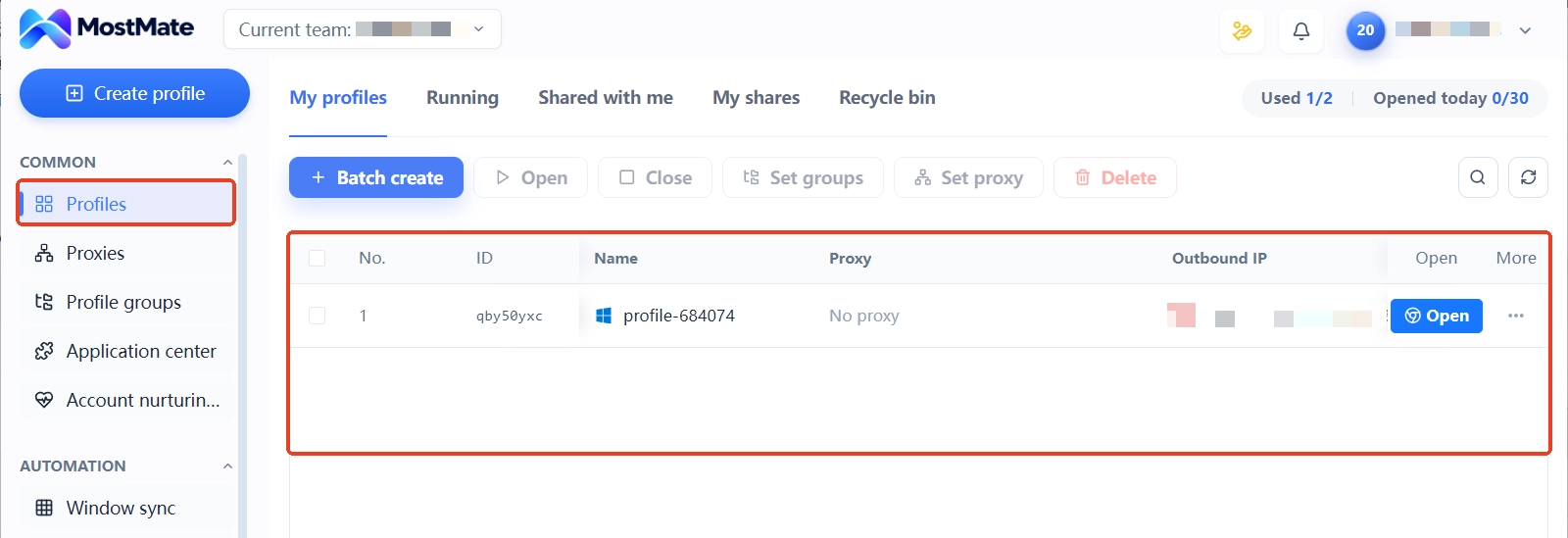
You can also set the granularity yourself. Manual fingerprint settings make you pick eleven items one by one, including UA, screen, time zone, and language, while the recommended configuration on the homepage generates a consistent environment straight from device logic. Each route has its own use cases.
One boundary is worth stating. Consistency between the UA and the environment configuration removes one category of exposure signal. Whether an account gets linked by a platform also depends on platform rules, account relationships, and usage behavior; environment configuration addresses only the environment layer.
Frequently Asked Questions
I installed a UA-switching extension. Why am I easier to detect now?
Extensions usually change only the request-header channel; page scripts and Client Hints still read the original values. Once the channels contradict each other, you have effectively written "modified UA" into the readings. The contradiction is itself an anomaly signal, more conspicuous than not changing anything.
Is a newer UA version always better?
Stay within the mainstream version range of your target market. A version newer than the latest release, or one stuck years back, is an anomaly signal either way. The version also has to match the engine's behavior, so chasing the newest number for its own sake is pointless.
Can a desktop environment use a mobile UA?
Yes, but screen resolution, touch capability, device memory, and similar parameters must be configured together as a mobile device. For how these parameters link up, screen resolution and window size fingerprints gives a detailed comparison.
The test site shows a consistent UA. Am I in the clear?
Test-site readings mainly cover what page scripts can read; transport-layer traits and some Client Hints details may not appear in the readings at all. Finish all five comparison points before drawing conclusions.
Closing Thoughts
The goal of a UA check is to make the three channels and the whole environment agree with each other: no clashes between channels, declarations matching hardware measurements, a regional profile that holds together, and a version range that makes sense. Work through the five points in order and most UA-level gaps can be cleared before the environment goes live. Checking before launch costs the least.
Run this check when you build a new environment and before the account enters it; that saves far more trouble than switching UAs after a captcha appears. To manage environments with this workflow, download MostMate, and set up the UA together with the whole environment in one pass, from picking the OS and configuring the proxy to verifying the fingerprint preview.

MOSTMATE
Secure Multi-Account Management, Made Simple
Start with your first account and use MostMate to build safer, smarter, and more efficient multi-account operations.
- Independent profiles. Consistent identities.
- AI Automation · Account Health · Team Operations



