
Banned Despite Using an Anti-Detect Browser? Fixing Configuration and Account Management Issues
Key takeaway: if you still face account restrictions with an anti-detect browser, don't lock the cause onto configuration alone. From the outside you can verify browser configuration, network status, account details, and operation logs, but you usually cannot see the platform's internal linking criteria. This guide gives an evidence-based order that separates what you can fix from what you can only observe.
"The environment is isolated, and each account runs on its own IP, so why am I still asked to verify?" This is the scenario anti-detect browser users find hardest to accept. MostMate is an anti-detect browser that builds an isolated browser environment for each account and manages environment configuration and login data separately. When accounts run into trouble, the value of such a tool goes beyond keeping accounts apart: every environment has a clear owner, its configuration is recorded, and every change leaves a trace. Even so, browser environments cover only part of the picture, and platform review results cannot be queried through an anti-detect browser.
So the phrase "banned anyway" needs to be taken apart first. It describes a symptom, not a cause. After receiving a restriction notice, the question that actually helps is: within this restriction, is there a configuration problem I can verify?
Misconfiguration: What Is Worth Checking
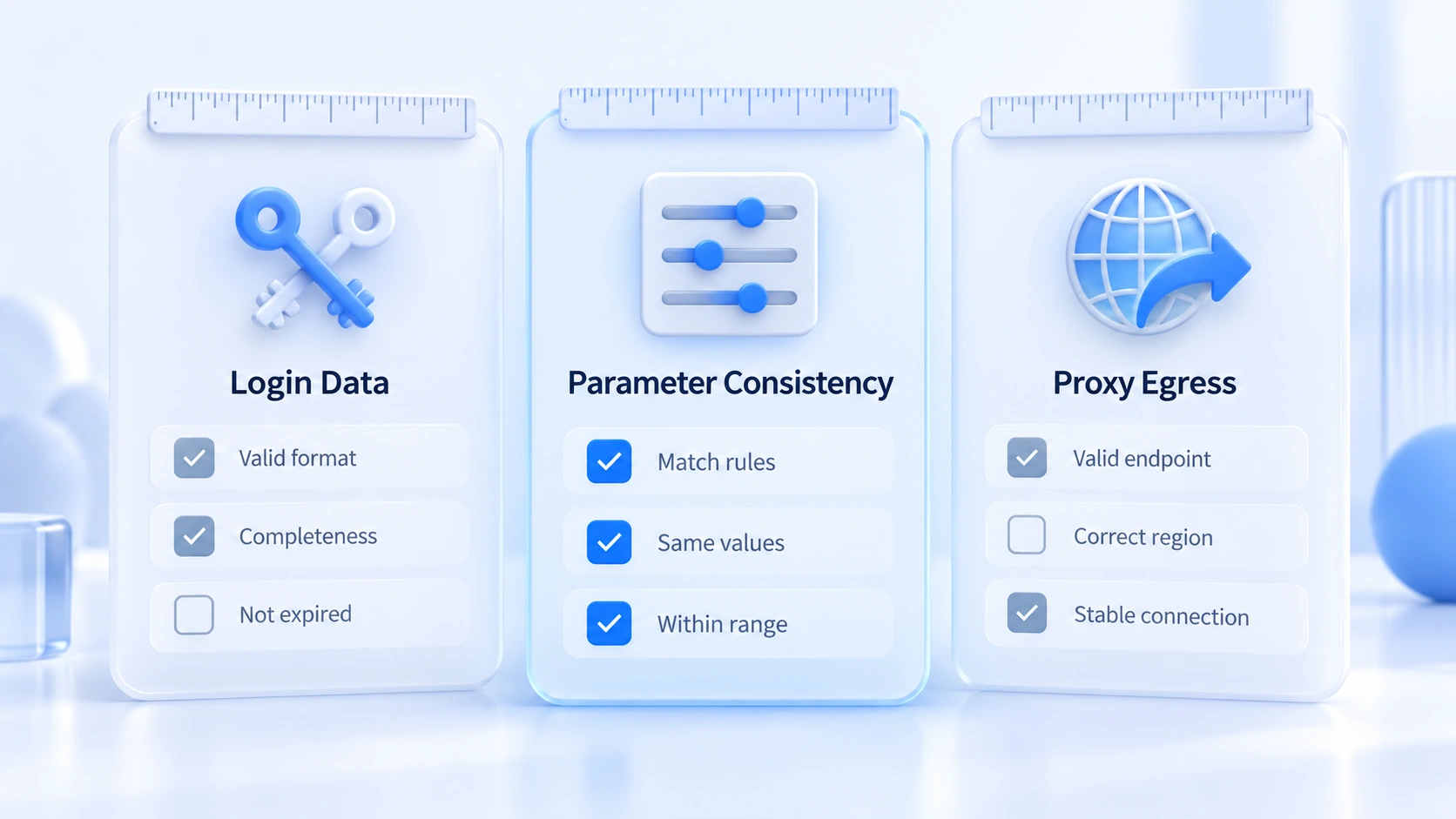
Config checks matter because they're verifiable. Check three areas.
1. Whether login data is mixed. Did different accounts end up in the same environment by mistake? Did anyone copy cookies or local storage from an old environment? Was an environment assigned to the wrong teammate? These questions can be answered directly from environment records and login status: compare each environment's logged-in account and its most recent login time.
If you manage multiple environments with MostMate, start by checking environment names, account ownership, and current login status to confirm no account sits in the wrong environment. When you find something unusual, record the environment and the problem first, then deal with the login data; do not clean up or rebuild every environment right away.
2. Whether parameters contradict each other. Declared values such as language, time zone, and operating system must match the actual use case. An environment serving European customers while running an Asian time zone is a configuration error with no business justification. Mind the direction: you are looking for contradictions, not perfection. Fully randomized parameters carry their own risk, as explained in why fingerprint randomization is unsafe. Chasing a supposedly perfect fingerprint is pointless; matching the business is the standard.
If your environment management tool offers a fingerprint parameter preview, first read the language and time zone values the environment actually uses, then compare them against the intended scenario. A parameter preview describes the current configuration only; it cannot tell you how the platform will judge this account.
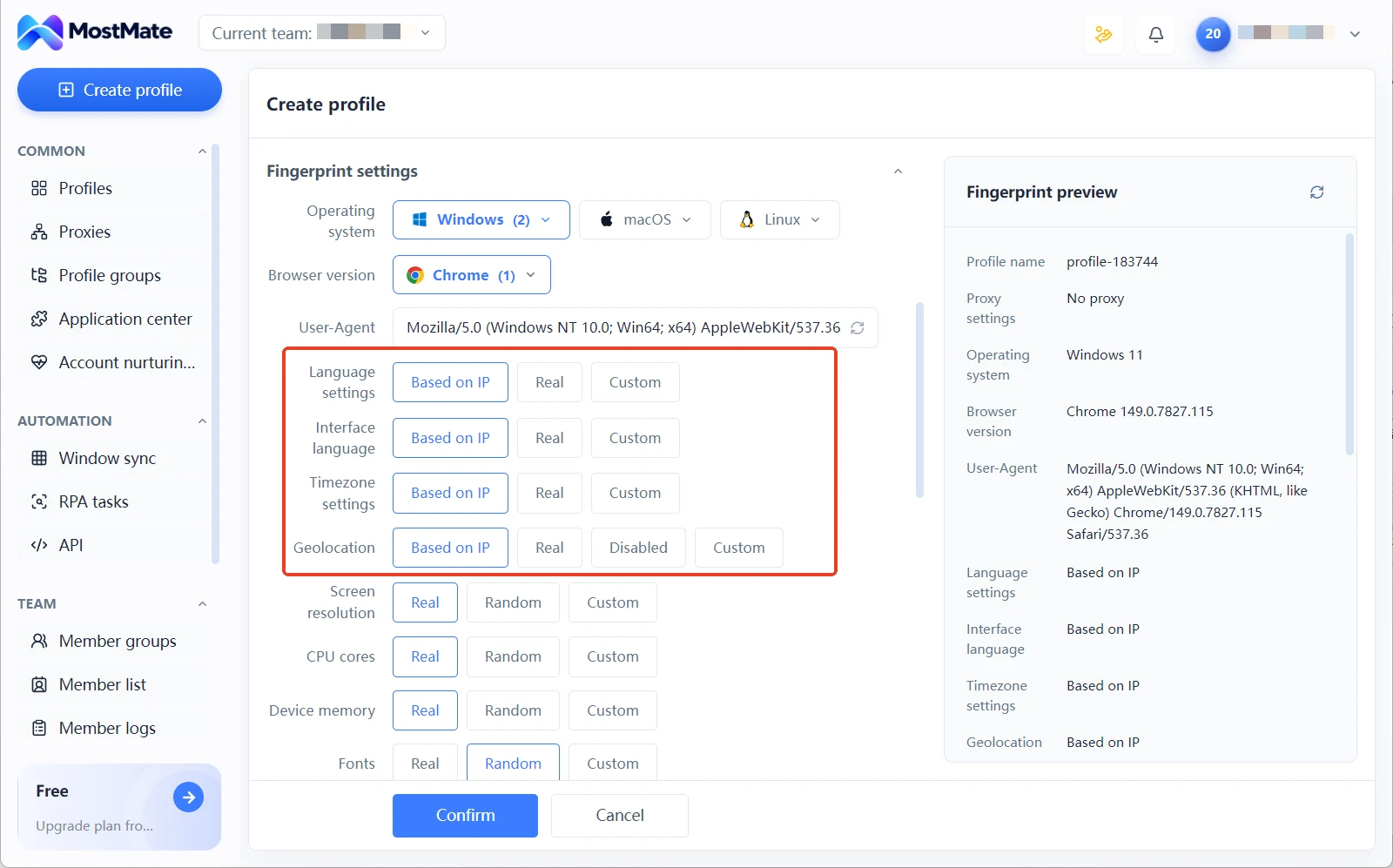
3. Whether the proxy exit matches the configuration. Is the proxy connecting properly, and is the actual exit the region selected during setup? The check is straightforward: review the proxy configuration linked to the environment in MostMate, then open the environment and visit BrowserLeaks or ipinfo.io to confirm the actual exit. If both results match, the network exit roughly agrees with the configuration; if not, check the proxy connection status and related settings.
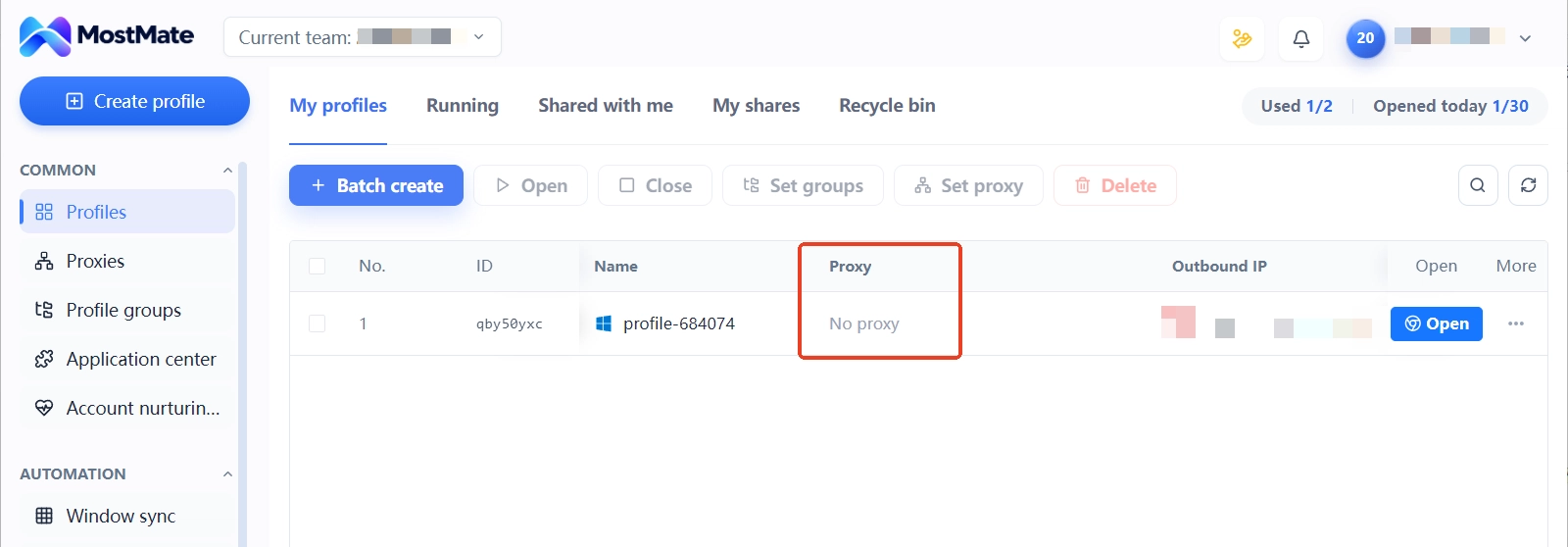
An exit region that differs from the browser time zone is a clue worth checking, but this test only verifies network configuration; the exit result alone cannot tell whether the account has been linked. The routine maintenance rhythm is covered in proxy maintenance and exit checks, so it won't be repeated here.
A Ban Is Not Always Caused by Browser Configuration
Look at all possibilities first. Restrictions fall into three groups.
- Account and security: incomplete profiles, triggered login verification, leaked credentials, unusual logins.
- Business and policy: terms-of-service violations, advertising or messaging rules, content compliance issues.
- Operations and management: shared credentials, frequent device or network changes, missing handover records.
Only part of these three groups touches the browser environment. The root of the confusion is treating an observed symptom as a conclusion. Use the table below to draw a clear line between what you can judge and what you cannot:
| Observed symptom | What you can check | What you cannot conclude |
|---|---|---|
| Extra verification after login | Review security alerts and recent logins | The account is already linked |
| Issues appear after a proxy change | Compare proxy change time and actual exit | The proxy IP is definitely at fault |
| Several accounts restricted in turn | Review notices, profiles, and logs | One shared configuration caused it |
| Restrictions despite isolated environments | Keep checking account and policy factors | Anti-detect browsers are useless |
Reading the "cannot conclude" column carefully prevents most mistakes. For example, batch-editing configurations the moment several accounts get restricted, only to find the real cause was a platform policy change: a round of pointless edits plus a messy change history.
After an Issue Appears: What Order to Check In
The goal is evidence, not a quick settings swap. Follow this order:
1. Save the platform notice. Record the restriction type, the original message, the time it happened, and the handling entry the platform provides.
2. Check the account itself. Look for security alerts, profile problems, permission changes, or policy violation notices.
3. Review the browser environment. Is the environment assignment correct, is login data mixed, and which parameters were changed recently.
4. Check network records. Proxy connection status, actual exit, and recent change times.
5. Build a timeline. Place the time of the account issue alongside three kinds of changes: environment, proxy, and member operations.
6. Act on the evidence. If a configuration error is found, fix it and log it; if it is a platform restriction, appeal or contact support as officially instructed.
The timeline is the most valuable step in the whole process. For example, and this is a hypothetical scenario: an account receives a verification request one day after a proxy change. Comparing records shows the exit was moved from one city to another during the change, while the address registered on the account still listed the original city. That is a clue worth acting on: the fix is to align the exit with the business profile, not to hunt for another "cleaner" IP.
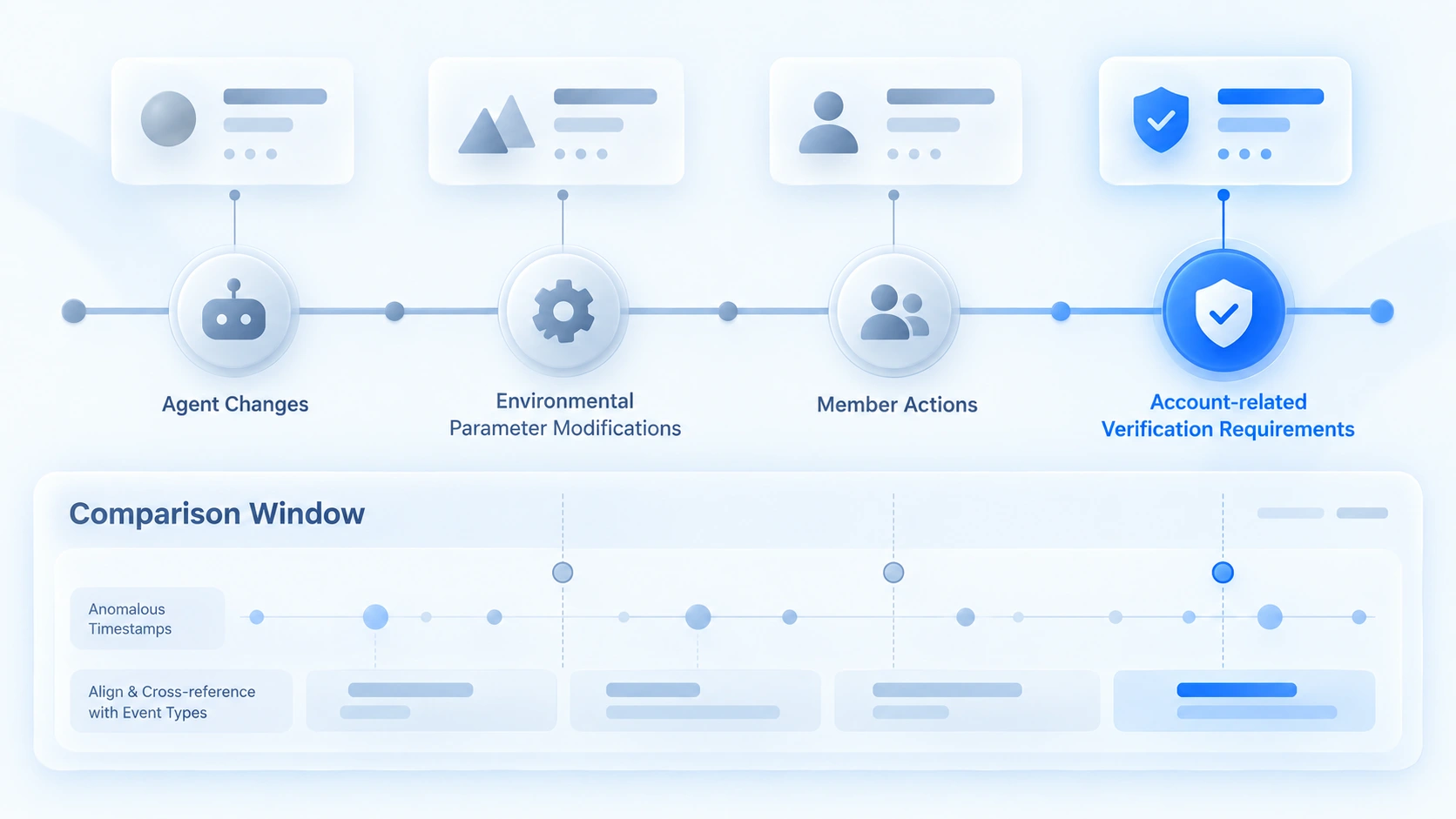
One warning in reverse: before the cause is clear, do not keep switching parameters, proxies, or devices, and do not batch-edit every account's configuration. Each round of unrecorded changes adds a blank stretch to the timeline and makes troubleshooting harder.
How to Reduce Configuration Errors and Recurrence
A single round of troubleshooting solves the current problem, but reducing recurrence requires turning environment management into a fixed routine. Teams with several collaborators in particular cannot rely on one person's memory to know whether an environment was changed.
- First, set a configuration baseline for every environment. Record the environment name, the account it belongs to, the proxy configuration, and the actual user. Check this record when creating an environment or handing over an account; after an issue, compare the current configuration against the original record to see which items changed.
- Then record changes and handovers. Proxy swaps, environment parameter adjustments, and changes of owner should all be logged with a time and a reason. That way, when something goes wrong, you can check the time of the issue against configuration changes instead of recalling from memory.
- Finally, turn findings into a team checklist. After each troubleshooting round, record the issues found, the actions taken, and the verification results. Next time a similar symptom appears, check the known issues first instead of guessing from scratch.
MostMate can help put the browser environment side of this into practice: organize account relationships through environment naming and grouping, verify current settings through environment configuration and proxy information, and support handovers and change tracking with team permissions and available operation logs.
To be clear, these capabilities help teams manage the browser environments and workflows they control; they do not mean MostMate can query a platform's internal linking decisions or guarantee an account will never be restricted. For account issues on the platform side, always rely on the actual notice and the official handling result.
If your troubleshooting points to management or handover problems between multiple accounts, continue with what to do when one account is banned without dragging in the whole group for the handling ideas after an account issue.
Frequently Asked Questions
Still banned with an anti-detect browser: is it a configuration problem?
Not necessarily. From the outside you can verify browser configuration, network status, account details, and operation logs, but you usually cannot see the platform's internal linking criteria. Judge by combining platform notices, account status, environment configuration, and change records; concluding on instinct tends to send the fix in the wrong direction.
Can switching to another proxy IP resolve a ban?
There is no guarantee. Only when troubleshooting confirms a network configuration problem is there a reason to fix it. Changing the IP without evidence will not solve the original problem, and it adds one more unrecorded change to the timeline.
Can an anti-detect browser completely prevent account linking?
No. It manages the layer of browser data and configuration, while platform review looks at far more than that layer. A reasonable expectation is: verifiable configuration, traceable changes, and faster fault isolation when something goes wrong.
Conclusion
"Banned despite using an anti-detect browser" does not by itself prove a configuration error, nor does it show the anti-detect browser is useless. The more reliable approach: save the platform notice first, then check account status, the browser environment, and network change records, and finally decide what to do based on the evidence.
For teams that manage many accounts long term, MostMate's role is to keep browser environments and related configurations in clear order, so every environment has a definite owner, key settings can be checked, and team handovers rest on solid ground. Start from the MostMate website to see how environment management works, or download MostMate and build a configuration record for your existing environments. Then, if an issue appears again, you can locate the problem methodically instead of relying on luck and repeated parameter changes.

MOSTMATE
Secure Multi-Account Management, Made Simple
Start with your first account and use MostMate to build safer, smarter, and more efficient multi-account operations.
- Independent profiles. Consistent identities.
- AI Automation · Account Health · Team Operations



