
How to Move a Fingerprint Browser to the Cloud: Deployment Essentials for AWS, Alibaba Cloud, and Tencent Cloud
Core takeaway: moving a fingerprint browser to the cloud is about keeping profiles always on. As long as the cloud server stays up, RPA jobs and integration scripts keep running regardless of your own computer's power switch. All three clouds can run Windows instances. The key to choosing lies in product line and billing model, not brand fame. After the move, remember one division of labor: the cloud server is the carrier, and the account's exit identity lives on the bound proxy.
A job stops halfway because the laptop runs out of battery and shuts down, and the morning account-warming plan stalls on day three. This kind of interruption is not a software problem. The profile simply lives in the wrong place. Move the fingerprint browser onto a cloud server that never shuts down, and the profiles stay online all year, whether you are at your desk or not. This article first helps you decide whether it is worth it, then picks a product line, then walks through the deployment path. It ends with the three most common pitfalls of always-on operation.
Which businesses are worth moving to the cloud
Moving to the cloud is a recurring monthly cost, and whether it pays off depends on whether the profiles need to stay on around the clock. Three types of business fit best:
- RPA jobs that run nonstop: account warming, scheduled posting, and engagement flows sit in the job queue and fire on schedule. The cloud server never shuts down, so no job falls behind.
- Scripts that integrate long term: MostMate's Local API is a local interface. Keep collection and business scripts on the same cloud server, and the interface is always there to call.
- Teams spread across locations: profiles are managed centrally on the server while members connect remotely. With multi-account security management in mind, set permission boundaries so nobody has to fight over one computer.
The boundary in the other direction is worth stating too. If you hold only two or three accounts and open them once a day for a quick look, your local computer is enough. Moving to the cloud just adds a monthly bill plus a server to maintain. The test is not the number of profiles; it is what happens when things stop. Jobs that fire with nobody around, scripts that need continuous scheduling, several people working at the same time: if any one of the three applies, the cloud starts to pay off. If none does, wait. Which of the three automation paths (RPA, window sync, API) fits which scenario is covered in our comparison of window sync, RPA, and APIs.
Choosing among the three clouds: by product line, not by brand
The decision comes down to product line and billing model; within the same cloud, different product lines feel very different in daily use.
On Amazon Web Services (AWS), Lightsail is the fixed-monthly-fee bundle. The Windows Server license ships with the image, so the instance works out of the box, and the entry cost is the lowest. EC2 offers the full feature set with finer pay-as-you-go granularity, for teams that need custom specs and networking. Alibaba Cloud and Tencent Cloud split the same way. The lightweight application server is a fixed bundle that includes a traffic package; a beginner can launch one by following the docs, and the bundle price is easy to read. ECS and CVM are flexible but full of configuration options, better suited to fine-grained control.
| Product line | Positioning | Billing | Best for |
|---|---|---|---|
| AWS Lightsail | Bundle-style cloud server, ready to run | Fixed monthly fee | First-time cloud users and small teams |
| AWS EC2 | Full-featured instances | Pay-as-you-go, fine granularity | Teams needing custom specs and networks |
| Alibaba Simple Application Server | Fixed bundle with traffic package | Monthly bundles | Asia markets and first-time deploys |
| Alibaba ECS / Tencent CVM | Full-featured instances | Pay-as-you-go or monthly | Scaling up and fine-grained ops |
Both providers' Windows getting-started docs are detailed. AWS's guide to getting started with Windows instances on Lightsail covers everything from launch to remote connection. Alibaba Cloud's overview of Simple Application Servers explains bundles and images clearly. Tencent Cloud's lightweight path is close to both; search by product line in its documentation site.
One line on region choice: put the server close to your target market. For US and Europe businesses pick a US West or Europe node; for Southeast Asia pick the matching region. Two billing disciplines. Spot and preemptible instances are cheap but can be reclaimed by the platform; never use them for a machine that runs RPA around the clock. Set budget alerts on pay-as-you-go instances, because an instance you forgot to stop makes an ugly month-end bill.
The deployment path from instance to always-on profiles
The three consoles look different, but the order of the path is the same:
- Launch an instance: pick a Windows Server image (license built into the image), choose a region close to your target market, and start with 4G of memory. For many profiles or RPA, go to 8G.
- Open the remote desktop port in the security group and restrict the source to your usual exit IP. Never leave it open to the whole internet.
- Connect over remote desktop, download and install the MostMate desktop client, and sign in to your account.
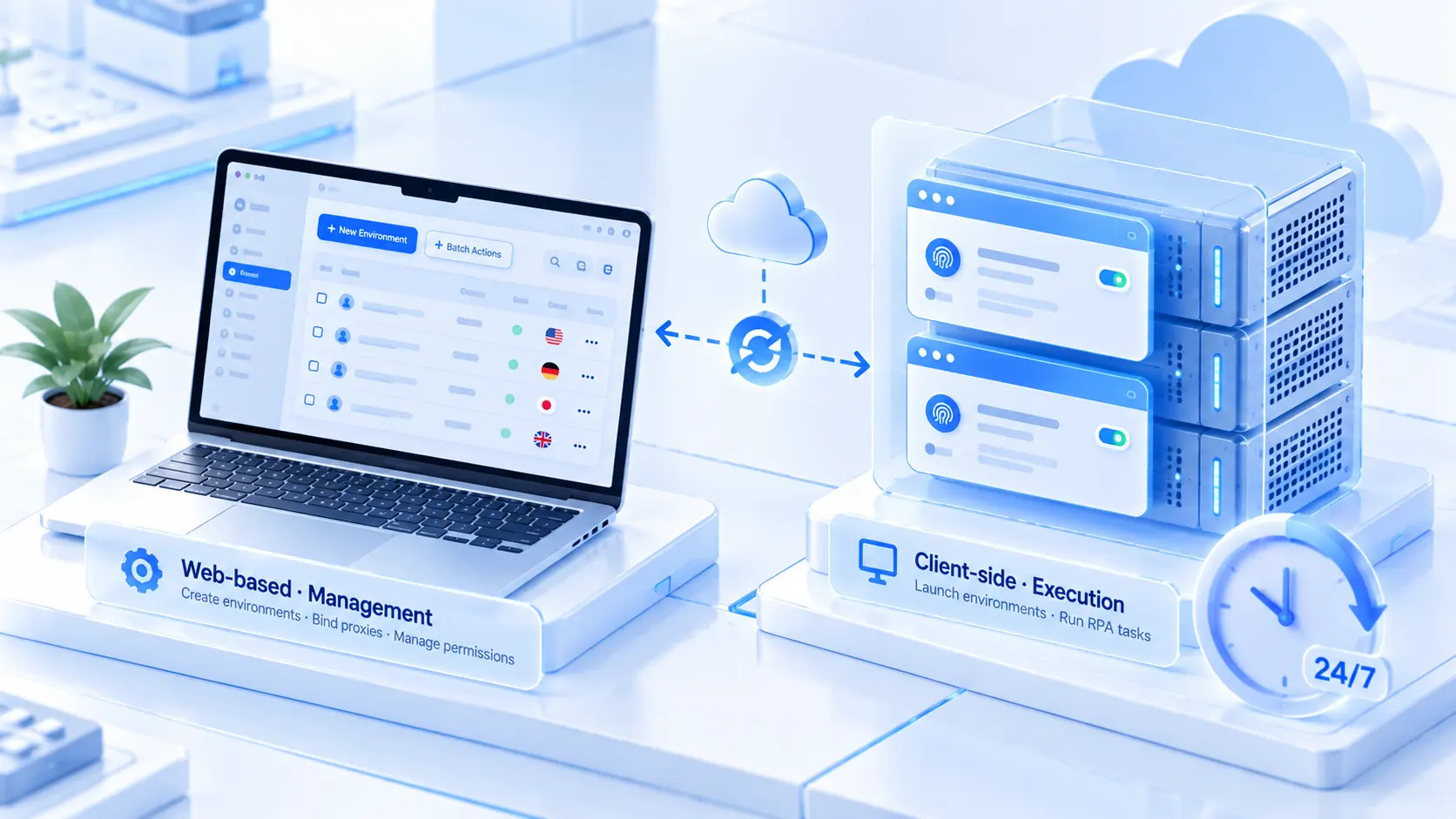
- Divide configuration and runtime: create profiles, bind proxies, and set group permissions in the web panel, while the client on the cloud server opens and runs the profiles. The web panel manages configuration; the client runs profiles. Team management does not have to crowd onto the server desktop.
- Bind a proxy to each profile and check connectivity. Do not schedule jobs until the exit is right; attach RPA jobs only after that.
MostMate is the type of fingerprint browser that manages by profile: fingerprint parameters and the proxy exit are sealed inside each profile, and profiles never borrow from each other. That structure happens to suit the cloud perfectly. When you click "Open", the client takes over the profile while the web panel handles management and permissions. The cloud server stays up, and the profiles stay on.
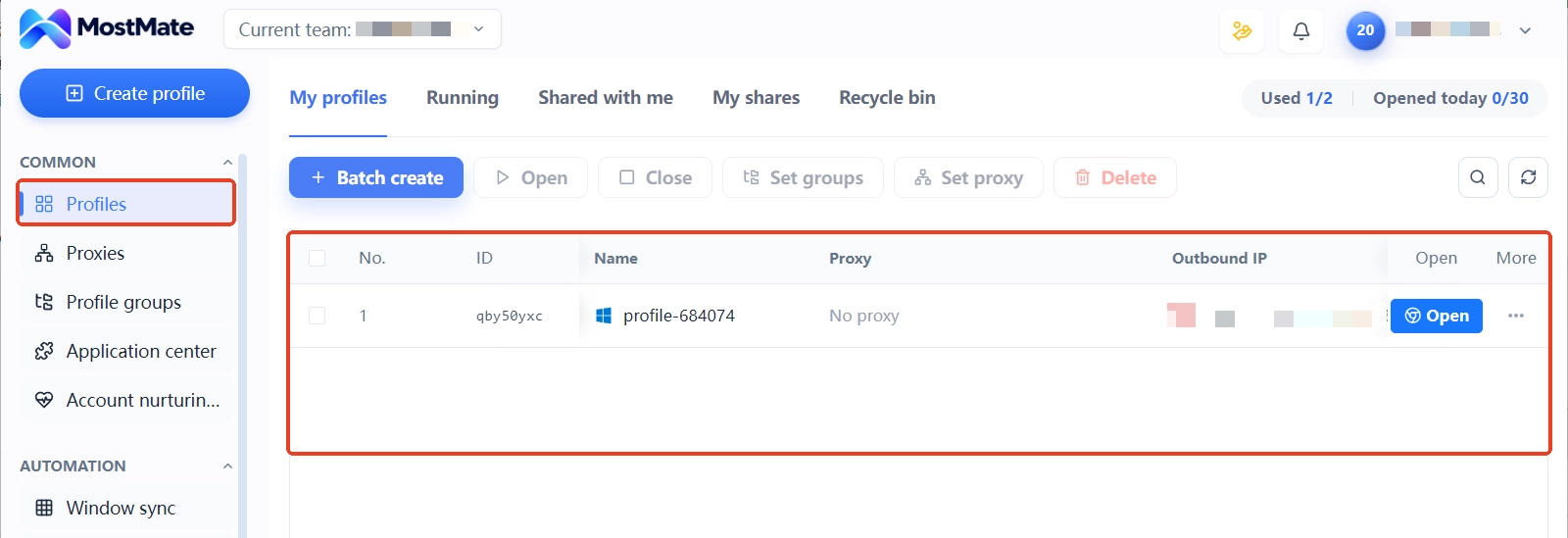
If the module layout is still new to you, the What is MostMate page walks you through each panel first. Creating profiles has its own order, and working through the new profile setup checklist beats filling items in from memory.
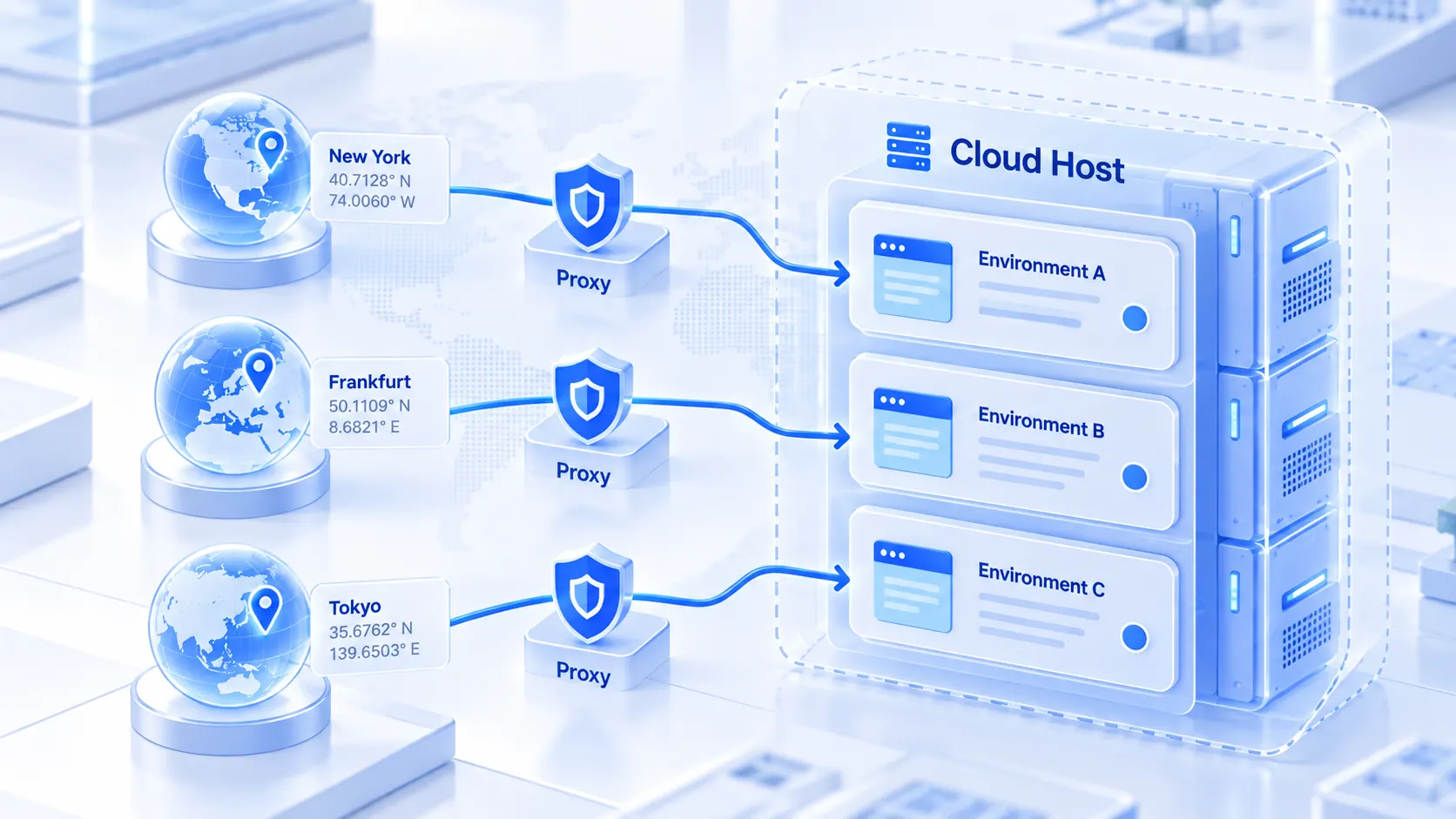
The cloud server IP is only the carrier; the exit identity lives in the proxy
The account identity the platform sees comes from the proxy exit bound to the profile, not from the cloud server's public IP. A cloud server's IP sits in a datacenter range, and using it directly as your business exit costs you trust. For the trust gap between the two line types and how to weigh them, see residential vs datacenter IP: the differences.
There is one easily missed convenience here. Profile parameters such as language, time zone, and geolocation follow the exit IP configuration by default. Once the proxy exit is set, these align automatically with no manual entry. The cloud server's own system time zone never leaks into the profile. Switch the proxy and you swap in a whole network identity while the profile's data layer stays untouched.
Three pitfalls of always-on operation
Always-on means the machine will be forgotten, and most pitfalls live exactly where it gets forgotten. Ranked by how often they bite:
Sessions: disconnect, do not log off
RPA-simulated clicks and typing happen inside a desktop session. Choose "Disconnect" in remote desktop and the session stays alive with jobs still running. Click "Log off" and the session is reclaimed, stopping whatever was attached to it. Automatic reboots after Windows updates break sessions too. Each reboot breaks the session once. Schedule reboots into a maintenance window, or switch updates to manual.
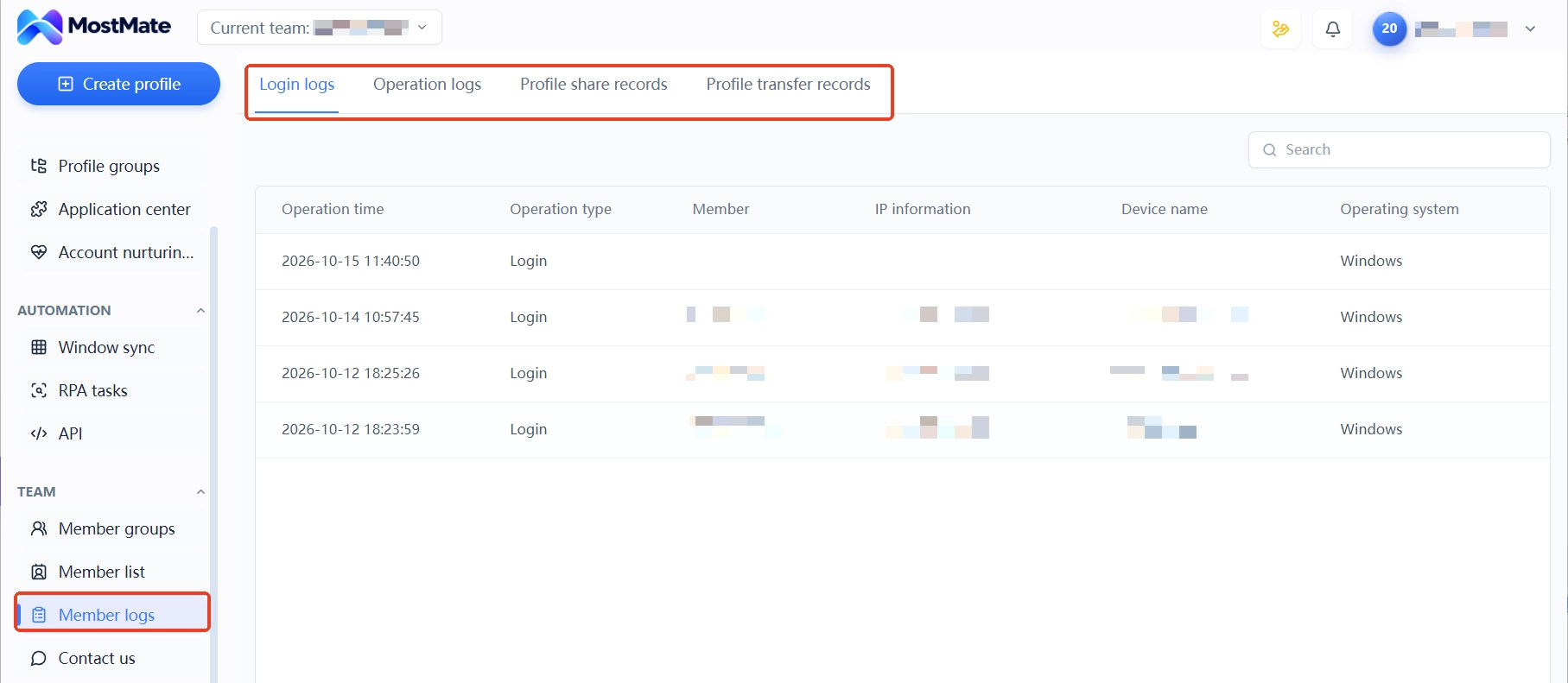
When several team members share one server, MostMate's member logs keep an operation trail. Logins and actions are recorded by time and member, so issues can be traced back to a person.
Resources: size the system disk and memory for peak load
The Windows Server image alone takes tens of GB of system disk. Browser data and caches for profiles only grow, never shrink, so spec the system disk at 60G or more when buying. Leave memory headroom based on profile count and job type. Profiles that only log into dashboards are light; profiles running RPA are heavy. Do not buy the minimum and run it at the ceiling: lag shows up in memory first.
Costs: monthly plans first, alerts on pay-as-you-go
For an always-on machine pick a monthly plan or a fixed bundle like Lightsail so costs stay predictable. Use pay-as-you-go instances only for short tests, and release the instance the moment you finish; anything else is pure burn. Traffic over the bundle, snapshot storage, and other small items get billed too. Turn on budget alerts and a strange bill surfaces immediately.
FAQ
How many profiles can one cloud server run?
There is no fixed ceiling; it depends on memory and job type. Profiles that only check dashboards now and then are light, and RPA profiles are heavy. Start at 4G of memory and upgrade when it lags. The profile count itself is not the security variable; each profile's exit and fingerprint are.
Can the cloud server's IP serve as the account exit directly?
It connects technically but loses on trust. Datacenter-range IPs carry low trust. For high-value accounts, bind a dedicated proxy inside the profile and let the cloud server IP play only the role of run carrier.
Is data safe in the cloud?
Profile data lives on the server disk, and regular snapshots are your backup. With multiple members connecting, scope profile sharing and group permissions by member, and revoke access promptly when members change. The server itself is protected by a strong password and a source-restricted remote desktop, and these layers stay independent.
Monthly plan or pay-as-you-go?
For always-on jobs pick a monthly plan or a fixed bundle so costs stay predictable. Use pay-as-you-go for short tests and configuration checks, and release when done. One test decides: will this machine still be needed tomorrow?
Closing
Moving a fingerprint browser to the cloud moves not the software but the profiles' ability to stay on. Start from a bundle machine on the product line, walk the deployment path from security group to RPA jobs, hand the exit identity to the proxy, and manage sessions and costs with discipline. Finish these four stages and the profiles stay online all year. Before the move, get comfortable configuring profiles and proxies locally: download MostMate free and start right away. Once it feels smooth in your hands, move the profiles up, and the monthly fee has a reason behind it.

MOSTMATE
Secure Multi-Account Management, Made Simple
Start with your first account and use MostMate to build safer, smarter, and more efficient multi-account operations.
- Independent profiles. Consistent identities.
- AI Automation · Account Health · Team Operations



