
What Is the ClientRects Fingerprint? A Consistency Check Guide for Multi-Account Environments
Core takeaway: the ClientRects reading on a detection page measures the layout boxes of page elements, a set of widths, heights and coordinates carrying decimal points. When two environments disagree, the cause is usually font rendering, screen scaling or system differences. It is part of environment consistency, cannot be disabled on its own, and is handled through the mode selection in fingerprint settings plus hands-on testing.
"My consistency audit reached the fingerprint layer, and the ClientRects readings of two environments don't match." Or the reverse: the detection page marks this item yellow, and you are not sure whether it counts as a problem. These questions share one trait: you have seen the parameter name, but you have no solid sense of what it measures or what changing it would affect.
This article answers four things in troubleshooting order. What this reading is, why two environments can disagree, what it says about environment consistency, and how to configure and verify it in the MostMate anti-detect browser. MostMate prepares an isolated browser environment for every account, and ClientRects is one item in the fingerprint settings.
What the ClientRects Fingerprint Actually Is
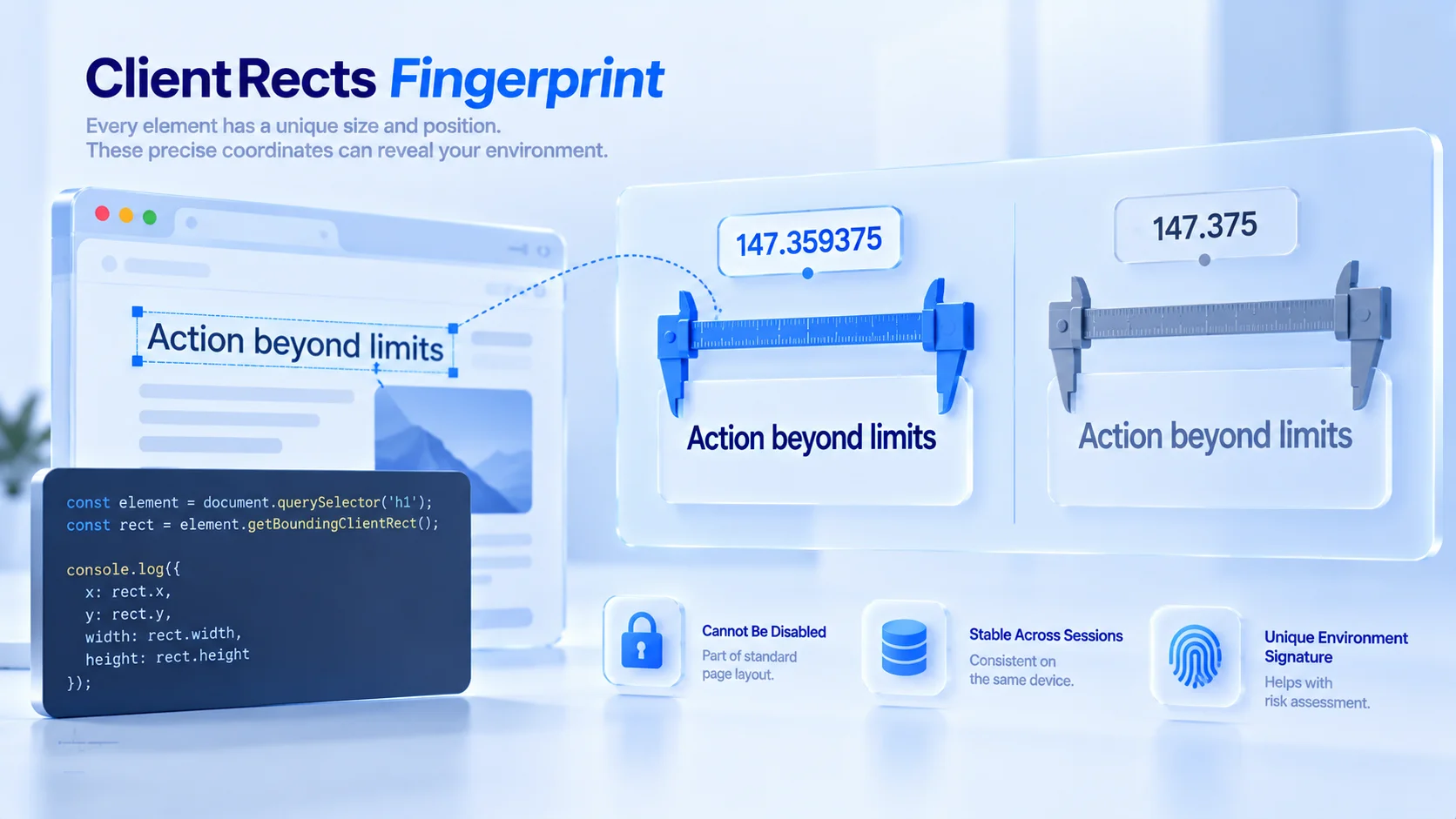
In one sentence: the ClientRects fingerprint reads the precise box coordinates of page elements. Calling getBoundingClientRect() returns an element's width, height and position relative to the viewport, and the MDN documentation defines it as returning the size of the element and its position relative to the viewport. For inline elements that wrap across lines, getClientRects() reads one rectangle per line.
The key is the shape of the numbers. Coordinates are not integers. They are floating-point values with many decimal places, such as 147.359375. A website needs no permissions: a script builds a hidden element on the page, fills it with fixed text and reads back the rectangle, and a signature is assembled, all blended into normal layout computation.
Operators should care for three reasons. It cannot be disabled, because layout computation is the foundation of a page working at all. It stays stable across sessions, since the same device yields basically unchanged readings. And like fonts and screen parameters, it is part of the environment declaration, which risk-control systems use for cross-checking.
Why Two Environments Disagree
The width of a line of text comes from the typesetting pipeline:
- Text typesetting engine: Windows, macOS and Linux each have one, and the same font with the same string produces different letter spacing.
- Screen scaling: High-resolution displays and system scaling change the rounding granularity, shifting the decimal places.
- Font fallback: If the requested font is missing, a fallback font takes over and the width changes.
- Browser engine and page zoom: Different engines break lines differently, and page zoom feeds straight into the layout pipeline.
None of these differences is large, and one number alone proves nothing. Combined, they describe "what system and what rendering stack this device runs". It is a close relative of font fingerprinting: font enumeration asks the list directly, while ClientRects measures the rendering result, so the two corroborate each other. Device-level and window-level size parameters were covered in the screen resolution article; ClientRects is a deeper, element-level signal.
What This Reading Means for Environment Consistency
Its greatest value is cross-validation: finding a measurable reference that matches the environment declaration. The environment claims to be Windows with a set of common fonts, yet the measured text width shows the rounding style of a different system. The two signals clash. Risk control does not need to understand the principle; it only needs to spot the contradiction.
Consistency of configuration is more worth checking than the rarity of any single parameter. When checking whether two environments would be judged the same person, the rectangle readings should be compared side by side with the operating system and font list declared in the fingerprint panel; the logic of the four-dimension self-check is aligning declaration with measurement.
Another often-missed use: zoom detection. The rounding of rectangles can back out the current page zoom level and system scaling settings, and this information forms another set of signals that can be cross-checked against the screen parameters the device declares. When scaling behavior differs greatly between environments, reading differences are normal; confirm the zoom state before drawing conclusions.
How to Configure It in MostMate
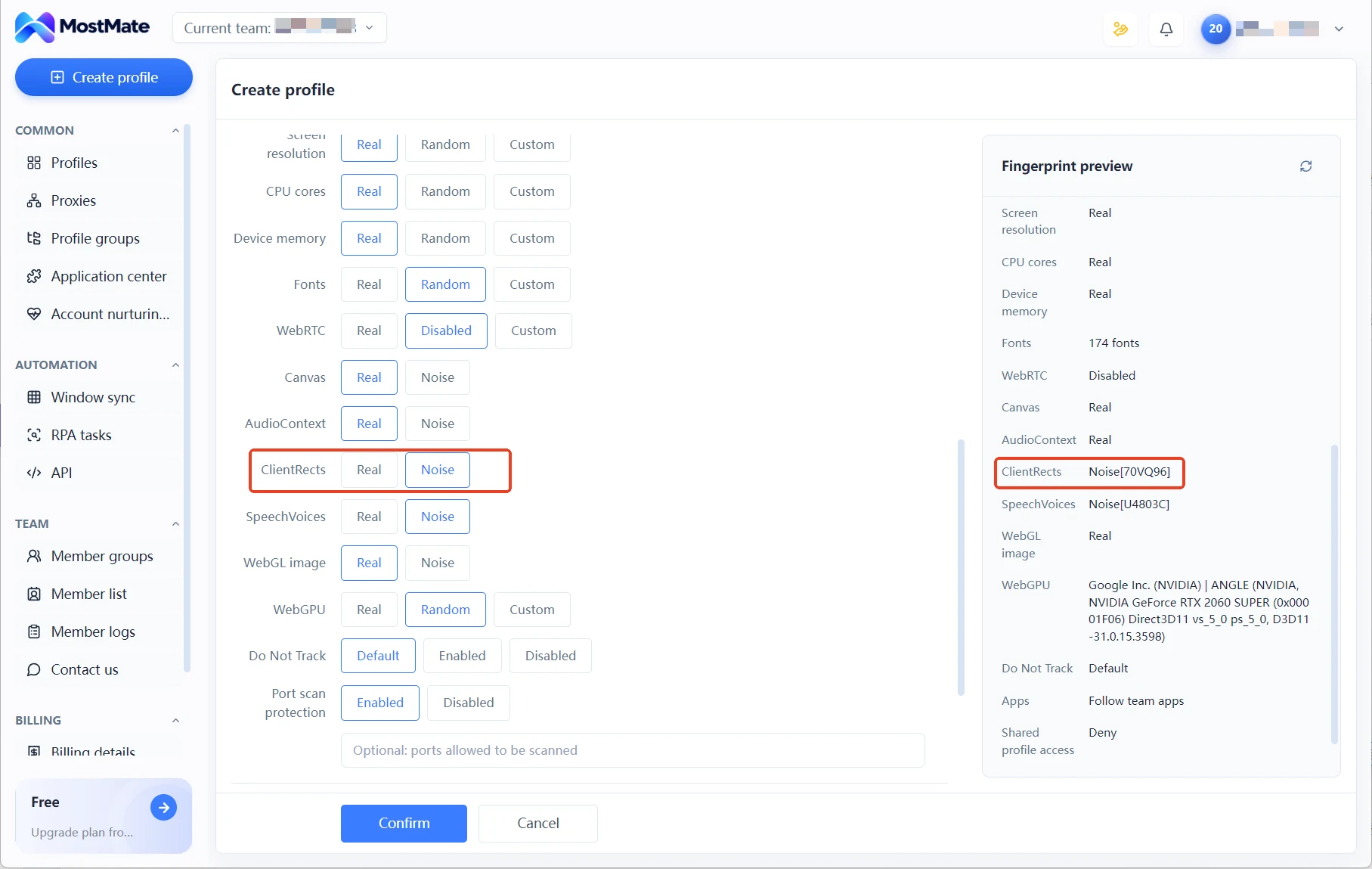
In MostMate's fingerprint settings form, ClientRects occupies its own field, next to Canvas, AudioContext, SpeechVoices and WebGL image. It has only two modes: Real mode returns the machine's true typesetting, and Noise mode is the noise mode.
Choose by scenario. Real fits when both conditions hold: this computer's configuration is mainstream for your target audience, such as a common Windows setup with default fonts; and the business pages demand high layout precision, disallowing altered layout values. The cost of Real mode is that the machine's real rendering characteristics are exposed as they are; if the computer carries many rare fonts, its identifiability rises accordingly.
Multiple environments sharing one computer: choose Noise. Readings across environments no longer point to the same local machine, which is its main use case. The cost is accepting a constraint. Arithmetic relationships exist between rectangle values. The outer box coordinates must agree with the rectangles of the inner text, and the same string's width must stay proportional. If noise lands on only some readings, these relationships break, creating an even more conspicuous contradictory signal. So after picking a mode you must test in practice, rather than assuming the default configuration is fine.
After switching to Noise mode, the ClientRects entry in the fingerprint preview panel becomes a value with a six-character code. The code is only an identifier of the noise configuration; the actually exposed hash can only be seen by opening the environment and running a detection page once.
How to Verify After Configuring
Verification is two steps: check the change, then check consistency.
Step 1: compare readings across two environments. Create two environments, one on Real and one on Noise, and open the BrowserLeaks Client Rects test page in each. On the same machine, the Real environment's rectangle values should stay consistent. The Noise environment should differ from Real, and two Noise environments should also differ from each other. When recording, focus on the digits from the third decimal place onward; differences usually start there. Write down each environment's readings as that environment's baseline.
Step 2: consistency check. Values must survive cross-checks:
- Test again across sessions; the same environment's values should be stable, and readings that jump around are themselves an anomaly.
- Compare with the operating system and font list declared in the fingerprint panel; the rendering style must match, with one signal saying Windows and another saying macOS.
- Browse a few everyday pages normally and confirm no visible layout breakage, especially in forms, buttons and wrapped text.
All three pass, and the parameter is set; otherwise revisit the mode.
Frequently Asked Questions
Does a red-flagged ClientRects on a detection page always mean a problem?
Not necessarily. Look at two things first: whether the environment's declared system and fonts match the reading style, and whether the zoom state matches the screen parameters. If both are fine, a single red flag is no reason to panic; only when the reading style clearly conflicts with the declaration do you need to go into fingerprint settings and check the mode.
Does changing browser zoom change the ClientRects fingerprint?
Yes. Zoom feeds straight into the layout pipeline, and rectangle rounding shifts with it. But zooming is normal behavior every user has. The risk lies elsewhere: the zoom state not matching the screen parameters the environment declares. The session-stable part is still decided by the rendering stack.
Can ClientRects be disabled?
No. Layout computation is the foundation of a page working at all; typography, popup positioning and animations all depend on it. Browsers provide no off switch. The industry approach is reducing precision rather than disabling: Tor Browser rounds the measured values to reduce identifiable differences.
Why do headless browsers easily give themselves away on element sizes?
A headless environment's default viewport is very fixed and its text rendering stack is uniform. The measured rectangles often fail to match the device its declared UA claims. Risk control cross-checks rect values against other declared parameters, and such environments are easily picked out.
Closing
ClientRects' role in consistency checking is concrete: put the environment declaration and the measured typesetting side by side, and a contradiction is a signal. When a detection page goes red, first compare declared parameters and zoom state, confirm it is a consistency gap, then handle it in fingerprint settings.
MostMate puts ClientRects together with other rendering parameters in one fingerprint settings form, with Real and Noise modes controlling where readings come from; you can get the full picture of the product on the MostMate website. Once environments are built, recording a reading baseline through two-environment comparison is more practical than any configuration trick. You can also download MostMate and measure the Real-versus-Noise difference across two environments yourself.

MOSTMATE
Secure Multi-Account Management, Made Simple
Start with your first account and use MostMate to build safer, smarter, and more efficient multi-account operations.
- Independent profiles. Consistent identities.
- AI Automation · Account Health · Team Operations



