
What to Do When Your Telegram Account Is Restricted: 5 Common States and the Appeal Process
Core takeaway: if your Telegram account is restricted, identify the problem type from the affected features and the exact notice first, then use the matching handling entry. Spam-related restrictions can be reviewed through the official @SpamBot for status and appeal guidance; in-app freeze notices should be handled through the entry they provide; being unable to speak in a group also calls for a check of admin permissions. Failed logins or limited verification codes deserve a look at the specific error first; do not jump straight to assuming a ban, and do not rule out an account-level restriction either. Multi-account teams can also review browser environments, network configuration, and account ownership records, but these checks cannot replace the platform's appeal process.
"One morning your messages go through; that same afternoon the account is flagged and nothing reaches groups or private chats." Anyone who runs a Telegram community has seen notices like this. Many people's first move is to reinstall the app or switch networks and retry. The notice stays; the original error text is gone.
Handling this starts with telling apart "which layer is failing": is the platform restricting account features, is an admin muting you in one group, or is the verification code and phone number the issue at login? Day-to-day account management is a separate matter, and that layer is what MostMate is built for: an anti-detect browser designed for multi-account operations. This article covers judging the restriction and filing an appeal; environment checks come in Section 4.
A Telegram Account Is Restricted: First Work Out Which Case You Are In
Start from "the scope of impact." Do all chats fail to send, does only the odd group act up, or does the process stall at login itself? The five common scenarios below call for different directions, so match yours against the table first. Get the scope wrong and the entry point will be wrong as well. The table is a practical triage aid, not an official five-tier system published by Telegram.
| Common scenario | Typical signs | What to do |
|---|---|---|
| Private chat restricted | Cannot message strangers; replies still work | Check status and appeal via @SpamBot |
| Account frozen | Messages visible; sending blocked | Submit a review through the in-app entry |
| Number barred from sign-up or login | A clear notice says the number is banned | Tell number bans from code or network issues |
| Codes or logins limited | No more codes after repeated requests | Stop retrying; log the error and wait |
| Cannot post in a group or channel | Only certain groups affected; others fine | Check admin settings and mute status first |
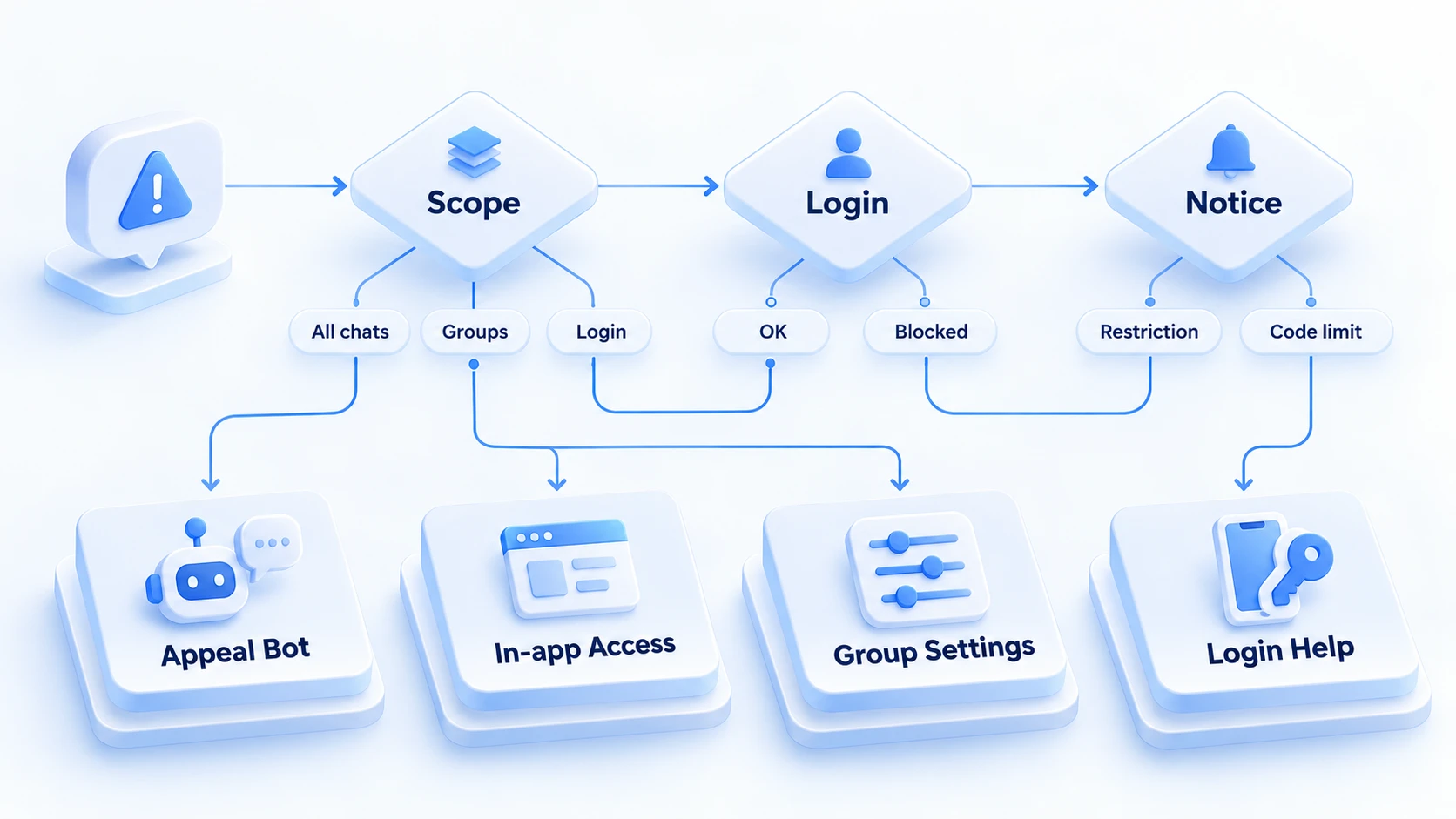
Check the scope of impact first, then confirm the cause against the exact notice. If only one or two groups block your messages, look at admin settings and mute status first; if you cannot contact strangers or the app explicitly flags the account, then check the platform restriction and its official entry. Errors at login call for separating code requests, number status, and connection problems. "Messages won't send" alone does not tell you whether the account is banned.
Once the State Is Clear, Follow the Appeal Process in Four Steps
After identifying the problem type, follow the matching official process. Once an appeal is submitted, watch for official replies or status changes inside the app.
1. Save the notice. Screenshot or write down the full in-app message, when it appeared, which features are affected, and whether every chat is affected. This is the raw evidence for the appeal and for any later checks.
2. Pick the matching official entry. For spam-related restrictions, check the status explanation through the official @SpamBot. In-app freeze notices carry their own review entry. Handle login and number issues according to the error message, and do not mix entries.
3. Write only what can be verified. State the problem, when it happened, the error text, and why you believe the restriction may be mistaken. Do not invent reasons, and do not resubmit identical appeals over and over.
4. Stop high-frequency actions while waiting. Do not request codes repeatedly, do not switch login methods back and forth, and do not keep rebuilding environments while the cause is unknown. With no new notice or lead, avoid repeating the same moves. Record the current state first, then decide the next step from the specific error.
Appeals come with no fixed timeline. The outcome depends on the platform's specific situation, and no tool can change that. Waiting is part of the process. What you can do meanwhile is pin down the environment-side variables that might muddy the picture, which is exactly what the next section covers.
Why Restrictions Happen: Three Categories of Causes
Cause-hunting drifts off course easily.
The common slip is blaming the network or the device for everything. Actual causes fall into roughly three categories.
- Platform-side restrictions: Messaging strangers unprompted or being reported for spam in a group can trigger feature restrictions. Newly registered accounts may also be restricted because of the number's earlier history.
- Group permissions: Mutes and speaking rights set by admins usually affect only that group. Even if one group blocks you, that alone says nothing about whether the whole account is restricted by the platform.
- Login and connection: Too many code requests, a misbehaving client, or network drops. The problem sits at the login layer.
Without official evidence, claiming that a proxy or a browser environment definitely caused the restriction is speculation. What can be verified is the notice, the scope of impact, and the account state. Start the checks there, not with swapping networks.
Multi-Account Teams: When Something Breaks, Check Environment and Ownership First
Beyond the appeal process, multi-account teams need to answer three questions, or account restrictions and team disarray will keep masking each other. The overall framework for day-to-day management is covered in the Telegram multi-account management article; this one only covers triage after an incident.
The MostMate environment list puts these items in one table. The bound-accounts column records which account logs into each environment, proxy and actual exit IP sit on the same row, and notes and custom IDs explain each environment's purpose. Operation trails can be checked in the member log. When something breaks, look at this table first, then decide whether to touch the environments. For what data stays isolated between environments, go through the What is MostMate page item by item.
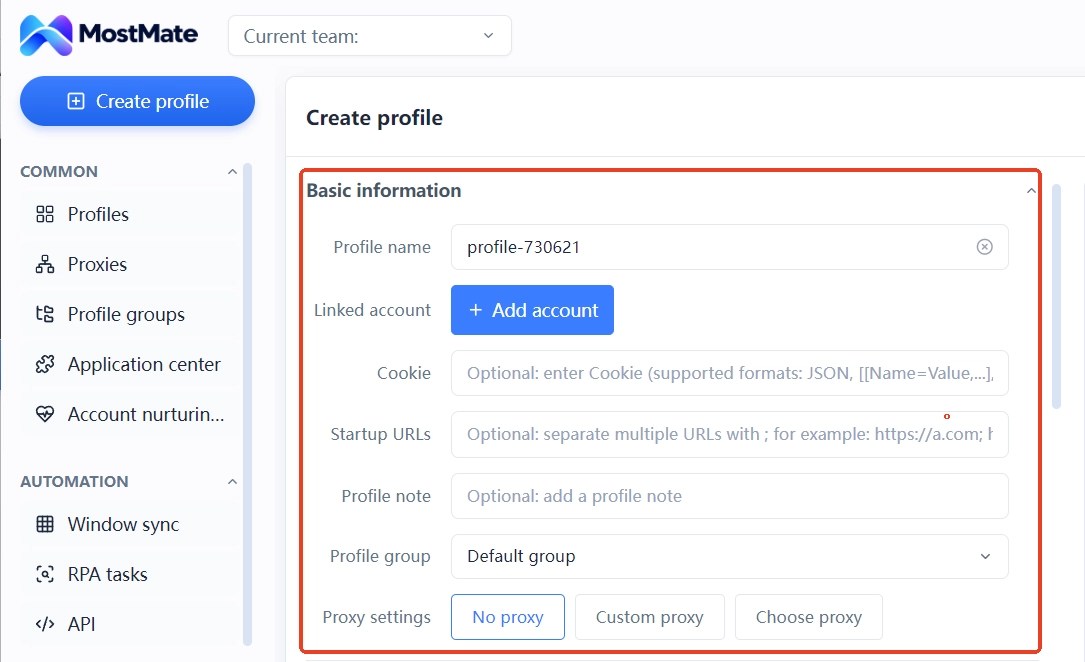
The triage runs along three lines:
First, verify environment ownership. Check which account belongs to each environment, whether login states are mixed up, and whether cookies or session data were mishandled. If several accounts do share one environment, sorting out ownership first reduces later confusion; but that cannot be treated as proof the shared environment caused this restriction, and no one can promise the account will be lifted back to normal after the adjustment.
Second, check the network exit: If a proxy is in use, check whether the connection works, whether the actual exit matches expectations, and whether the configuration changed before the incident. These clues help with network triage, but an exit IP or a network change on its own does not prove it caused the restriction. The checking method is written up in the proxy maintenance and exit check article.
Third, check ownership records. Who owns this account, who touched the configuration recently: the member log can reconstruct the timeline. For loss control and regrouping after an account runs into trouble, the containment guide has the full playbook.
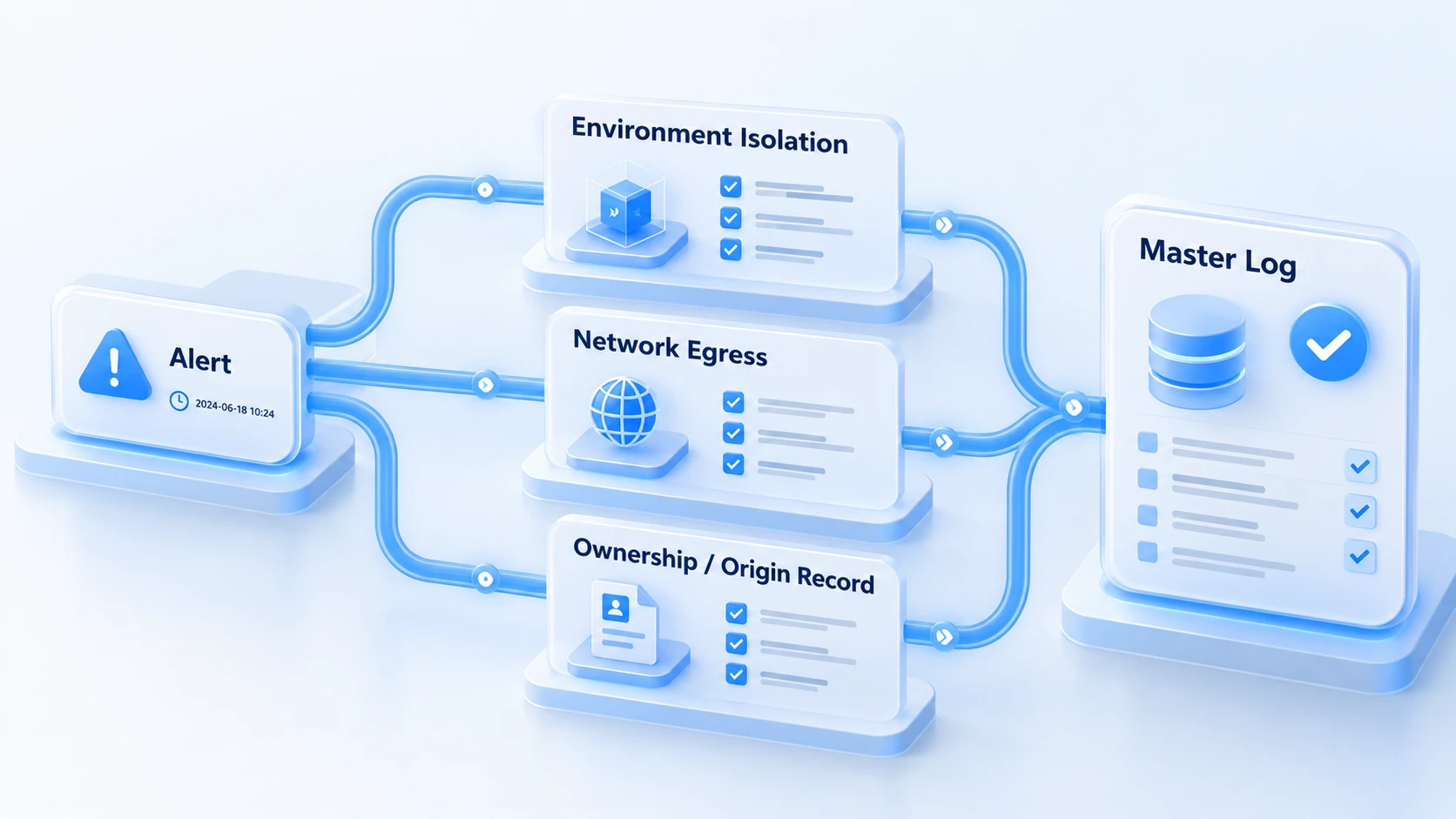
Environment management makes triage traceable, but it takes no part in appeals and cannot lift platform restrictions. Keep that boundary clear from the day an account joins the team. Appeals go through official entries; the environment side pins down the variables so every incident leaves a checkable record.
After the Restriction Is Lifted: Five Routine Checks
A lifted restriction does not mean the problem is over. Repeat the same moves and it will be back. Fold routine checks into five items.
- Send private messages with a reason: Message people who actually want to hear from you, and skip unsolicited promotion.
- Check permissions before group actions: Read the posting rules, admin settings, and group rules before you act.
- Keep ownership and environment records: Write down who owns each account, which environment it logs in from, and every configuration change.
- Record anomalies before acting: Triage from the notice text; do not retry blindly.
- Keep team processes in step: Multi-account operations follow Telegram's current rules, with traceable division of labor.
The checklist is simple; the point is to run the same pass every time something breaks. Complete records are what let you tell whether an issue relates to workflows, configuration changes, or something else.
FAQ
Can I still message my contacts while restricted?
It depends. Official guidance on spam-related restrictions says a restricted account can usually still reply to people who messaged first and to contacts saved in your address book; unsolicited private messages to strangers are what take the biggest hit. Go by what @SpamBot shows.
My Telegram account is restricted — who do I appeal to?
For spam-related restrictions, check the status through the official @SpamBot and follow its guidance; in-app freeze notices carry their own appeal entry; handle login and number issues through the channel the error points to. Different problems can map to different entries. Before submitting, work out whether you are facing a spam restriction, an in-app freeze notice, or a login and number issue.
Telegram won't log in — is the account banned?
Not necessarily. Limited code requests, connection failures, or client issues can all cause login failures, and a failed login alone says nothing about whether the account is restricted. Record the full error text first, then separate number status, code requests, and connection problems; if the app explicitly flags the account as restricted, follow the matching official guidance.
Can an anti-detect browser lift a Telegram restriction?
No. An anti-detect browser manages browser environments and handles day-to-day isolation and team management; it takes no part in Telegram's appeal process and cannot lift platform restrictions. What the environment side can do is keep ownership, configuration, and operation records in order, so triage after an incident has facts to stand on.
Closing
When a Telegram account runs into a restriction, work out first whether the problem sits with the account, group permissions, or the login layer, then pick the official entry from the exact notice. Keep verifiable information through the appeal, and do not treat proxies, browser environments, or client issues as the reason for a ban outright. For teams running several Telegram accounts, MostMate helps keep different browser environments and related network settings organized, so ownership and daily management stay clear. Judgment and appeal of account restrictions should still follow Telegram's official notices and outcomes.
If your workflow genuinely calls for managing several accounts separately, download MostMate first. Next time something breaks, start the triage from your records, not from a reinstall.

MOSTMATE
Secure Multi-Account Management, Made Simple
Start with your first account and use MostMate to build safer, smarter, and more efficient multi-account operations.
- Independent profiles. Consistent identities.
- AI Automation · Account Health · Team Operations



