
Outlook Email Registration and Multi-Account Management
A cross-border store operator changed jobs last year. The recovery emails for over a dozen platform accounts registered under the old company were all personal Outlook addresses he had created. Three months after he left, two of those emails were reclaimed by Microsoft due to inactivity, taking down the recovery channels for all those platform accounts with them—once a platform password changed, there was no way back in.
The root cause is a mental model gap: most people manage emails as communication tools, but in multi-account operations, an email is the foundation of your asset stack. Every platform account's registration confirmation, password recovery, andlogin alerts from unfamiliar locations land in that inbox. Lose the email, and everything below it goes unprotected. This article covers Outlook from that perspective: how to build a solid foundation at registration, how to isolate multiple accounts, and how to maintain them so assets stay online.
Clarify First: Microsoft Account, Email Address, and Alias
When you register an Outlook email, what you actually create is a Microsoft account. The outlook.com email address is just a "username" for that account. This two-layer relationship determines every management decision that follows, yet most Outlook registration tutorials stop at "where to click" screenshots and skip this distinction—people who follow them often hit walls at the multi-account stage:
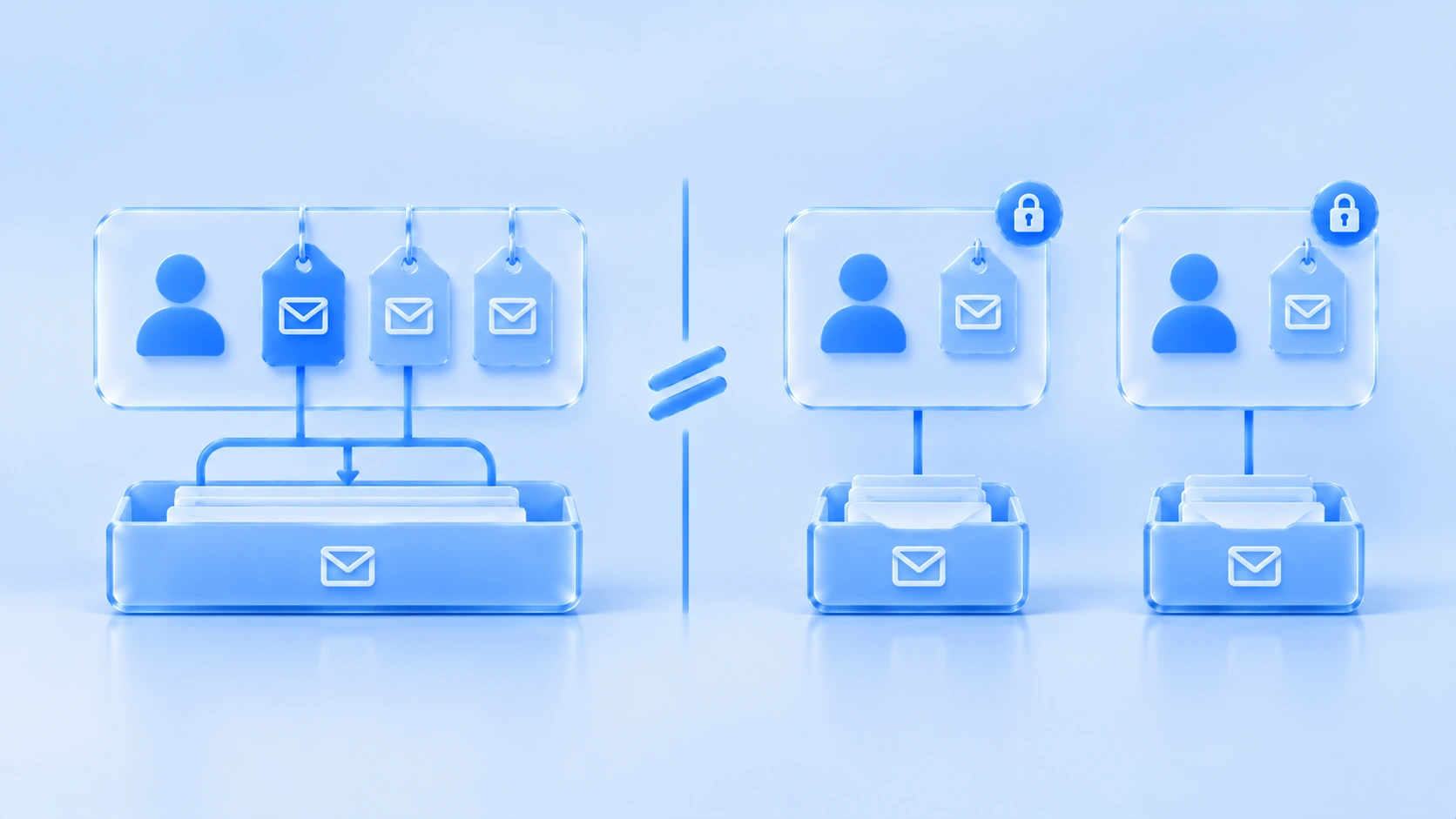
- One Microsoft account can have multiple email addresses (officially called aliases): Add them in the account's "Manage how you sign in" page. Creating a new outlook.com address or linking an existing email both count. All aliases share one inbox, and any alias can be used to sign in.
- An alias is not a separate account: Multiple aliases sit on top of the same account, the same security info, and the same ban. Using aliases to "split" multi-account operations only splits the inbox view, not isolated account assets.
- Registration may require phone verification: Frequency depends on the registration environment and IP. Repeatedly using the same phone number for multiple new registrations raises the probability of both verification prompts and rejections.
Another easily overlooked mechanism: Microsoft limits how frequently you can add aliases. Adding several in quick succession triggers a "try again later" prompt. Batch-creating emails this way doesn't work—aliases are better suited as an address management tool within one account, not as a multi-account strategy.
The Biggest Hidden Risk: Two Years Without Login, Email Gets Reclaimed
Microsoft's account activity policy is clear: accounts must stay "active" with at least one login every two years, or Microsoft may classify them as inactive and close them. The cascading consequences of this policy are far larger than the clause itself:
- Once an email is reclaimed, all platform accounts using it as a recovery address send password reset emails to a mailbox that no longer exists
- The reclaimed address can be re-registered by someone else, meaning recovery emails and verification codes land in a stranger's inbox
- Subscriptions, developer accounts, and social media two-factor verification channels tied to that email all fail simultaneously
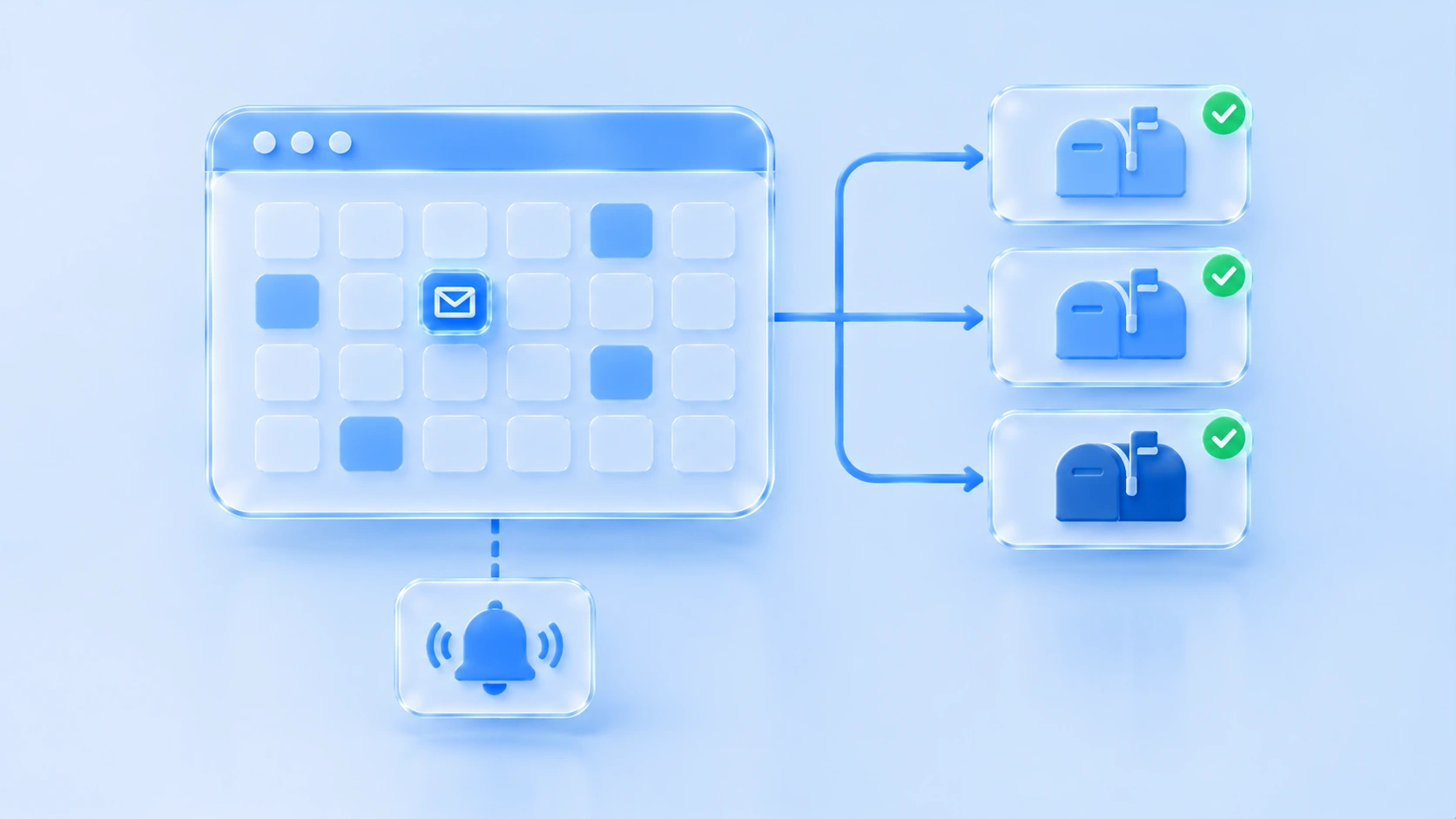
The maintenance action isn't hard—remembering to do it is. Set a login cadence for each email (e.g., one real login plus a send/receive action every 60 days), and use calendar or team task tools for reminders. For the most critical emails, print or offline-store backup verification codes.
What Risk Control Watches During Registration and Login
Registering an Outlook account is like registering on any other platform—risk control evaluates combined environment and behavior signals. Microsoft's most common response to registration or login anomalies is additional verification (phone code, human verification), and repeated triggers can lead to direct account locks. In practice, three scenarios frequently trigger verification:
- Multiple registrations from the same IP in a short window: Data center IPs or high-frequency residential registrations almost certainly trigger layered verification
- Sudden login location change: An account consistently logging in from location A suddenly connecting from another country easily triggers "unusual activity" verification, with extreme cases requiring identity verification before unlock
- Inconsistent environment: The same account on one device today and another tomorrow creates jumbled cookies and fingerprint signals that accumulate into anomaly flags
The shared logic of registration signal checks is broken down by error type in the Gmail registration verification troubleshooting guide. Microsoft's mechanism is similar, and that article's diagnostic approach transfers directly—this article doesn't repeat it.
How to Isolate Multiple Accounts: One Email Per Environment, Don't Treat Aliases as Accounts
The isolation logic for email accounts matches e-commerce and social media accounts: each Outlook email gets its own environment (independent fingerprint plus independent proxy exit), and both registration and daily login happen within that same environment. Key practices:
- Use the final environment at registration time: Configure the proxy inside the environment before registering, to avoid the environment shift caused by "register locally, then switch to a different environment for login"
- Proxy quality determines verification frequency: Residential exits trigger noticeably less verification than data center exits. Before going live, verify geolocation and consistency using the two-layer verification process
- Use aliases where they belong: Aliases are for when one account needs multiple receiving addresses (e.g., sorting mail by business line). Between separate identities, don't use aliases—use separate accounts
When implementing in MostMate, each email account maps to one environment, and the environment name directly reflects the email's purpose. The web dashboard manages environments and authorizations, while login actions happen inside the client environment. The free plan includes 2 environments and 2 member seats—small teams with few emails can start from the free tier and add environments as email volume grows.
Treat Email as an Asset: Recovery Info, Login Cadence, and Handover
Day-to-day email account maintenance is simpler than other platform accounts, but three actions are non-negotiable:
- Keep recovery info valid: Bind a recovery email or phone number you still use, and update immediately after any change. Store security verification codes offline.
- Fix a login cadence: Combined with the two-year activity policy, set a login cycle for each email and execute it inside the environment. Critical emails need shorter cycles.
- Handover through authorization, not sharing: In team scenarios, authorize email environments to members via group permissions—account passwords never go in group chats or spreadsheets. When someone leaves, transfer environment authorization rather than handing over credentials.
The general multi-account maintenance approach (fixed environment, fixed cadence, auditable trail) aligns with the universal environment isolation guide. The one thing special about email: its loss is cascading, so maintenance priority should rank above all other business accounts.
FAQ
Can one Outlook email have multiple aliases?
Yes. A Microsoft account supports adding multiple email aliases, all sharing one inbox, and any alias can be used to sign in. However, aliases share the same account's security status—they're not separate accounts. Microsoft also limits alias-adding frequency, and adding several in quick succession prompts a "try again later" message.
Does Outlook email registration always require a phone number?
Not necessarily. Microsoft decides whether to require phone verification based on the registration environment: with a clean residential exit and consistent environment info, many registrations can skip phone verification. Conversely, data center IPs and high-frequency registrations on the same device significantly raise the probability of being asked to verify. Repeatedly using the same phone number for multiple new accounts increases the likelihood of both verification and rejection.
Microsoft's account activity policy requires accounts to stay active with at least one login every two years, or the account may be classified as inactive and closed. A shorter cycle (e.g., 60 days) is recommended because emails anchor other platform accounts' recovery channels—email failure is a cascading loss.
How to manage multiple Outlook emails without losing them?
Isolate on a "one email, one environment" basis: each email is registered and logged into within a fixed environment with its own proxy exit. Keep recovery info valid, back up verification codes offline, set a login cycle per email, and use team task reminders. For multi-person teams, use environment group authorization instead of sharing passwords.
Conclusion
The core of Outlook multi-account management isn't "register more emails"—it's treating each email as the foundation of your account assets. Get the environment right at registration, use aliases for address management rather than account splitting, guard the two-year activity line with a fixed login cadence, and handle team handovers through authorization instead of shared passwords. With the foundation solid, the platform accounts hanging off those emails have a shot at staying secure. On the tool side, start from MostMate's free tier—put your two most important emails into separate environments, get the workflow smooth, then scale by asset volume.

MOSTMATE
Secure Multi-Account Management, Made Simple
Start with your first account and use MostMate to build safer, smarter, and more efficient multi-account operations.
- Independent profiles. Consistent identities.
- AI Automation · Account Health · Team Operations



