
Why Does Gmail Ask for Phone Verification? Sorting Out IP, Devices, and Account Environments with MostMate
The short version: when Google asks you to verify during signup, it is a risk call, not a ban. Whether verification comes up and whether it goes through is decided by Google's internal rules, which are not public; your IP, device environment, and phone number are only signals those rules may weigh. What you can actually do comes down to three things: troubleshoot by error type, pin down each account's environment, and keep bulk tools away from verification.
Anyone doing cross-border business has probably run into this: you are halfway through signing up for Gmail when the page suddenly demands phone verification; you finally get through, and the next login triggers a security check. The instinct for many is to suspect the IP or the device setup first, then start switching networks and browsers to fix it fast.
But a verification prompt is not necessarily about the IP. Swapping networks and devices before you understand the cause only makes the search messier. Read the error first, then work through the checks one by one, instead of endlessly switching environments.
MostMate is an anti-detect browser built for managing multi-account environments, giving every business account its own separate browser setup. This article takes up three questions: why Gmail asks for verification at signup, how to troubleshoot each type of error, and how to keep browser environments under control in a multi-account operation.
Why Gmail Signup Triggers Verification
Google's own Help Center puts it plainly: to protect users and keep spammers out, phone verification is sometimes required before an account can be created or signed into, to confirm that a real person is behind the request. There is also a cap on how many accounts one phone number can create or verify. The exact trigger rules are not public. Google offers no checklist that predicts verification outcomes; the rules stay in its own hands.
In practice, three situations come up most often:
- You are asked to verify a phone number mid-signup and cannot continue until you do.
- The page says this phone number cannot be used for verification.
- The page says this number has been used for verification too many times.
Clear up two misconceptions first. Verification is not a ban: while it is happening, the account is still inside the normal signup flow. And failing verification does not automatically mean the IP is to blame. Treat every verification as a sign of an impending ban and your actions will turn frantic: spinning through accounts, networks, and devices until the environment is a mess.
What IP, Device Environment, and Phone Number Each Affect
Each of the three signal layers covers a different stretch of the process, so check them separately. Mixing them up means blaming one layer for another layer's problem. Take them one at a time.
IP and Network
IP is the layer people suspect first during signup. A misconfigured proxy or a network drop mid-flow will fail the registration outright, so clear this layer before anything else. As for how Google treats specific IP types, there is no published standard; do not assert that a given IP type inevitably leads to a ban. A stable connection and a correctly configured proxy matter more than agonizing over IP types. We broke down the ban logic at the IP layer by ban type in our guide on proxy IP bans, which is worth a look.
Devices and Browser Environment
Cookies, local storage, and browser settings belong to the environment layer. In multi-account work, the classic symptom of a messy setup is wrong-account logins and crossed sessions: account A's cookies end up in account B's environment, and the two accounts pollute each other's behavioral data. That mess costs you misdirected logins and crossed sessions, and it is a separate matter from verification triggers. For the full list of what environment isolation keeps apart, see our article on environment isolation.
Phone Number and Verification
Problems at the phone layer are the most concrete: a delayed SMS, a number in the wrong format, a number flagged as unusable, a number that has hit its usage limit. Start with the simplest checks: is the format right, is there signal, can the phone receive texts; then follow the options the page offers. Whether virtual numbers or temporary SMS services work, the Google page itself will tell you; do not assume either way in advance.
Troubleshooting by Error Type: Five Situations Compared
The error itself is the best starting point. Fix what it names.
For Google's official notes on phone verification and the common errors, see Google's account verification help; for unusual logins and security alerts, check the guide to investigating suspicious activity.
| Problem | What to check |
|---|---|
| No SMS code arrives | Check format and signal, wait, or switch |
| The number cannot be used for verification | Switch to your own or an authorized number |
| The number has been used too many times | Wait before retrying, or use another option |
| Extra security verification after signup | Follow each on-screen step; review alerts |
| An unusual login alert appears | Review recent devices and recovery info |
Order matters: connection, SMS, then IP last. Reversed, it gets messy.

How to Manage Environments for Multiple Google Accounts
Verification decides only the moment of signup; environment management shapes every day after it. A successful registration is just the starting line, and what makes business accounts valuable is stable use afterward, which rests on environment management.
The core habit when running multi-account work in MostMate is giving each Google account a fixed environment: name each environment for its purpose and owner, say "google-ads-A3", and note the proxy, purpose, and responsible person in the environment notes; set language, timezone, and similar parameters based on the IP so the environment's signals stay in the same region as its proxy. With an account-to-environment list like this, most teams can run everything from one sheet.
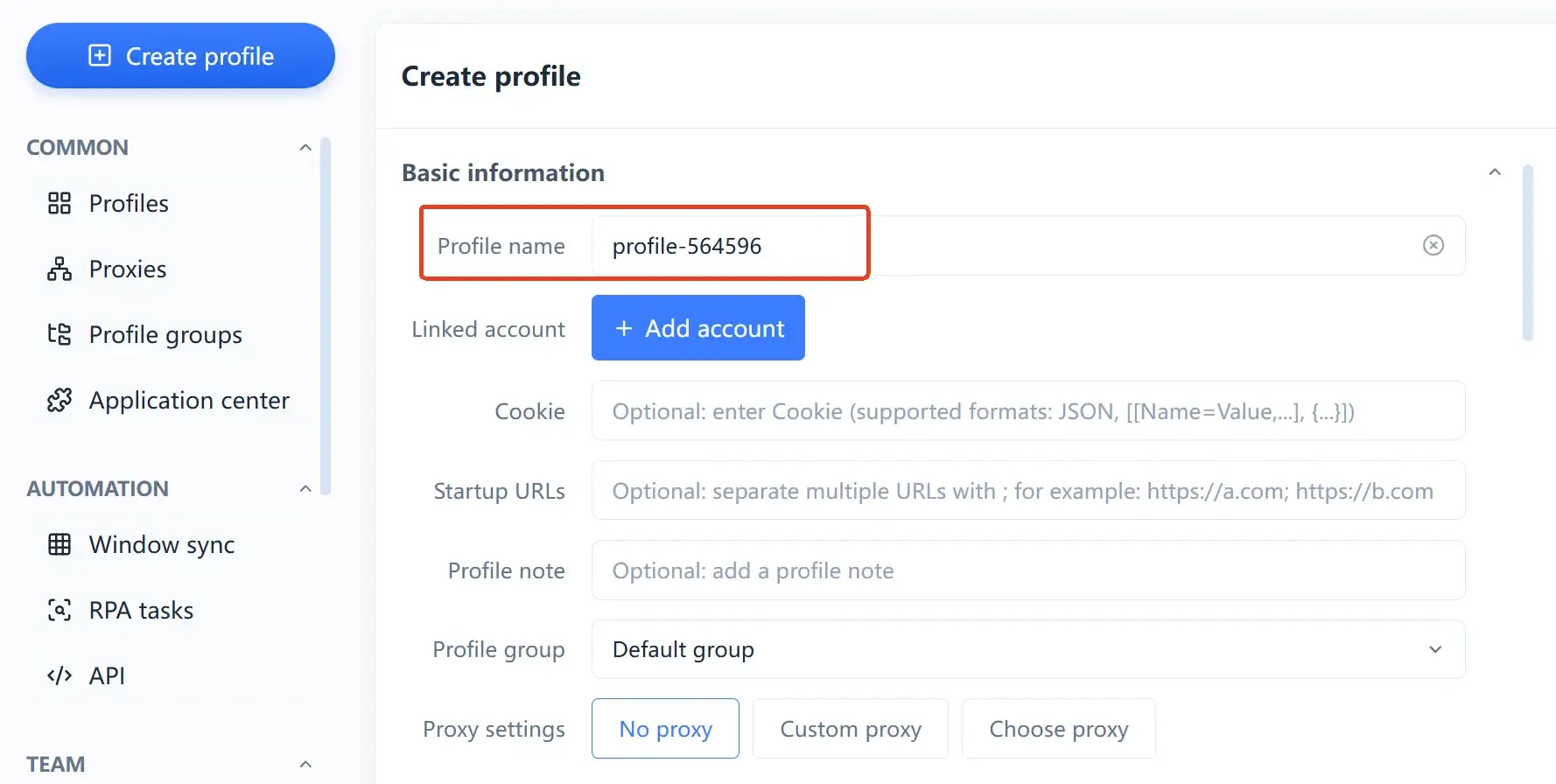
Whatever you signed up with is what you keep using. This is the discipline most worth enforcing in multi-account management: the network region and device environment you used at signup should stay the same at every later login. Plenty of later verification prompts happen after the environment has been shuffled around. You sign up in one region, log in from another the next week, and the signals the account sees before and after no longer match, so security checks naturally pile up.

One boundary to add: an anti-detect browser helps you keep environments organized, but it is not a verification tool. The product's positioning and how the layers divide the work are covered more fully on the What is MostMate page. Creating isolated environments does not guarantee that Google accepts the registration, nor that the account is safe from restrictions from then on. Treating the product as a way to get around verification means heading in the wrong direction from the very start.
Five Common Misconceptions
When troubleshooting Gmail signup verification, the most common mistake is pinning everything on the IP or the browser environment. The cases below deserve particular care.
- Switching IPs will solve every verification problem. The rules are not public, and the IP is only one of the factors that may weigh in; a new address will not necessarily fix phone-number or other verification issues.
- Using an anti-detect browser means verification never comes up. What it helps with is environment management across accounts; it cannot guarantee a successful signup or immunity from account limits.
- Passing phone verification means no more security checks. Signup verification and later login security checks are different things, and the account may still need extra verification down the road.
- Pin the browser environment and the account is safe for good. Environment management helps reduce wrong-account logins and crossed sessions, but it does not decide Google's security judgment.
- Every verification problem should be attacked from the device fingerprint. Read the specific prompt on the page first, then check the network, the phone number, and the account's security information; do not start shuffling environments the moment something goes wrong.
Frequently Asked Questions
Why does Gmail ask for phone verification during signup?
Google's official explanation: it is a defense against spam and a way to confirm a real person is signing up, and one phone number can verify only a limited number of accounts. Whether verification triggers is decided by Google's internal rules; there is no published way to predict it.
Google says this phone number cannot be used for verification. What now?
Check the number's format and its ability to receive texts first, then follow the official help page: switch to your own number or one you are authorized to use, or pick another verification method the page offers. Do not keep resubmitting the same number.
Will changing my IP or browser fix a failed signup verification?
There is no evidence for that. Look at the network and phone-number layers first when verification fails; if the environment itself is fine, swapping it over and over only creates inconsistent signals before and after.
Can an anti-detect browser guarantee my Google account will not be banned?
No. What an anti-detect browser solves is organizing and isolating environments across accounts; whether an account gets restricted is Google's call. The sensible framing: keep your environments in order and handle verification through official channels.
Wrapping Up
Google keeps its verification rules to itself; the things you control are your environments and your actions. Leave verification to Google's rules and keep the environments in your own hands: troubleshoot by error, fix the environment after signup, and keep bulk tools away from verification. The sense of order in an account business grows from these three certainties. Want your multi-account environments in shape? Download MostMate — the free plan includes two environments, so start with one account mapped to one environment.

MOSTMATE
Secure Multi-Account Management, Made Simple
Start with your first account and use MostMate to build safer, smarter, and more efficient multi-account operations.
- Independent profiles. Consistent identities.
- AI Automation · Account Health · Team Operations



