
How to Get Sales on Facebook Marketplace: Account Environment and Risk Control Guide
Core takeaway: whether Marketplace produces sales comes down to three things: competitive products and pricing, responsive buyer communication, and a normal account status. Environment management keeps logins stable and multi-account work organized; it does not produce orders on its own. Two stalls are common: listings sit there with no inquiries, or the Marketplace entry gets restricted and items come down. The former calls for better operations, the latter for a check and appeal following the platform's prompts. This guide walks through preparation, account environment, listing operations and risk-control troubleshooting, and closes with the environment setup in MostMate for multi-account sellers.
Preparation Before Selling: Account Eligibility, Product Compliance and Seller Profile
Preparation before selling has three layers: account eligibility, product compliance and seller profile, and each layer has clear pass or fail conditions.
- Account eligibility: at least 18 years old; living in a country or region where Marketplace is supported; new accounts will not see the entry right away, so use the account normally for a while and it appears.
- Product compliance: check prohibited categories against Meta's Commerce Policy before listing; sell physical items only and keep descriptions matching the actual goods. Services and recruitment posts are outside the allowed scope.
- Seller profile: fill in the profile photo and basic details, and turn on buyer message notifications; accounts with empty profiles make buyers hesitate before ordering.
These three layers decide whether you can sell at all: without eligibility the entry never shows up, and a compliance problem gets listings pulled even after they go live.
Why the Account Environment Affects Login and Everyday Use
The account environment covers the IP, device characteristics and browser configuration used to sign in. It determines whether an account keeps working reliably, not how many orders it brings in.
- Frequently changing login environments invite verification. A different network today and another device tomorrow means more security checks and more requests to upload ID; signing in from a familiar environment cuts these prompts down.
- Keep the IP consistent with the market the account serves. If an account mainly serves local buyers in the US, sign in from the same region so login records match the business scope.
- Give every account its own login environment. Signing in and out of several seller accounts on one device is a classic association signal for the platform; with one fixed environment per account, trouble stays contained. What is environment isolation explains the principle in full.
- One limit to state plainly: beyond logins, listing details, transaction behavior and buyer complaints all feed into reviews; environment management only stabilizes the login layer.
Listing and Daily Operations: From Publishing to After-Sales
This section is where sales actually happen: listing details, pricing, communication and after-sales, each tied to a concrete action.
- Write specific titles and descriptions: include brand, model, condition and size, since buyers search with these words; vague phrases like "like new" rarely match.
- Use real photos: multiple angles, good lighting and a clean first image; no web or stock photos, because mismatches between description and item are a common reason for takedowns.
- Check the market before pricing: search similar listings, look at the price range, then set a fixed price or leave room for haggling; prices that clearly deviate lose views first.
- Keep communication on the platform: reply speed is visible to buyers, so aim for same-day replies. Never leave phone numbers, QR codes or off-platform social accounts in descriptions or chats; moving transactions off the platform is a typical trigger for fast takedowns and account restrictions.
- Handle after-sales as agreed: deliver on time and keep cancellations low, since order and cancellation records stay on the account and shape future seller performance.
- Adjust based on data: many views but few inquiries points to price or details; almost no views calls for a new title, first image and category before relisting.
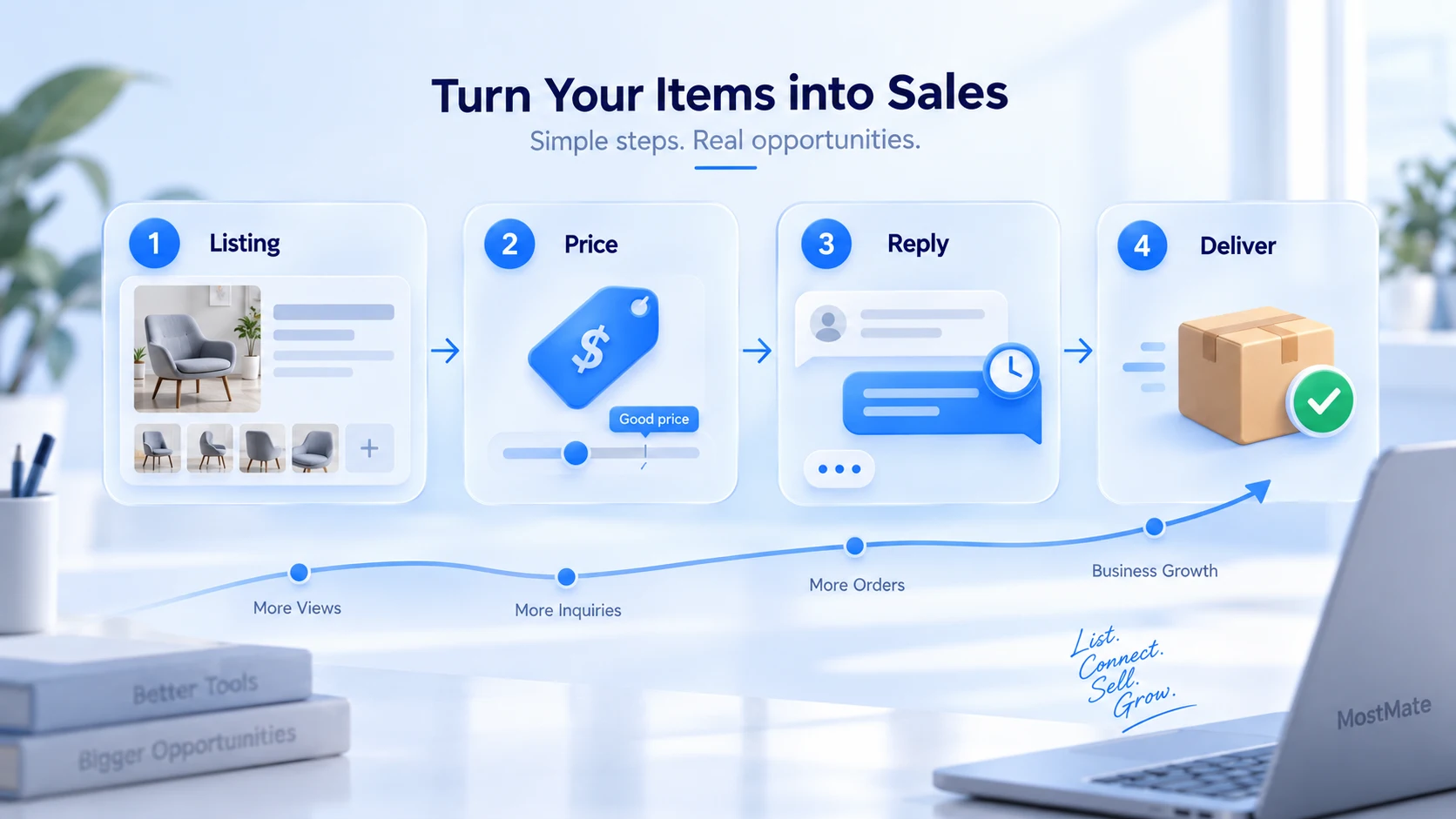
These actions set the ceiling on sales; once an account is restricted, all of them stop. The next section covers what to do after a restriction.
Common Risk-Control Issues and How to Troubleshoot Them
Most Marketplace restrictions come with a clear notice and an appeal entry. Troubleshoot in this order: read the notice first, check it against policy, then file the official appeal.
- Listing taken down: the notice names the policy that triggered it. Find the matching item in the Commerce Policy, fix the issue and relist; if you believe it was a mistake, submit a Request Review from the notice.
- Marketplace entry restricted or missing: check the Support Inbox first for enforcement records and the reason; appeals go through the notice page or the inbox entry, and most get a reply within several business days; resubmitting the same appeal repeatedly in a short window can get it flagged as spam.
- Repeated identity verification: recent login changes such as a new device or network are the usual trigger; complete verification from your usual environment, then keep the login setup stable.
- Unusual activity alert: change the password first, then review login records and remove any devices you do not recognize.
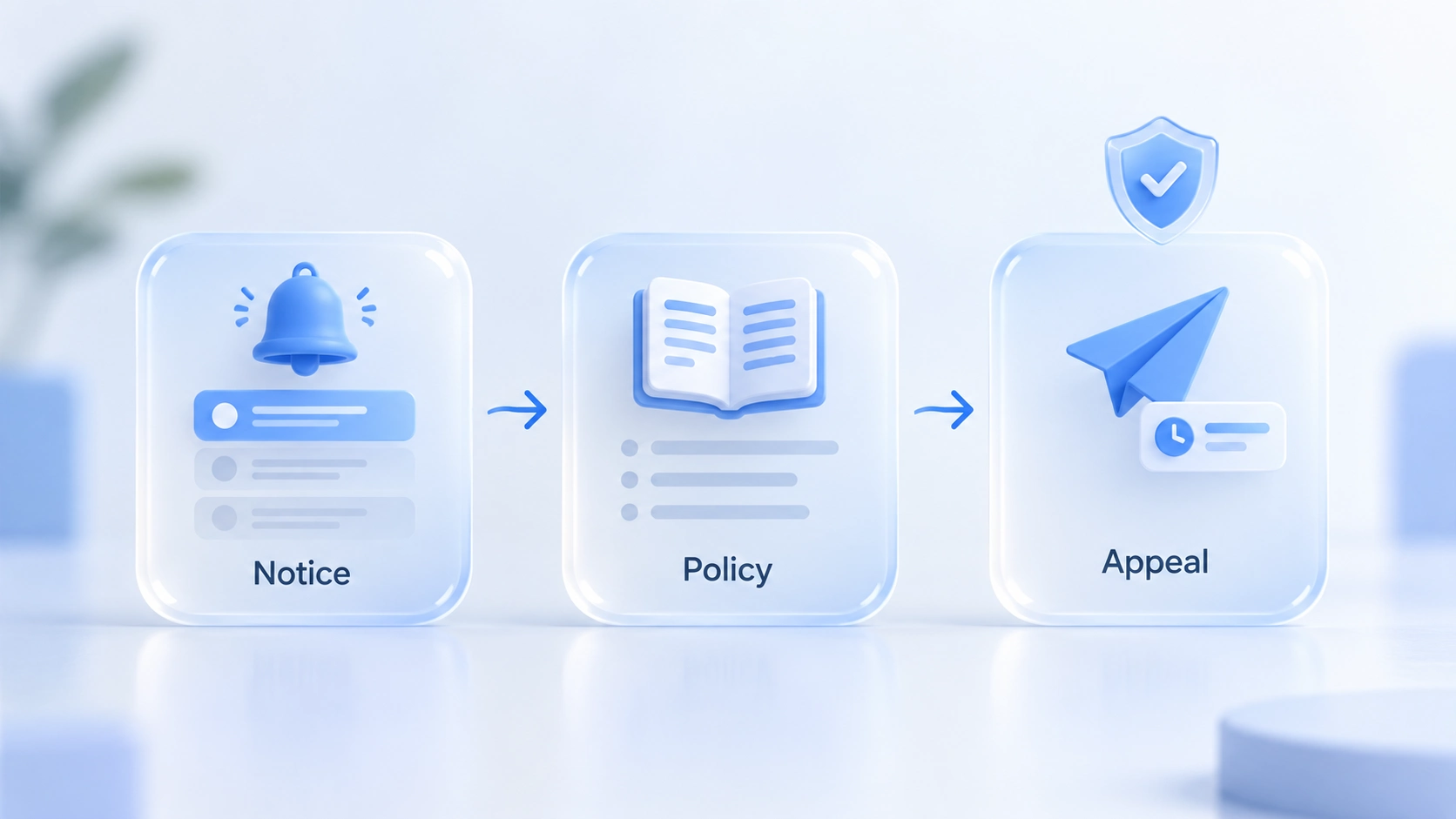
One boundary deserves its own note: creating a new account to keep selling while restricted violates platform terms, and both accounts can be actioned. Appeal first instead of opening a parallel account. There is no fixed official duration; seller communities report anywhere from days to weeks, and the inbox notice is what counts.
How MostMate Supports Marketplace Day-to-Day Operations
The What is MostMate page covers the product as a whole; inside Marketplace operations it handles environment management, giving every account a fixed, documented login configuration. Five daily steps:
Step 1: Create a dedicated environment. Name environments after the business, for example fb-marketplace-us-01, and note the purpose and the latest configuration change in the remarks; each row of the environment list is a complete record: proxy, exit IP, bound account, group and remarks in one place.
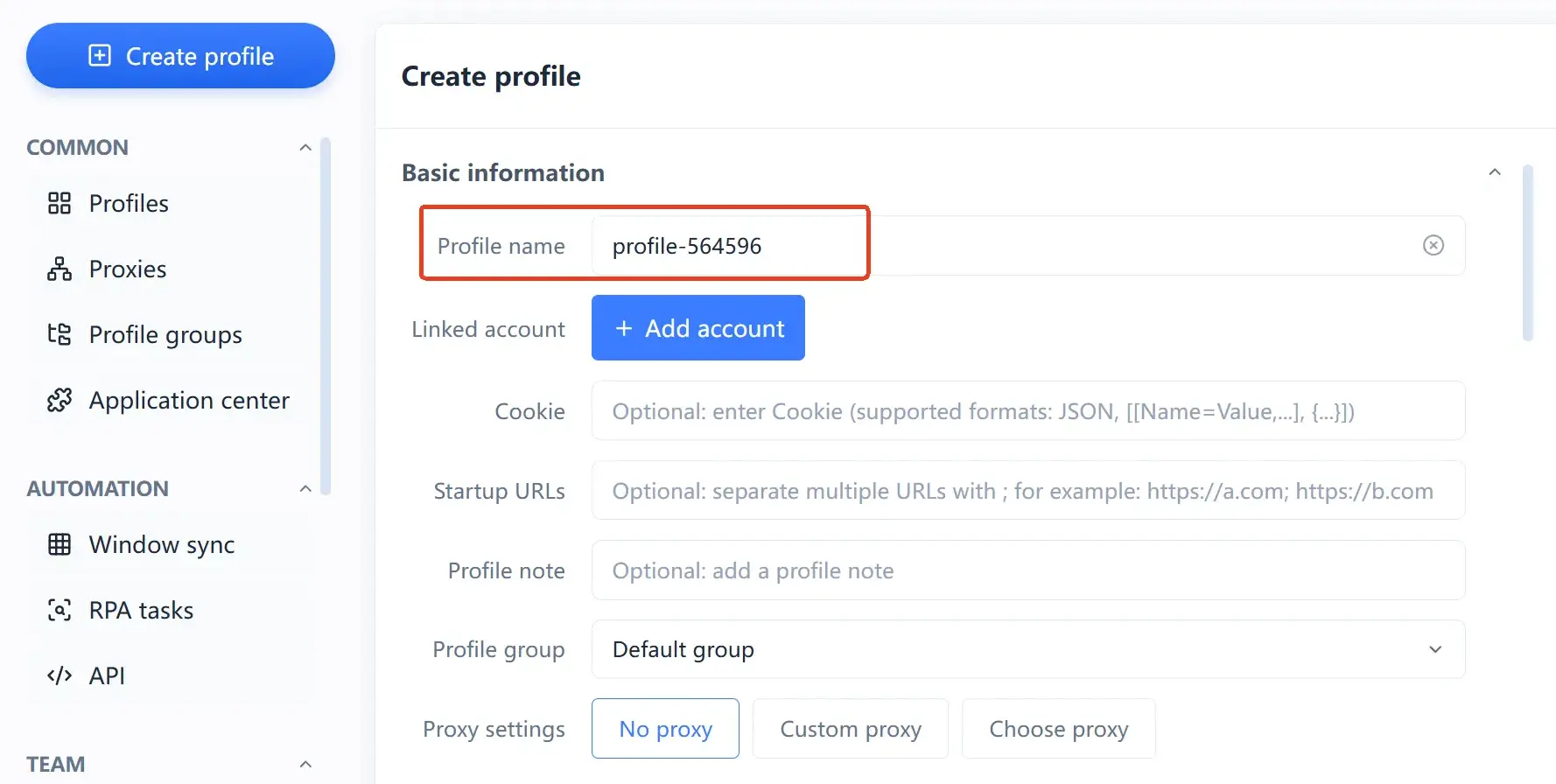
Step 2: Configure proxies and fingerprints. Create or import proxies in their own list and assign them to environments, then run the built-in test to confirm the exit IP works. In fingerprint settings, language, time zone and location follow the IP by default, so they line up once the exit is set; once the configuration is stable, leave it alone, since changes themselves count as login environment changes.
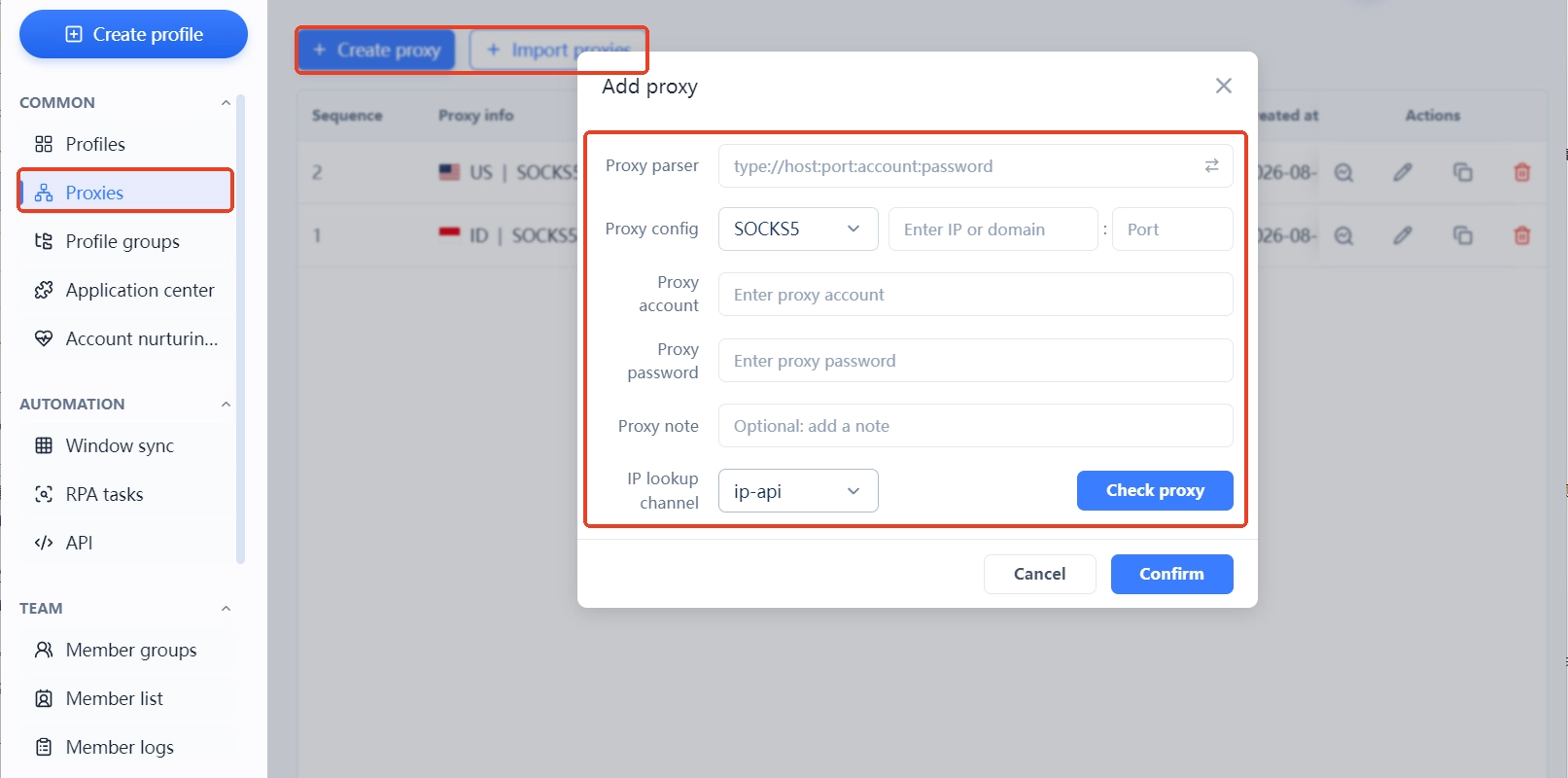
Step 3: Launch the environment and sign in. Log into Facebook inside this environment, complete verification and fill in the profile; from then on the account stays in this environment, with no device hopping or mixed logins.
Step 4: Keep daily operations in their own environments. Listings, buyer messages and order handling all happen inside the matching environment; switch between accounts by environment and never share logins.
Step 5: Review periodically. Check proxy connectivity and exit IPs in the environment list and read account notifications; if a verification or restriction prompt appears, follow the official path from the previous section instead of repeatedly swapping configurations on your own.
This workflow suits multi-account sellers and teams that hand work over: environments can be shared with members by group, and login and operation records stay traceable. One caveat: environment management does not change platform rules, and listings and transactions still need to comply; what it improves is login consistency and orderly operations, not the absence of other association signals. For full setup steps, see getting started with MostMate; for the overall multi-account framework, the multi-account management overview has the complete map.
Frequently Asked Questions
Can a new account use Marketplace right away?
No. New accounts do not see the entry immediately because the platform requires a stretch of normal use; it appears after the account has been used for a while. Before selling, confirm the account holder is at least 18 and the country or region is supported.
A listing is live but no buyers are asking. What should I check first?
Check three things in order: exposure (whether the title keywords and first image are specific), pricing (the gap to similar live listings) and reply settings (notifications on or not). Views without inquiries usually point to price or details; no views means reworking the title, first image and category first.
After setting up a proxy, do I still need to check the browser environment?
Yes. The IP is only one part of the account environment; device characteristics, language and time zone are also within the platform's checks. After configuration, re-verify on a fingerprint detection page that language, time zone and exit IP line up, then keep things stable.
If an account is restricted, can I create a new one and keep selling?
Not recommended. Creating and using a new account while restricted violates platform terms, and if discovered both accounts can be actioned; appeal first through the Support Inbox. Multi-account operations should also stay within the rules so every account runs independently and stably.
Closing Thoughts
Products, communication and account status decide the orders; environment management keeps those actions running. Start by tidying up the accounts you have: fix the login environments, name them by business and keep configuration changes on record. For multi-account operations, download MostMate and start with the free plan, which includes 2 environments and 2 member seats, enough to sort out the environments of your current accounts first.

MOSTMATE
Secure Multi-Account Management, Made Simple
Start with your first account and use MostMate to build safer, smarter, and more efficient multi-account operations.
- Independent profiles. Consistent identities.
- AI Automation · Account Health · Team Operations



