
How Do You Set Up an Ad Buying Studio? A Guide to Client Accounts and Browser Environments
Core takeaway: the hard part of setting up an ad buying studio is not opening accounts or running campaigns; it is keeping clients, ad accounts, and browser environments matched up. Once a studio serves more than ten clients and media buyers have rotated a few times, what causes incidents is rarely campaign technique. The real cause is that nobody can say which account belongs to which client, who is operating it, or what has changed. This guide walks through four things in setup order: clarifying the client and account relationship, organizing accounts into categories, configuring a browser environment for each client, and defining permissions and handovers for team collaboration, closing with a checklist of common pitfalls.
When an ad buying studio takes on its first clients, a few people usually share one spreadsheet, and everyone knows which computer holds which account and who owns it. Once the client roster passes a dozen and media buyers start working in shifts, the picture changes: one client may hold ad accounts on several platforms, with some assets granted by the client and others that need other team members to co-manage. When responsibilities shift on short notice, you discover that account ownership, login environments, and platform permissions were never recorded together.
Problems like these rarely surface at the start. They tend to pile up during client handovers, staff changes, or account incidents. So before a studio builds its management system, it helps to first map the relationships among clients, ad accounts, and browser environments, then decide how to group, configure, and assign permissions.
Clarify Three Relationships Before You Build
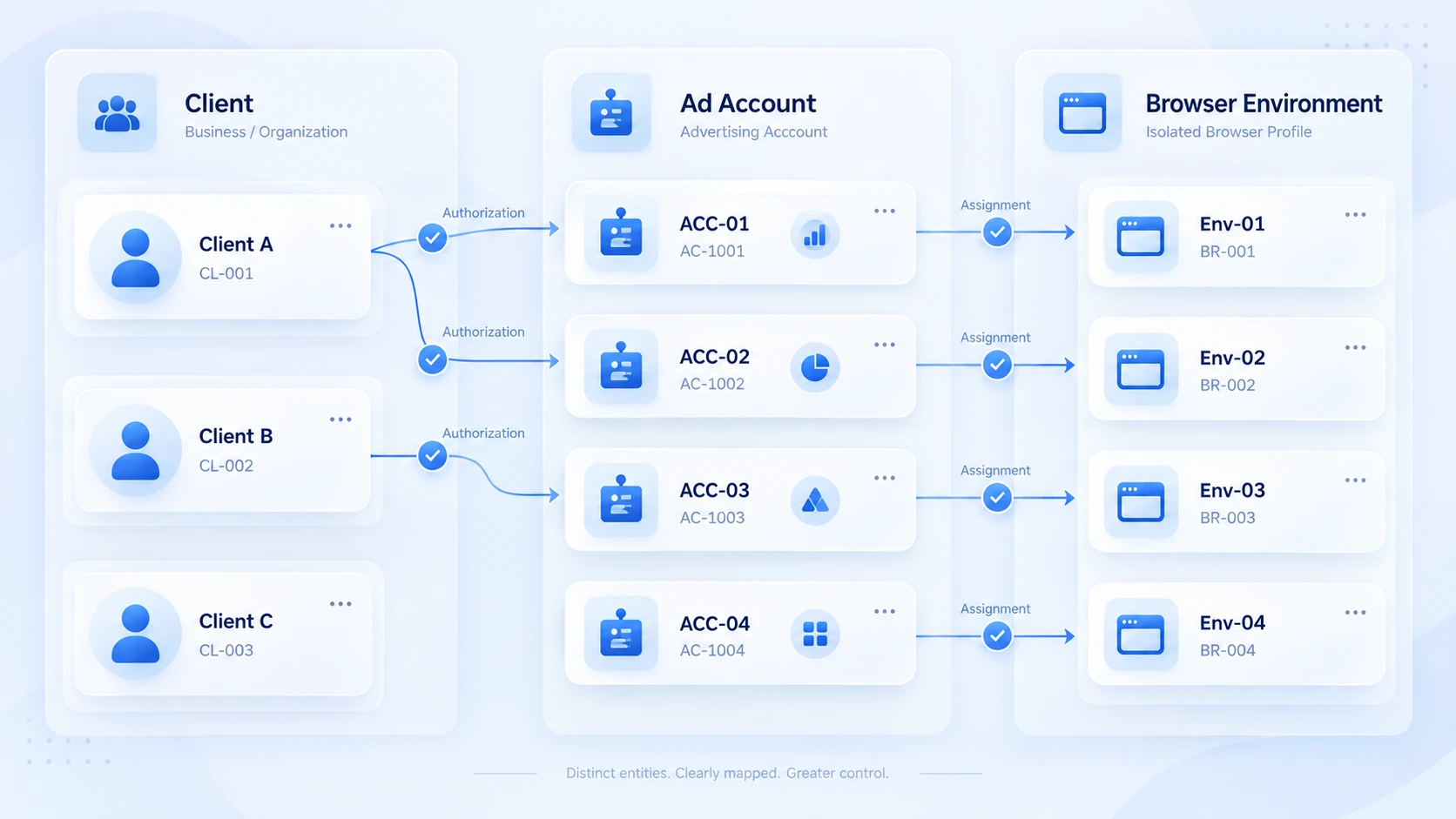
Before a studio is fully running, separate three things that are often lumped together. The client is the business partner you signed with. The ad account is a campaign asset inside a platform. The browser environment is the working container used to operate that account. One client may own multiple accounts, an account is operated by the studio only within a clearly granted scope, and each account needs a fixed environment to log in from. If these three do not match up, no management system will hold.
Concretely, keep three records. Client and project records: one entry per client, noting the platforms in use, target markets, the media buyer in charge, and the scope of service. Account and asset records: ad account IDs, Business Manager assets, pages, and pixels, who each belongs to, and who granted access. Also record the authorization status: whether the client granted the studio management rights, or the studio registered the account on the client's behalf.
People and responsibility records: who runs daily campaigns, who talks to the client, and who may change key settings such as budgets or payment methods. These three records do not need a fancy system; a single spreadsheet is enough to start. The key is updating them every time a new client or account comes in.
How to Categorize Ad Accounts Across Multiple Clients
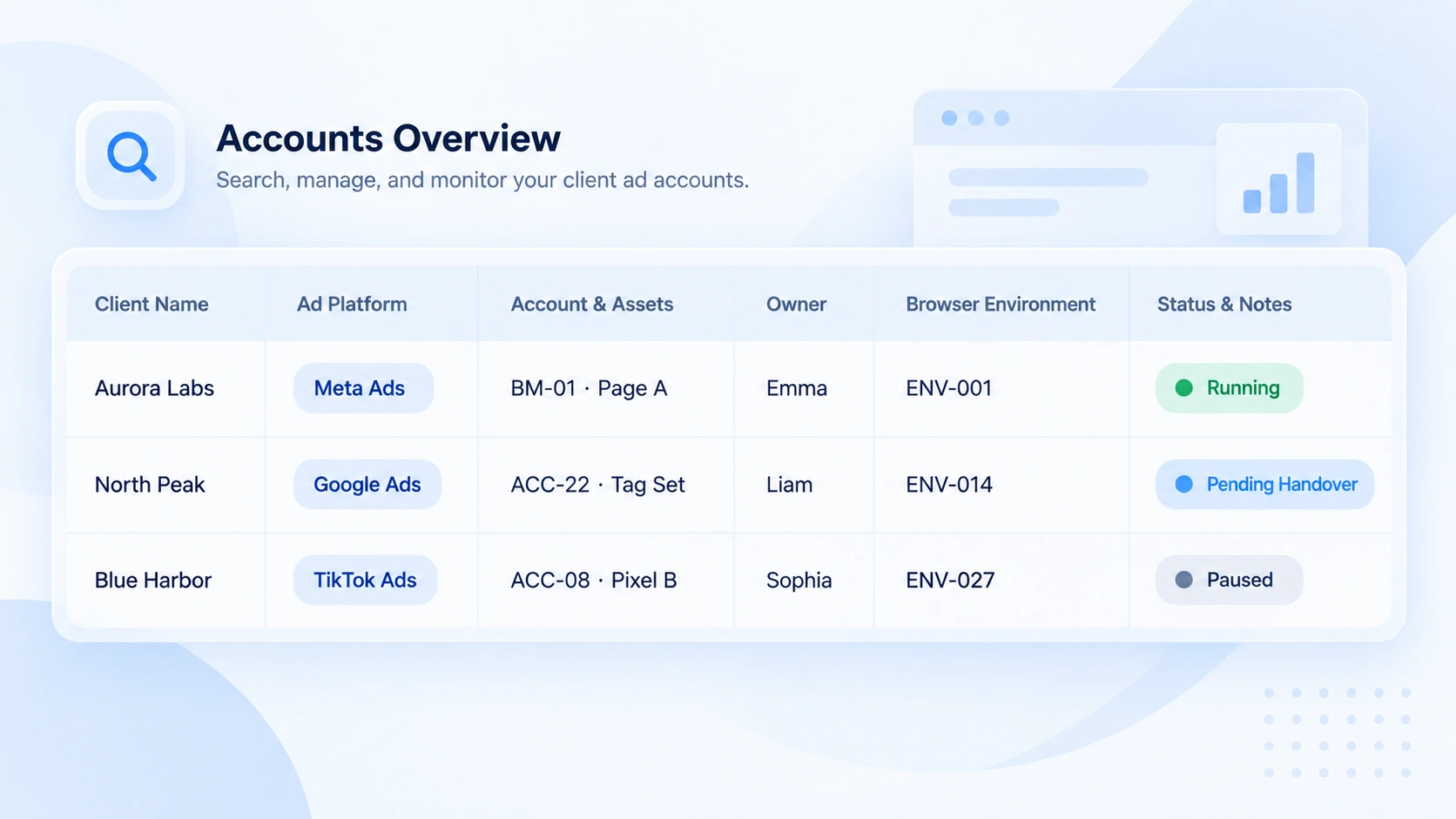
As accounts multiply, everything hinges on one mapping sheet:
| Field | What to record |
|---|---|
| Client name | Client or brand name |
| Ad platform | Meta, Google Ads, TikTok Ads, etc. |
| Accounts and assets | Ad account IDs, assets, pages, grants |
| Owner | Media buyer for daily ops, plus approvers |
| Browser environment | Environment name or ID |
| Status and notes | Grant status, last handover, to-dos |
This sheet proves its worth when things change. A media buyer resigns: open the sheet and you know which accounts need handover. A client increases budget and approval is needed: you can see who has the right. An account misbehaves and you need the cause: the matching environment and recent change notes are right there. Build the mapping first, then pick the tools, never the reverse. Tools improve execution; a relationship that does not match up will not be fixed by any tool.
Why Browser Environments Need Managing
Most studios start with a few computers and one browser per media buyer, with client accounts switched across tabs. That barely works when you work alone; once you become a team, the problems pile up. Login sessions mix inside the same browser data, so switching accounts often logs you out or into the wrong one. Media buyers share the same browser data in turns, so when something breaks nobody can say who was logged in or what was changed. As clients and accounts grow, keeping the mapping in folders and memory will fail sooner or later.
This is exactly the layer an anti-detect browser addresses. It places each account in its own browser environment, with cookies, local storage, and login sessions kept separately. Proxy exits and other environment parameters are configured per environment, so accounts never contaminate each other at the browser layer. Environment isolation is not just "one person, one window". It turns login data and configuration into assets you can name, group, and hand over.
Let me set the boundary here and not repeat it later: separate environments reduce the mixing of browser data and make the team's work orderly and traceable. Ad platforms identify and review accounts under their own rules, drawing on signals such as account details, payment information, and campaign behavior. No tool can guarantee that an account will never face verification or review.
How to Configure an Environment for Each Client
Configure environments in five steps, each with a clear finish line:
1. Audit client accounts. Confirm each account's ownership, platform, authorization status, and actual user, and check them against the mapping sheet from the previous section.
2. Plan naming and grouping. Create groups by client or project, and name environments in a "client abbreviation + platform + purpose" format, such as ACME-Meta-Feed, so ownership is obvious at a glance.
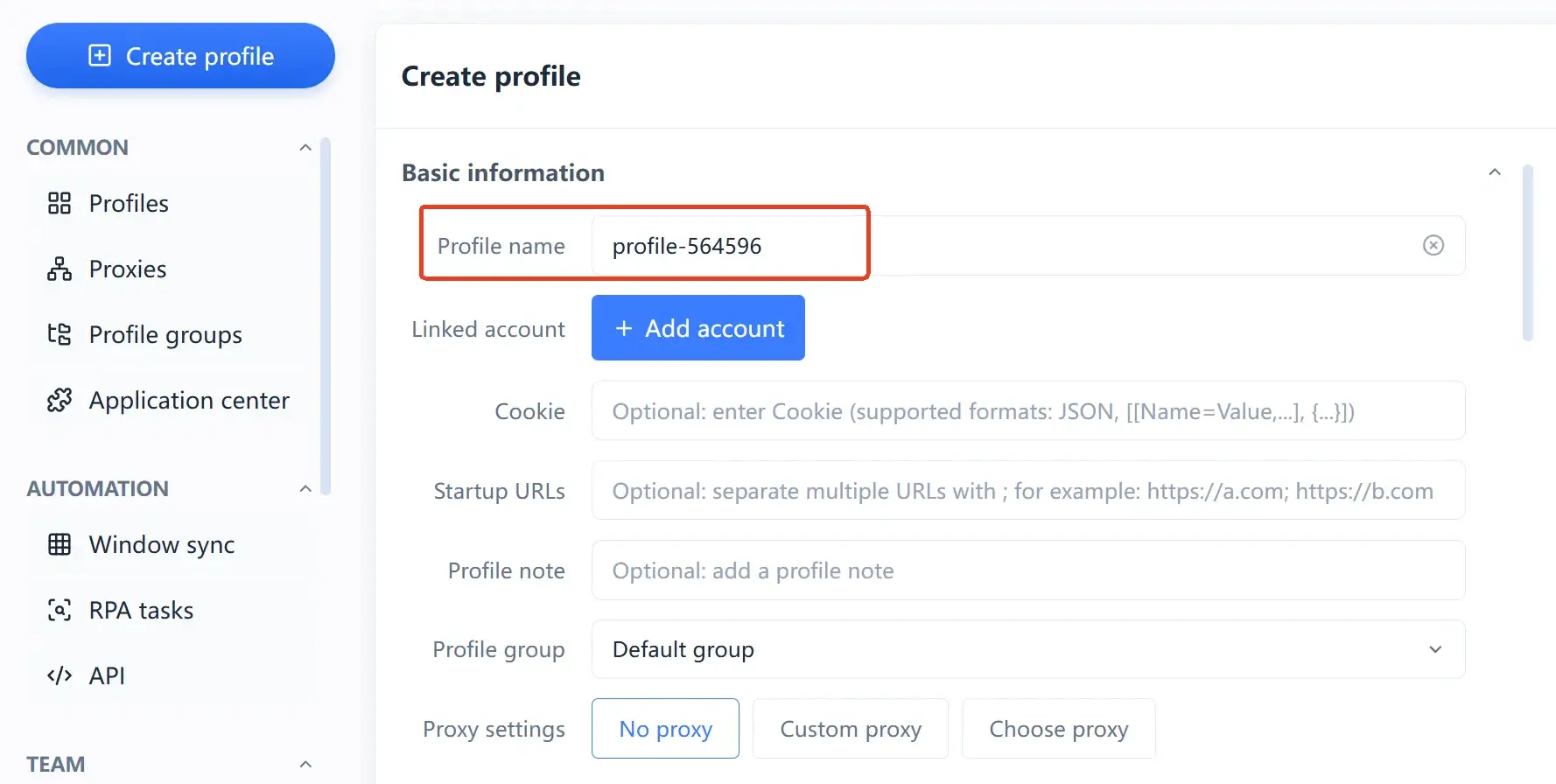
3. Map accounts to environments. One account, one environment, and feed the mapping back into the management sheet; from then on, different clients' cookies and login states never touch.
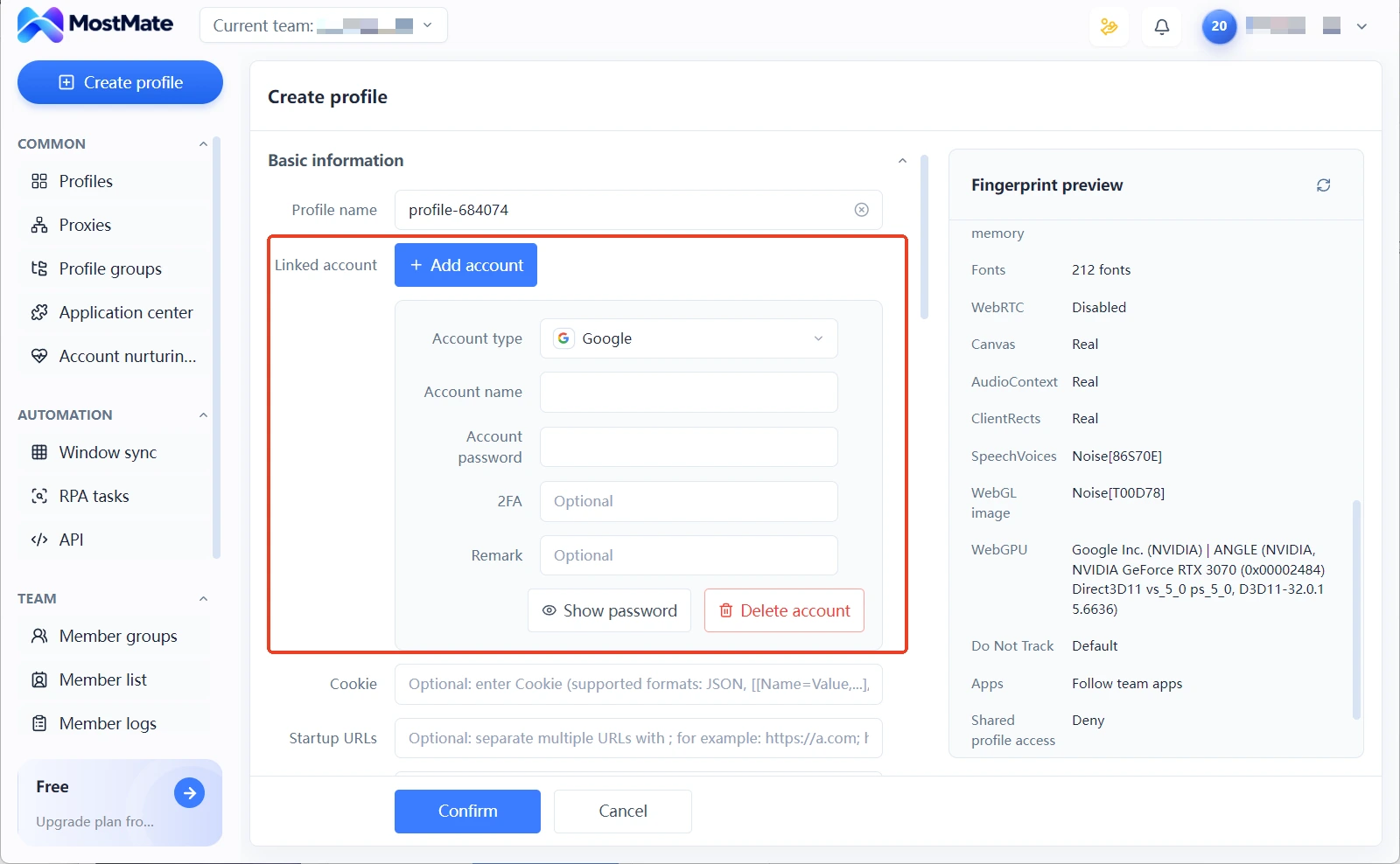
4. Configure and verify the proxy. Give each environment a network exit that fits the business, then after launch verify that the exit region, language, and timezone match expectations. The proxy maintenance guide covers how to check. The exit is part of the environment, not proof that an account is independent.
5. Test before handover. Confirm all four items, environment name, account ownership, access permissions, and network configuration, then hand the environment to the media buyer in charge.
For the full onboarding walk-through, the MostMate getting started guide explains every step from creating an environment to launching it. For the bigger picture at the workspace level, see the environment management overview on the official site. Once this step is done, the studio has its first matched-up client-account-environment system.
Managing Permissions and Handovers in a Team
Once you become a team, the challenge shifts: the problem is no longer too many accounts but too many hands. Set the rules along four lines:
- Assign permissions by role: admins manage the workspace and member permissions, media buyers touch only the environments they own, members who need reports get read-only access, and the list of people who can change settings stays as short as possible.
- Hand over with a checklist: when a media buyer leaves or a client switches providers, review platform grants, member permissions, environment assignments, and sensitive credentials one by one, and fill any gap on the spot.
- Log every change: note the time and reason whenever environment settings change, a proxy is swapped, or a handover happens. When troubleshooting, that record is your timeline.
- Keep sensitive data disciplined: never store passwords or recovery codes in plain text in shared sheets. Prefer the platform's own member authorization instead of sending the master account password to everyone.
The team features in MostMate map to these rules: admins, operators, and read-only members in tiers, environments assigned by group to each person, and an activity trail for lookback. What the tool guarantees is clear permissions and records inside the workspace; the grants on the platform side still need that mapping sheet to keep an eye on.
Five Commonly Overlooked Issues
- Groups built by client name, but accounts and environments are never linked. Groups only help you find things. Ownership lives in the mapping sheet.
- Assuming a new IP solves everything. The network exit is a small part of an environment. Account grants, browser data, payment details, and platform policies are each their own track and need separate checks.
- All media buyers sharing the master account password. A cardinal mistake: permissions slip out of control and handovers break. Use the platform's member authorization instead.
- Collect permissions when a client leaves. Platform grants, member permissions, environment assignments, sensitive data: process all four item by item.
- An anti-detect browser is not everything. It manages the browser environment layer. Account security, payment compliance, and ad policy reviews each run in their own system.
Frequently Asked Questions About Ad Studio Management
Does every client need a separate browser environment?
Plan by account and login state; the number of clients does not equal the number of environments. If a client has one account, build one environment. If a client holds accounts on several platforms, one environment per account is safer. The principle: the environment follows the account.
Can several media buyers manage the same ad account?
Yes, as long as permissions are assigned through the platform's member authorization rather than a shared master password. Inside the team, divide duties: who runs campaigns, who approves budgets, who only reads reports. Keep the grants on the platform side aligned with access permissions on the environment side, so a handover can be traced later.
Can an anti-detect browser solve ad account linking issues?
What it solves is the mixing of browser data. Identification and review of accounts are judgments the platform makes from multiple signals; outsiders can neither intervene nor predict. The value of an anti-detect browser is that each account's environment stays independent, its configuration is checkable, and its operations are traceable, so the team manages the part it can manage.
What gets missed most often in a client handover?
Platform-side grants are missed most. Environment assignments and browser data usually come to mind, but member authorizations inside Business Manager, partnerships around pixels and assets, and the binding status of payment methods all sit in the platform's back office. They do not disappear on their own; nothing changes unless you check the backend item by item. List them as fixed items in the handover checklist.
Closing Thoughts
Setting up an ad buying studio starts with clarifying the three relationships among clients, accounts, and environments, pinning ownership down with one mapping sheet, configuring an environment for each account in five steps, and finally writing permissions and handover rules into the team's daily routine. Once this system is in place, staff rotation, client changes, and account incidents all leave records to consult and a process to follow.
Build the system first, then scale. The environment grouping, proxy registry, and team permissions in MostMate cover the browser environment and collaboration parts of that system. To get started, download MostMate and build the first client's environment.

MOSTMATE
Secure Multi-Account Management, Made Simple
Start with your first account and use MostMate to build safer, smarter, and more efficient multi-account operations.
- Independent profiles. Consistent identities.
- AI Automation · Account Health · Team Operations



