
How to Create a MostMate Account
Sign up for MostMate with Google or email. Step-by-step registration, verification codes, password setup, and first sign-in — done in a few minutes.
Signing up for MostMate happens right inside the client's welcome window — no credit card, no proxy setup required. There are two ways to do it: one click with your Google account, or register with an email verification code. The whole process takes just a few minutes.
Before you start, get two things ready
- The MostMate client: registration lives inside the client window. If you haven't installed it yet, see How to download and install MostMate? — the official site currently offers Windows and macOS installers.
- A Google account or a working email: use your Google account for one-click registration, or a mailbox that can receive mail for email registration.
The free plan is available right after sign-up, with 2 member seats and 2 browser environments. You can upgrade to a paid plan inside the client whenever you need more.
Open the registration window
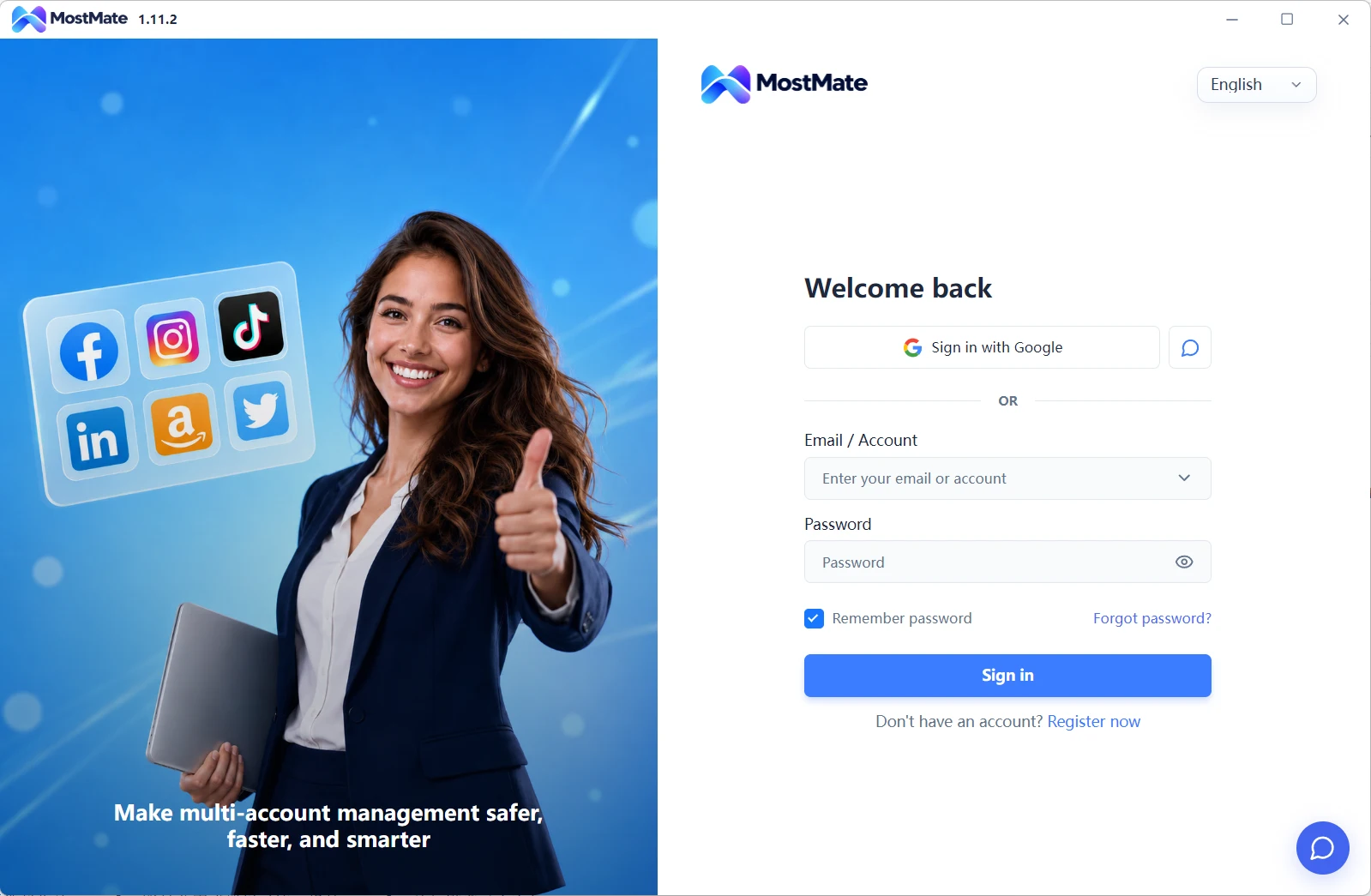
Launch the client and you'll land on the "Welcome back" sign-in window. Click "No account? Sign up now" at the bottom to switch to the registration window ("Sign up and start exploring"). You can change the interface language from the top-right corner.
Option 1: Sign up with Google (fastest)
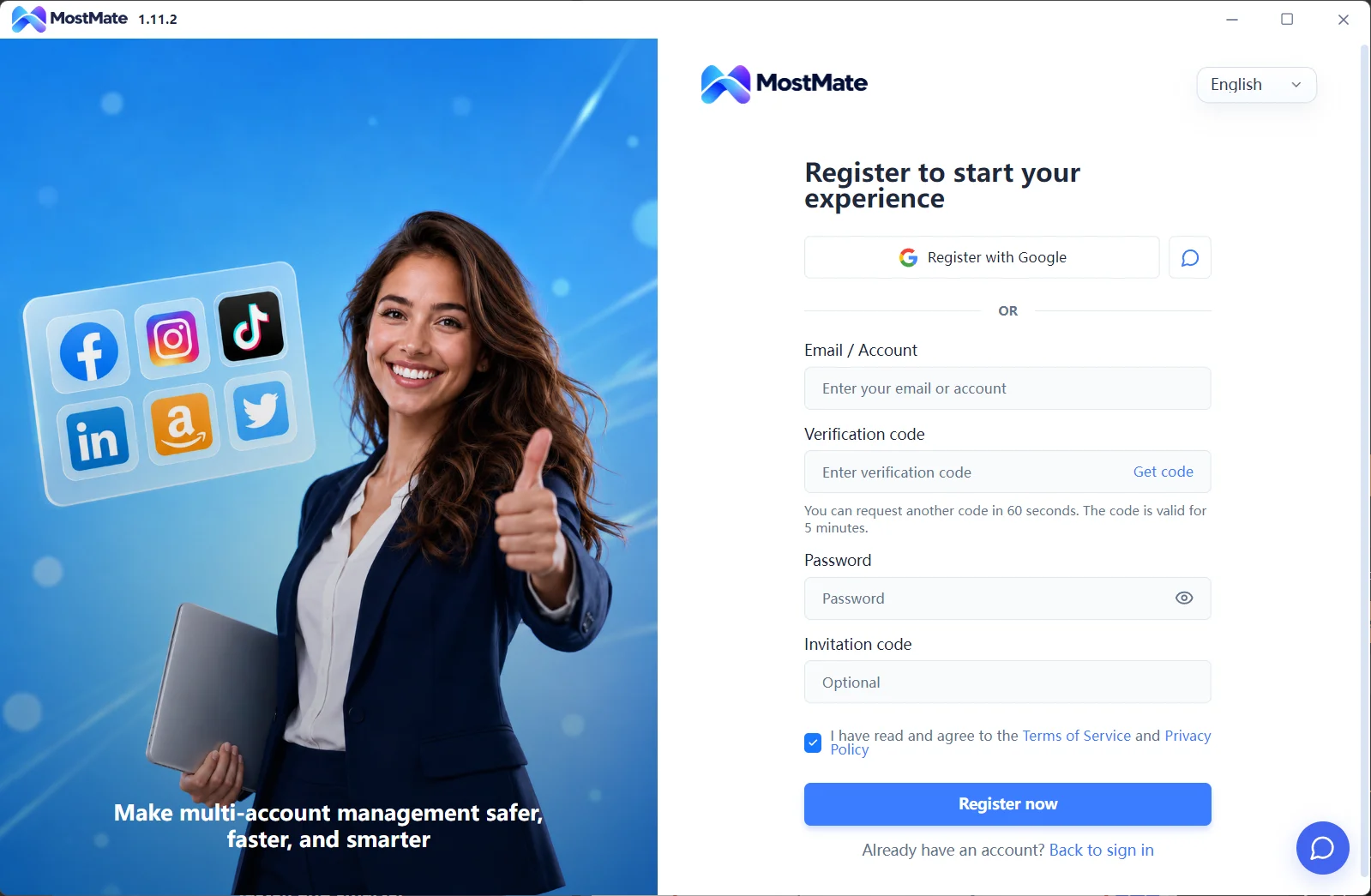
- In the registration window, click the "Sign up with Google" button.
- Follow the prompts to pick your Google account and authorize it (this step is Google's standard sign-in page).
- Once authorized, you're back in the client. For future logins, you can also use "Sign in with Google" directly.
If you're already signed into Google on this computer, it usually takes no more than two clicks.
Option 2: Sign up with email
- Enter your email address in the "Email/Account" field.
- Click "Get verification code" on the right, then check your inbox for the code MostMate sent you. The window notes: you can resend after 60 seconds, and the code is valid for 5 minutes — so fill it in promptly.
- Type the code into the "Verification code" field.
- Set your login password in the "Password" field. There's an eye icon on the right side of the field — click it to reveal the text and double-check your typing.
- The "Invitation code" field is optional: enter one if someone shared it with you, or simply skip it.
- Make sure "I have read and agree to the Terms of Service and Privacy Policy" is checked (it's checked by default).
- Click the blue "Sign up now" button to finish.
[Screenshot: Registration window ("Sign up and start exploring"), highlighting the Email/Account, Verification code, Password, and Invitation code fields plus the "Sign up now" button]
Signing in afterwards
Once registered, open the client and sign in from the "Welcome back" window — the same two options apply:
- Google sign-in: click "Sign in with Google" and choose your account.
- Email sign-in: enter the email/account and password you registered, then click "Sign in".
Two handy sign-in features:
- Remember password (checked by default): with it enabled, the Email/Account field gets a dropdown arrow so you can pick a previously used account and sign in faster next time.
- Forgot password: click the "Forgot password?" link and follow the on-screen instructions to recover your account.
Good to know
- Verification codes expire: they're valid for 5 minutes. If yours runs out, click "Get verification code" again (there's a 60-second wait between sends).
- An invitation code isn't required: it's optional — you can register normally without one.
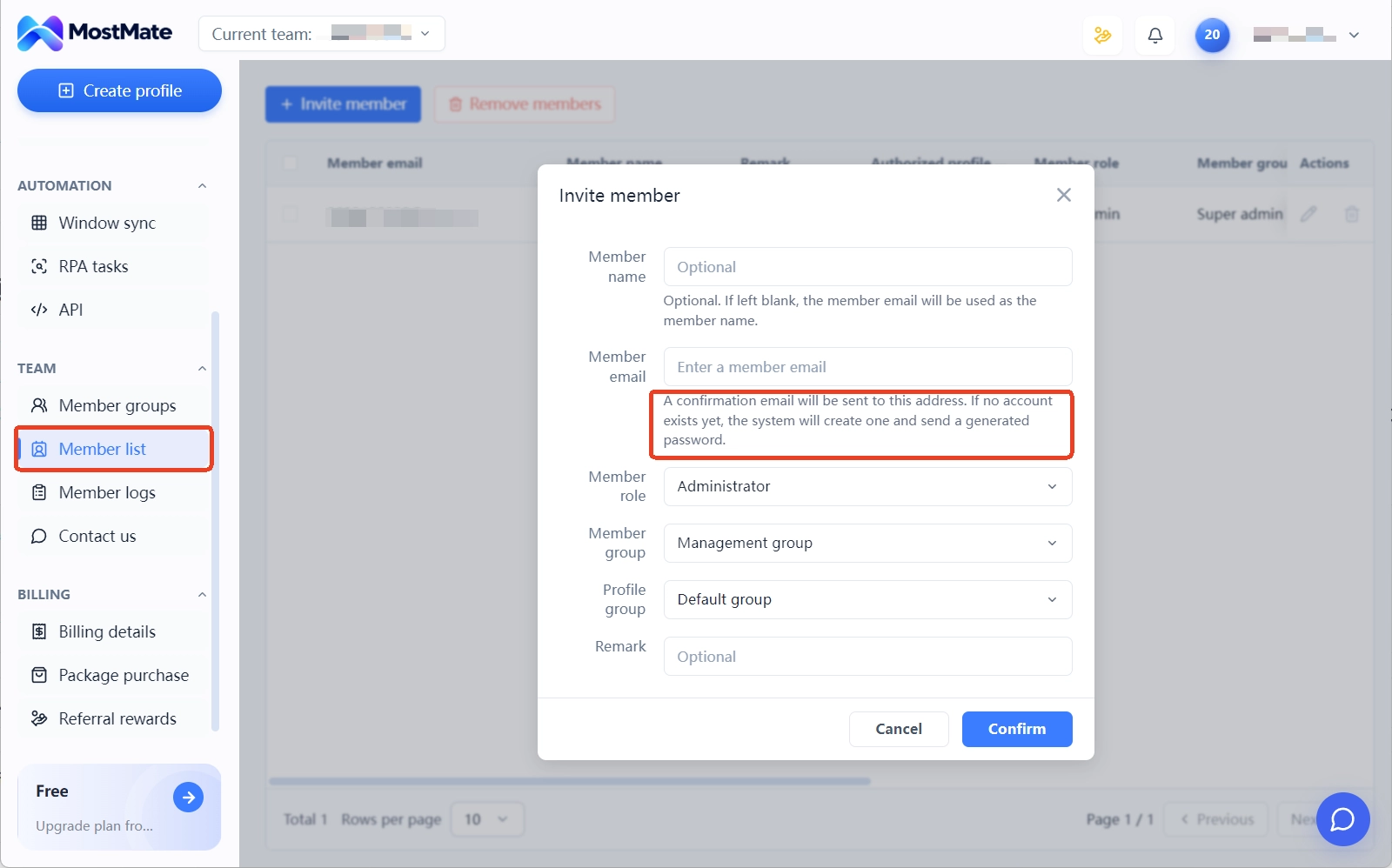
- Invited to a team? You don't need to register: when an admin invites you from the client's "Member List", an account is created automatically if your email has never signed up for MostMate, and a default password is sent to your inbox. See the Team Collaboration articles for details.
What's next
Now that your account is ready, here's what to do next, in order:
- Get familiar with the workspace: What is MostMate? walks through what each module is for.
- Build your first environment: How to create your first browser environment
Could not find what you need?
Our support team can help you resolve product questions.
