
How to Download and Install MostMate
Get the official MostMate installer for Windows or macOS and complete the installation in minutes, with simple upgrade and support tips included.
The MostMate installer is available on the official download page, currently for Windows and macOS. Download the installer for your system, run it, and follow the prompts to complete the installation.
Before you start
- Check your operating system: confirm whether you're using Windows or macOS, and download the matching installer.
- Have a MostMate account ready: no need to sign up in advance — install the client first, then follow How to create a MostMate account to register.
Download the MostMate installer
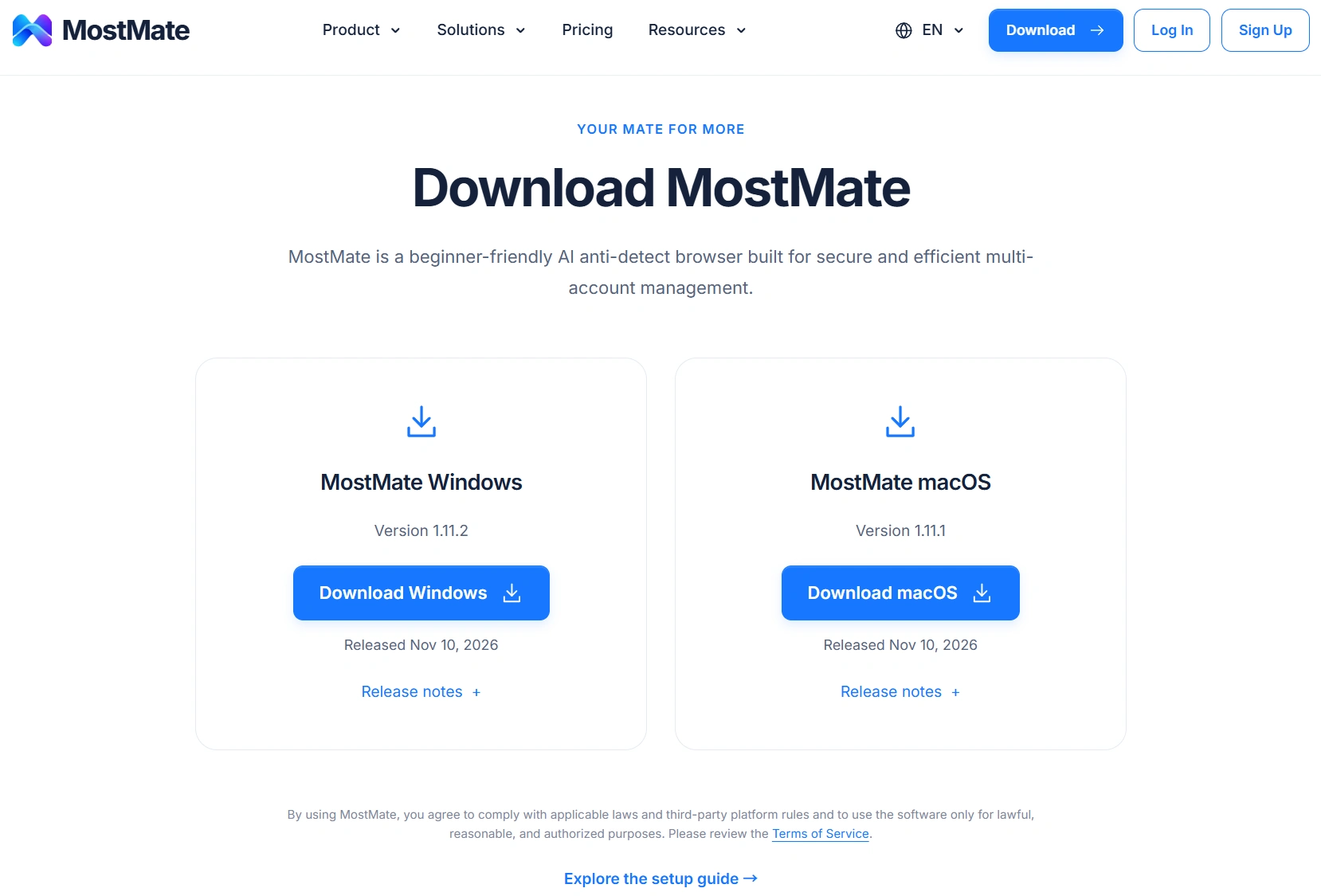
- Open your browser, visit the MostMate website, and click "Download" in the top navigation to open the download page.
- Depending on your operating system, choose MostMate Windows or MostMate macOS and click the corresponding download button.
The browser starts downloading right away. When the download finishes, you'll find the installer in your browser's download list; the filename looks like MostMate-Setup-<version>.exe / .dmg — the version number changes with each release, so just go by the latest one shown on the download page. Always download the MostMate client from the official website, and avoid installers from third-party sources.
Install MostMate
Once the download finishes, open the installer and follow the on-screen prompts to complete the installation.
- Windows: double-click the
.exeinstaller, choose the installation scope and location in the setup wizard, then click "Install".- Everyone: every Windows account on this computer can use MostMate (the default option).
- Just me: only the Windows account you're currently signed in with can use MostMate.
- You can keep the default install location or choose another folder if needed.
- macOS: open the
.dmginstaller and follow the prompts in the installation window to finish.
After installation, launch the MostMate client and you'll land on the sign-in screen, ready to start.
If you run into any issues while downloading or installing, contact MostMate's live chat support, or reach out on Telegram at @MOSTMATE.
Already have an older version? How to update
If you already have MostMate installed, there are two ways to get updates:
Option 1: Update via client notifications
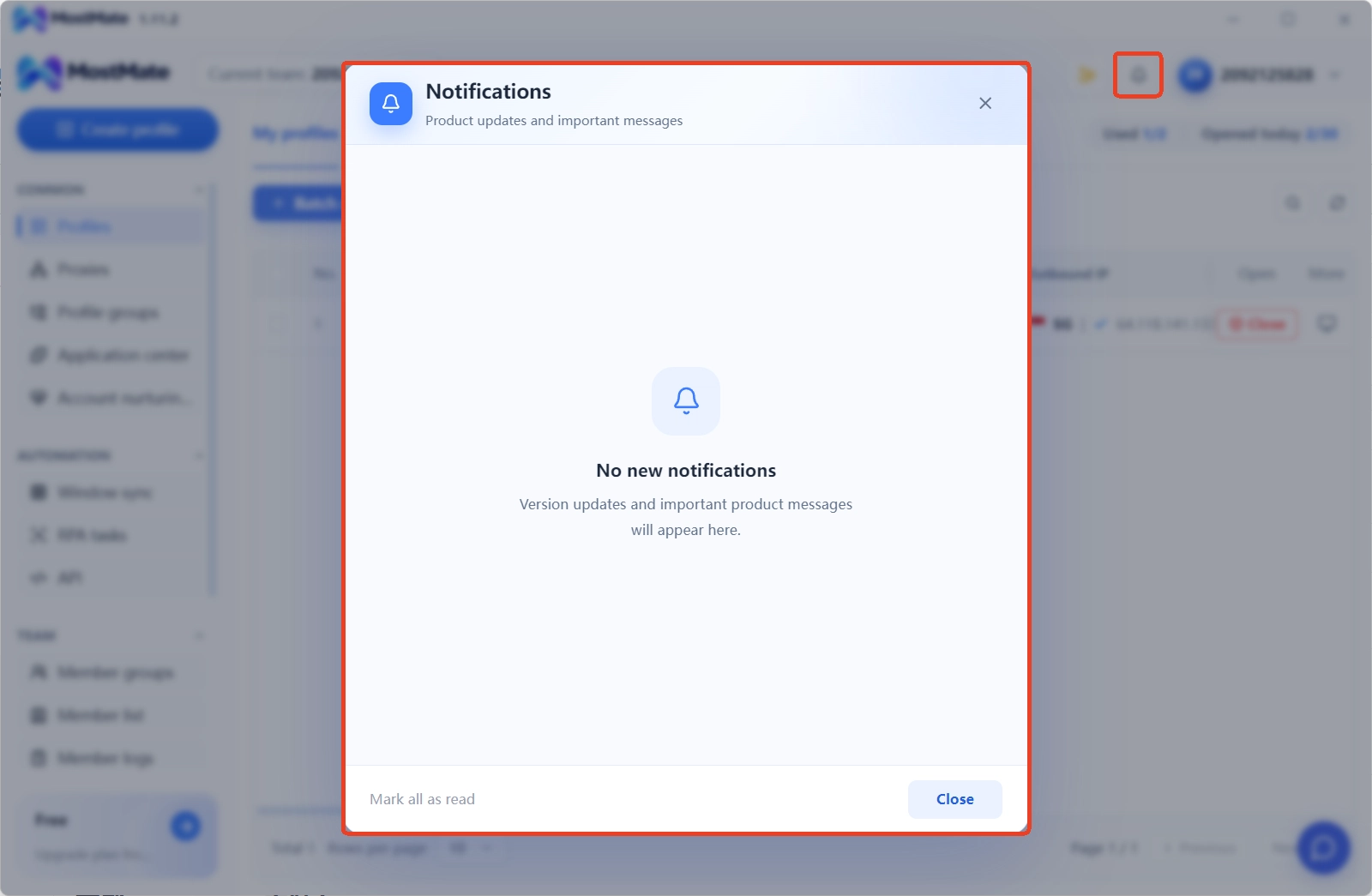
Open MostMate and sign in, click the bell icon in the upper-right corner of the client, and open the "Notifications" page. Version updates and important product messages appear here. If there's a new-version notice, follow the prompts in the notification to get the update.
Option 2: Update via the official download page
Visit the MostMate download page, download the latest installer for your operating system, and run it to complete the update.
Windows and macOS version numbers may not be in sync, so go by the version shown on the download page. Before updating, you can also check the release notes to see what changed in the new version.
What's next
Once the installation is done, here's what to do next:
- Register and sign in to your account: How to create a MostMate account?
- Create your first browser environment: How to create your first browser environment
Could not find what you need?
Our support team can help you resolve product questions.
